

- Regional holiday calendars — assign a different public holiday calendar per office so employees observe the correct local holidays.
- Different working days — configure location-specific work weeks (e.g., Sunday–Thursday for a Dubai office, Monday–Friday for Berlin).
- Location-specific leave type rules — override company-wide leave type settings per location, such as different allowance days or approval requirements.
- Timezone awareness — set each location’s timezone for accurate date handling.
- Organizational clarity — see how many employees are in each office and manage them from a single screen.
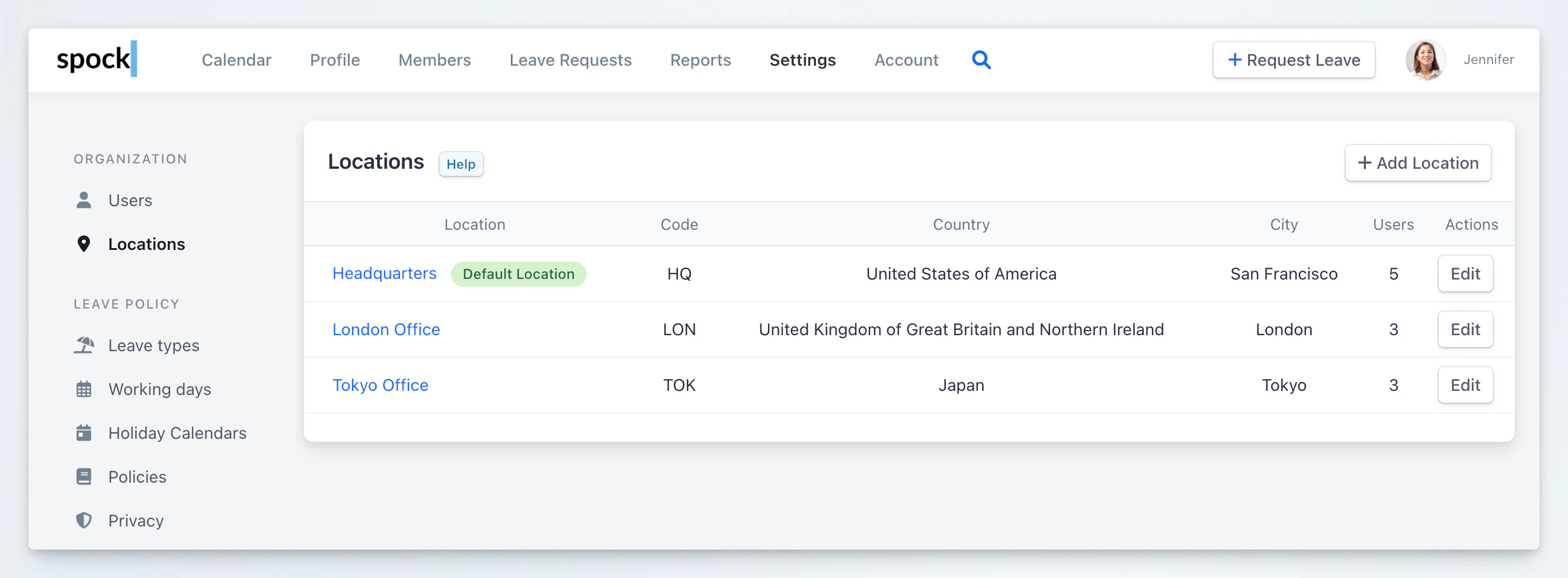
Only users with the Administrator role can create, edit, and delete locations, and assign users to them.
Creating a Location
1
Navigate to Locations
Go to Settings > Locations in the Spock Dashboard.
2
Add a new location
Click + Add Location in the top-right corner.
3
Fill in the location form
Complete the three sections of the location form:Basic Information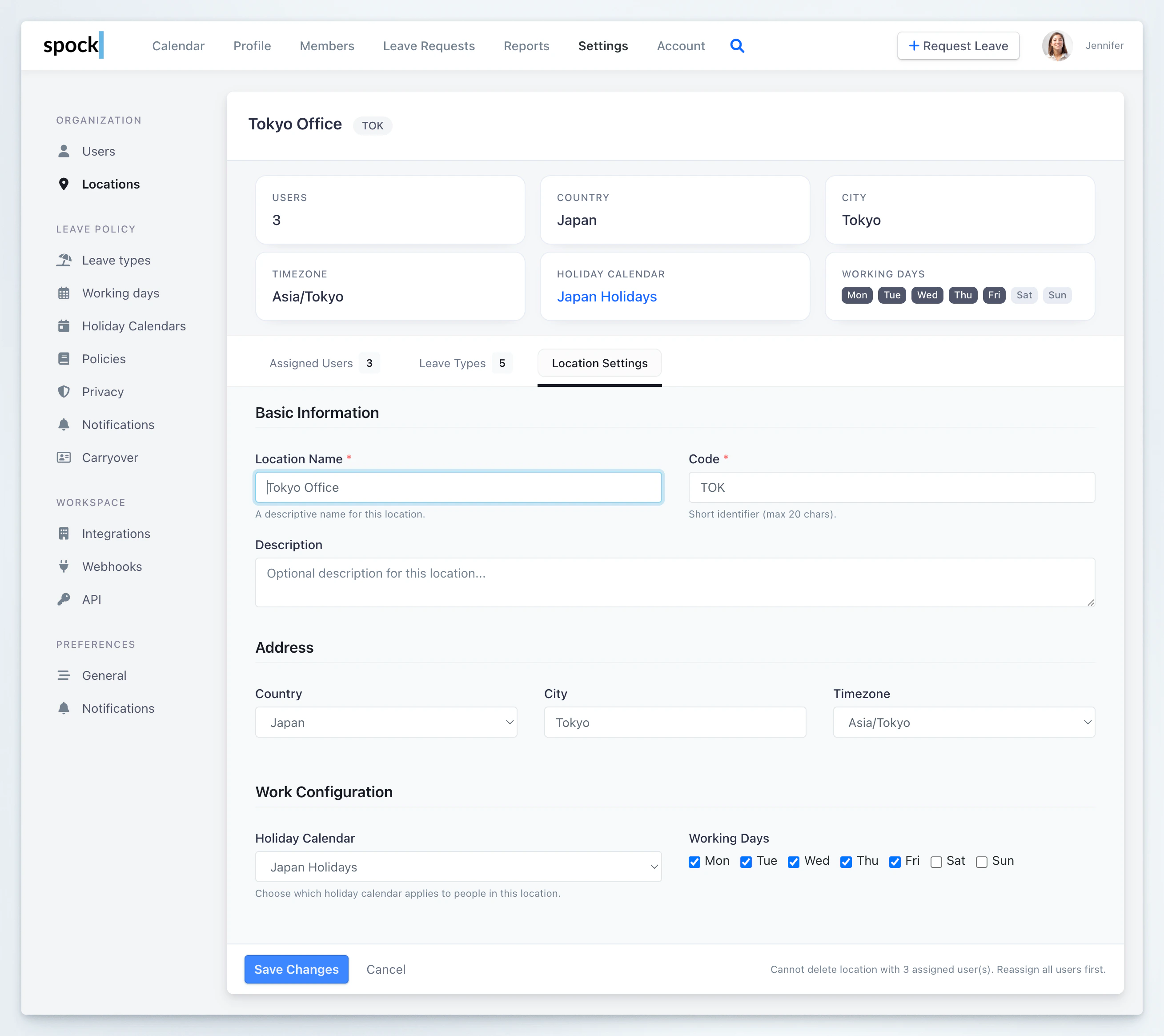
Address
Work Configuration
4
Save the location
Click Create Location to save the new location.
The first location is automatically marked as the default location. All users without an explicit location assignment belong to it. The default attribute is permanent — it cannot be reassigned to a different location, and the default location cannot be deleted.
Assigning Users to a Location
Each user in Spock belongs to exactly one location. Users not explicitly assigned belong to the default location.1
Open the location
Go to Settings > Locations and click on the location you want to manage.
2
Go to Assigned Users
Click the Assigned Users tab.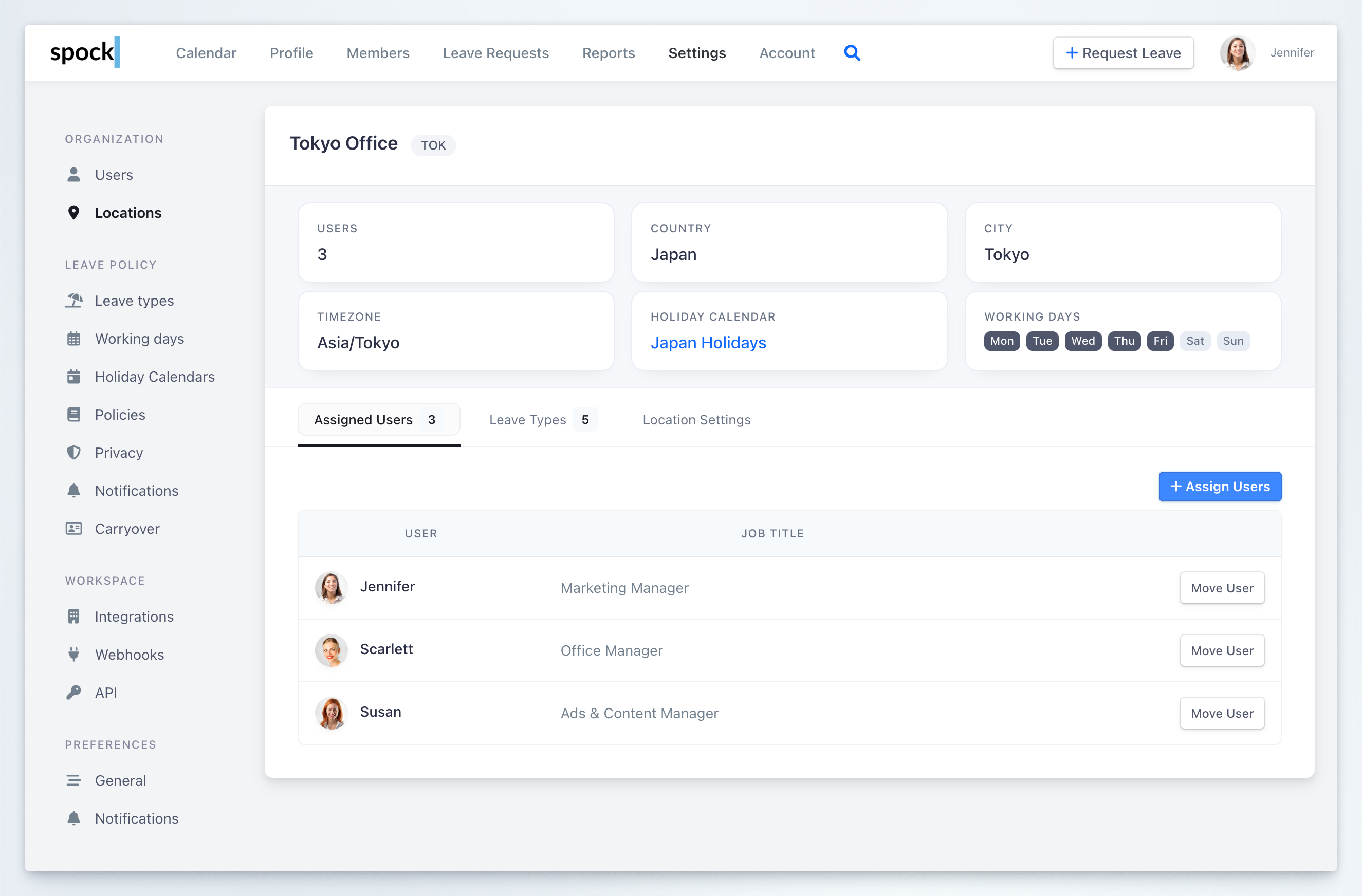
3
Assign users
Click + Assign Users. In the modal, search for users by name. The list shows available users along with their current location.
4
Select and confirm
Select one or more users using the checkboxes, then click Assign Selected.
Moving a User to Another Location
To move a user who is already assigned:- On the Assigned Users tab, find the user you want to move.
- Click Move User next to their name.
- In the modal, select the target location from the dropdown.
- Click Move User.
Inactive and Deleted Users
The Assigned Users tab shows only active users by default. If a location has inactive or deleted users, use the Show inactive/deleted users toggle to reveal them. Inactive and deleted users remain assigned to their location, which is relevant when deleting a location.Leave Type Overrides
By default, every location inherits the company-wide leave type settings configured in Settings > Leave Types. Location leave type overrides let you customize specific settings for a particular location without changing the company-wide defaults.What You Can Override
For each leave type at a location, you can override the following:How Overrides Work
Overrides use a simple inheritance model:- Not overridden (default): The location uses the company-wide setting. Unchecked fields show the label (default) and display the company-wide value for reference.
- Overridden: The location uses the value you set. An override indicator appears next to the field in the Leave Types table.
Setting Up a Leave Type Override
1
Open the location
Go to Settings > Locations and click on the location you want to configure.
2
Go to Leave Types
Click the Leave Types tab. You will see a table listing all company leave types with their effective values for this location. Fields with overrides are marked with an override indicator.
3
Edit a leave type
Click the Edit button on the leave type row you want to configure.
4
Configure overrides
In the configuration modal: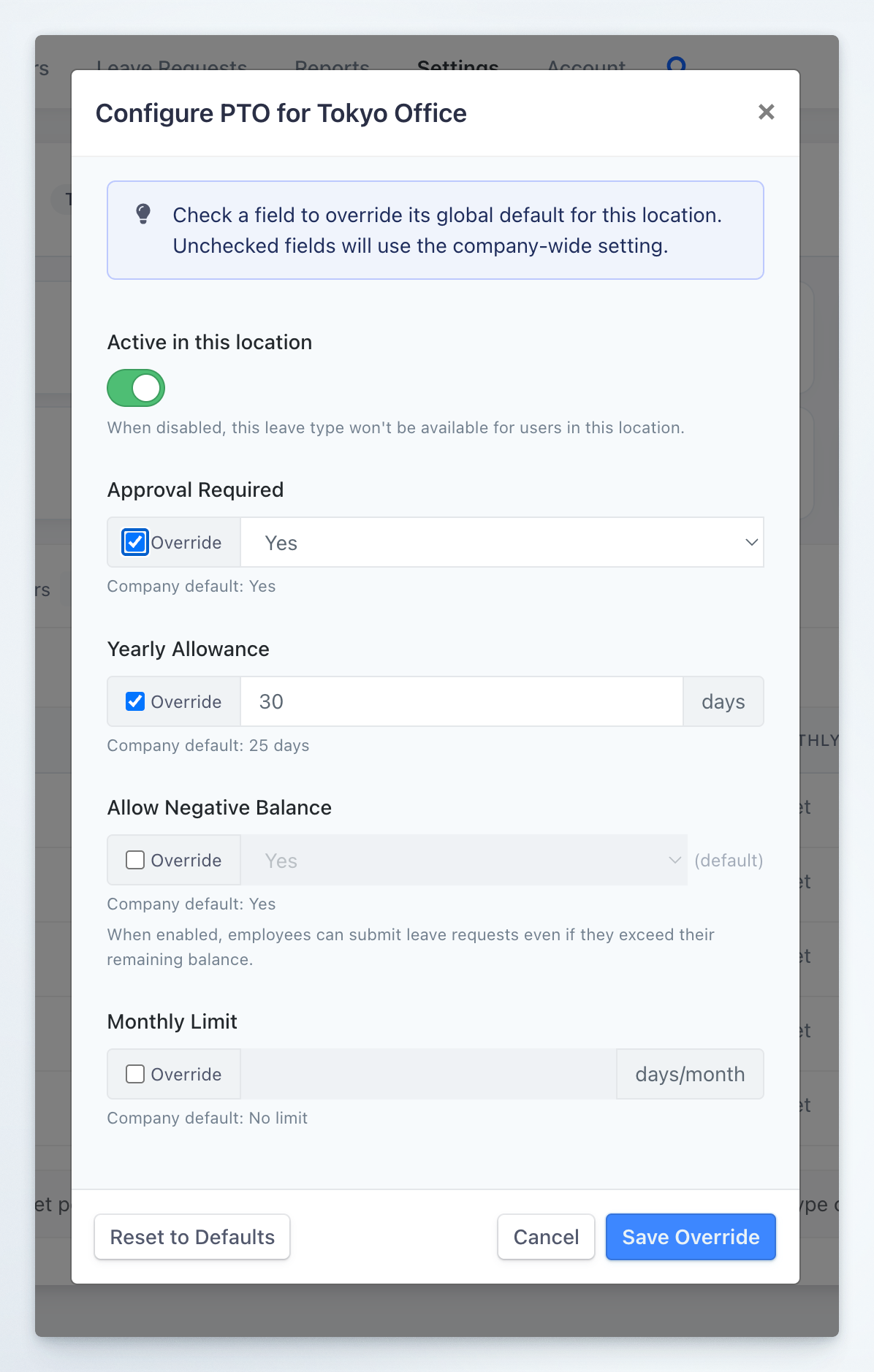
- Use the Active in this location toggle to enable or disable the leave type.
- Check the Override checkbox next to any field you want to customize.
- Enter the location-specific value.
- The Company default label below each field shows the current company-wide value for reference.
5
Save the override
Click Save Override to apply your changes.
Resetting Overrides to Defaults
To remove all overrides for a leave type and revert to company-wide settings:- Open the leave type configuration modal (click Edit on the leave type row).
- Click Reset to Defaults (button at the bottom-left of the modal).
- Confirm the action in the dialog.
Deleting a Location
A location can only be deleted when:- It is not the default location. The default location cannot be deleted.
- No active users are assigned to it. You must reassign or move all active users to other locations first.
1
Open the location
Go to Settings > Locations and click on the location you want to delete.
2
Go to Location Settings
Click the Location Settings tab.
3
Delete the location
Click Delete Location in the bottom-right corner.
- If the location has no users, click Delete Location to confirm.
- If the location has only inactive/deleted users, click Move inactive/deleted users to default and delete. This moves all remaining users to the default location and deletes the location in one step.
The Delete Location button is hidden when deletion is not possible. Instead, an explanation message is shown — either “Cannot delete default location” or “Location has assigned users”. Always check for inactive users before attempting to delete. Use the Show inactive/deleted users toggle on the Assigned Users tab to see which users are still assigned.
Related Topics
Leave Types
Configure company-wide leave type settings that locations inherit by default.
Calendars
Set up calendars that can be assigned to specific locations.
Working Days
Configure the default working week for your organization.
User Administration
Manage user roles and permissions across the organization.