

Setup Slack Status Updating (Administrators)
The following steps guide administrators through the process of enabling the Slack Status Update feature within Spock:1
Access leave type settings
Navigate to Settings in your Spock dashboard and click on Leave Types to view the different leaves available.
2
Select leave type
Select the specific Leave Type you wish to modify.
3
Enable Slack status updates
Within the Leave Type settings, locate the “Allow Slack Status Update” toggle switch and switch it on to enable the feature for that particular leave type.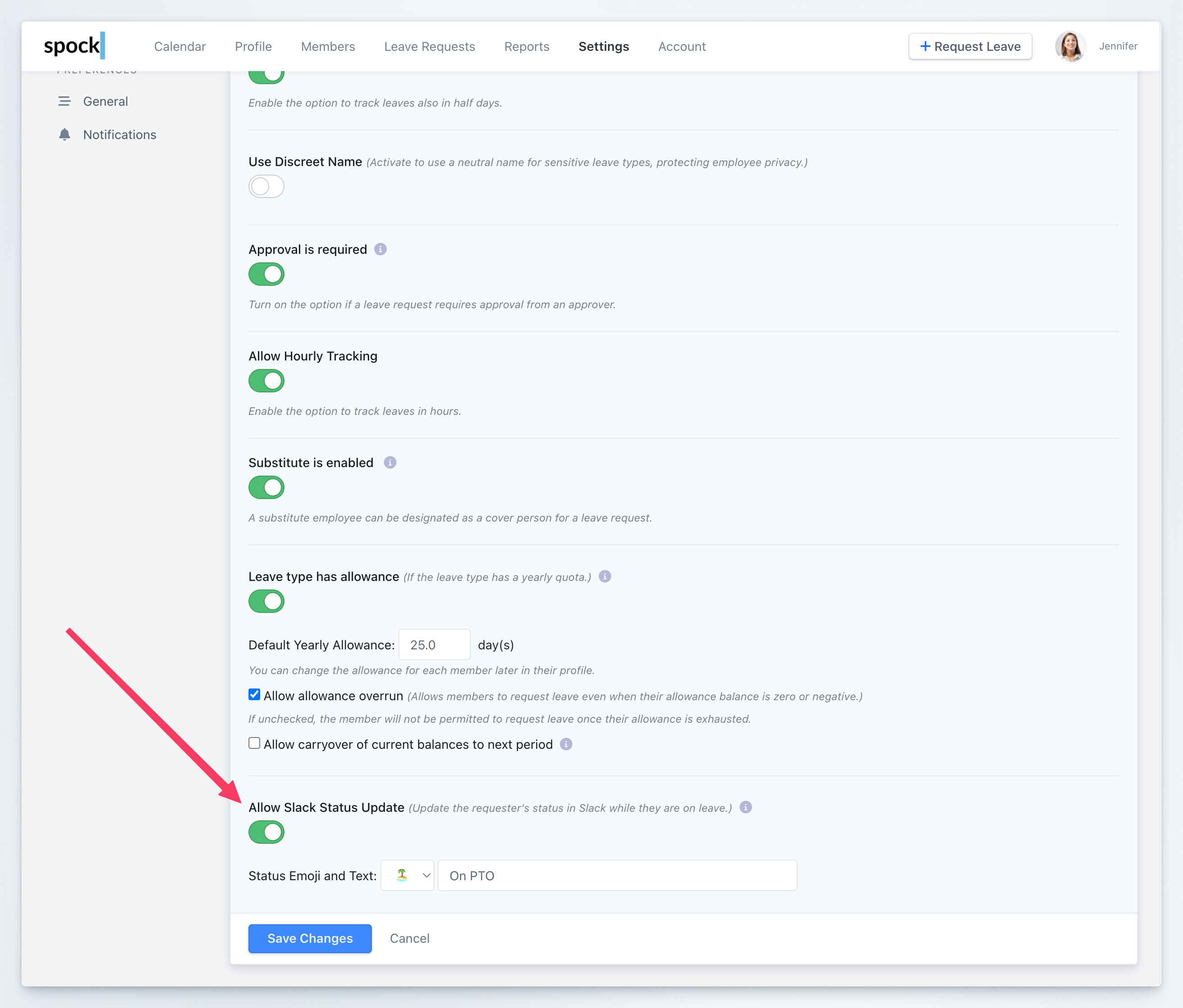
4
Edit status emoji and text
Once enabled, you can select a Status Emoji that best represents the leave type and enter the Status Text that will appear alongside the emoji in Slack to describe the leave status.
5
Save the changes
After configuring the emoji and text, click Save to apply the settings. The Slack Status Update is now enabled for the selected leave type.
Authorize Spock to Update Slack Status for User
Each user must grant permission for Spock to update their Slack status. Here’s how users can authorize this feature:1
Authorize Spock in Slack
In Slack, navigate to the Spock home tab and click the “Allow Status Update” button.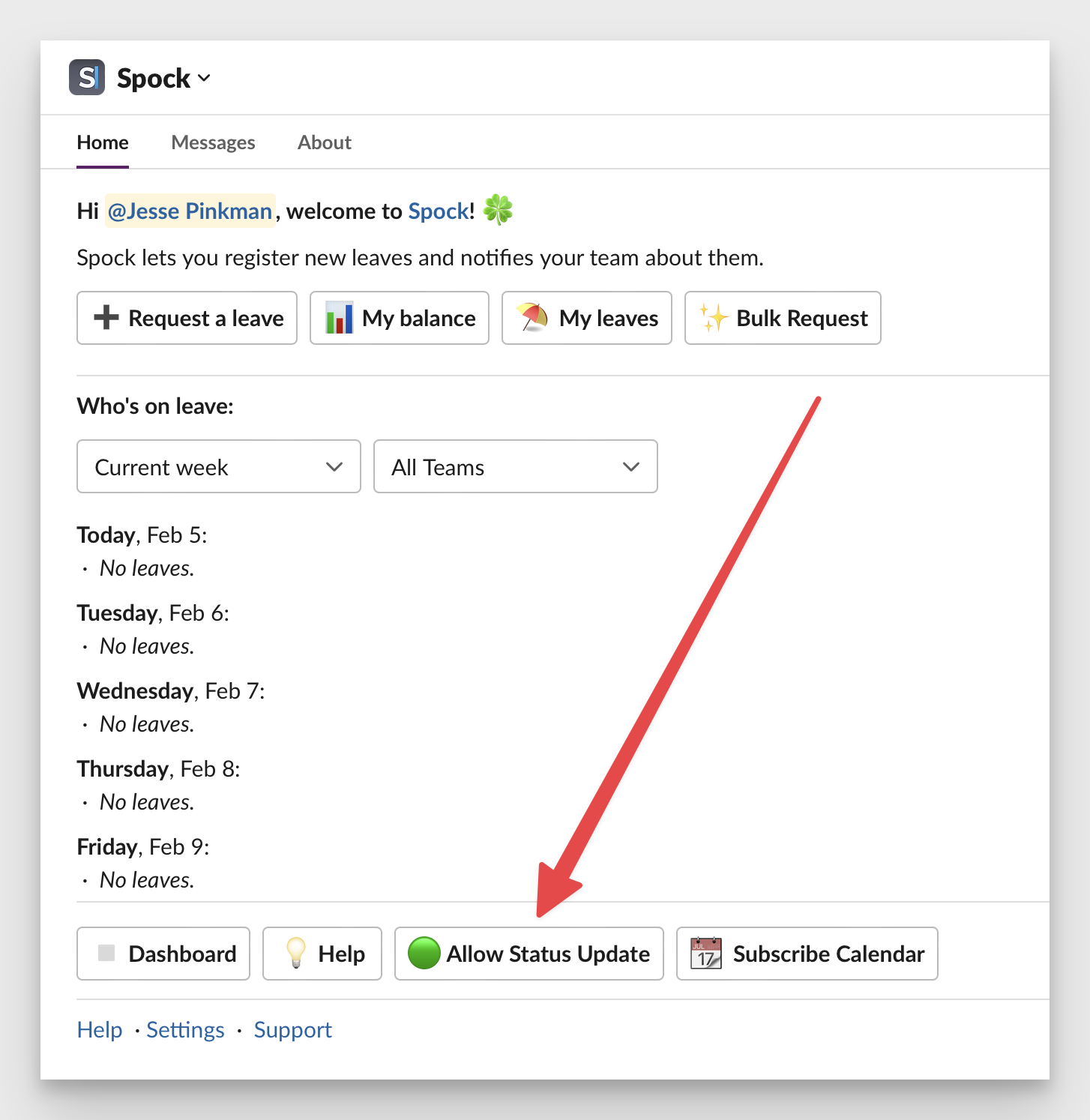
2
Grant permission
You’ll be redirected to the authorization page. Click on the “Authorize” button to proceed and follow the prompts to give Spock permission to update your Slack status.
3
Complete authorization
After completing the authorization, Spock will now have the ability to automatically update your Slack status when you submit a leave request. Once approved, your Slack status will reflect the type and duration of your leave automatically.
Managing Slack Status Update Settings
You can manage your Slack Status Update authorization at any time through the Spock Dashboard:1
Access notification settings
Navigate to Settings > Notifications > Slack Status Update in the Spock Dashboard.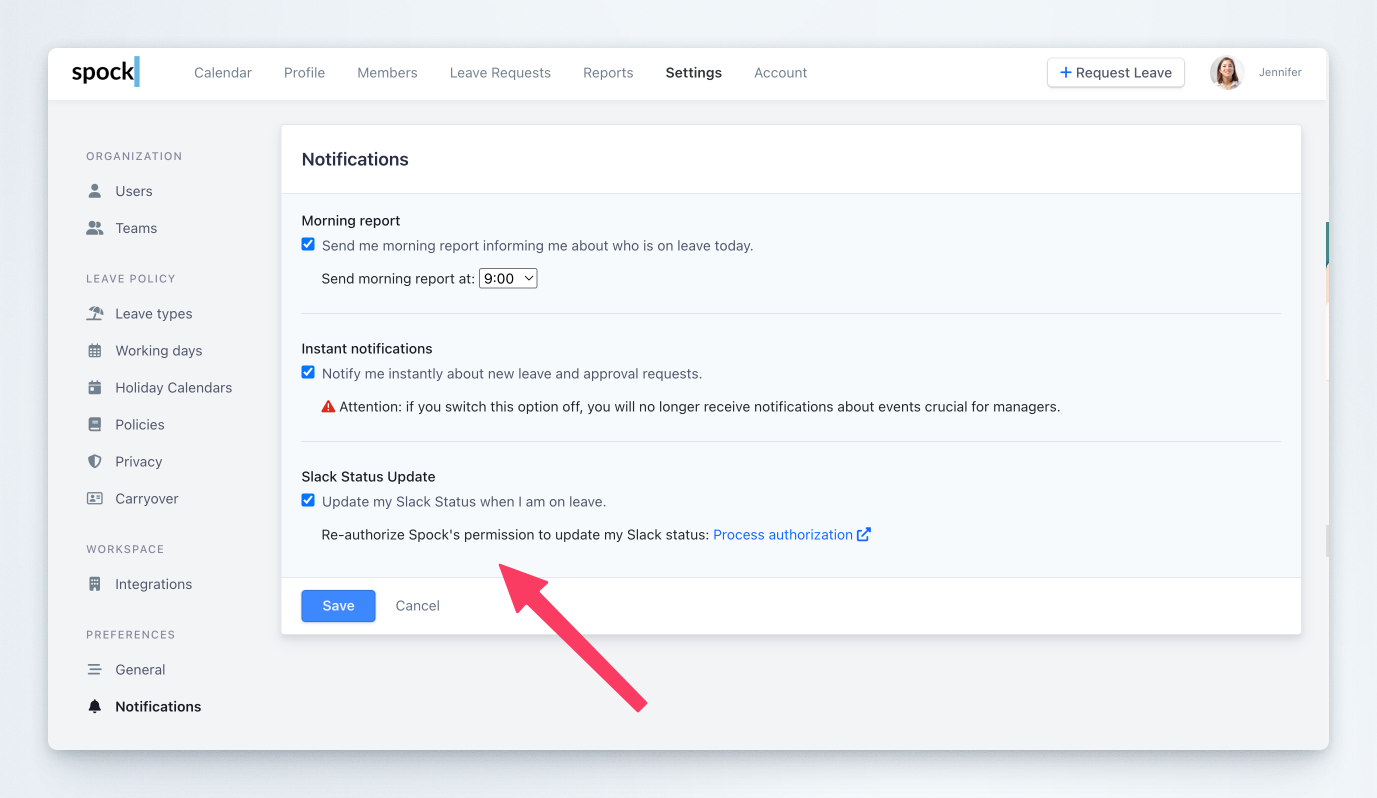
2
Manage authorization
From this page, you can:
- Re-authorize Spock to update your Slack status if authorization has expired or been revoked
- Switch off Slack status updating temporarily if you need to disable it without removing authorization