

Why Use Welcome Messages
Welcome messages are particularly useful for:- Onboarding new employees - Provide clear instructions on how to use Spock from day one
- Communicating important updates - Share workspace-wide announcements about new features or policy changes
- Setting expectations - Outline key processes and guidelines for leave management
Prerequisites
To send welcome messages, you need:- Administrator or Manager role in your workspace
Sending a Welcome Message
1
Navigate to Welcome Message
Go to the Dashboard > Getting Started with Spock section > Send Welcome Message to Team
or navigate to https://spockoffice.com/spockapp/onboarding/welcome-message/
2
Compose your message
In the message field, write or edit your welcome message. Include: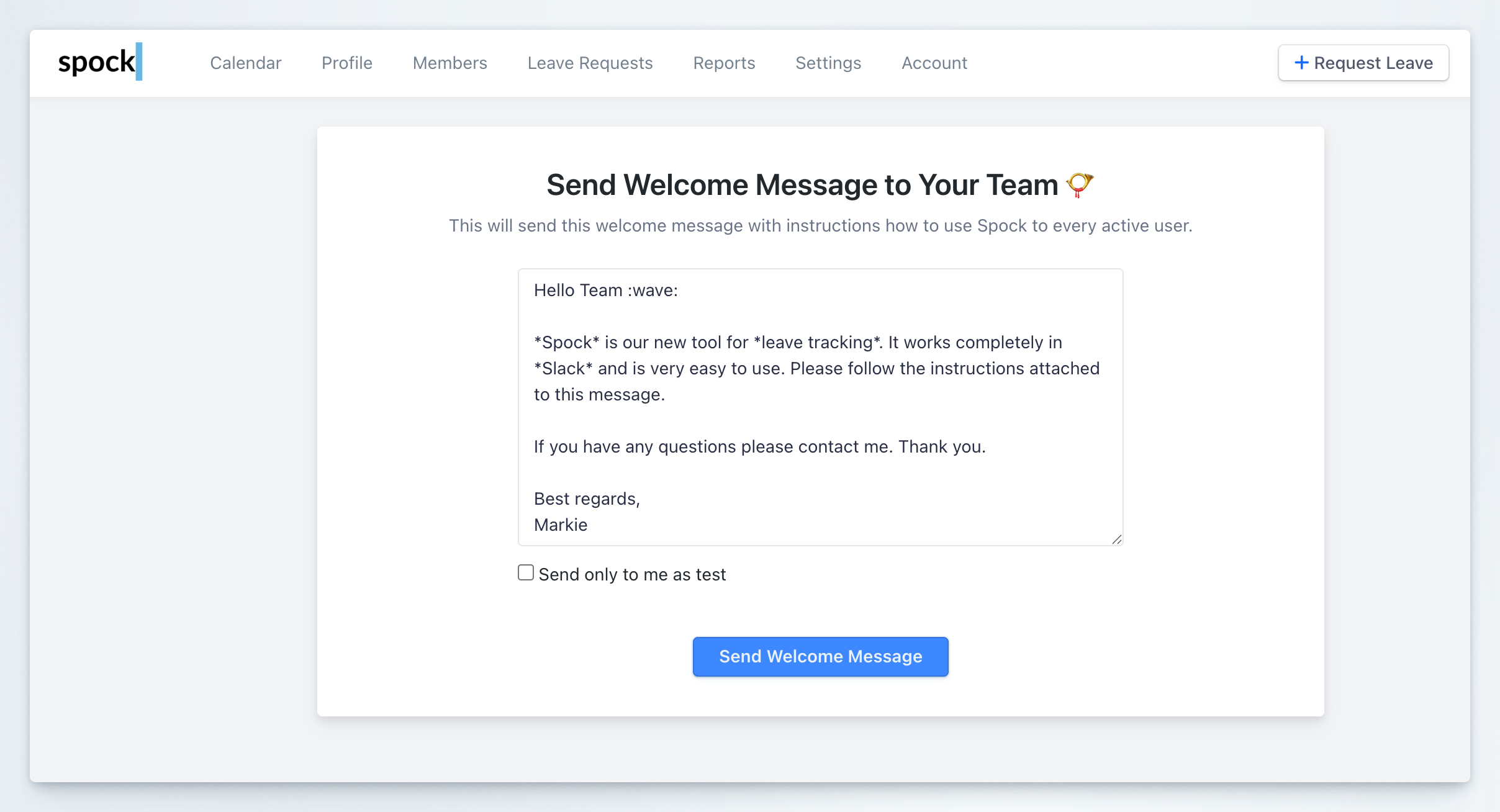
- A friendly greeting
- Key information about using Spock
- Instructions or links to important resources
- Contact information for questions
3
Test your message (optional)
Before sending to all users, you can test the message:
- Check the “Send only to me as test” checkbox
- Click Send Welcome Message
- Review the message you receive to ensure it looks correct
4
Send to all active users
Once you’re satisfied with the message:
- Uncheck the “Send only to me as test” checkbox (if checked)
- Click Send Welcome Message
Welcome messages are sent to all active users in your workspace. Inactive or suspended users will not receive the message.
Related Topics
User Administration
Manage users, roles, and permissions
Managing Teams
Organize members into teams