

In this article
How to Access General Preferences
1
Sign in to Spock Dashboard
Sign in to your Spock Dashboard
2
Go to Preferences
Navigate to Preferences > General
3
Configure Settings
Adjust your preferences according to your needs
4
Save Changes
Click Save to apply your preferences
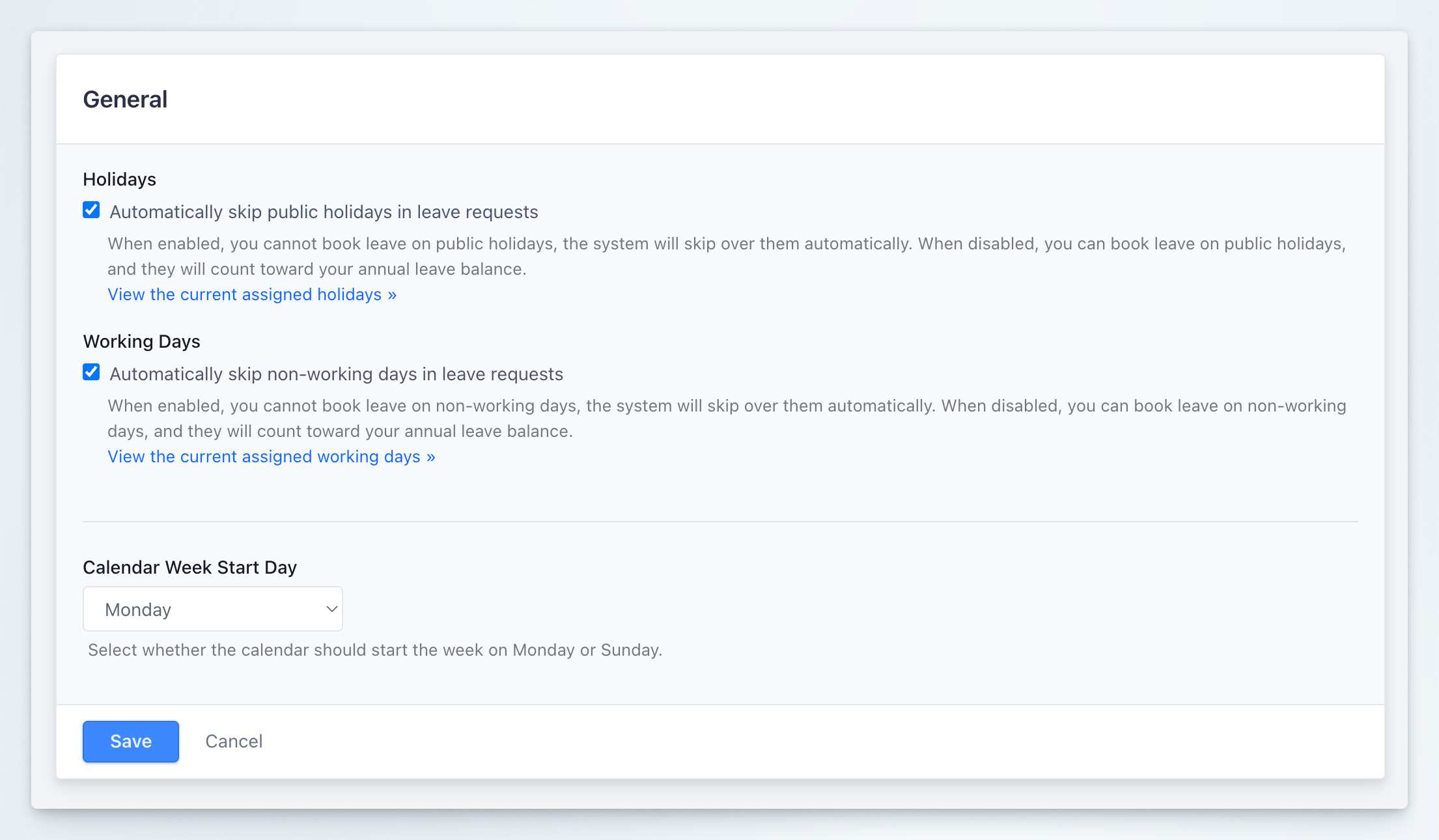
Holidays
Automatically skip public holidays in leave requests
This setting controls whether public holidays are automatically excluded when you book leave. Checkbox: Automatically skip public holidays in leave requests Default: Enabled (checked)When Enabled
When this option is enabled (checkbox checked):- You cannot book leave on public holidays
- The system automatically skips over public holidays when calculating leave duration
- Public holidays within your leave period do not count toward your annual leave balance
- Leave requests spanning public holidays will only consume working days from your allowance
When Disabled
When this option is disabled (checkbox unchecked):- You can book leave on public holidays
- Public holidays are treated as regular working days in leave calculations
- Public holidays within your leave period will count toward your annual leave balance
- You must manually account for public holidays when planning leave
To view which holidays apply to you, click View the current assigned holidays link below the setting description. Your assigned holiday calendar is managed by your administrator.
Working Days
Automatically skip non-working days in leave requests
This setting controls whether non-working days (typically weekends) are automatically excluded when you book leave. Checkbox: Automatically skip non-working days in leave requests Default: Enabled (checked)When Enabled
When this option is enabled (checkbox checked):- You cannot book leave on non-working days
- The system automatically skips over non-working days when calculating leave duration
- Non-working days within your leave period do not count toward your annual leave balance
- Leave requests spanning weekends will only consume working days from your allowance
When Disabled
When this option is disabled (checkbox unchecked):- You can book leave on non-working days
- Non-working days are treated as regular working days in leave calculations
- Non-working days within your leave period will count toward your annual leave balance
- You must manually account for non-working days when planning leave
To view your working days schedule, click View the current assigned working days link below the setting description. Your working days schedule can be customized for your specific work pattern.
Calendar Week Start Day
Select whether the calendar should start the week on Monday or Sunday
This setting controls how weeks are displayed in your Spock calendar views. Dropdown options:- Monday (default)
- Sunday
How to Change Calendar Week Start Day
1
Locate Setting
Find the Calendar Week Start Day section in General Preferences
2
Click Dropdown
Click the dropdown menu that shows your current selection (default: Monday)
3
Select Day
Choose either:
- Monday - Week starts on Monday (European standard)
- Sunday - Week starts on Sunday (US standard)
4
Save Changes
Click Save to apply the new calendar display preference
Your choice will immediately affect all calendar views in Spock, including the main dashboard calendar, leave request dialogs, and reporting views.
Saving Your Preferences
After adjusting any of the three settings above, you must save your changes:- Review your selections
- Click the blue Save button at the bottom of the form
- Alternatively, click Cancel to discard any changes and revert to previous settings
Use Cases and Best Practices
Recommended Settings for Most Users
For standard employees working Monday to Friday:- Holidays: Enabled (automatically skip)
- Working Days: Enabled (automatically skip)
- Calendar Week Start Day: Monday or Sunday based on regional preference
When to Disable Automatic Skipping
You might want to disable automatic skipping if:- You work non-standard hours and need to track all days off, including weekends
- Your role requires you to work on holidays and you want to record time off on those specific days
- You need precise control over every day in your leave requests
Calendar Display Preference
Choose your calendar week start day based on:- Monday: Common in Europe, Asia, and most international standards (ISO 8601)
- Sunday: Common in United States, Canada, and some other regions
These are personal preferences that only affect your account. They do not change organization-wide settings or affect how other team members see their calendars.