

Accrual Frequencies
Spock supports three accrual modes:Why Use Accrual?
- Prevents employees from using their entire annual leave early in the year and then leaving the company.
- Aligns with legal requirements in jurisdictions where leave must be earned over time.
- Gives managers better visibility into how much leave an employee has actually earned versus what they plan to use.
Key Concepts
Setting Up Accrual for an Employee
1
Open the employee's allowances
Navigate to the employee’s profile and go to the Allowances tab. You will see each leave type with its current accrual configuration.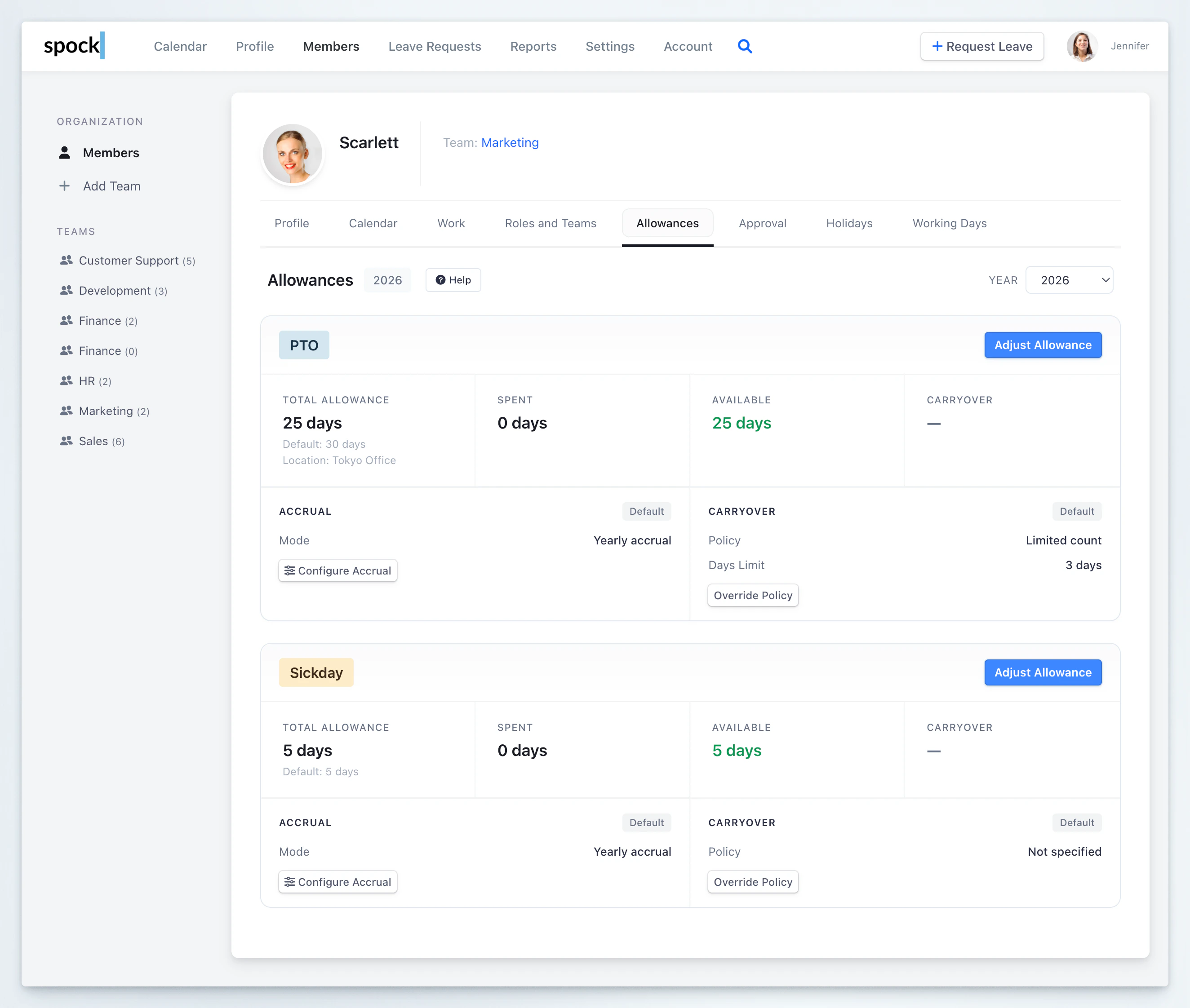
2
Open the accrual configuration
Click the Configure Accrual button on the leave type you want to set up. A dialog titled Configure Accrual Policy opens.
3
Enable custom accrual
Check “Override default accrual policy” to enable per-employee accrual settings that override the company default.
4
Choose accrual frequency
Select the Accrual Frequency from the dropdown:
- Yearly — full allowance granted at start of year
- Monthly — accrues on the 1st of each month
- Weekly — accrues every Monday
5
Set the yearly target
Enter the Yearly Target (days) — the total number of leave days the employee should earn over the full year.Spock shows the calculated per-period amount below the input. For example, a yearly target of 24 days with monthly frequency shows: “Per-period accrual: 2.000 days/month”.
6
Set the start date
Enter a Start Date for the accrual. This is usually the employee’s hire date or the date from which the new policy should begin.
- If the start date is in the past, Spock shows how many past periods will be automatically accrued as catch-up.
- The start date is also used for pro-rating the first partial period when pro-rate is enabled.
7
Configure pro-rating
Check “Pro-rate for partial periods” to reduce the first period when the start date falls partway through it.Example: Monthly accrual with a start date of January 15. The full monthly amount is 2 days. With pro-rating enabled, January accrual = 2 x (17/31) = 1.097 days. Without pro-rating, the full 2 days are granted.
8
Handle existing allowance
If the employee already has a non-zero allowance balance, Spock asks whether you want to reset it to zero before starting accruals.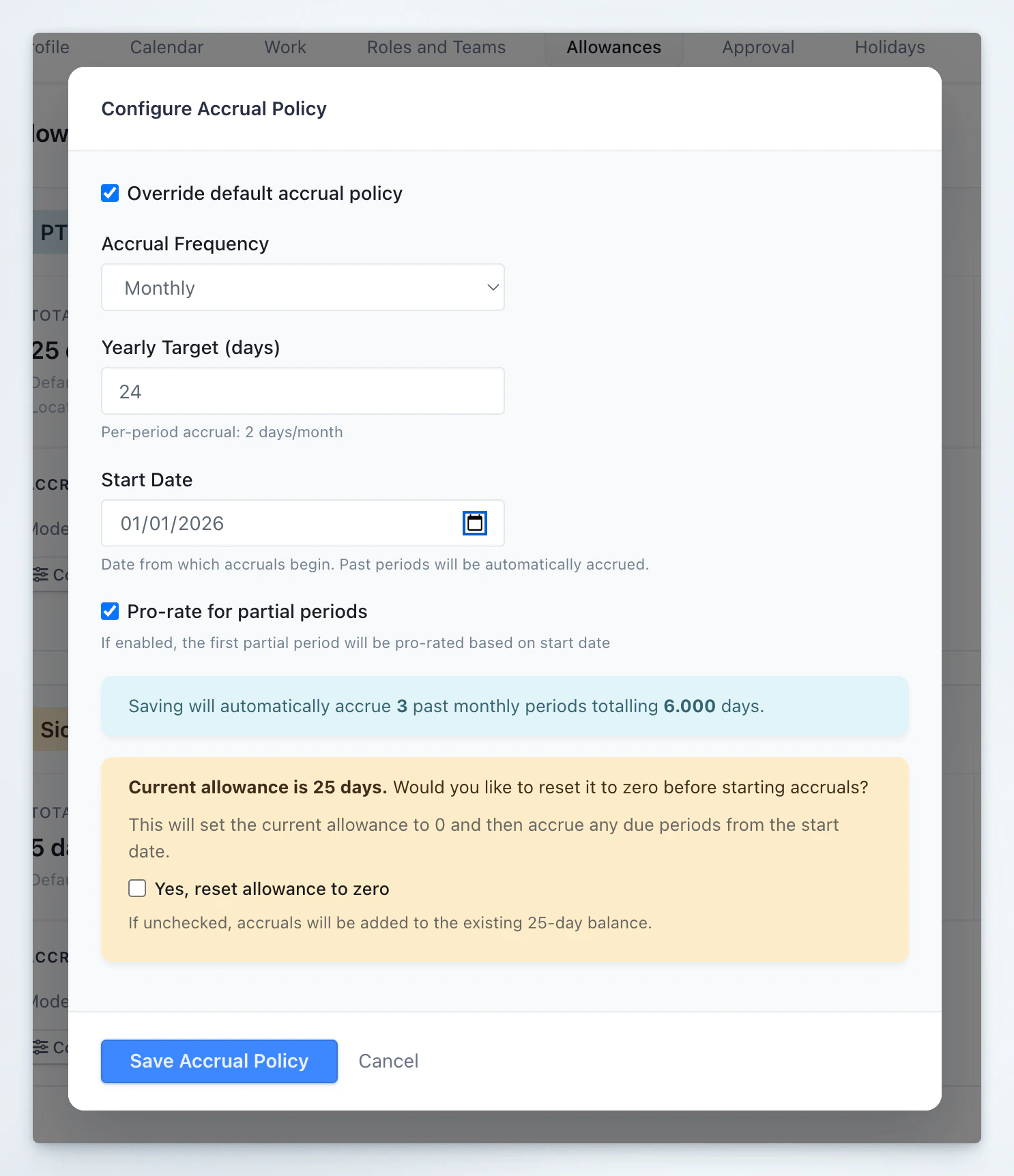
- Check the box to reset to zero — accruals will build the balance from scratch.
- Leave unchecked to keep the existing balance and add accruals on top.
9
Save
Click Save Accrual Policy. Spock saves the configuration, processes any catch-up accruals for past periods, and updates the employee’s balance.
Viewing the Accrual Schedule
After setting up monthly or weekly accrual, an Accrual Schedule button appears next to Configure Accrual. Click it to see a timeline of the entire year showing:- Summary stats — total Accrued (completed), Planned (future), and Yearly Target
- Timeline with each period displayed as a row:
- Green check = Completed (already accrued)
- Clock icon = Current period (in progress)
- Empty circle = Pending (future, planned)
- Minus icon = Skipped (before start date)
- Pro-rated periods are marked with an info badge showing the calculation reason
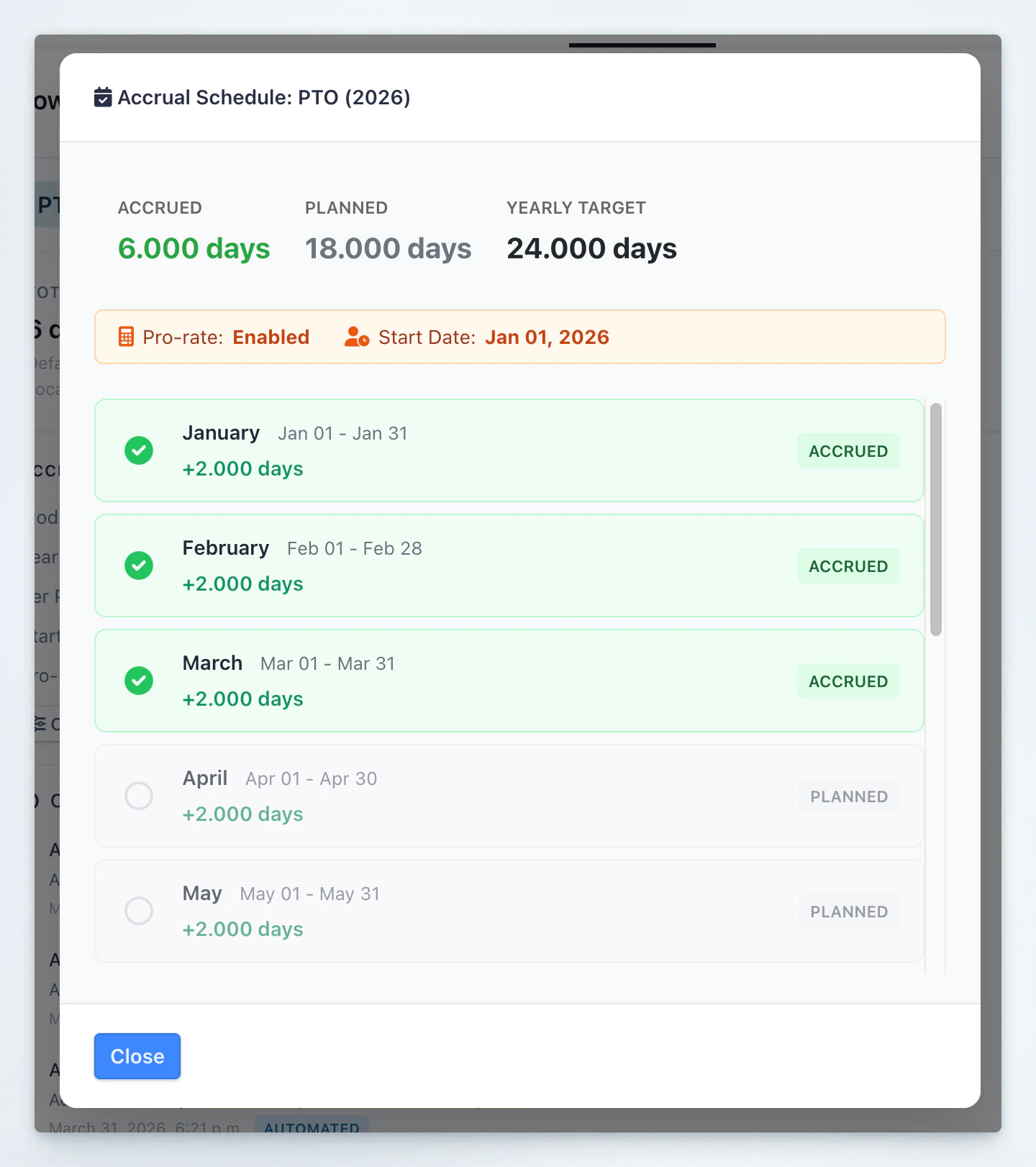
Monthly accrual follows calendar months. Weekly accrual follows Monday–Sunday periods. If the leave type uses Yearly mode, there is no periodic schedule to display.
Changing an Existing Accrual Policy
When you modify any accrual setting on an employee that already has accrual history, Spock shows a policy change warning panel:“Changing this accrual policy will recalculate historical accruals.”
Effective Date
Choose the date from which the new policy takes effect. Spock can align the recalculation start to a clean accrual boundary:- A monthly change can align to the first day of the month
- A weekly change can align to Monday
- Switching to Yearly can recalculate from January 1
- Changing the yearly target inside an active periodic policy can also recalculate from January 1
Reason for Change
Optionally enter a note explaining the policy change (for example, “Promoted to senior role, increased PTO”). This is recorded in the audit trail.Recalculation Preview
Spock automatically shows a preview of the impact before you save:- Balance change — current balance vs. recalculated balance (with the difference shown as +/- days)
- Periods affected — how many existing accrual periods will be replaced and how many new ones will be created
Manual adjustments, carryover, and booked leave are preserved. Only accrual-generated balance is recalculated.
Confirmation
You must check the box “I understand this change will recalculate accrual history from the effective date” before saving.Reverting to Company Default
To remove the per-employee accrual override:- Open Configure Accrual.
- Uncheck “Override default accrual policy”.
- Click Save Accrual Policy.
Accrual Panel and Change History
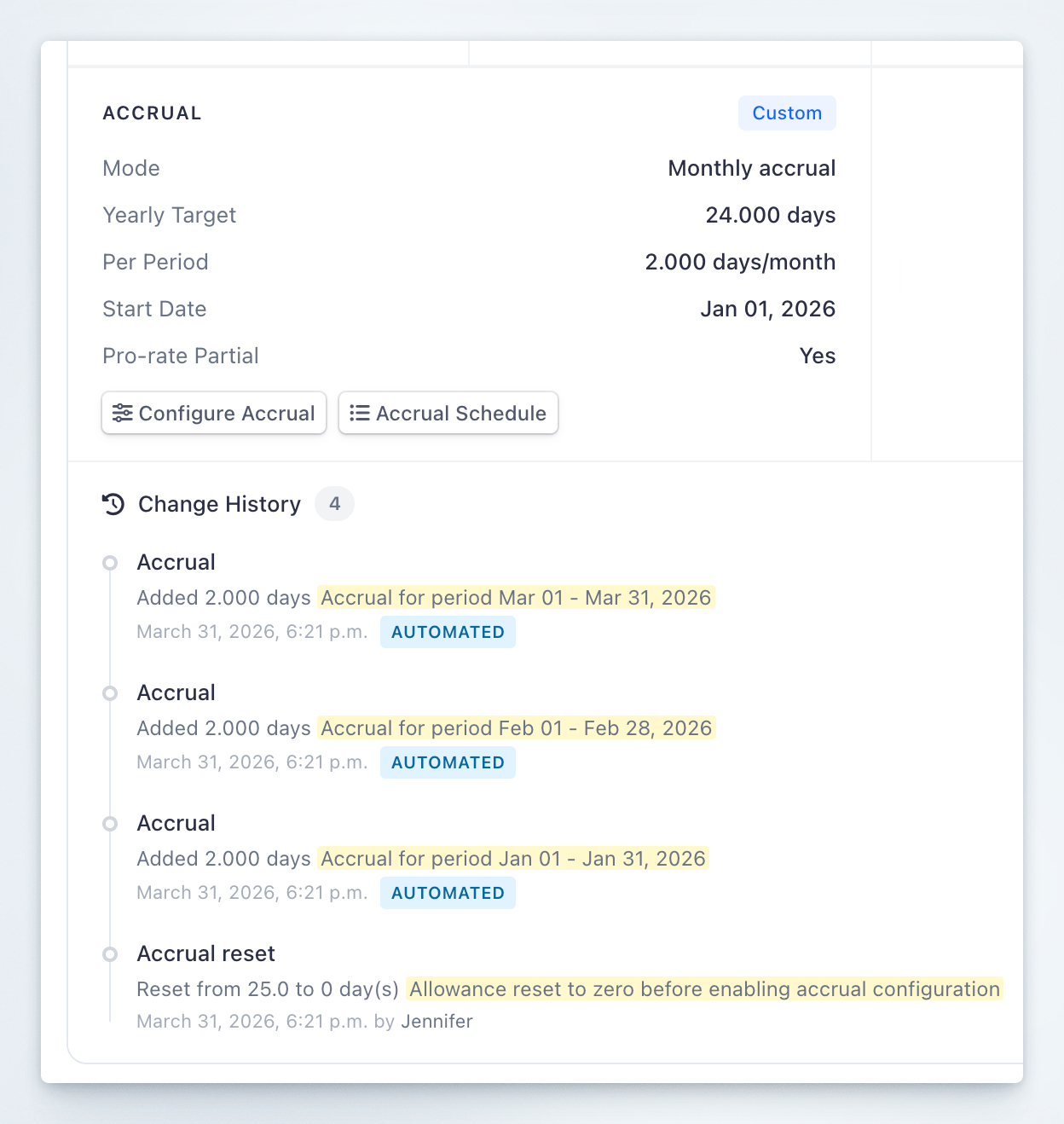
After configuration, the Accrual panel on the employee’s Allowances page displays: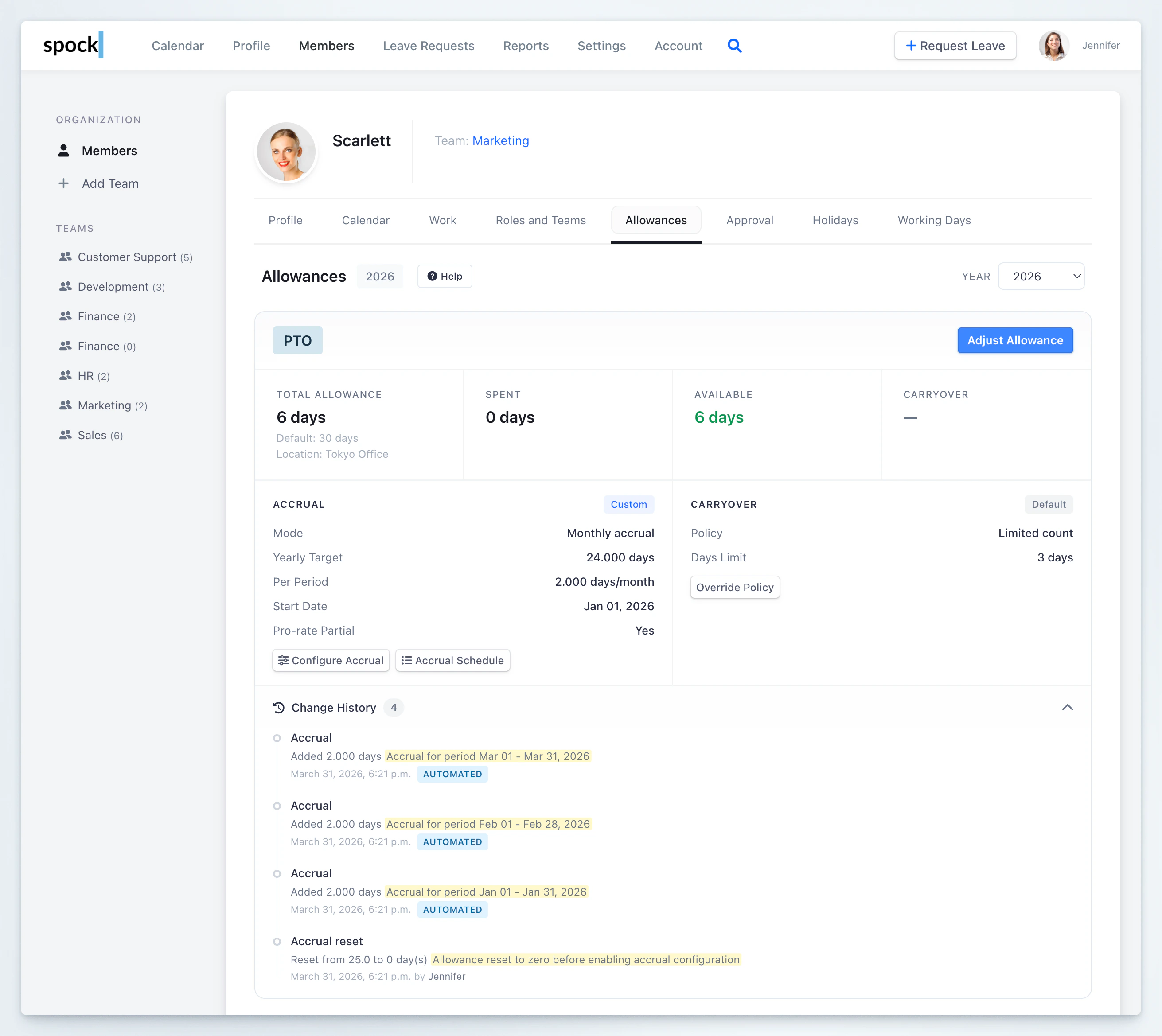
- Accrual — each time a period is accrued (automated)
- Accrual policy change — when the policy is modified
- Accrual reset — when custom accrual is disabled
- Accrual reconciliation — when historical accruals are recalculated after a policy change
What Carries Into the Next Year
- Frequency carries forward
- Yearly Target carries forward
- Pro-rate for partial periods carries forward
- Start Date does not carry forward — it is treated as a one-time date for the year being configured
When Accruals Run
Accruals are processed automatically — no manual action is needed after setup.
Related Topics
Allowances
Configure default leave allowances and adjust individual employee balances.
Carryover
Understand how unused balances transfer to the next period.
Leave Types
Set up leave categories including allowance tracking.
Working Days
Configure which days count as working days for leave calculations.