

Why Balances Matter
Monitoring your leave balances is essential for:- Planning ahead: Know exactly how much leave you have available before requesting time off
- Avoiding surprises: Stay informed about your remaining allowance to prevent declined requests
- Tracking usage: See at a glance how much leave you’ve used throughout the year
- Managing carryover: Monitor expiring carryover days to use them before they’re lost
- Making decisions: Understand approval requirements for different leave types
Your balances update automatically whenever leave is approved, rejected, or cancelled, ensuring you always have accurate information.
Viewing Your Balances in Slack
Access your personal leave balances directly within the Slack app for quick reference.1
Open Spock in Slack
Navigate to the Spock app from your Slack sidebar and go to the Home tab.
2
Click My Balances
Click the My Balances button to open your balances overview.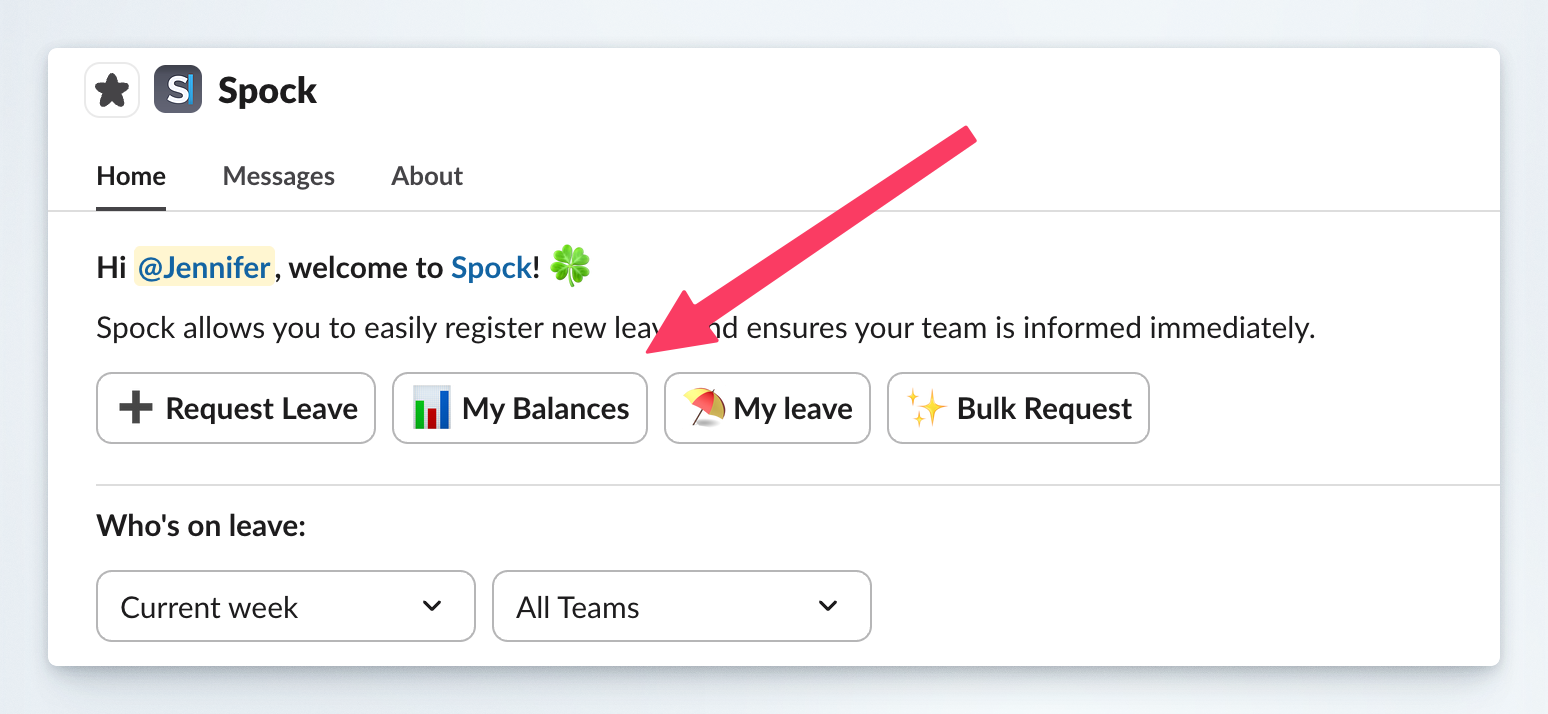
3
Review your balances
The balances modal displays comprehensive information for each leave type. You can view all your leave balances with detailed breakdowns.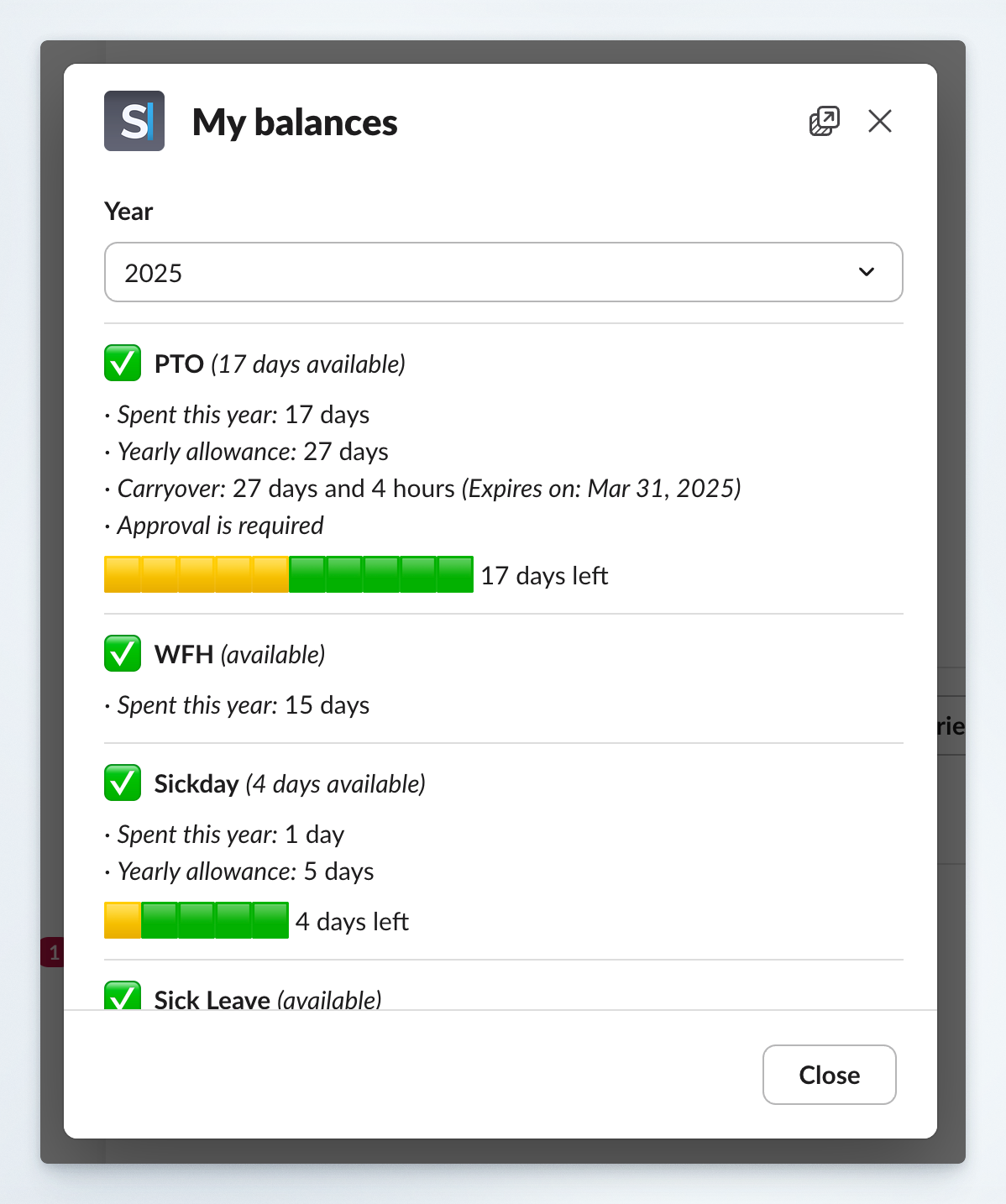
4
Change year (optional)
Use the Year dropdown at the top of the modal to view balances from previous or future years.
5
Close the modal
Click Close when you’re finished reviewing your balances.
Viewing Balances in the Dashboard
Access detailed balance information through your user profile in the Spock Dashboard.1
Access your profile
Navigate to the Spock Dashboard and go to Profile > Select your name.
2
Locate Balances section
Scroll down to the Balances section in your profile. This displays a comprehensive table with all your leave types.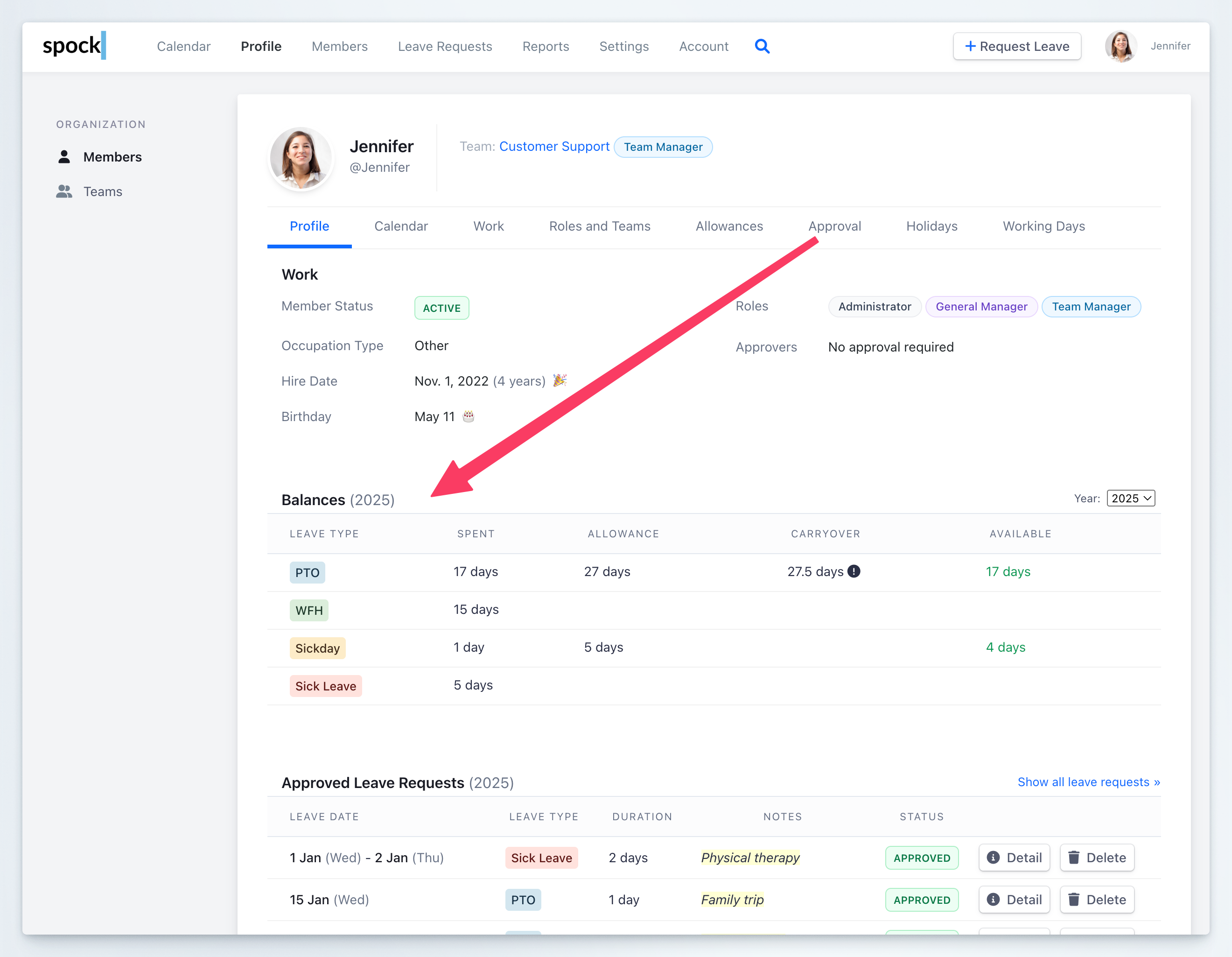
3
Review balance details
The table shows key metrics for each leave type across multiple columns.
4
Change year (optional)
Use the Year dropdown in the top-right corner of the Balances section to view historical or future year balances.
Viewing Team Member Balances
Managers can view team member balances when reviewing leave requests to make informed approval decisions.1
Receive leave notification
When a team member submits a leave request, you’ll receive a notification in Slack.
2
Click Member Balances
In the leave request notification, click the Member Balances button to view the requester’s current balances.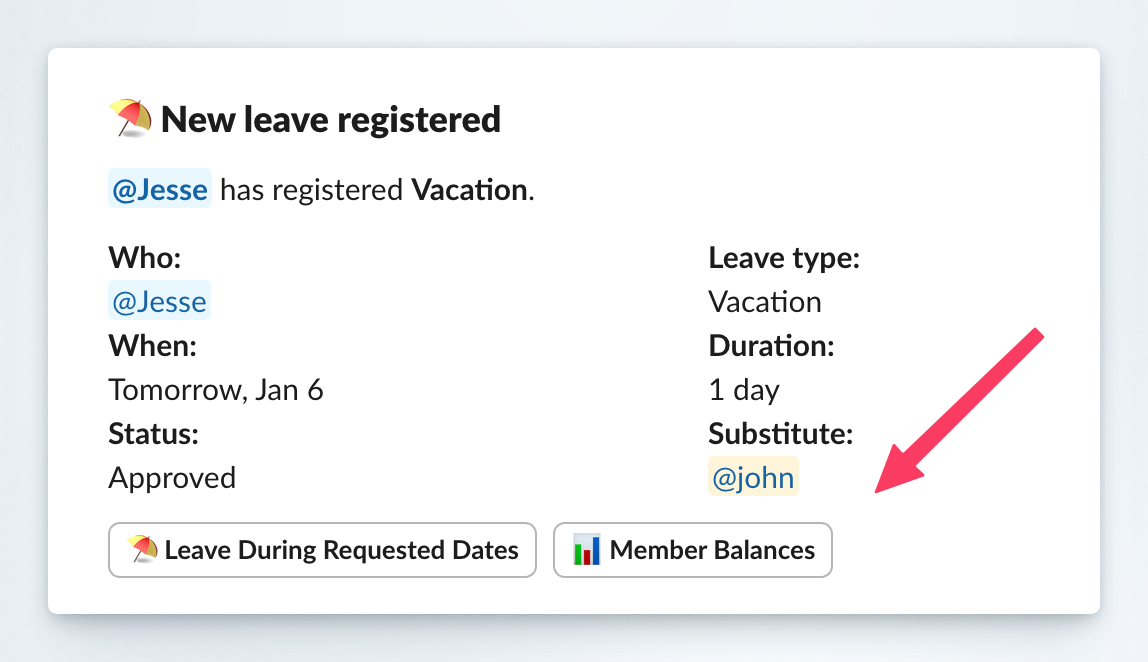
3
Review context
The member’s balances modal opens, showing their complete leave status to help you make an informed approval decision.
Managers with appropriate permissions can view balances for their team members to understand leave availability when processing requests.
Understanding Balance Components
Your leave balances include several key metrics that provide a complete picture of your leave status.Spent this year
Spent this year
The total number of days you’ve already used for this leave type during the current year. This includes all approved leave requests.
Yearly allowance
Yearly allowance
The total number of days allocated to you for this leave type for the entire year. This is your baseline entitlement set by your organization.
Carryover
Carryover
Unused days from the previous year that have been carried forward. Carryover days often have an expiration date (e.g., “Expires on: Mar 31, 2025”) after which they’ll be lost if not used.
Available
Available
The number of days currently available for you to request. This is calculated as: (Yearly allowance + Carryover - Spent this year).
Approval is required
Approval is required
Indicates whether requests for this leave type need manager approval or are automatically approved. This helps you understand the request workflow.
Visual progress bar
Visual progress bar
A color-coded bar showing your usage at a glance. The yellow/orange portion represents used days, while the green portion shows remaining available days.
Best Practices
Check before requesting
Check before requesting
Always review your balances before submitting a leave request to ensure you have sufficient days available and avoid declined requests.
Monitor carryover expiration
Monitor carryover expiration
Pay attention to carryover expiration dates and prioritize using those days before they expire to maximize your time off.
Plan ahead for the year
Plan ahead for the year
Review your yearly allowance at the beginning of each year to plan your time off strategically throughout the year.
Track usage regularly
Track usage regularly
Periodically check your balances to stay aware of how much leave you’ve used and what remains available.
Understand approval requirements
Understand approval requirements
Note which leave types require approval to set appropriate expectations for request processing times.
Review historical data
Review historical data
Use the year dropdown to review previous years’ balances for personal recordkeeping or to identify usage patterns.
Related Topics
Request Leave
Learn how to submit leave requests through Slack or the Dashboard.
Allowances
Understand how leave allowances are configured and adjusted.
Carryover Rules
Learn how unused days are carried forward to the next period.
Leave Types
Explore different leave types and their configurations.