

Organization-Wide Channel Notifications
Organization-wide notifications send leave summaries to a single Slack channel for your entire workspace. This provides centralized visibility of all upcoming leave across your organization.Accessing Channel Notification Settings
1
Sign in to Dashboard
Sign in to the Spock Dashboard.
2
Navigate to Notifications
Click the Settings tab, then select Notifications in the left menu under Leave Policy category.
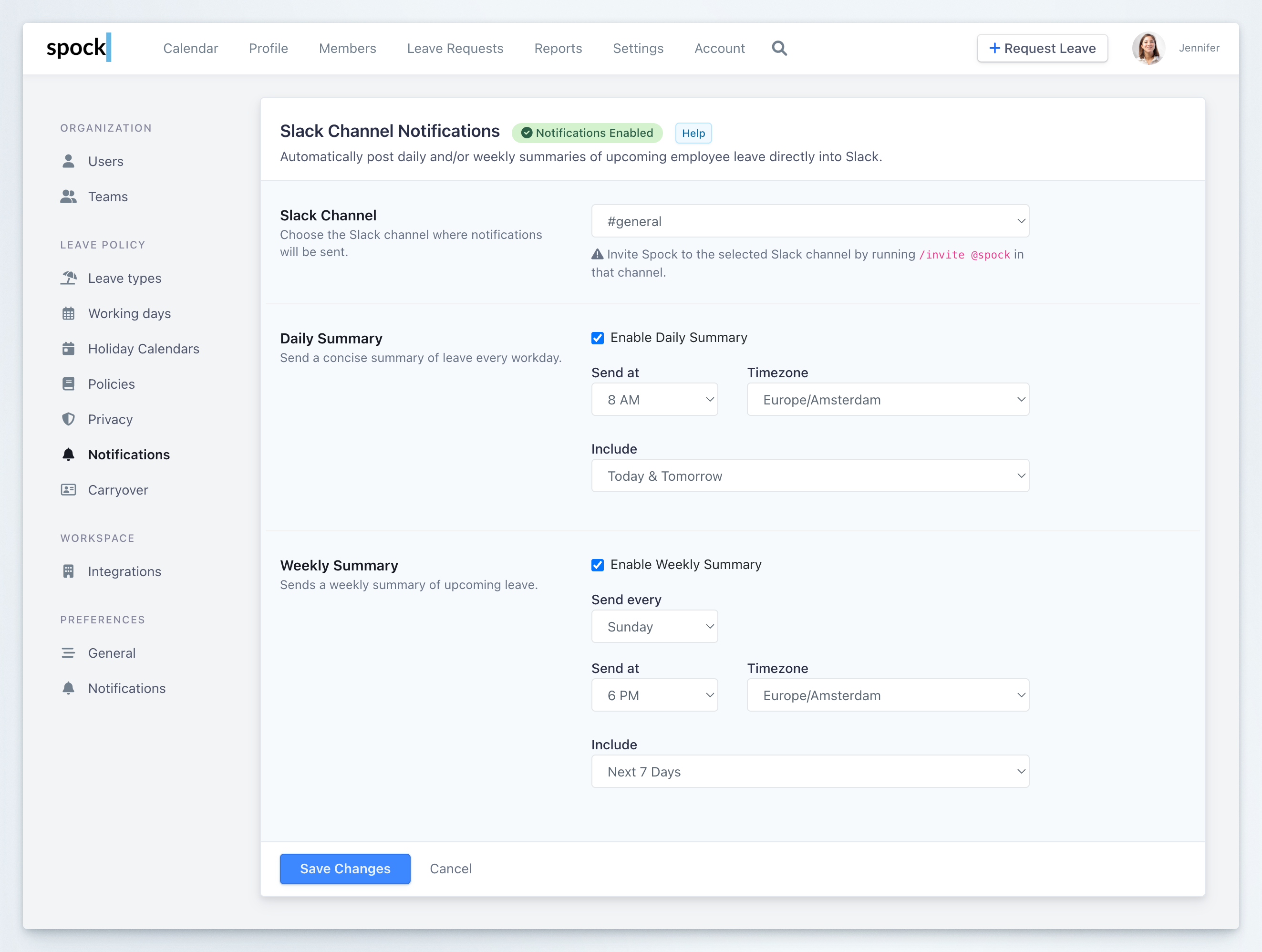
Channel Selection
Before configuring notifications, you must select the Slack channel where summaries will be posted.1
Choose Slack channel
Select your preferred channel from the Slack Channel dropdown menu.
2
Invite Spock
If you haven’t already, go to your selected Slack channel and run:
Daily Summary
The Daily Summary sends a concise overview of leave every workday, helping your team stay informed about daily absences.1
Enable Daily Summary
Check the Enable Daily Summary checkbox to activate daily notifications.
2
Configure send time
Set the Send at time when you want the summary delivered each workday. Choose a time that works best for your team, such as early morning before work begins.
3
Select timezone
Choose the appropriate Timezone to ensure summaries are sent at the correct local time.
4
Define include period
Select what leave information to include from the Include dropdown: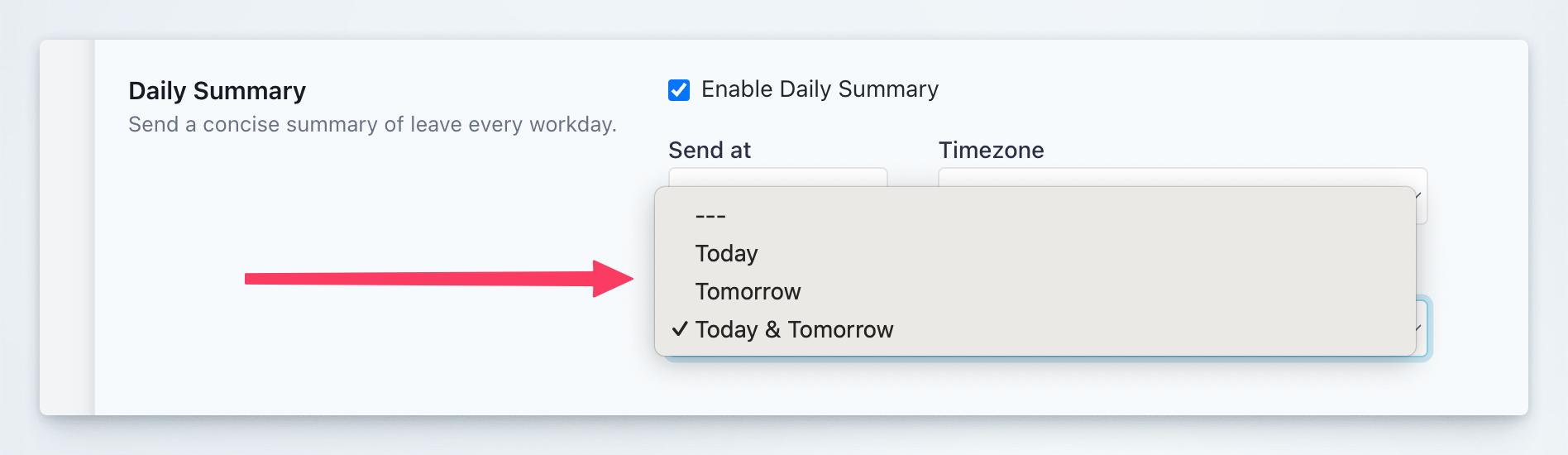
- Today: Only include leave occurring today
- Tomorrow: Only include leave occurring tomorrow
- Today & Tomorrow: Include leave for both today and tomorrow (recommended for comprehensive daily awareness)
5
Save changes
Click Save Changes to activate your Daily Summary configuration.
Daily summaries are sent on workdays only, based on your organization’s working days configuration.
Weekly Summary
The Weekly Summary provides a broader view of upcoming leave, helping teams plan ahead for coverage and project coordination.1
Enable Weekly Summary
Check the Enable Weekly Summary checkbox to activate weekly notifications.
2
Choose send day
Select the Send every day of the week when you want the summary delivered. Common choices include:
- Sunday: Review upcoming leave before the work week
- Monday: Start the week with leave visibility
- Friday: Plan for the following week
3
Set send time
Configure the Send at time for weekly summary delivery.
4
Select timezone
Choose the appropriate Timezone for your organization.
5
Define look-ahead period
Select the time range from the Include dropdown: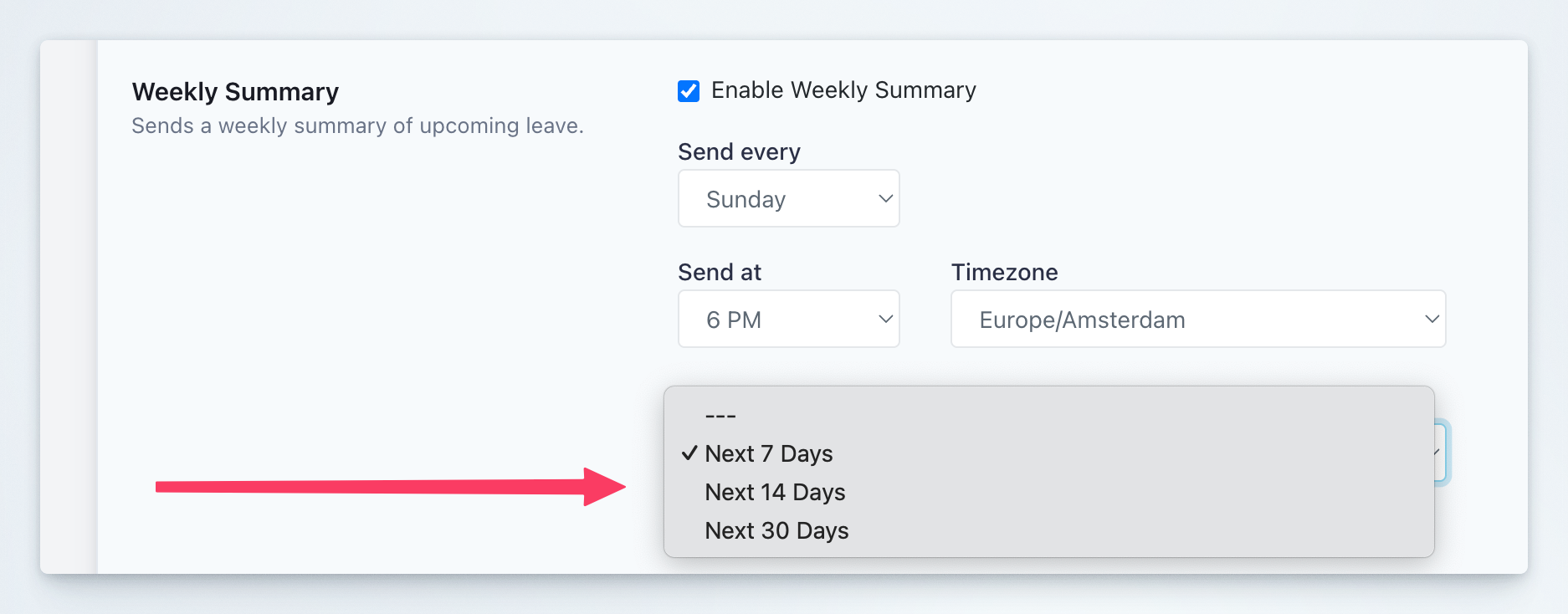
- Next 7 Days: One week ahead (ideal for short-term planning)
- Next 14 Days: Two weeks ahead (better for medium-term coordination)
- Next 30 Days: One month ahead (comprehensive long-term visibility)
6
Save changes
Click Save Changes to activate your Weekly Summary configuration.
Team-Specific Channel Notifications
In addition to organization-wide notifications, you can configure dedicated Slack channel notifications for individual teams. This allows each team to receive notifications about their team members’ leave in their own dedicated channels. Team notifications offer more granular control, including:- Team-specific Slack channels
- Daily reports with customizable send times
- Event-based notifications (requesting, approving, rejecting, canceling, or deleting leave)
For detailed instructions on setting up team-specific channel notifications, see Team Notifications.
Best Practices
When to Use Daily Summaries
Daily summaries work best for:- Small to medium teams (under 50 people) where daily absences significantly impact operations
- Operations teams that need real-time awareness of staffing levels
- Customer support teams that must ensure adequate coverage every day
- Project teams with tight deadlines where daily coordination is critical
- Send time: 8:00 AM (before work begins)
- Include: Today & Tomorrow
- Timezone: Your primary office location
When to Use Weekly Summaries
Weekly summaries are ideal for:- Large organizations where daily updates would be overwhelming
- Management teams that need strategic visibility without daily details
- Planning and scheduling departments that work on longer timelines
- Cross-functional teams that need advance notice for coordination
- Send every: Sunday or Monday
- Send time: 6:00 PM Sunday or 8:00 AM Monday
- Include: Next 14 Days (balances detail with actionability)
- Timezone: Your primary office location
Combining Organization-Wide and Team Notifications
For optimal results, consider this approach:-
Organization-wide channel: Use for leadership visibility and company-wide awareness
- Enable Weekly Summary (Next 14-30 Days)
- Post to a general channel like #announcements or #team-updates
-
Team-specific channels: Configure for operational coordination
- Enable Daily Reports in team channels
- Enable event notifications (requests, approvals) for real-time updates
- Each team manages their own channel preferences
Channel Selection Strategy
- Public channels: Use for organization-wide summaries to maximize transparency
- Private team channels: Use for team-specific notifications to maintain focus
- Dedicated leave channel: Consider creating a #leave or #out-of-office channel specifically for organization-wide summaries
Related Topics
Teams
Configure team-specific channel notifications with granular control.
Slack Notifications
Learn about personal notification settings and morning reports.
Preferences
Customize your individual notification preferences.
Working Days
Configure working days that affect when summaries are sent.