

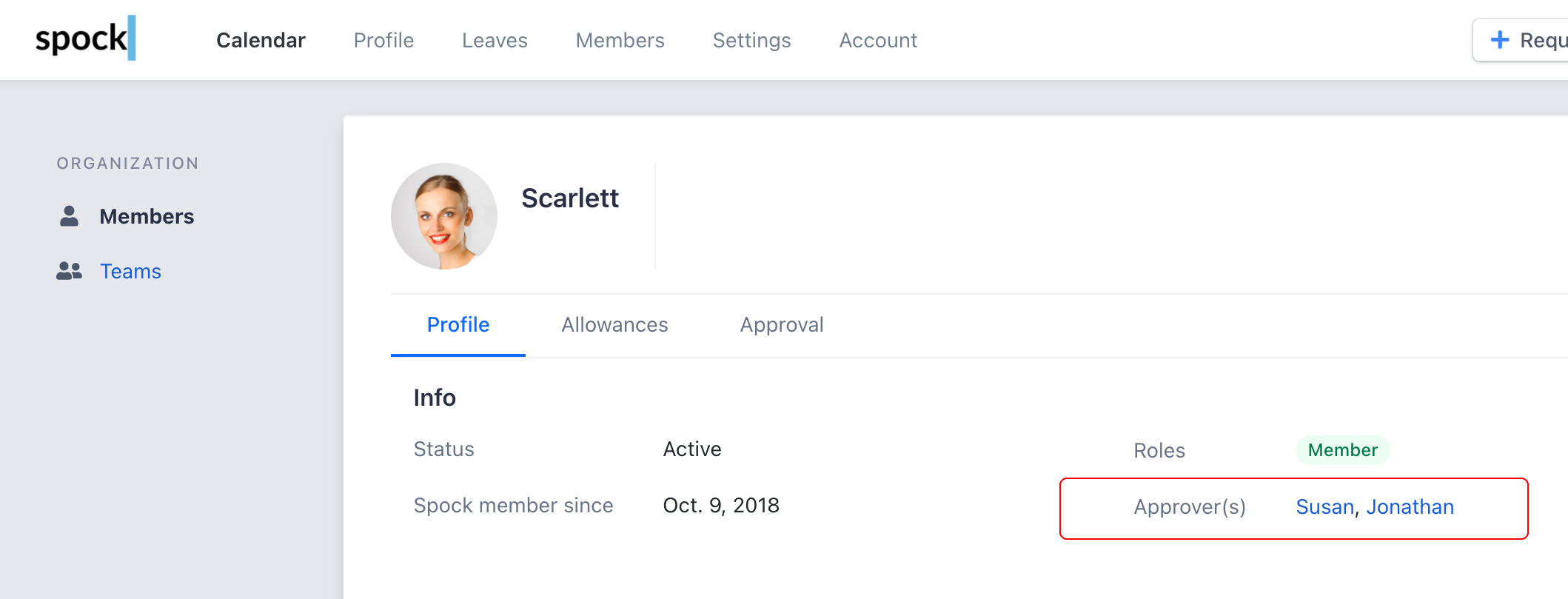
Setting Up Approval Workflow
Configure which leave types require approval before they’re processed:1
Navigate to Leave Types
Go to Settings > Leave Types in your dashboard.
2
Select leave type
Choose the leave type you want to add approval requirements to.
3
Enable approval
Set Approval is required to ON.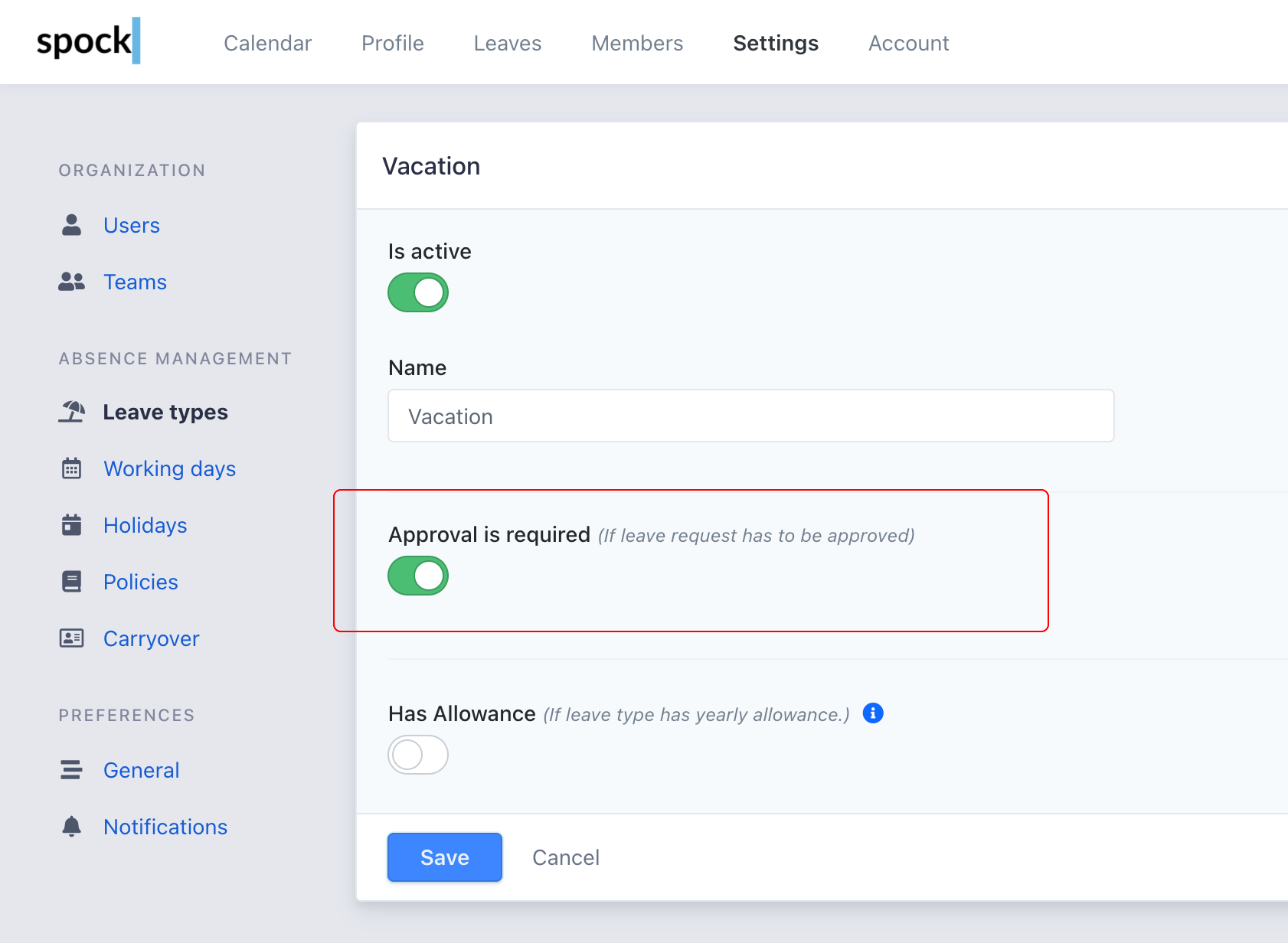
From this point forward, approval will be required whenever this leave type is requested.
How to Approve Leave Requests
Approvers can process requests through three convenient methods:Directly in Notification
Directly in Notification
Notification messages contain action buttons that allow immediate approval or rejection.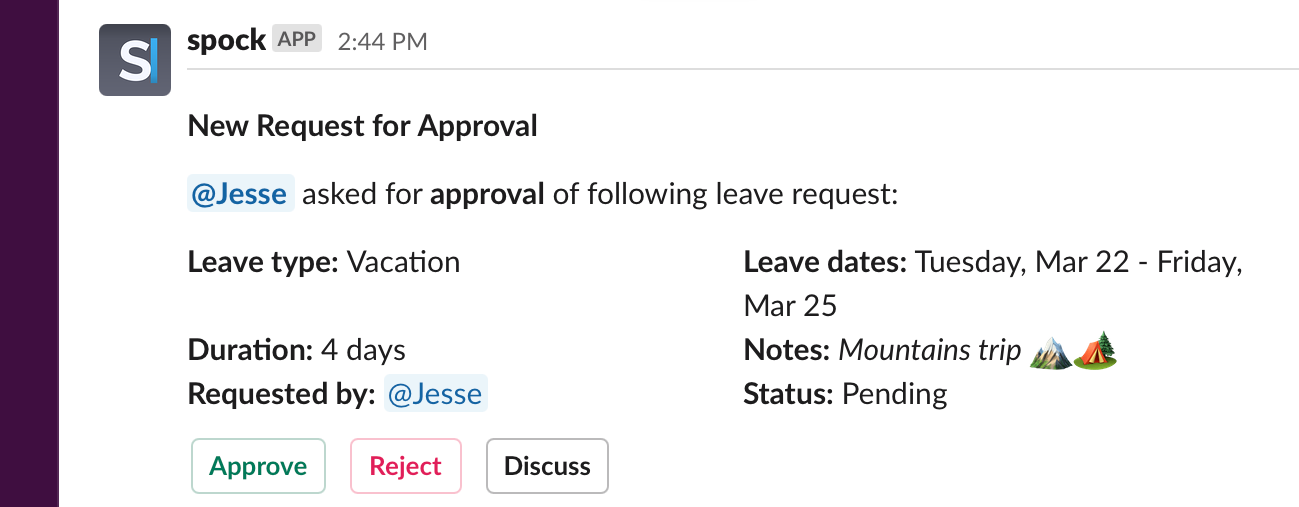
Spock Home Tab in Slack
Spock Home Tab in Slack
A list of pending approvals is displayed in the Spock Home Tab for easy access.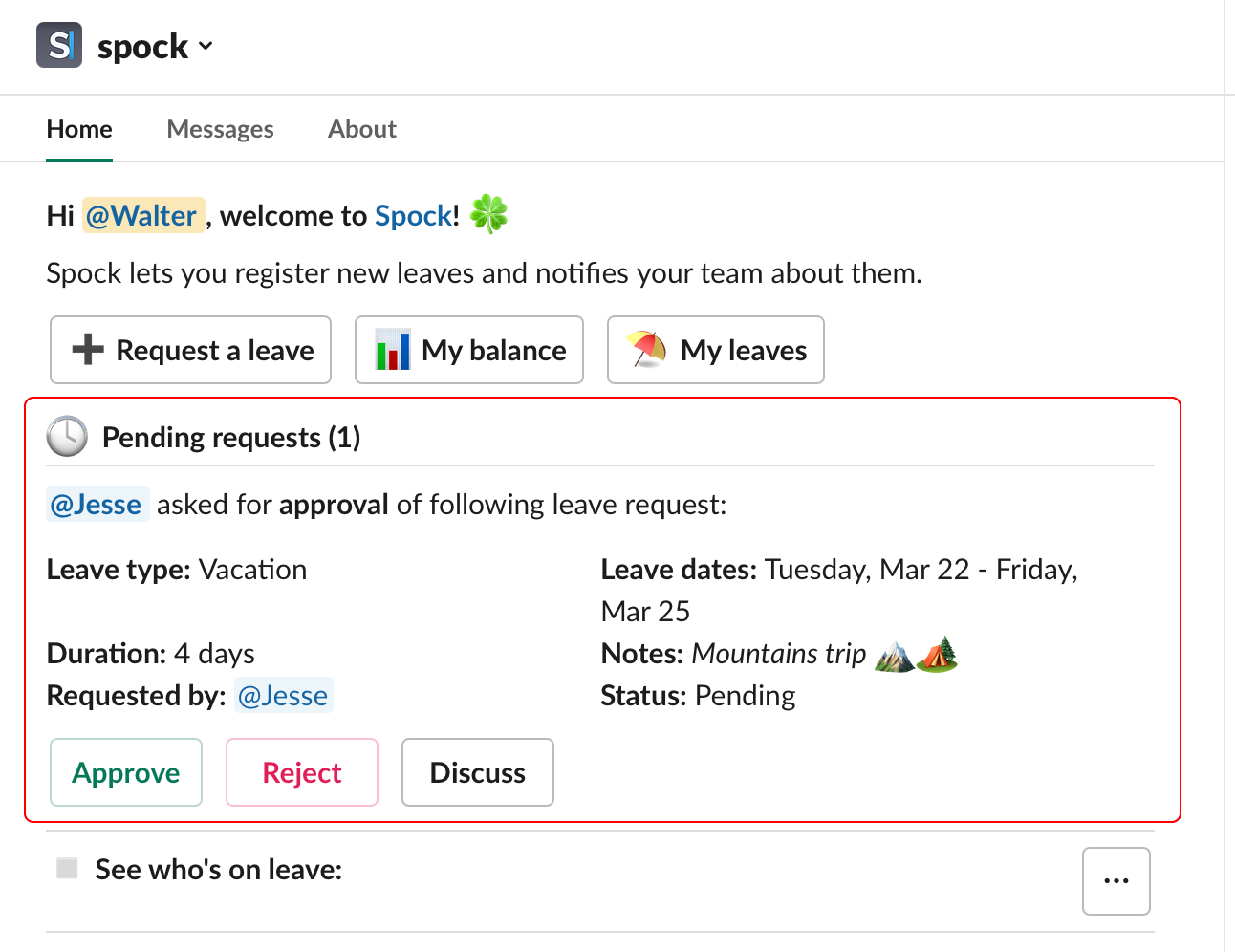
Dashboard
Dashboard
In the dashboard’s Leaves section, pending approval requests are prominently displayed.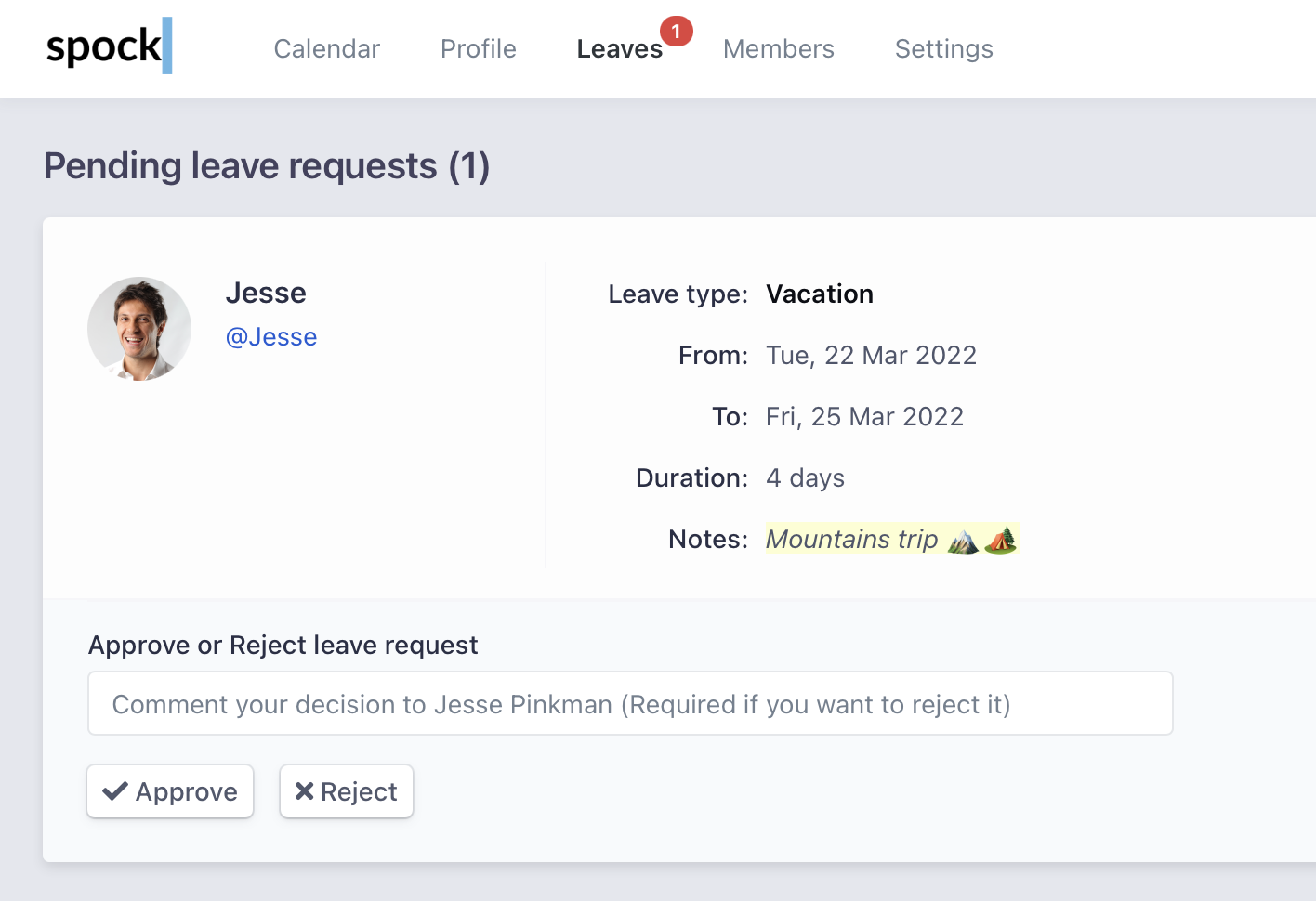
Approval Reminders
If an approver doesn’t act, Spock can follow up automatically. While a request is still waiting for a decision, approval reminders re-notify the approvers on a schedule you choose, tell the requester their request is still pending, and — optionally — escalate to your General Managers once the reminders run out. Approval reminders are configured workspace-wide by a General Manager in Settings > Policies.Set up approval reminders
Choose the reminder interval, how many reminders each request generates, and whether unanswered requests escalate to General Managers.
Approval Policy
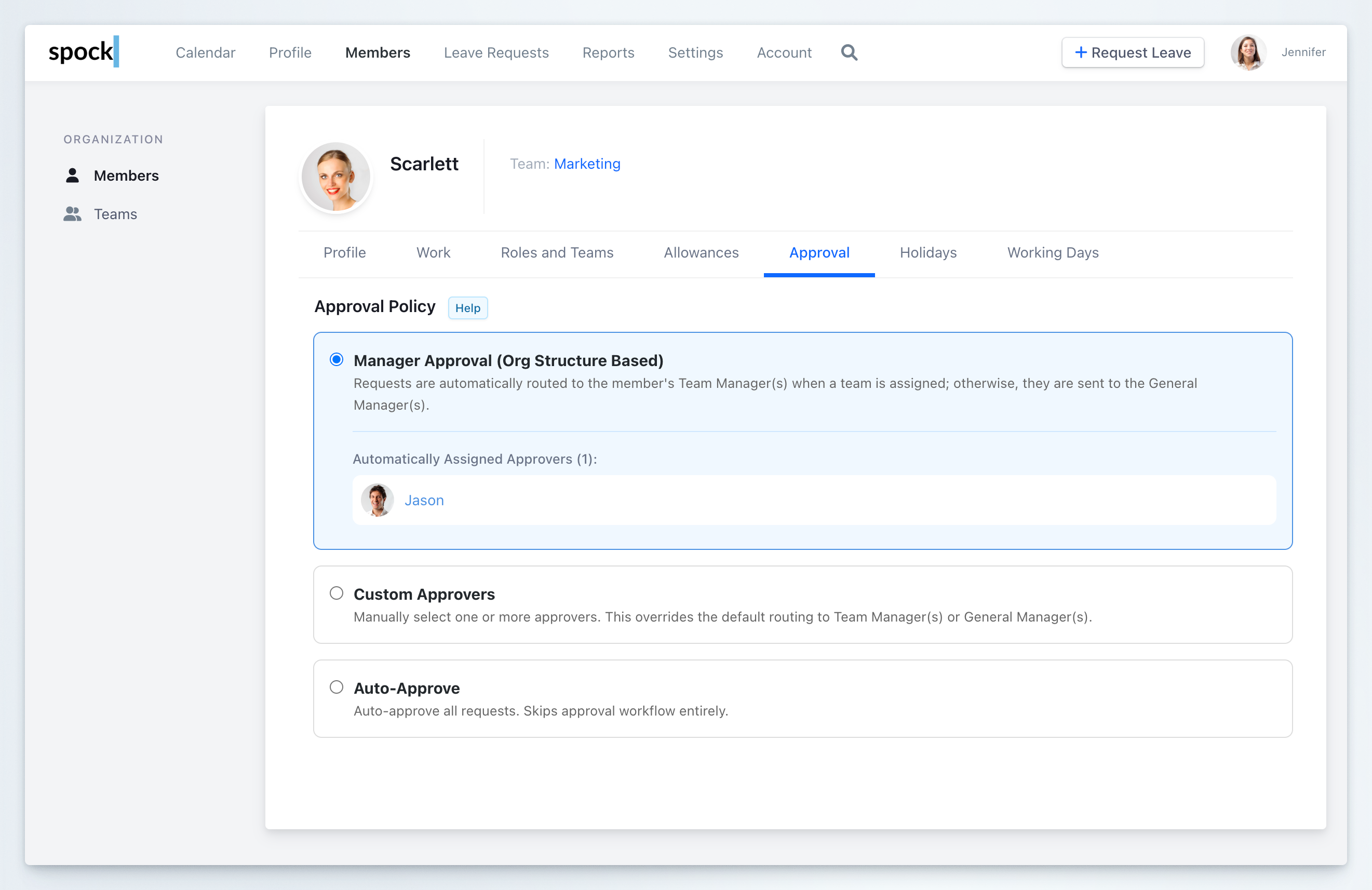
Each member can have an individual approval policy that determines how their leave requests are routed. You can configure these policies in the member’s profile under the Approval tab (Members > select member > Approval). Spock supports three approval policies:1. Manager Approval (Org Structure Based)
Requests are automatically routed to the member’s Team Manager(s) when a team is assigned; otherwise, they are sent to the General Manager(s).This is the default policy for all members.
- Team Members: Requests go to their assigned Team Manager(s)
- Members without a Team: Requests go to the General Manager(s)
- General Managers: Requests are auto-approved (no further review required)
2. Custom Approvers
Manually select one or more approvers. This overrides the default routing to Team Manager(s) or General Manager(s). Use this option when you need specific individuals to approve a member’s requests, regardless of the organizational structure.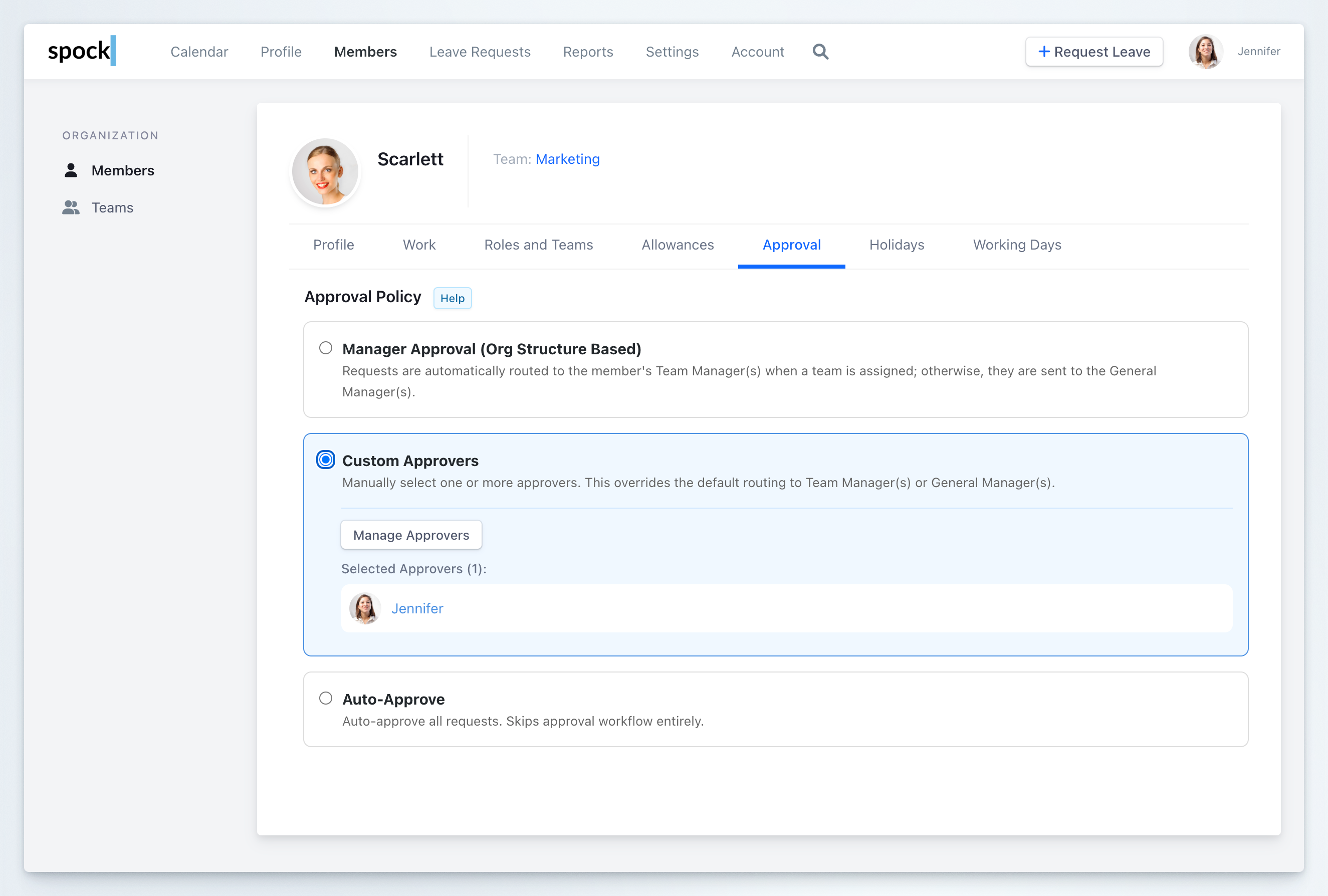
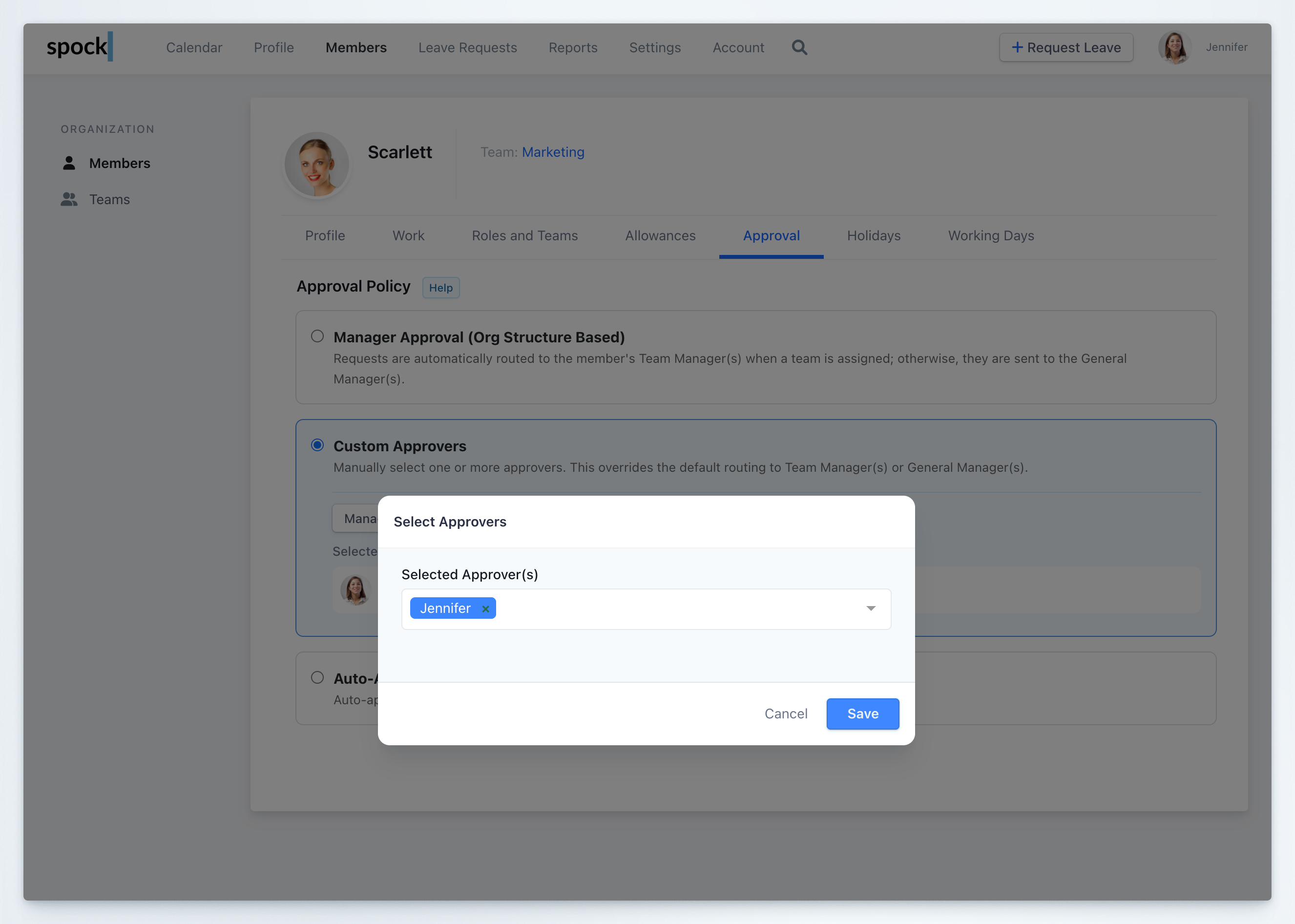
- Select the Custom Approvers option
- Click Manage Approvers
- In the modal, search and select one or more approvers
- Click Save to apply
3. Auto-Approve
Auto-approve all requests. Skips approval workflow entirely. When enabled, the member’s leave requests are approved automatically without requiring any manager review. This is useful for trusted employees or specific roles that don’t require oversight.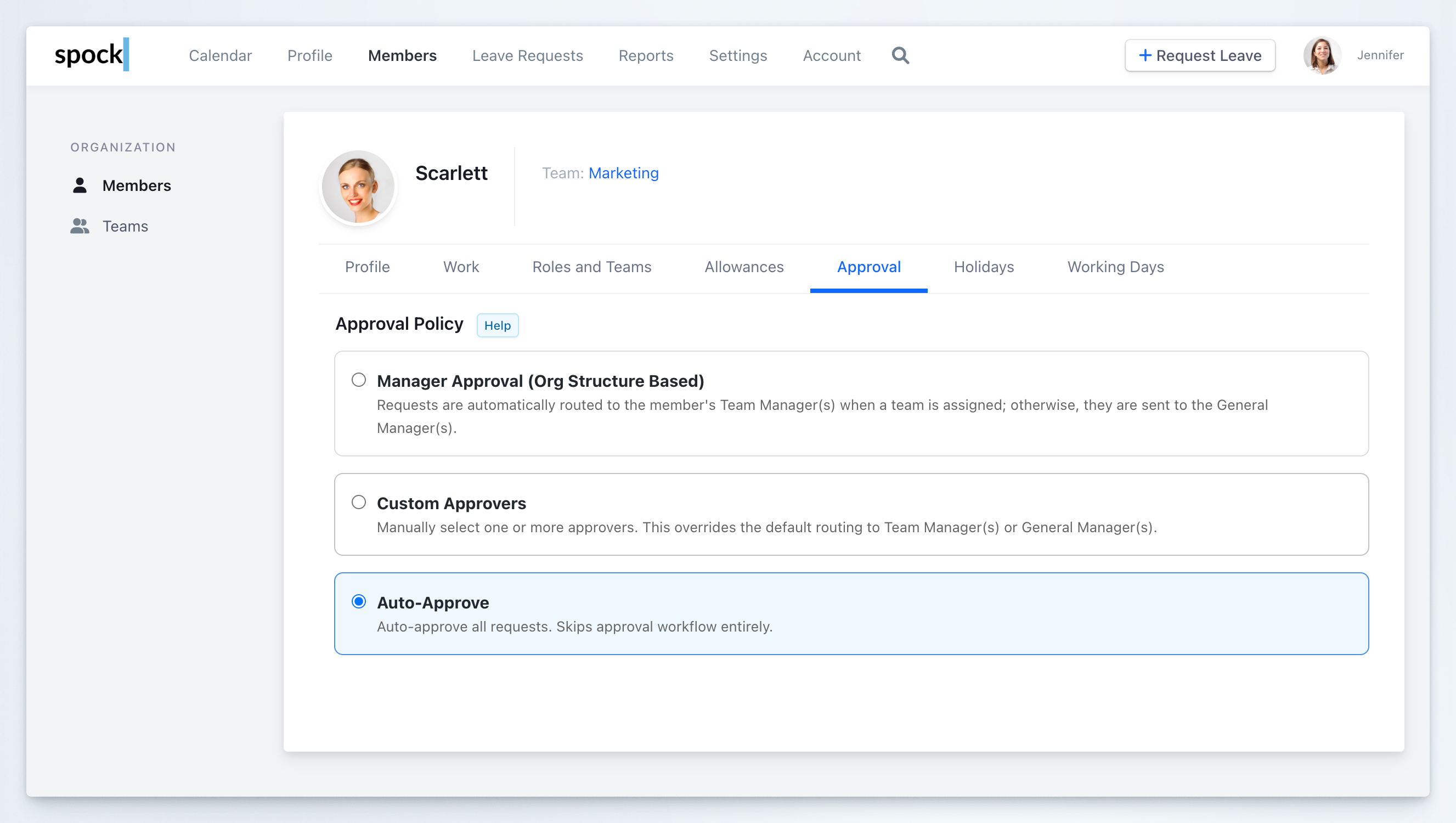
Approval Workflow Rules
The approval workflow follows these rules based on the member’s configured approval policy:Special Cases
- General Managers: Leave requests from General Managers are always approved automatically, regardless of their approval policy setting.
- Team Managers: By default, Team Manager requests are approved automatically. This can be changed in Settings > Policies > Auto-Approval for Team Managers’ Leave Requests to require General Manager approval instead.
- Approver Authority: General Managers can approve any leave request in the organization, regardless of the requester’s team or approval policy.
Related Topics
Teams Management
Learn how to organize teams and assign managers.
User Administration
Manage user roles and permissions.
Leave Types
Configure different types of leave and their requirements.
Request on Behalf
How managers can submit requests for team members.
By adhering to these rules, Spock ensures that your approval process is both streamlined and adherent to your organizational hierarchy and policies.