

Benefits of Using Substitutes
- Continuous Coverage: Ensures important tasks and responsibilities are handled during absences
- Team Coordination: Provides clear communication about who to contact in someone’s absence
- Workflow Management: Minimizes disruption to ongoing projects and daily operations
- Transparency: All parties are notified about substitute arrangements
Enabling Substitute Feature
General Managers can configure substitute coverage for each leave type with three different options:1
Navigate to Leave Types
Go to Settings > Leave Types in the Spock Dashboard.
2
Select leave type
Choose the leave type where you want to configure substitute coverage.
3
Configure Substitute Coverage
In the “Substitute Coverage” dropdown, select one of three options: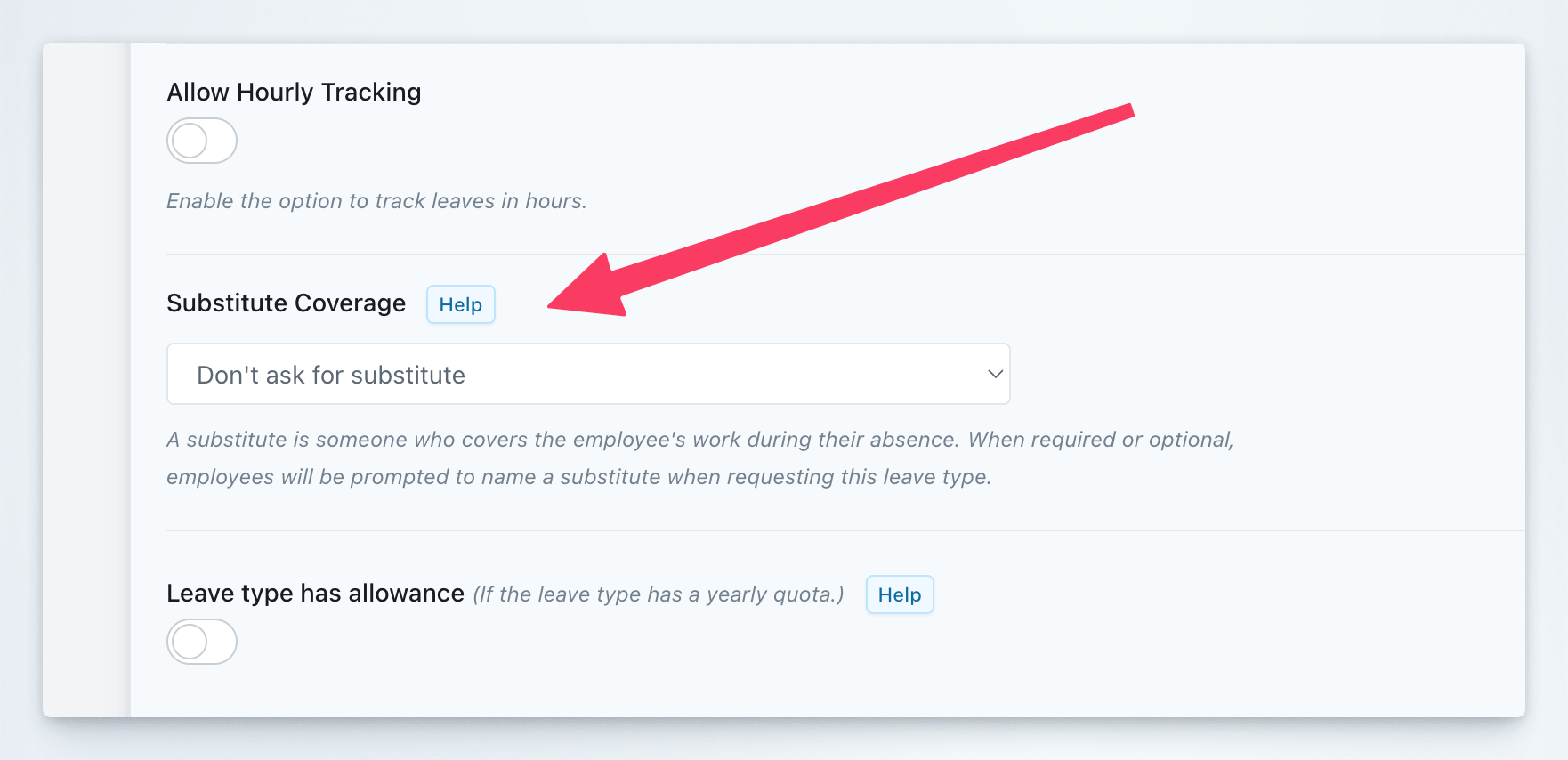
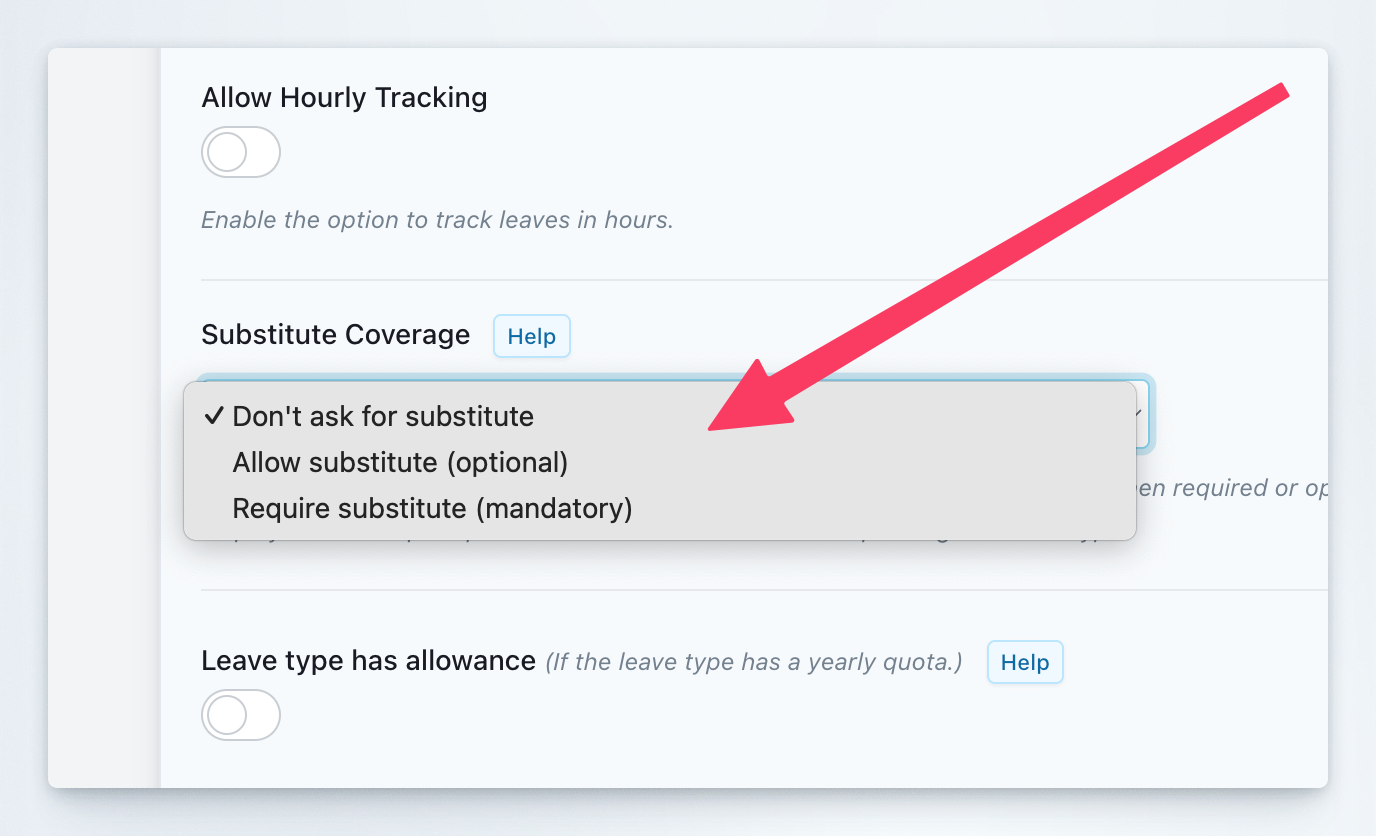
- Don’t ask for substitute: The substitute field will not appear in leave requests for this leave type
- Allow substitute (optional): Employees can optionally select a substitute when requesting leave
- Require substitute (mandatory): Employees must select a substitute before submitting their leave request
4
Save configuration
Click the Save button to apply the changes.
A substitute is someone who covers the employee’s work during their absence. When required or optional, employees will be prompted to name a substitute when requesting this leave type.
Assigning a Substitute During Leave Request
When submitting a leave request for a leave type with substitute coverage set to optional or mandatory:1
Access leave request form
Open the leave request form in either Slack or the Dashboard.
2
Complete leave details
Fill in all required information for your leave request.
3
Select substitute
In the “Substitute” section, choose a coworker from the list of available team members. If the leave type requires a substitute, this field is mandatory.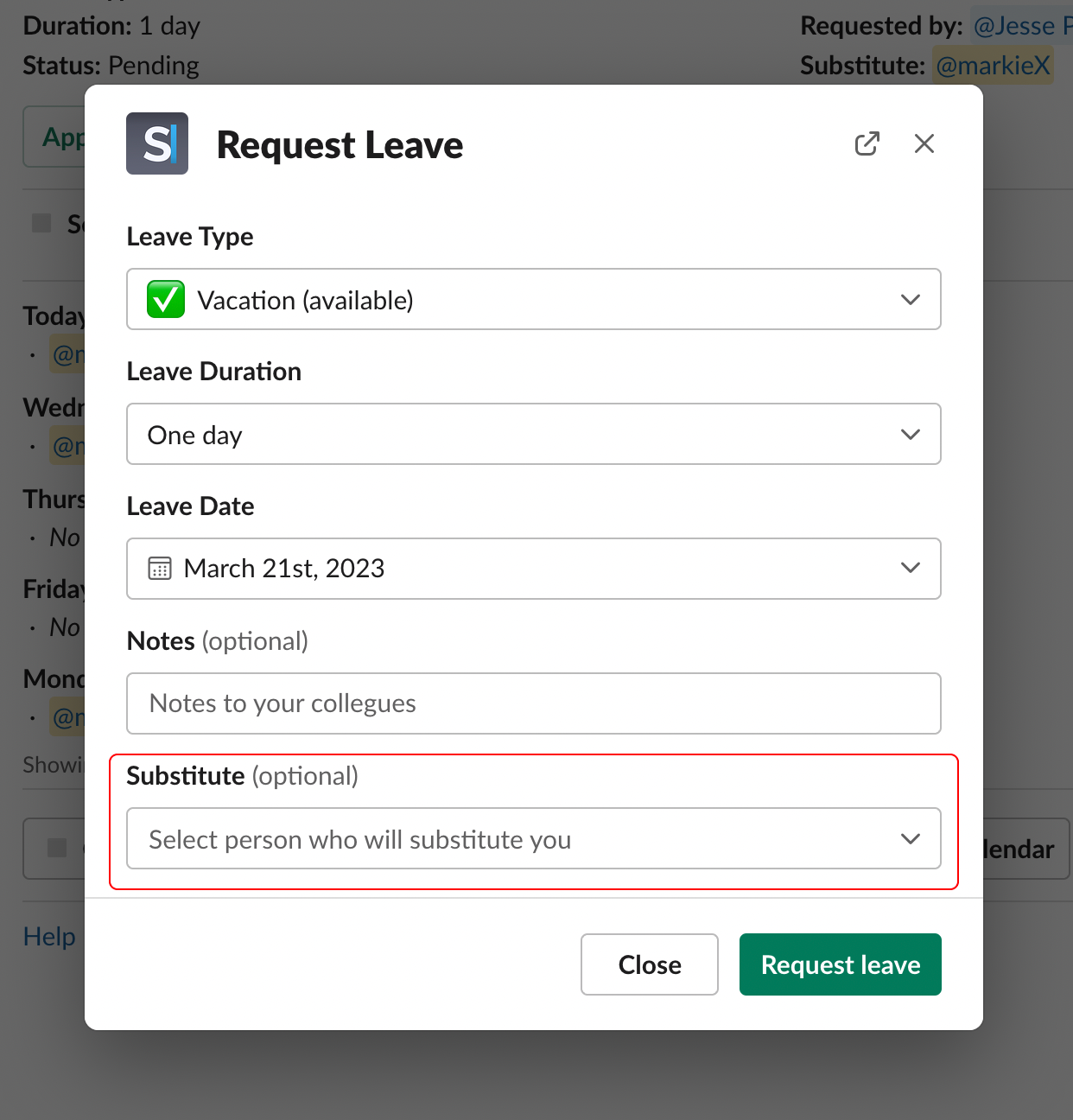
4
Submit request
Complete and submit your leave request with the substitute assignment.
Changing a Substitute
Modify substitute assignments at any time before or during your leave:1
Access My Leaves
In Slack, go to the Spock Home tab and click My Leaves.
2
Find your leave request
Locate the leave request where you want to change the substitute.
3
Open context menu
Click the context button (three dots) on your leave request.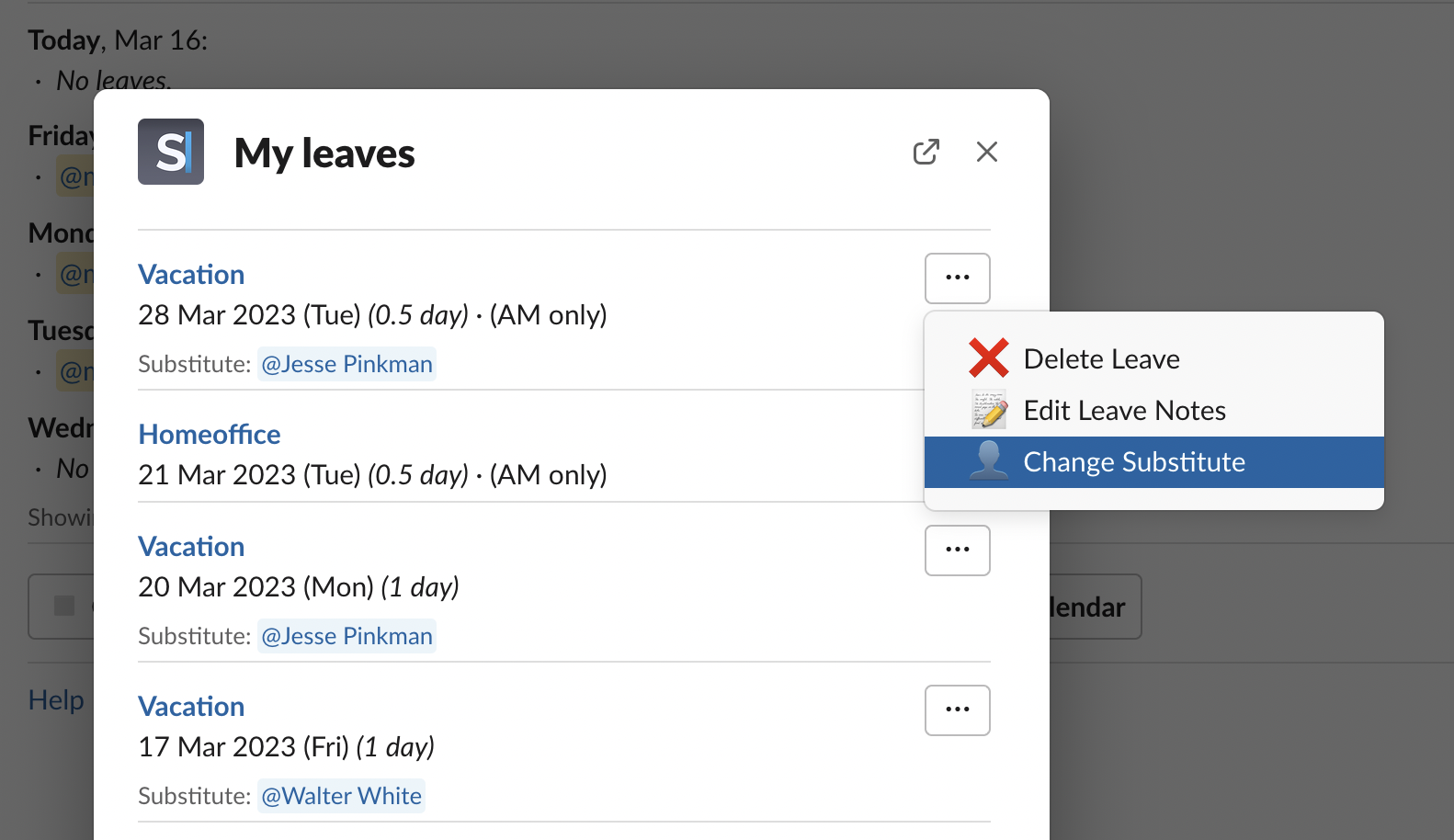
4
Select change option
Choose “Change Substitute” from the context menu.
5
Select new substitute
Pick a new substitute from the list of available team members.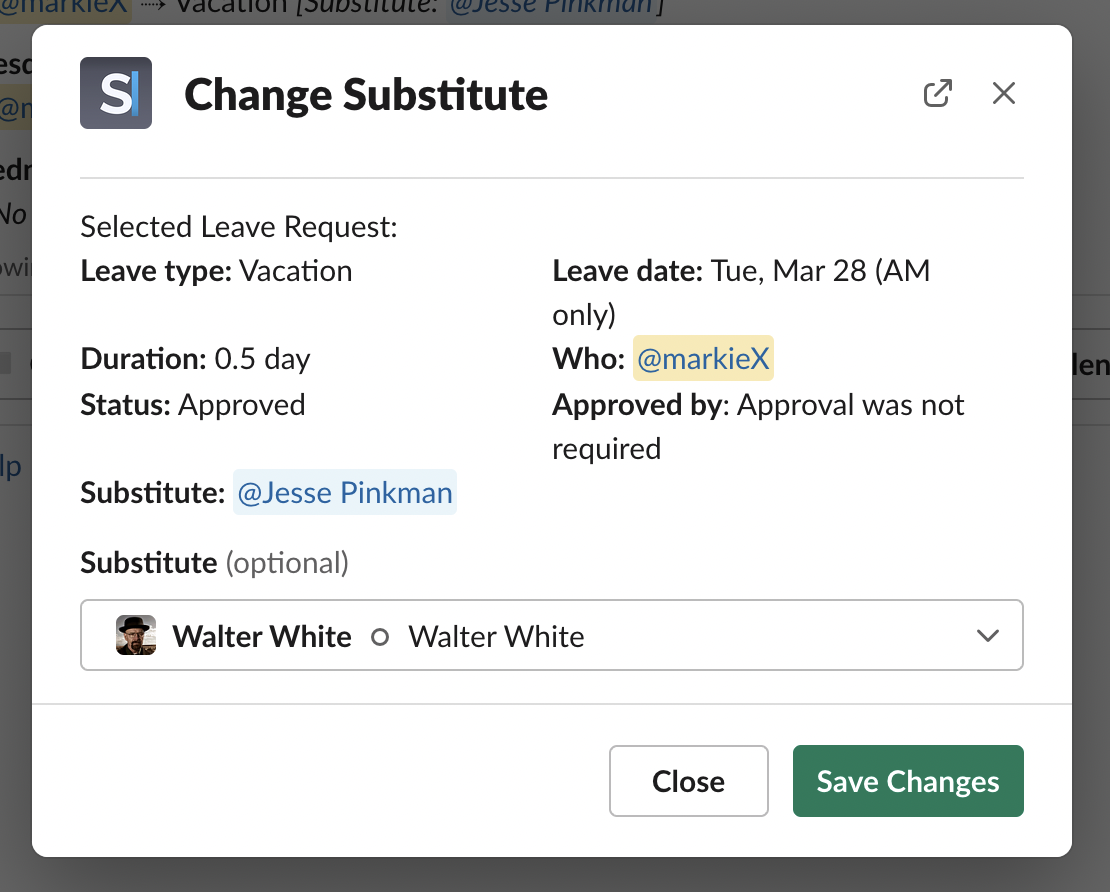
6
Confirm changes
Click “Save Changes” to apply the new substitute assignment.
All parties involved (new substitute, previous substitute, and approvers) will be automatically notified of the change.
Changing Substitutes During Approval
Approvers can modify substitute assignments while reviewing leave requests:1
Review leave request
Open the leave request in the approval interface.
2
Modify substitute
In the “Substitute” section of the approval form, select a different team member if needed.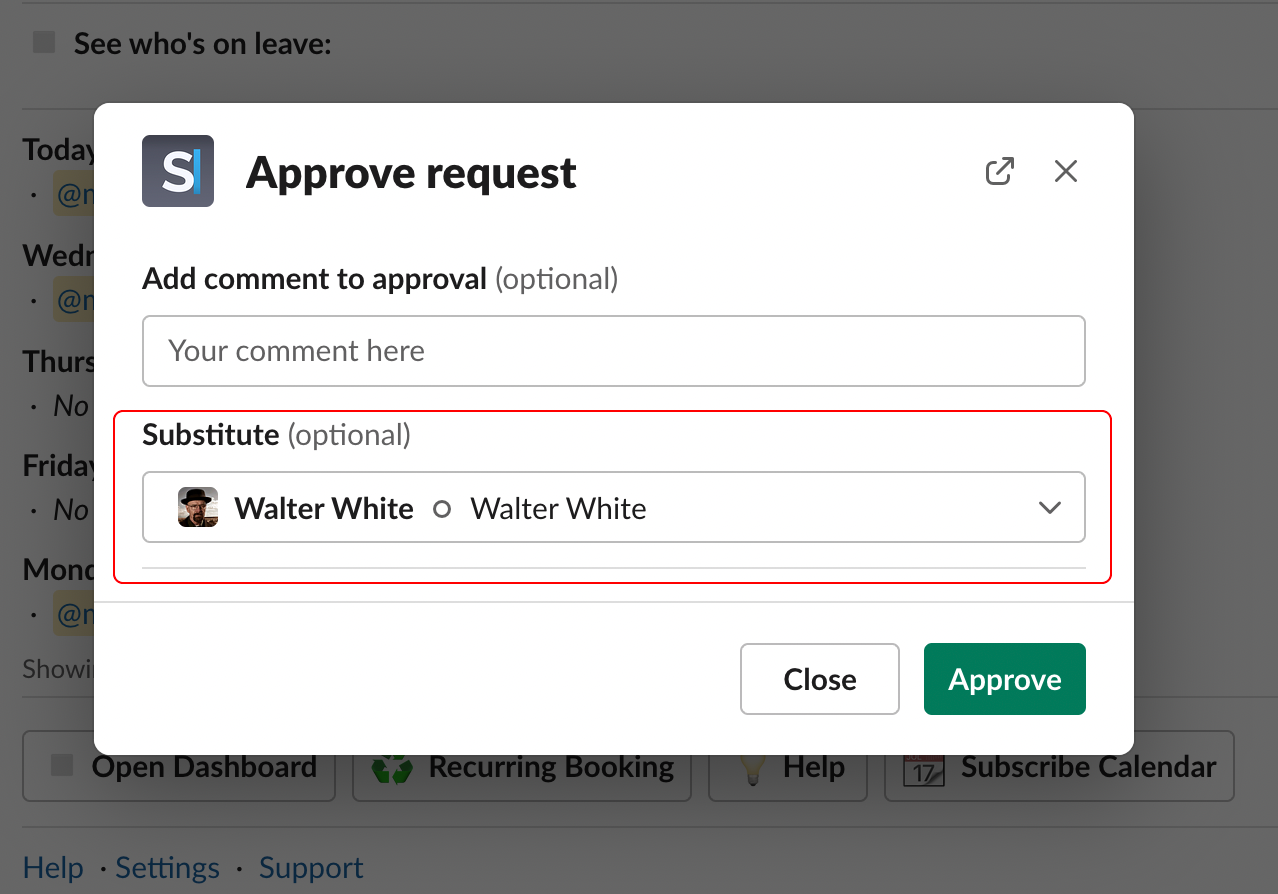
3
Complete approval
Proceed with approving or rejecting the leave request with the updated substitute.
Best Practices for Substitutes
Choose the Right Coverage Option
Choose the Right Coverage Option
Select the appropriate substitute coverage setting for each leave type:
- Don’t ask for substitute: Use for casual leave types (sick days, personal days) where coverage isn’t critical
- Allow substitute (optional): Recommended for most leave types - gives flexibility while encouraging coverage planning
- Require substitute (mandatory): Use for extended leaves or critical roles where coverage is essential (annual leave, long-term absences)
Choose Appropriate Coverage
Choose Appropriate Coverage
Select substitutes who have the necessary skills and knowledge to handle your responsibilities effectively.
Communicate Handover
Communicate Handover
Coordinate with your substitute before your leave to ensure smooth transition of tasks and responsibilities.
Plan Ahead
Plan Ahead
Assign substitutes as early as possible to give them time to prepare for additional responsibilities.
Notification System
Spock automatically notifies relevant parties:- New Substitute: Informed when assigned to provide coverage
- Previous Substitute: Notified when removed from assignment
- Approvers: Updated about substitute changes during approval process
- Team Members: May receive notifications based on team settings
Related Topics
Request Leave
Learn the complete process for submitting leave requests.
Approvals
Learn how to review, approve, or reject leave requests.
Teams Management
Organize teams to facilitate better substitute assignments.
Leave Types
Configure which leave types support substitute assignments.