

Only users with the General Manager role can manage calendars and events. See Spock User Roles for what each role can do, and the full list of Supported Countries for automatic holiday import.
In this article
- How Members Get a Calendar
- Event Types and Booking Behavior
- Managing Calendars
- Managing Events
- Which Calendar Applies to a Member
- How Events Affect Leave Requests
- Where Events Appear
- Calendar Subscriptions
How Members Get a Calendar
Every member follows exactly one calendar at a time. A calendar can reach them in three ways:
When more than one route could apply, the most specific one wins: a direct assignment overrides the member’s location, and a location overrides the workspace default.
Event Types and Booking Behavior
Every event on a calendar has a type and a booking behavior. Together they decide how the day looks across Spock and what happens when someone tries to book leave on it.Type
The type describes what kind of date this is. It sets the label and the color shown on every calendar in Spock.Booking behavior
The booking behavior decides what happens when someone requests leave that overlaps the event.
Choosing a type pre-fills the behavior — Public Holidays and Blackouts block, Company Events do nothing — but you can override it on any event.
Managing Calendars
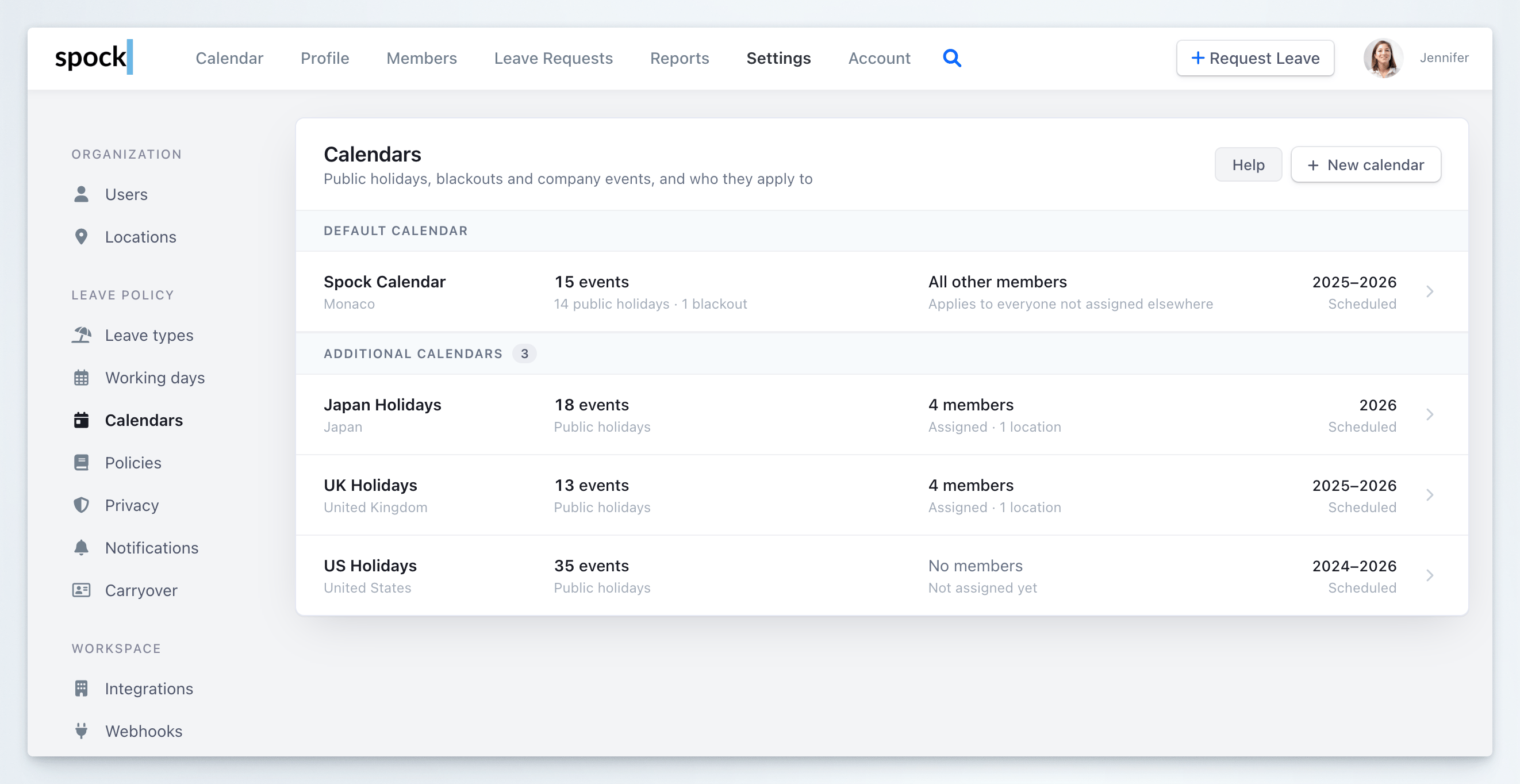
A calendar is a named list of events. You can have as many as you need, but one is always the workspace default.How to create a calendar
1
Go to Settings
Navigate to Settings > Calendars
2
Click New Calendar
Click + New calendar in the top-right corner
3
Name the calendar
Enter the calendar name and submit the form
4
Complete
The calendar appears under Additional calendars, ready for events and members
How to set the default calendar
The default calendar applies to everyone who is not assigned a calendar directly or through their location.1
Open the calendar
Select the calendar you want to promote
2
Set as default
Click Set as default in the top-right corner
3
Complete
The calendar moves to the Default calendar section of the list
Promoting a calendar moves the members who were directly assigned to it into the default’s fallback bucket — they are covered because they are now “everyone else”, not because of a direct assignment.
How to assign members to a calendar
1
Open the calendar
Select the calendar you want to assign members to
2
Click Manage members
Click Manage members on the right of the Applies to band
3
Select members
Choose the members to assign and save
Who a calendar applies to
Every calendar page — the default included — shows an Applies to band listing exactly who the calendar governs: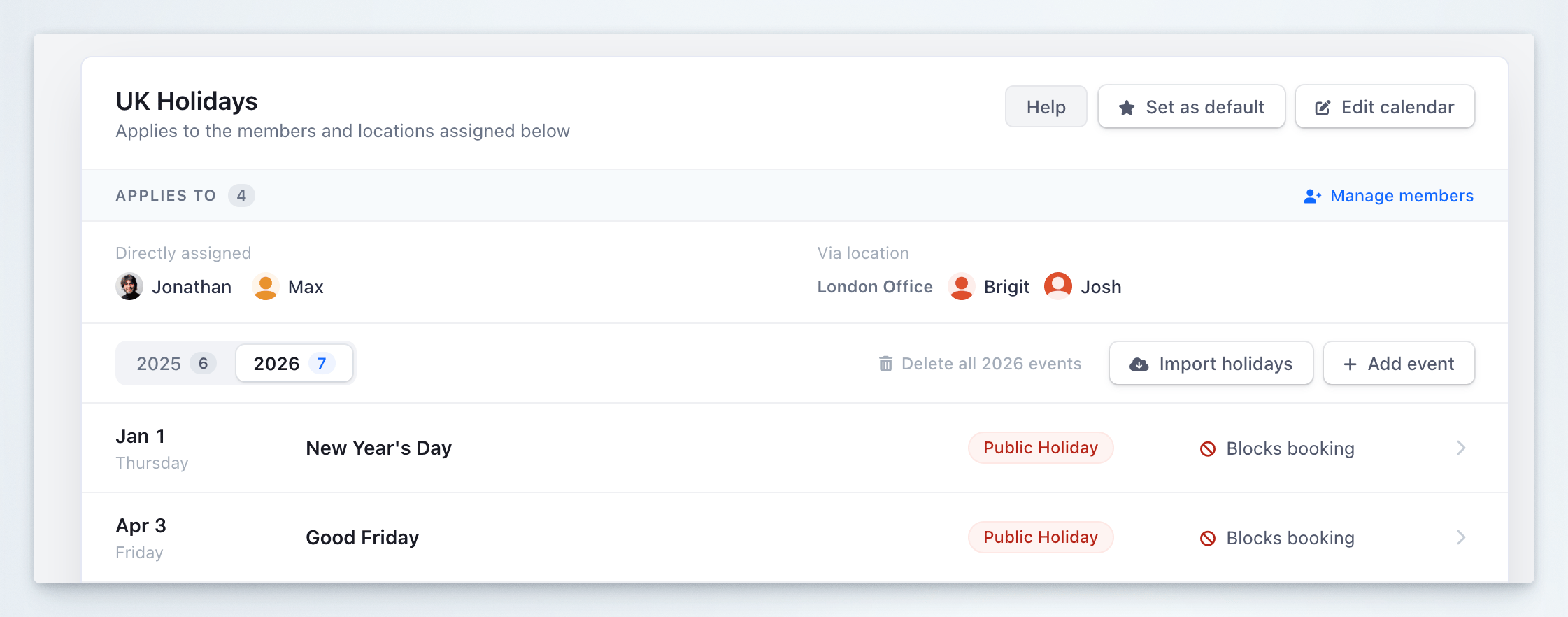
The three buckets never overlap. Together they are the complete set of members the calendar applies to.
Managing Events
Open a calendar to see its events in year tabs, with the date, name, type, and booking behavior of each one.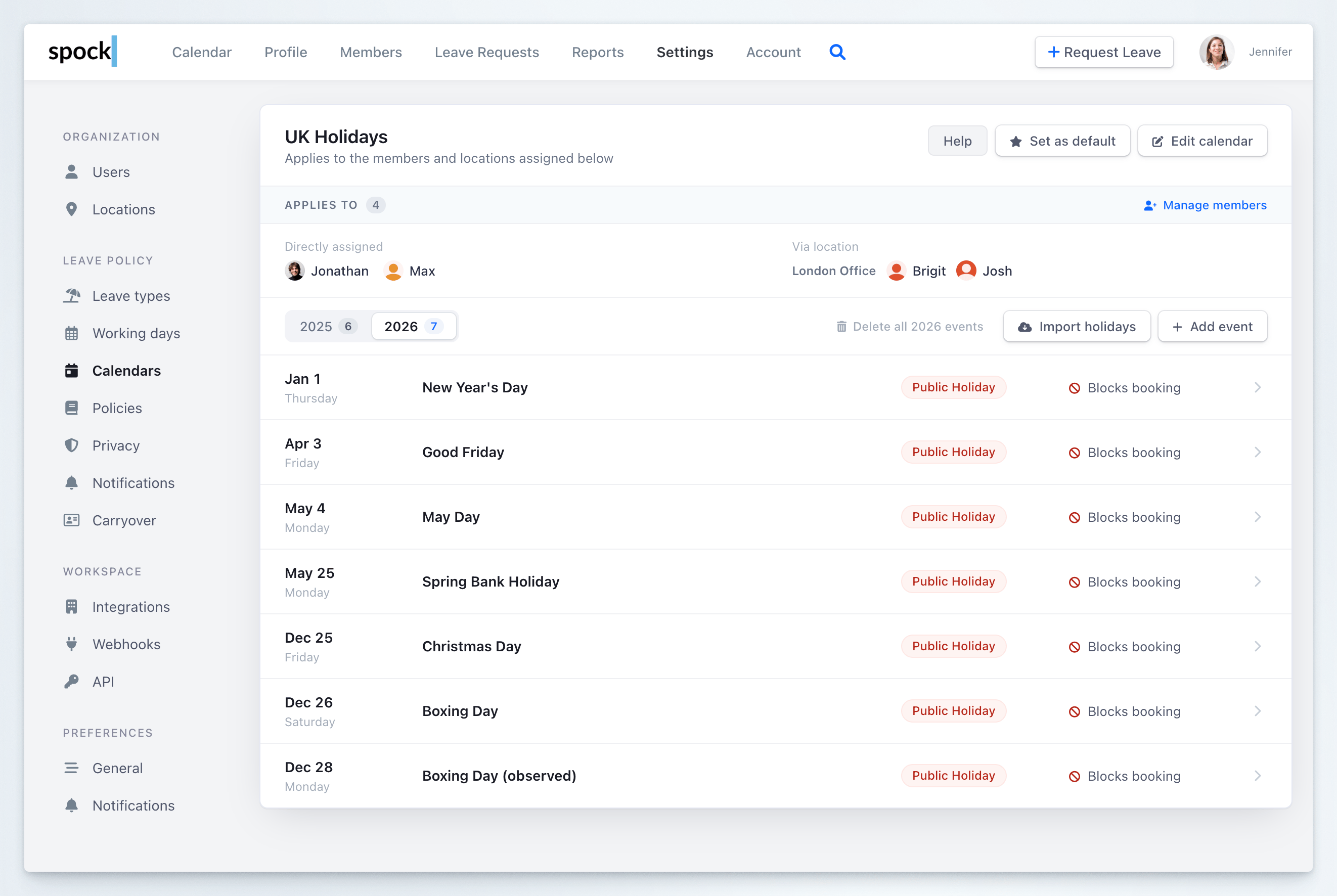
How to add an event
1
Open the calendar
Select the calendar you want to add the event to, and pick the year tab
2
Click Add event
Click + Add event
3
Fill in the event form
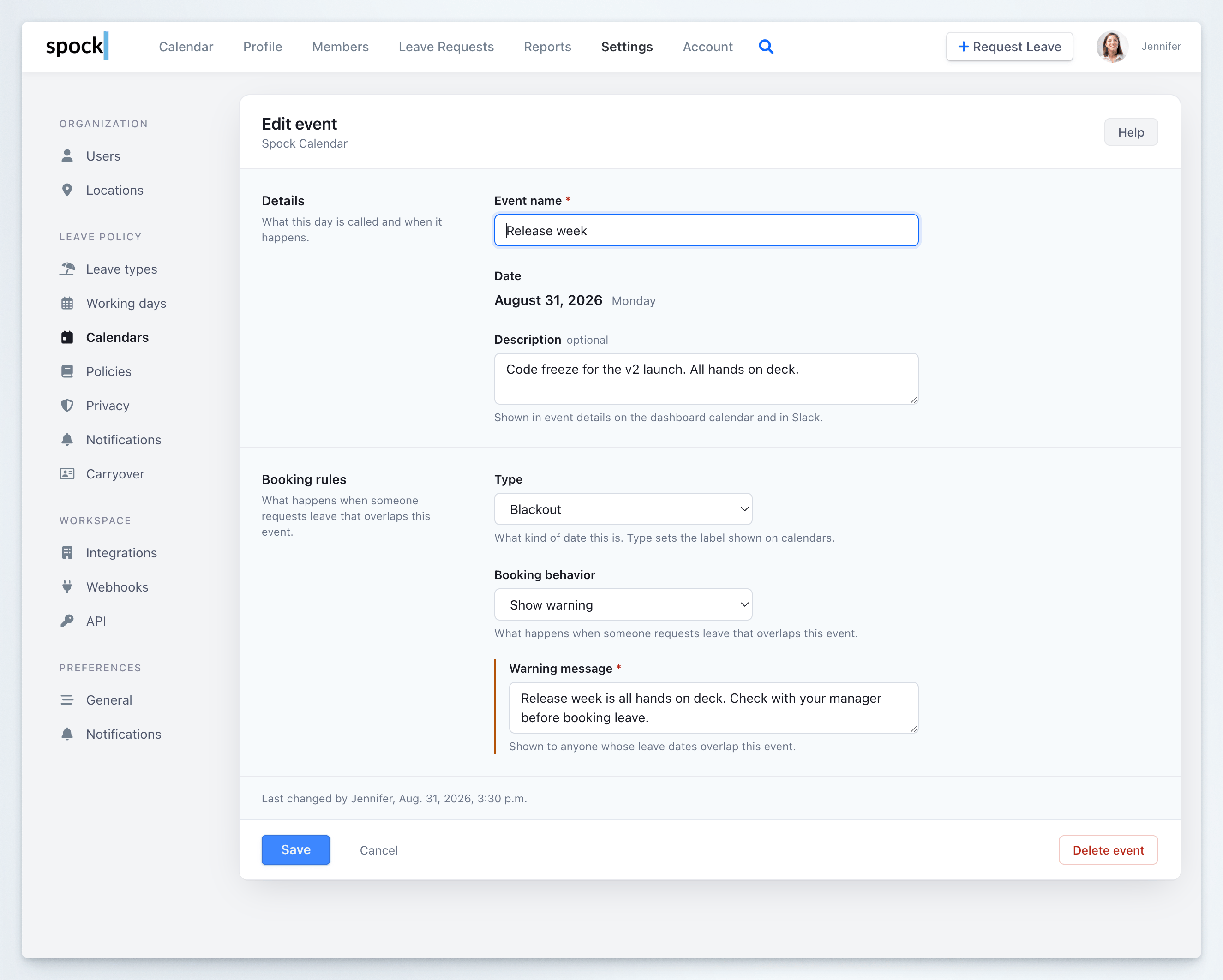
4
Save
Click Save. You can reopen any event later to change its date, type, or behavior.
How to import public holidays
Importing fills a calendar with a country’s public holidays for a whole year in one step.1
Open the calendar
Select the calendar you want to import holidays into
2
Click Import holidays
Click Import holidays
3
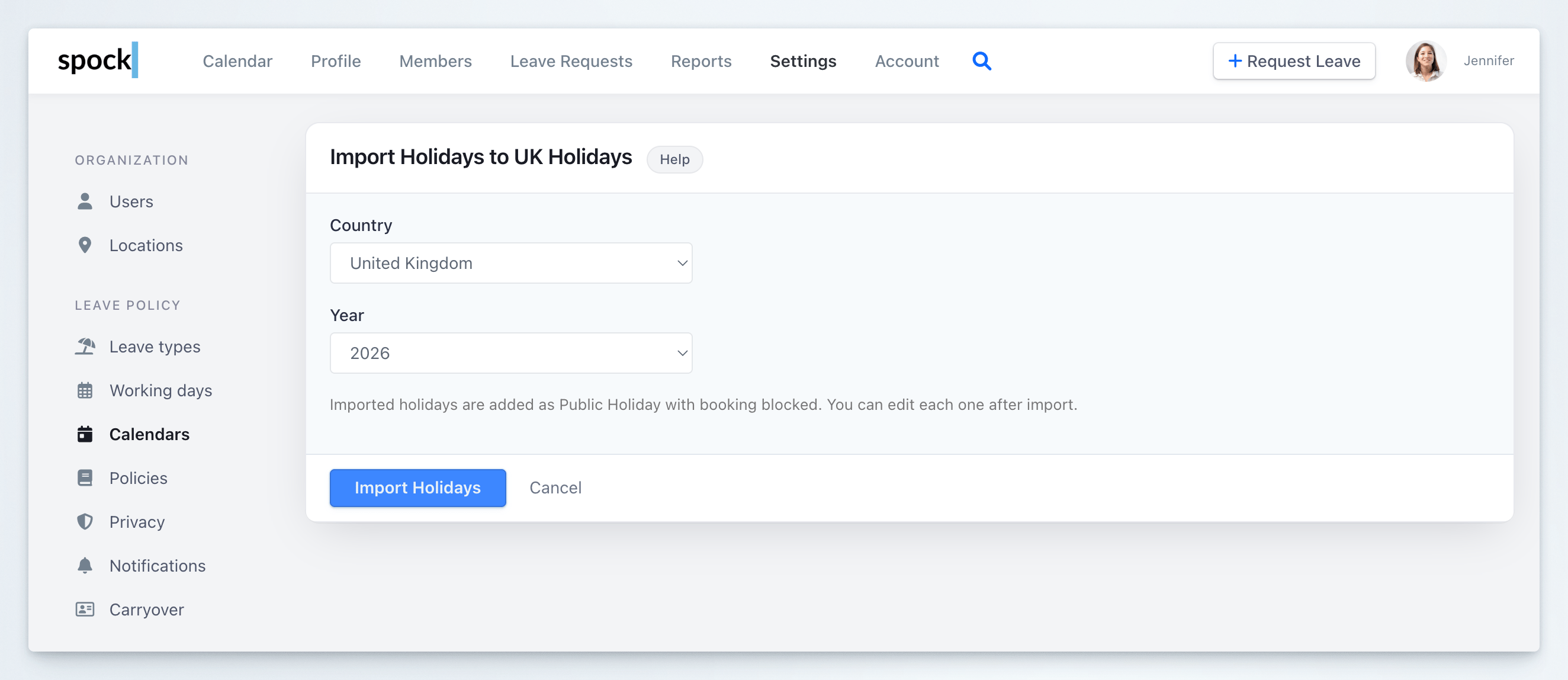
Choose the country and year
4
Import
Click Import Holidays. The holidays arrive as Public Holiday with booking blocked, and you can edit any of them afterwards.
Running an import again for the same country and year never creates duplicates, so it is safe to re-import if you are not sure whether a year was already filled in.
How to delete events
To clear a whole year, open the calendar, select the year tab, and click Delete all events. Repeat for each year you want to empty. To remove a single event, open it and click Delete event.Which Calendar Applies to a Member
Spock resolves one active calendar per member, following the priority in How Members Get a Calendar: a direct assignment first, then the member’s location, then the workspace default. To see the result for someone, go to Members > select the member > Holidays and Events. The tab names the active calendar with a badge showing where it came from, and lists every event that applies to that member for the year.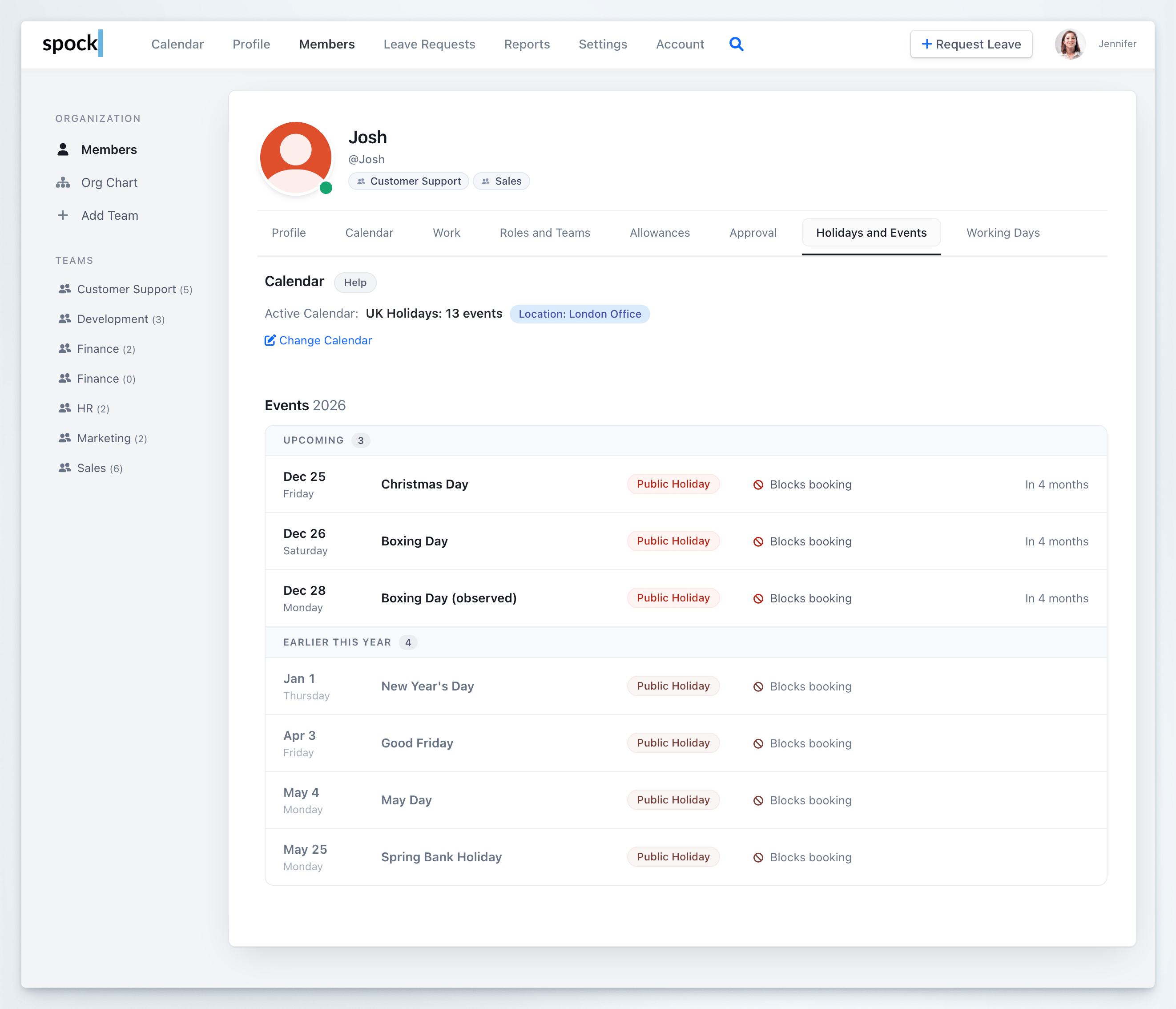
Members who work public holidays
The per-member setting Automatically skip public holidays in leave requests decides whether that person observes public holidays at all. Turning it off exempts them: they can book leave on public holidays, and those days count normally against their allowance.This setting only covers public holidays. Blackouts and warnings always apply to everyone, however it is set.
How Events Affect Leave Requests
Blocking events
Blackouts and Company Events set to Block booking enforce identically — the type only changes the label people see. Three rules apply:- A single-day request on a blocked day is rejected, with a message naming the event and showing its description.
- A request that starts or ends on a blocked day is rejected. Spock never silently moves the dates someone asked for.
- A blocked day strictly inside a longer request is skipped, exactly like a public holiday: it produces no leave day, is not counted in the duration, and is not charged to the allowance.
Blocking Public Holidays are not affected by these rules. They keep their original behavior: skipped inside longer requests, and a request cannot start or end on one.
Warnings
Dates that overlap a Show warning event show a Check before you submit panel, both on the web form and in the Slack request modal. Each line names the event type and the event, followed by the warning message and the event description. Submitting is still allowed.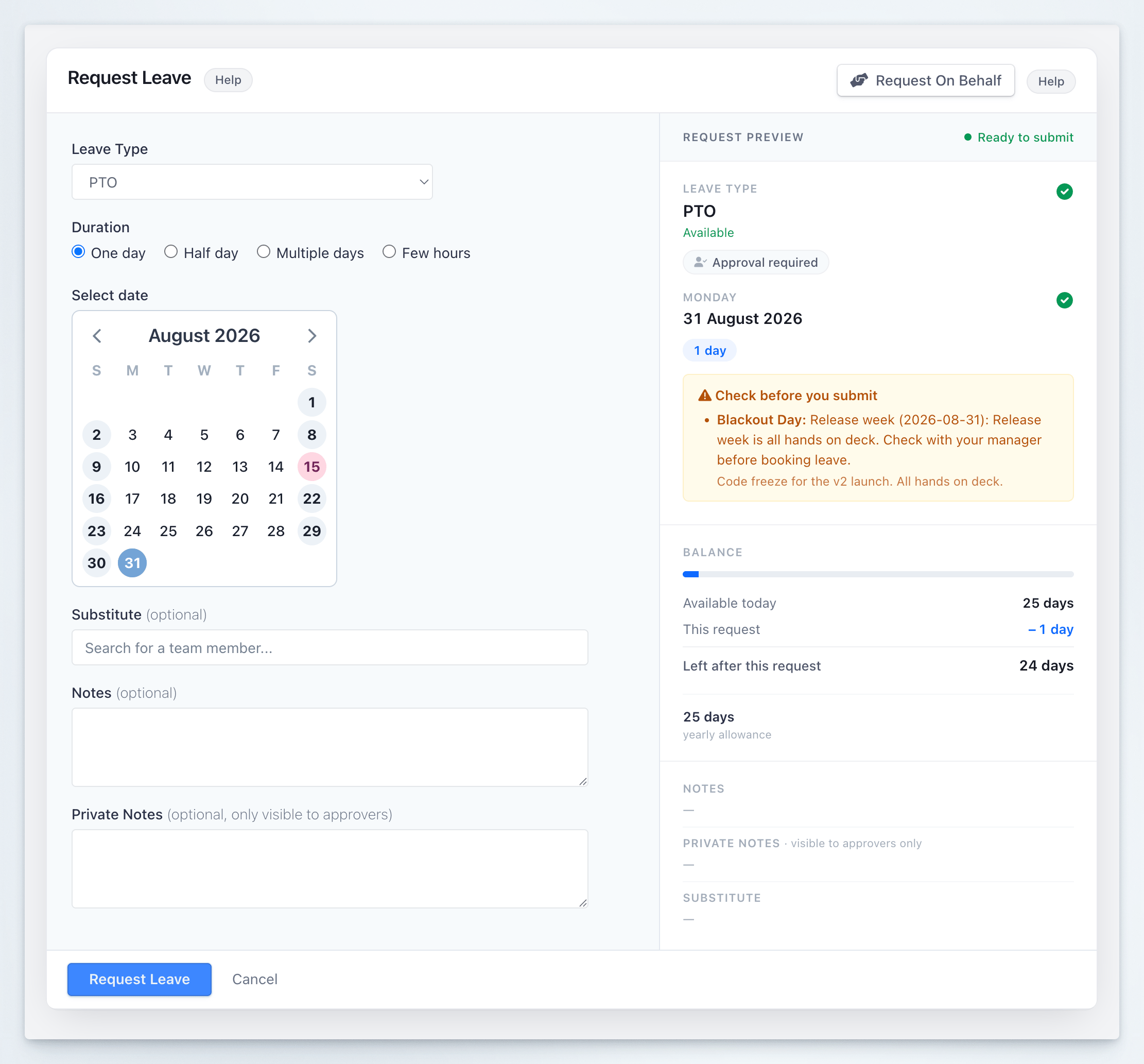
In the date picker
The web date picker labels blackout and blocked-event days in amber, so people see restricted days before they submit a request. See Requesting Leave for the full request flow.Where Events Appear
Company Calendar
Company Calendar
The monthly Calendar page shows events as colored chips — red holidays, amber blackouts, blue company events. Hovering a chip opens a card with the event’s type, name, description, source calendar, and, for non-default calendars, a preview of the members it applies to.
Wallchart
Wallchart
Day headers mark holidays with 🎉 and other events with colored dots. A single holiday or an event dot opens the same detailed hover card. Days with several holidays show a compact list instead.
Member yearly calendar
Member yearly calendar
On a member’s Calendar tab, every calendar event renders as a small chip, the same size as leave entries but visually distinct from them:
- 🎉 public holiday, on a red-tinted day cell
- ⚫️ blackout, as a soft amber chip
- 📅 company event, as a soft blue chip
Dashboard, Slack, and reports
Dashboard, Slack, and reports
- Dashboard — today’s events appear on the today card, grouped and labeled by type.
- Slack Home Tab — the Company Calendar button opens the calendar modal, grouped by type.
- Daily and weekly reports — public holidays render exactly as before. Blackouts and company events appear under their own labels when present.
Calendar Subscriptions
Two checkboxes in Settings > Integrations > External Calendar Integration control which events reach subscribed calendars: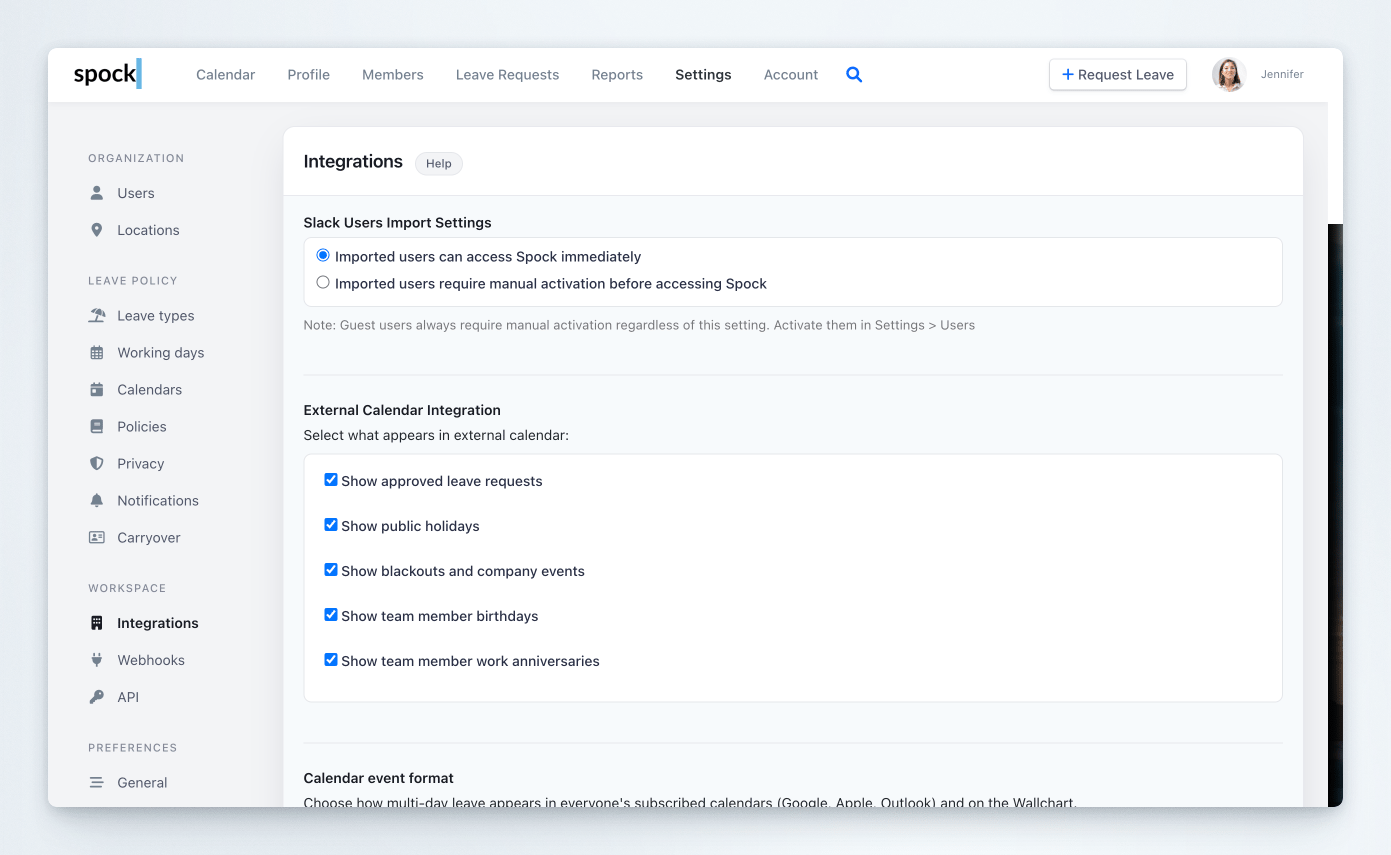
These events then show up in Google Calendar, Apple Calendar, and Outlook alongside leave. See Calendar Integration Setup for how to subscribe.