> ## Documentation Index
> Fetch the complete documentation index at: https://docs.spockoffice.com/llms.txt
> Use this file to discover all available pages before exploring further.
# Webhooks
> Set up outgoing webhooks to receive real-time notifications when leave request events occur in Spock.
Webhooks let you push real-time leave request events from Spock to your own systems. Instead of repeatedly checking the API for updates, your endpoint receives an HTTP POST notification the moment something happens — a request is submitted, approved, rejected, cancelled, deleted, or updated.
Webhooks require a **Professional** or **Enterprise** plan. Teams on the Free plan will see an upgrade prompt instead of the webhook configuration.
## Why use webhooks
* **Real-time sync** — Keep your HRIS, payroll, or calendar system in sync without polling the API
* **Reduced API calls** — Events are pushed to you, so you don't need to query for changes
* **Flexible automation** — Trigger custom workflows (e.g., update Google Calendar, notify an external channel, sync with your HR tool) based on specific leave events
* **Selective delivery** — Subscribe only to the events you care about
## Supported events
Spock sends webhook notifications for six leave request lifecycle events:
| Event | Description |
| --------------------------- | -------------------------------------------------------------------------------------- |
| `absence_request.requested` | An employee submits a new absence request |
| `absence_request.approved` | A manager approves an absence request, or the request is auto-approved |
| `absence_request.rejected` | A manager rejects an absence request |
| `absence_request.cancelled` | An employee cancels their absence request |
| `absence_request.deleted` | An absence request is permanently removed |
| `absence_request.updated` | Any field on an existing absence request is changed (e.g. dates, substitute, or notes) |
When a leave request is auto-approved (no approval required), two events fire in sequence: `absence_request.requested` followed by `absence_request.approved`. Design your integration to handle both events using the combination of the request ID and event type for idempotency.
## Setting up webhooks
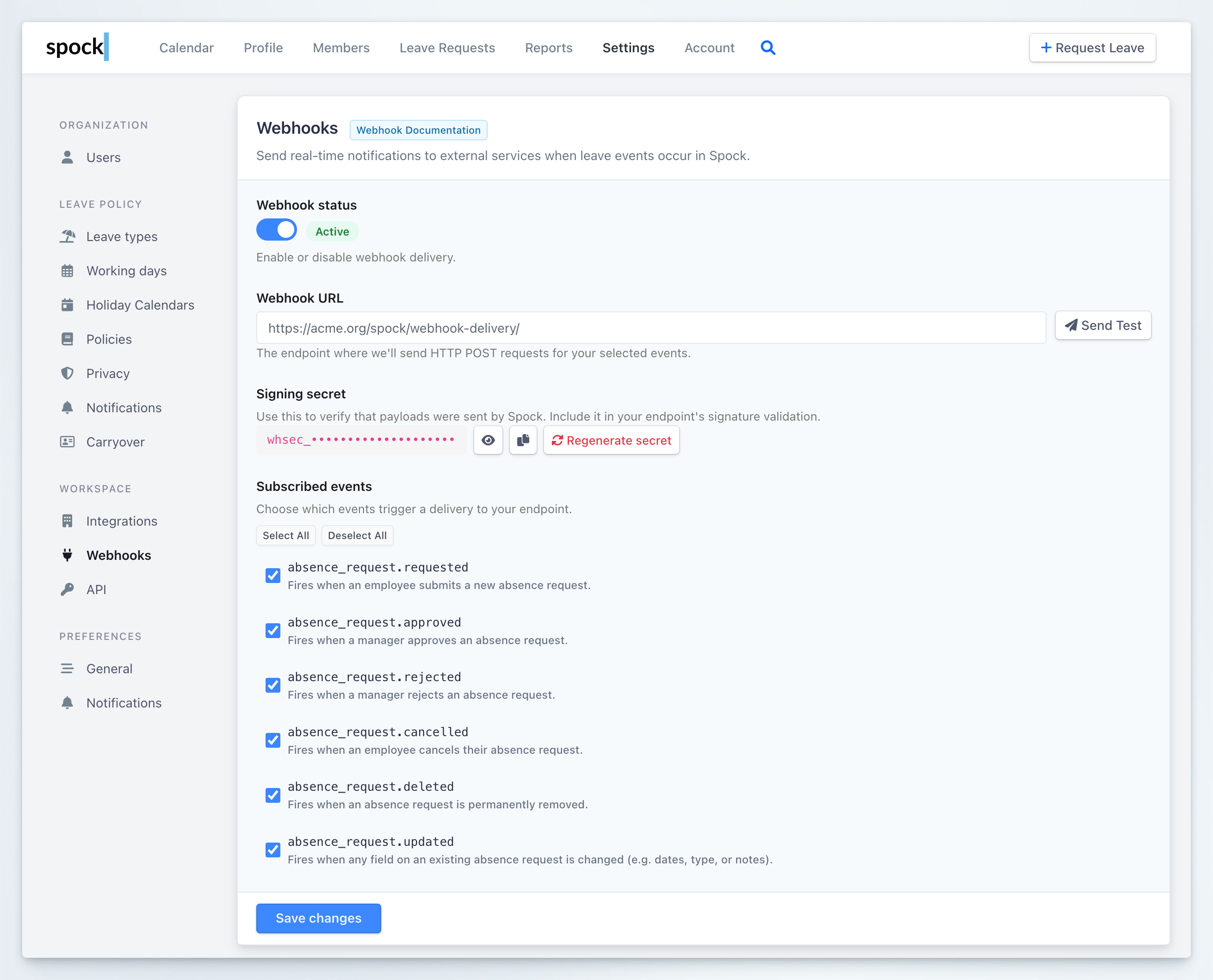
Go to **Settings** > **Webhooks** in your Spock Dashboard. You can also navigate there directly at [Open Webhooks in Dashboard](https://spockoffice.com/spockapp/settings/webhooks/).
Toggle **Webhook status** to **Active**. You can disable it at any time without losing your configuration.
In the **Webhook URL** field, enter the HTTPS endpoint where Spock should send POST requests. For example:
```
https://acme.org/spock/webhook-delivery/
```
Only HTTPS URLs are accepted. Make sure your endpoint is publicly accessible and can accept POST requests.
Spock auto-generates a **Signing secret** (`whsec_...`) for your endpoint. Copy it using the clipboard button next to the secret field and store it securely — you will need it to verify that incoming payloads are genuinely from Spock.
You can click the eye icon to reveal the full secret, or click **Regenerate secret** to create a new one.
Regenerating the signing secret immediately invalidates the previous one. Update your endpoint's verification logic before regenerating.
Under **Subscribed events**, check the events you want to receive. Use **Select All** or **Deselect All** for convenience, or pick specific events.
Click **Save changes** to activate webhook delivery.
 ## Testing your webhook
Before relying on webhooks in production, verify that your endpoint receives and processes events correctly.
### Send a test event
Make sure you have saved a valid **Webhook URL** and the webhook status is **Active**.
Click the **Send Test** button next to the Webhook URL field. Spock sends a test event (`absence_request.test`) to your endpoint.
After a few seconds, scroll down to the **Recent deliveries** section. Your test delivery appears at the top of the list. Look for:
* **Status** — a green `200` badge means your endpoint responded successfully
* **Response** — shows the HTTP status code and response time (e.g., `200 · 96ms`)
If you don't have an endpoint ready yet, you can use a service like [webhook.site](https://webhook.site) to inspect incoming payloads during development.
### Checking the delivery log
The **Recent deliveries** section at the bottom of the Webhooks settings page shows the 20 most recent delivery attempts. Each entry displays:
| Column | Description |
| ------------- | ----------------------------------------------------------------------------------- |
| **Event** | The event type (e.g., `absence_request.approved`, `absence_request.test`) |
| **Timestamp** | When the delivery was attempted |
| **Status** | HTTP status badge — green for success (`200`), red for failure (`404`, `500`, etc.) |
| **Response** | HTTP status code and response time in milliseconds |
| **Actions** | View the payload (`` button) or retry a failed delivery (retry button) |
## Testing your webhook
Before relying on webhooks in production, verify that your endpoint receives and processes events correctly.
### Send a test event
Make sure you have saved a valid **Webhook URL** and the webhook status is **Active**.
Click the **Send Test** button next to the Webhook URL field. Spock sends a test event (`absence_request.test`) to your endpoint.
After a few seconds, scroll down to the **Recent deliveries** section. Your test delivery appears at the top of the list. Look for:
* **Status** — a green `200` badge means your endpoint responded successfully
* **Response** — shows the HTTP status code and response time (e.g., `200 · 96ms`)
If you don't have an endpoint ready yet, you can use a service like [webhook.site](https://webhook.site) to inspect incoming payloads during development.
### Checking the delivery log
The **Recent deliveries** section at the bottom of the Webhooks settings page shows the 20 most recent delivery attempts. Each entry displays:
| Column | Description |
| ------------- | ----------------------------------------------------------------------------------- |
| **Event** | The event type (e.g., `absence_request.approved`, `absence_request.test`) |
| **Timestamp** | When the delivery was attempted |
| **Status** | HTTP status badge — green for success (`200`), red for failure (`404`, `500`, etc.) |
| **Response** | HTTP status code and response time in milliseconds |
| **Actions** | View the payload (`` button) or retry a failed delivery (retry button) |
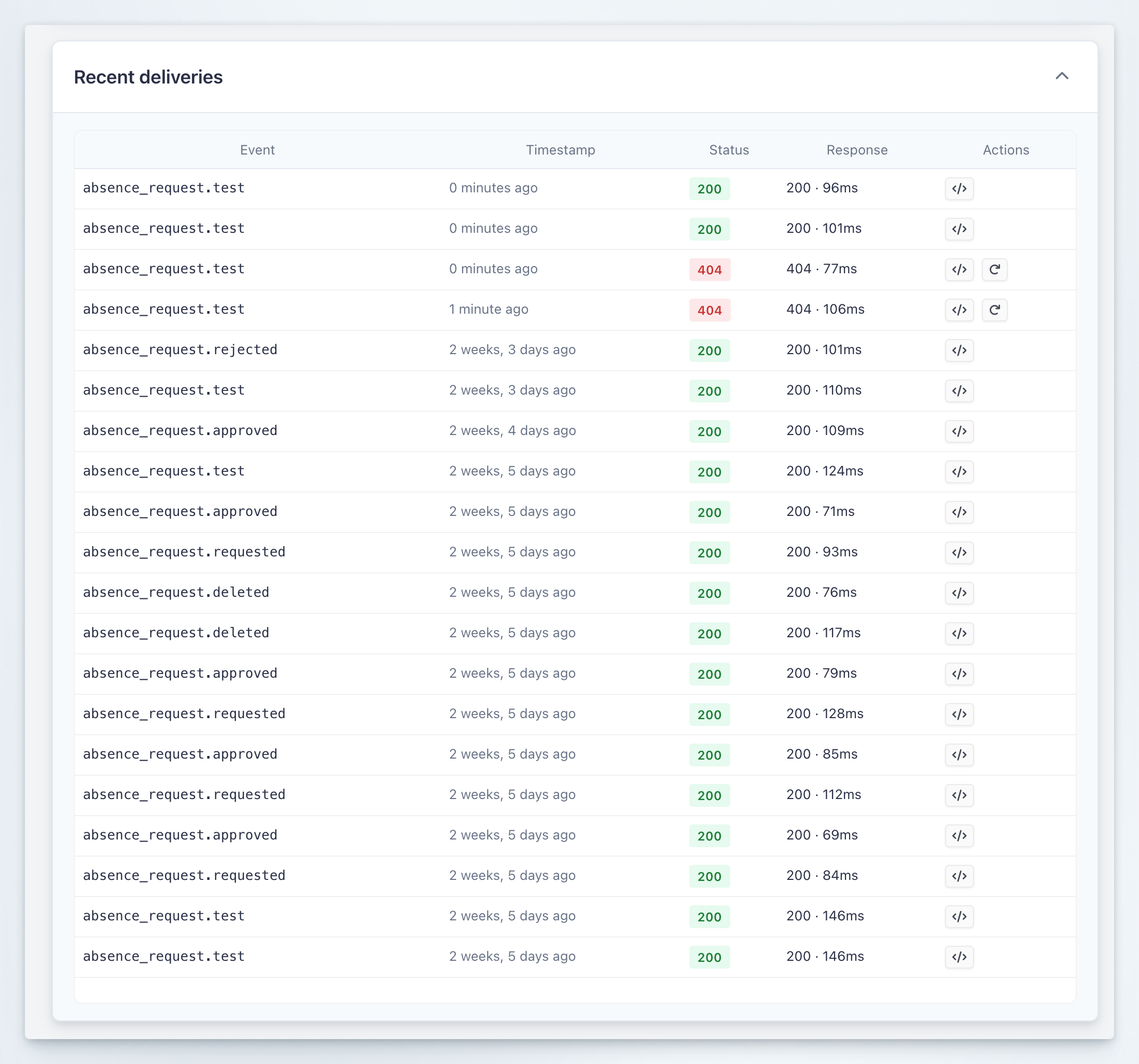 Use the delivery log to:
* Confirm events are reaching your endpoint
* Debug failed deliveries by inspecting the response code and payload
* Retry failed deliveries with the retry button (available on non-200 responses)
## Verifying webhook signatures
Every webhook delivery includes an `X-Spock-Signature` header so you can verify the payload was sent by Spock and wasn't tampered with. The signature uses HMAC-SHA256 with your endpoint's signing secret.
The header looks like this:
```
X-Spock-Signature: t=1708185000,v1=5257a869...
```
To verify:
1. Parse the `t` (timestamp) and `v1` (signature) values from the header
2. Construct the signed string: `{timestamp}.{raw_json_body}`
3. Compute HMAC-SHA256 using your signing secret as the key
4. Compare your computed signature with `v1` using a constant-time comparison
5. Optionally reject payloads older than 5 minutes to prevent replay attacks
```python theme={null}
import hmac
import hashlib
import time
def verify_webhook(payload_body: bytes, signature_header: str, secret: str) -> bool:
parts = dict(p.split("=", 1) for p in signature_header.split(","))
timestamp = parts["t"]
expected_sig = parts["v1"]
# Reject if older than 5 minutes
if abs(time.time() - int(timestamp)) > 300:
return False
signed_payload = f"{timestamp}.{payload_body.decode('utf-8')}"
computed_sig = hmac.new(
secret.encode("utf-8"),
signed_payload.encode("utf-8"),
hashlib.sha256
).hexdigest()
return hmac.compare_digest(computed_sig, expected_sig)
```
## Payload format
All events are delivered as JSON POST requests. Here is an example payload for an `absence_request.approved` event:
```json theme={null}
{
"event": "absence_request.approved",
"timestamp": "2026-02-17T14:30:00Z",
"data": {
"id": 12345,
"status": "approved",
"status_code": 2,
"leave_type": "Vacation",
"start_date": "2026-03-01",
"end_date": "2026-03-05",
"duration_days": 5.0,
"is_hourly": false,
"start_hour": null,
"end_hour": null,
"duration_hours": null,
"notes": "Family trip",
"requestor": {
"slack_user_id": "U12345ABC",
"name": "John Doe",
"email": "john@company.com"
},
"acted_by": {
"slack_user_id": "U67890DEF",
"name": "Jane Manager",
"email": "jane@company.com"
},
"substitute": {
"slack_user_id": "U11111GHI",
"name": "Bob Cover"
},
"team": {
"slack_team_id": "T12345",
"name": "Acme Corp"
},
"approved_time": "2026-02-17T14:30:00Z",
"rejected_time": null,
"canceled_time": null,
"deleted_time": null,
"created_time": "2026-02-10T09:00:00Z"
}
}
```
| Field | Type | Description |
| --------------------- | ------------- | --------------------------------------------------------------------------------------------- |
| `event` | string | Event type (e.g., `absence_request.approved`) |
| `timestamp` | datetime | UTC timestamp of when the event was generated |
| `data.id` | int | Leave request ID |
| `data.status` | string | Human-readable status: `requested`, `approved`, `rejected`, `cancelled`, `deleted` |
| `data.status_code` | int | Numeric status code (0=Requested, 2=Approved, 4=Rejected, 8=Deleted, 10=Cancelled) |
| `data.leave_type` | string | Leave type name |
| `data.start_date` | date | Leave start date (`YYYY-MM-DD`) |
| `data.end_date` | date | Leave end date (`YYYY-MM-DD`) |
| `data.duration_days` | decimal | Duration in working days |
| `data.is_hourly` | boolean | Whether the request uses hourly tracking |
| `data.start_hour` | string/null | Start hour (`HH:MM`) for hourly requests |
| `data.end_hour` | string/null | End hour (`HH:MM`) for hourly requests |
| `data.duration_hours` | decimal/null | Duration in hours (hourly requests only) |
| `data.notes` | string | Request notes visible to the team |
| `data.requestor` | object | `{slack_user_id, name, email}` — the employee requesting leave |
| `data.acted_by` | object/null | `{slack_user_id, name, email}` — the person who triggered this event (null for auto-approval) |
| `data.substitute` | object/null | `{slack_user_id, name}` — assigned substitute, if any |
| `data.team` | object | `{slack_team_id, name}` — the Slack workspace |
| `data.approved_time` | datetime/null | When the request was approved |
| `data.rejected_time` | datetime/null | When the request was rejected |
| `data.canceled_time` | datetime/null | When the request was cancelled |
| `data.deleted_time` | datetime/null | When the request was deleted |
| `data.created_time` | datetime | When the request was originally created |
| Event | `acted_by` value |
| --------------------------- | ----------------------------------------------- |
| `absence_request.requested` | The requestor (or manager if created on behalf) |
| `absence_request.approved` | The approver; `null` if auto-approved |
| `absence_request.rejected` | The rejecting approver |
| `absence_request.cancelled` | The person who cancelled (employee or admin) |
| `absence_request.deleted` | The person who deleted the request |
| `absence_request.updated` | The person who modified dates/hours |
The `absence_request.updated` event includes a `changes` object showing what was modified:
```json theme={null}
{
"event": "absence_request.updated",
"timestamp": "2026-02-17T15:00:00Z",
"data": {
"...all standard fields with new values...",
"changes": {
"start_date": { "old": "2026-03-01", "new": "2026-03-03" },
"end_date": { "old": "2026-03-05", "new": "2026-03-07" },
"duration_days": { "old": 5.0, "new": 5.0 }
}
}
}
```
## Delivery and retry policy
| Property | Value |
| ----------------- | ------------------------------------- |
| HTTP method | `POST` |
| Content-Type | `application/json` |
| Timeout | 10 seconds |
| Max retries | 3 |
| Retry intervals | 60s, 300s, 900s (exponential backoff) |
| Expected response | Any `2xx` status code |
* Deliveries are asynchronous and do not block the leave approval flow
* Any non-2xx response or timeout triggers a retry
* After 3 failed retries, the delivery is marked as failed in the delivery log
## Best practices
### Respond quickly
Return a `200` response as soon as you receive the payload. Process the data asynchronously in your own system to avoid timeouts. Spock waits a maximum of 10 seconds before marking a delivery as failed.
### Verify signatures
Always validate the `X-Spock-Signature` header before processing payloads. This ensures requests are genuinely from Spock and prevents spoofed events from triggering actions in your system.
### Handle duplicates
Design your integration to be idempotent. In rare cases (e.g., network retries), you may receive the same event more than once. Use the combination of `data.id` and `event` to detect duplicates.
### Monitor the delivery log
Check the **Recent deliveries** section regularly to spot failures early. A pattern of `404` or `500` responses usually indicates a misconfigured endpoint URL or a bug in your handler.
### Use event filtering
Subscribe only to the events your integration needs. Fewer events mean less processing and fewer opportunities for errors.
### Keep your signing secret safe
Treat the signing secret like a password. Store it in environment variables or a secret manager — not in source code. If you suspect it has been exposed, use **Regenerate secret** immediately.
## Related topics
Configure organization-wide integration settings for Slack and external calendars.
Set up Slack channel notifications for team leave activity.
Configure organization-wide Slack notifications for leave events.
Manage the leave types that trigger webhook events.
Use the delivery log to:
* Confirm events are reaching your endpoint
* Debug failed deliveries by inspecting the response code and payload
* Retry failed deliveries with the retry button (available on non-200 responses)
## Verifying webhook signatures
Every webhook delivery includes an `X-Spock-Signature` header so you can verify the payload was sent by Spock and wasn't tampered with. The signature uses HMAC-SHA256 with your endpoint's signing secret.
The header looks like this:
```
X-Spock-Signature: t=1708185000,v1=5257a869...
```
To verify:
1. Parse the `t` (timestamp) and `v1` (signature) values from the header
2. Construct the signed string: `{timestamp}.{raw_json_body}`
3. Compute HMAC-SHA256 using your signing secret as the key
4. Compare your computed signature with `v1` using a constant-time comparison
5. Optionally reject payloads older than 5 minutes to prevent replay attacks
```python theme={null}
import hmac
import hashlib
import time
def verify_webhook(payload_body: bytes, signature_header: str, secret: str) -> bool:
parts = dict(p.split("=", 1) for p in signature_header.split(","))
timestamp = parts["t"]
expected_sig = parts["v1"]
# Reject if older than 5 minutes
if abs(time.time() - int(timestamp)) > 300:
return False
signed_payload = f"{timestamp}.{payload_body.decode('utf-8')}"
computed_sig = hmac.new(
secret.encode("utf-8"),
signed_payload.encode("utf-8"),
hashlib.sha256
).hexdigest()
return hmac.compare_digest(computed_sig, expected_sig)
```
## Payload format
All events are delivered as JSON POST requests. Here is an example payload for an `absence_request.approved` event:
```json theme={null}
{
"event": "absence_request.approved",
"timestamp": "2026-02-17T14:30:00Z",
"data": {
"id": 12345,
"status": "approved",
"status_code": 2,
"leave_type": "Vacation",
"start_date": "2026-03-01",
"end_date": "2026-03-05",
"duration_days": 5.0,
"is_hourly": false,
"start_hour": null,
"end_hour": null,
"duration_hours": null,
"notes": "Family trip",
"requestor": {
"slack_user_id": "U12345ABC",
"name": "John Doe",
"email": "john@company.com"
},
"acted_by": {
"slack_user_id": "U67890DEF",
"name": "Jane Manager",
"email": "jane@company.com"
},
"substitute": {
"slack_user_id": "U11111GHI",
"name": "Bob Cover"
},
"team": {
"slack_team_id": "T12345",
"name": "Acme Corp"
},
"approved_time": "2026-02-17T14:30:00Z",
"rejected_time": null,
"canceled_time": null,
"deleted_time": null,
"created_time": "2026-02-10T09:00:00Z"
}
}
```
| Field | Type | Description |
| --------------------- | ------------- | --------------------------------------------------------------------------------------------- |
| `event` | string | Event type (e.g., `absence_request.approved`) |
| `timestamp` | datetime | UTC timestamp of when the event was generated |
| `data.id` | int | Leave request ID |
| `data.status` | string | Human-readable status: `requested`, `approved`, `rejected`, `cancelled`, `deleted` |
| `data.status_code` | int | Numeric status code (0=Requested, 2=Approved, 4=Rejected, 8=Deleted, 10=Cancelled) |
| `data.leave_type` | string | Leave type name |
| `data.start_date` | date | Leave start date (`YYYY-MM-DD`) |
| `data.end_date` | date | Leave end date (`YYYY-MM-DD`) |
| `data.duration_days` | decimal | Duration in working days |
| `data.is_hourly` | boolean | Whether the request uses hourly tracking |
| `data.start_hour` | string/null | Start hour (`HH:MM`) for hourly requests |
| `data.end_hour` | string/null | End hour (`HH:MM`) for hourly requests |
| `data.duration_hours` | decimal/null | Duration in hours (hourly requests only) |
| `data.notes` | string | Request notes visible to the team |
| `data.requestor` | object | `{slack_user_id, name, email}` — the employee requesting leave |
| `data.acted_by` | object/null | `{slack_user_id, name, email}` — the person who triggered this event (null for auto-approval) |
| `data.substitute` | object/null | `{slack_user_id, name}` — assigned substitute, if any |
| `data.team` | object | `{slack_team_id, name}` — the Slack workspace |
| `data.approved_time` | datetime/null | When the request was approved |
| `data.rejected_time` | datetime/null | When the request was rejected |
| `data.canceled_time` | datetime/null | When the request was cancelled |
| `data.deleted_time` | datetime/null | When the request was deleted |
| `data.created_time` | datetime | When the request was originally created |
| Event | `acted_by` value |
| --------------------------- | ----------------------------------------------- |
| `absence_request.requested` | The requestor (or manager if created on behalf) |
| `absence_request.approved` | The approver; `null` if auto-approved |
| `absence_request.rejected` | The rejecting approver |
| `absence_request.cancelled` | The person who cancelled (employee or admin) |
| `absence_request.deleted` | The person who deleted the request |
| `absence_request.updated` | The person who modified dates/hours |
The `absence_request.updated` event includes a `changes` object showing what was modified:
```json theme={null}
{
"event": "absence_request.updated",
"timestamp": "2026-02-17T15:00:00Z",
"data": {
"...all standard fields with new values...",
"changes": {
"start_date": { "old": "2026-03-01", "new": "2026-03-03" },
"end_date": { "old": "2026-03-05", "new": "2026-03-07" },
"duration_days": { "old": 5.0, "new": 5.0 }
}
}
}
```
## Delivery and retry policy
| Property | Value |
| ----------------- | ------------------------------------- |
| HTTP method | `POST` |
| Content-Type | `application/json` |
| Timeout | 10 seconds |
| Max retries | 3 |
| Retry intervals | 60s, 300s, 900s (exponential backoff) |
| Expected response | Any `2xx` status code |
* Deliveries are asynchronous and do not block the leave approval flow
* Any non-2xx response or timeout triggers a retry
* After 3 failed retries, the delivery is marked as failed in the delivery log
## Best practices
### Respond quickly
Return a `200` response as soon as you receive the payload. Process the data asynchronously in your own system to avoid timeouts. Spock waits a maximum of 10 seconds before marking a delivery as failed.
### Verify signatures
Always validate the `X-Spock-Signature` header before processing payloads. This ensures requests are genuinely from Spock and prevents spoofed events from triggering actions in your system.
### Handle duplicates
Design your integration to be idempotent. In rare cases (e.g., network retries), you may receive the same event more than once. Use the combination of `data.id` and `event` to detect duplicates.
### Monitor the delivery log
Check the **Recent deliveries** section regularly to spot failures early. A pattern of `404` or `500` responses usually indicates a misconfigured endpoint URL or a bug in your handler.
### Use event filtering
Subscribe only to the events your integration needs. Fewer events mean less processing and fewer opportunities for errors.
### Keep your signing secret safe
Treat the signing secret like a password. Store it in environment variables or a secret manager — not in source code. If you suspect it has been exposed, use **Regenerate secret** immediately.
## Related topics
Configure organization-wide integration settings for Slack and external calendars.
Set up Slack channel notifications for team leave activity.
Configure organization-wide Slack notifications for leave events.
Manage the leave types that trigger webhook events.