> ## Documentation Index
> Fetch the complete documentation index at: https://docs.spockoffice.com/llms.txt
> Use this file to discover all available pages before exploring further.
# Spock API
> Access your leave management data programmatically using the Spock REST API with API key authentication.
The Spock API gives you read-only access to your workspace's leave management data — users, leave types, leave requests, absences, and groups. Use it to build integrations with HRIS systems, payroll providers, reporting tools, or custom dashboards.
The Spock API requires a **Professional** or **Enterprise** plan. Teams on the Free plan will see an upgrade prompt instead of the API key management page.
## Why use the API
* **HRIS & payroll sync** — Pull leave data into your HR or payroll system automatically
* **Custom reporting** — Build dashboards and reports tailored to your organization
* **Data export** — Extract leave records for compliance, auditing, or analytics
* **Incremental sync** — Use `updated_since` filters to fetch only what changed since your last sync
## Authentication
The API uses key-based authentication. Every request must include an API key in the `Authorization` header.
```
Authorization: Bearer spk_a1b2c3d4e5f6...
```
**Key properties:**
* Keys use the format `spk_` followed by 48 hex characters (52 characters total)
* Each key is tied to a single workspace
* Multiple keys per workspace are supported for rotation without downtime
* Keys can be revoked at any time
* The full key is shown only once at creation — store it securely
## Creating an API key
Go to **Settings** > **API** in your Spock Dashboard. Only service admins can access this page.
Type a descriptive name in the **Key Name** field (e.g., `Payroll Integration`, `HRIS Sync`). This helps you identify the key's purpose later.
Click **Create API Key**. Spock generates a new key and displays it in full.
Copy the key immediately and store it in a secure location (e.g., a secret manager or environment variable). The full key is shown only once and cannot be retrieved later.
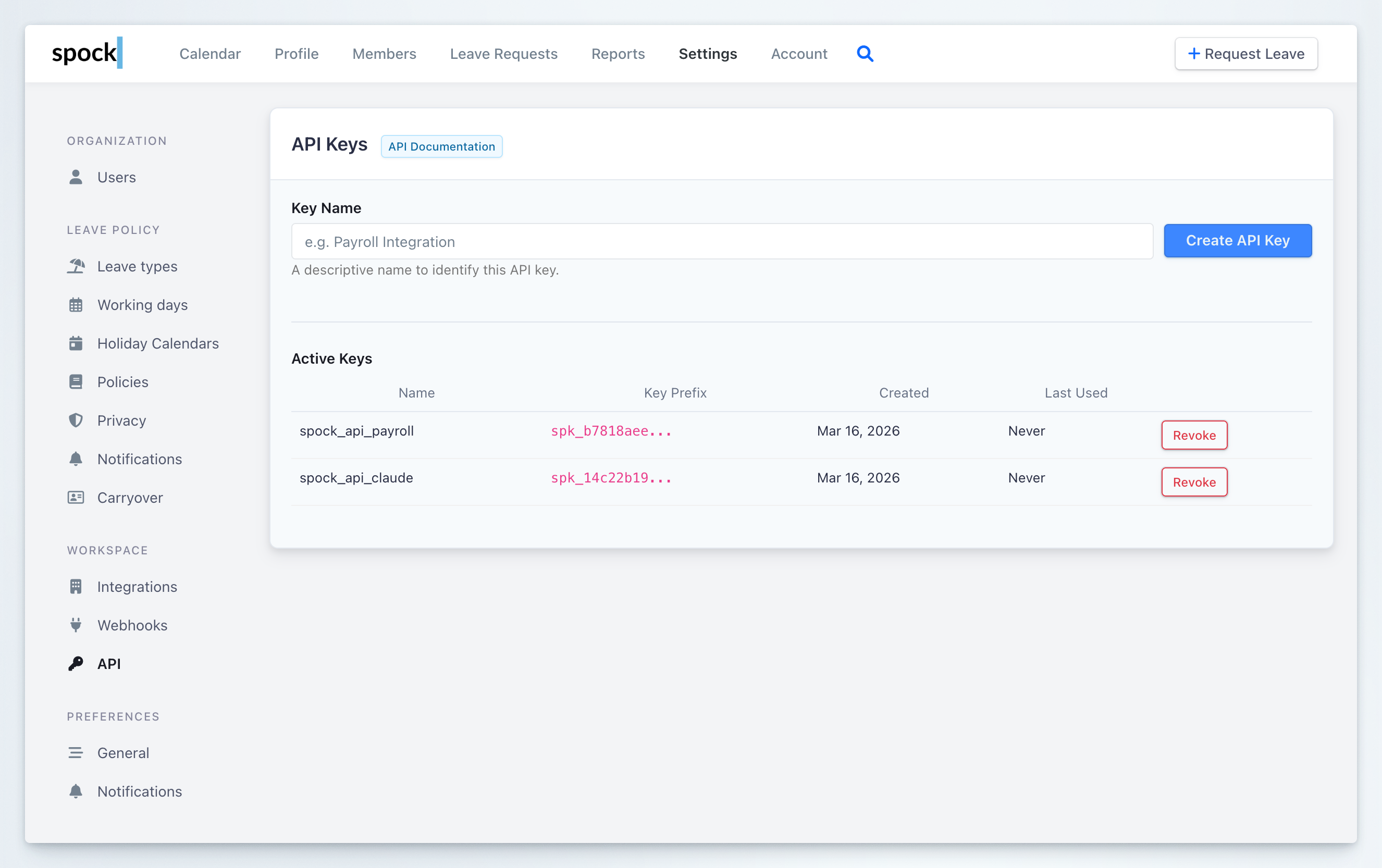 ## Managing active keys
The **Active Keys** table shows all keys currently in use. Each entry displays:
| Column | Description |
| -------------- | ---------------------------------------------------------------------------- |
| **Name** | The descriptive name you assigned when creating the key |
| **Key Prefix** | The first characters of the key (e.g., `spk_b7818aee...`) for identification |
| **Created** | When the key was created |
| **Last Used** | When the key was last used to make an API request |
| **Actions** | Revoke button to deactivate the key |
### Revoking a key
Click the **Revoke** button next to any active key to deactivate it. Revoked keys stop working immediately and cannot be re-activated. Create a new key before revoking an old one to avoid downtime.
### Rotating keys
To rotate a key without interrupting your integration:
Create a new API key with a descriptive name (e.g., `Payroll Integration v2`).
Replace the old key with the new one in your integration's configuration.
Confirm your integration makes successful requests with the new key.
Once the new key is confirmed working, revoke the old one.
## Base URL
All API requests use this base URL:
```
https://spockoffice.com/spock-api/v1/
```
## Available endpoints
| Endpoint | Description |
| -------------------------- | --------------------------------------------------------- |
| `GET /team/` | Workspace metadata (name, domain, country, working days) |
| `GET /users/` | List active users with profile details |
| `GET /users/:id/` | Get a single user |
| `GET /leave-types/` | List enabled leave types |
| `GET /leave-types/:id/` | Get a single leave type |
| `GET /leave-requests/` | List leave requests with status, dates, and approver info |
| `GET /leave-requests/:id/` | Get a single leave request |
| `GET /absences/` | List individual absence day records |
| `GET /absences/:id/` | Get a single absence |
| `GET /groups/` | List teams/departments |
| `GET /groups/:id/` | Get a single group |
## Making your first request
```bash theme={null}
curl -H "Authorization: Bearer spk_a1b2c3d4e5f6..." \
"https://spockoffice.com/spock-api/v1/users/?page_size=5"
```
A successful response returns paginated JSON:
```json theme={null}
{
"next": "https://spockoffice.com/spock-api/v1/users/?cursor=cD0xMjM=",
"previous": null,
"results": [
{
"id": "Kx3mP9",
"name": "John Doe",
"username": "johndoe",
"is_manager": false,
"working_days": [0, 1, 2, 3, 4]
}
]
}
```
## Pagination
The API uses cursor-based pagination. Responses include `next` and `previous` URLs — follow them to navigate through results.
| Parameter | Type | Default | Max |
| ----------- | ---- | ------- | --- |
| `page_size` | int | 50 | 200 |
Cursor pagination performs consistently regardless of dataset size and prevents duplicate or missing items when data changes between pages. Always use the `next` URL from the response rather than constructing cursor values manually.
## Filtering
All list endpoints support these common filters:
| Parameter | Type | Description |
| --------------- | ------------------- | ------------------------------------ |
| `updated_since` | datetime (ISO 8601) | Records updated after this timestamp |
| `created_since` | datetime (ISO 8601) | Records created after this timestamp |
Each endpoint also supports resource-specific filters:
| Parameter | Type | Description |
| ------------------ | ------- | ---------------------------------- |
| `is_manager` | boolean | Filter managers |
| `is_service_admin` | boolean | Filter service admins |
| `employee_status` | int | 1=Active, 2=On Leave, 3=Terminated |
| Parameter | Type | Description |
| ----------------- | ------- | ---------------------------------------------------- |
| `status` | int | Filter by status code (comma-separated for multiple) |
| `user_id` | string | Filter by user ID |
| `leave_type_id` | string | Filter by leave type ID |
| `start_date_from` | date | Start date on or after value |
| `start_date_to` | date | Start date on or before value |
| `end_date_from` | date | End date on or after value |
| `end_date_to` | date | End date on or before value |
| `include_deleted` | boolean | Include deleted requests (default false) |
| Parameter | Type | Description |
| ------------------ | ------ | --------------------------------- |
| `user_id` | string | Filter by user ID |
| `leave_request_id` | string | Filter by parent leave request ID |
| `leave_type_id` | string | Filter by leave type ID |
| `status` | int | 0=Requested, 1=Active, 8=Deleted |
| `date_from` | date | Absence date on or after value |
| `date_to` | date | Absence date on or before value |
| Parameter | Type | Description |
| ----------- | ------- | ----------------------- |
| `is_active` | boolean | Filter by active status |
## Identifiers
All resource IDs in the API are opaque encoded strings (e.g., `"Kx3mP9"`, `"vW7nR2"`). Use them as-is in requests — do not attempt to decode or predict ID values.
```
GET /spock-api/v1/users/Kx3mP9/
GET /spock-api/v1/leave-requests/?user_id=Kx3mP9
```
## Rate limits
| Limit | Value |
| --------- | ----------------------------------- |
| Sustained | 1,000 requests per hour per API key |
| Burst | 60 requests per minute per API key |
Every response includes rate limit headers:
* `X-RateLimit-Limit` — max requests in the current window
* `X-RateLimit-Remaining` — remaining requests
* `X-RateLimit-Reset` — epoch seconds when the window resets
Exceeding the limit returns a `429` response. Back off and retry after the reset time.
## Error responses
All errors follow a consistent format:
```json theme={null}
{
"error": {
"code": "not_found",
"message": "The requested resource was not found.",
"details": {}
}
}
```
| Code | HTTP | Description |
| ----------------------- | ---- | -------------------------------------------- |
| `authentication_failed` | 401 | API key missing, invalid, or revoked |
| `billing_required` | 401 | Team is on Free plan — upgrade required |
| `not_found` | 404 | Resource not found or outside your workspace |
| `invalid_request` | 400 | Invalid query parameters |
| `rate_limit_exceeded` | 429 | Rate limit reached |
| `internal_error` | 500 | Unexpected server error |
## Best practices
### Use incremental sync
For recurring data pulls, use the `updated_since` parameter with the timestamp of your last sync. This is far more efficient than fetching all records every time.
```bash theme={null}
curl -H "Authorization: Bearer spk_..." \
"https://spockoffice.com/spock-api/v1/leave-requests/?updated_since=2026-03-15T00:00:00Z"
```
### Create dedicated keys per integration
Use separate API keys for each integration (e.g., one for payroll, one for your reporting dashboard). This way you can revoke or rotate a single key without affecting other integrations.
### Respect rate limits
Check the `X-RateLimit-Remaining` header and implement backoff logic. If you receive a `429` response, wait until `X-RateLimit-Reset` before retrying.
### Store keys securely
Never hardcode API keys in source code. Use environment variables, a secret manager, or your platform's credential store. Rotate keys periodically as a security measure.
### Handle pagination correctly
Always follow the `next` URL from the response to paginate through results. Do not construct cursor values manually — they may change format without notice.
## Related topics
Receive real-time push notifications when leave events occur.
Configure organization-wide integration settings.
Manage users that appear in the API responses.
Configure the leave types returned by the API.
## Managing active keys
The **Active Keys** table shows all keys currently in use. Each entry displays:
| Column | Description |
| -------------- | ---------------------------------------------------------------------------- |
| **Name** | The descriptive name you assigned when creating the key |
| **Key Prefix** | The first characters of the key (e.g., `spk_b7818aee...`) for identification |
| **Created** | When the key was created |
| **Last Used** | When the key was last used to make an API request |
| **Actions** | Revoke button to deactivate the key |
### Revoking a key
Click the **Revoke** button next to any active key to deactivate it. Revoked keys stop working immediately and cannot be re-activated. Create a new key before revoking an old one to avoid downtime.
### Rotating keys
To rotate a key without interrupting your integration:
Create a new API key with a descriptive name (e.g., `Payroll Integration v2`).
Replace the old key with the new one in your integration's configuration.
Confirm your integration makes successful requests with the new key.
Once the new key is confirmed working, revoke the old one.
## Base URL
All API requests use this base URL:
```
https://spockoffice.com/spock-api/v1/
```
## Available endpoints
| Endpoint | Description |
| -------------------------- | --------------------------------------------------------- |
| `GET /team/` | Workspace metadata (name, domain, country, working days) |
| `GET /users/` | List active users with profile details |
| `GET /users/:id/` | Get a single user |
| `GET /leave-types/` | List enabled leave types |
| `GET /leave-types/:id/` | Get a single leave type |
| `GET /leave-requests/` | List leave requests with status, dates, and approver info |
| `GET /leave-requests/:id/` | Get a single leave request |
| `GET /absences/` | List individual absence day records |
| `GET /absences/:id/` | Get a single absence |
| `GET /groups/` | List teams/departments |
| `GET /groups/:id/` | Get a single group |
## Making your first request
```bash theme={null}
curl -H "Authorization: Bearer spk_a1b2c3d4e5f6..." \
"https://spockoffice.com/spock-api/v1/users/?page_size=5"
```
A successful response returns paginated JSON:
```json theme={null}
{
"next": "https://spockoffice.com/spock-api/v1/users/?cursor=cD0xMjM=",
"previous": null,
"results": [
{
"id": "Kx3mP9",
"name": "John Doe",
"username": "johndoe",
"is_manager": false,
"working_days": [0, 1, 2, 3, 4]
}
]
}
```
## Pagination
The API uses cursor-based pagination. Responses include `next` and `previous` URLs — follow them to navigate through results.
| Parameter | Type | Default | Max |
| ----------- | ---- | ------- | --- |
| `page_size` | int | 50 | 200 |
Cursor pagination performs consistently regardless of dataset size and prevents duplicate or missing items when data changes between pages. Always use the `next` URL from the response rather than constructing cursor values manually.
## Filtering
All list endpoints support these common filters:
| Parameter | Type | Description |
| --------------- | ------------------- | ------------------------------------ |
| `updated_since` | datetime (ISO 8601) | Records updated after this timestamp |
| `created_since` | datetime (ISO 8601) | Records created after this timestamp |
Each endpoint also supports resource-specific filters:
| Parameter | Type | Description |
| ------------------ | ------- | ---------------------------------- |
| `is_manager` | boolean | Filter managers |
| `is_service_admin` | boolean | Filter service admins |
| `employee_status` | int | 1=Active, 2=On Leave, 3=Terminated |
| Parameter | Type | Description |
| ----------------- | ------- | ---------------------------------------------------- |
| `status` | int | Filter by status code (comma-separated for multiple) |
| `user_id` | string | Filter by user ID |
| `leave_type_id` | string | Filter by leave type ID |
| `start_date_from` | date | Start date on or after value |
| `start_date_to` | date | Start date on or before value |
| `end_date_from` | date | End date on or after value |
| `end_date_to` | date | End date on or before value |
| `include_deleted` | boolean | Include deleted requests (default false) |
| Parameter | Type | Description |
| ------------------ | ------ | --------------------------------- |
| `user_id` | string | Filter by user ID |
| `leave_request_id` | string | Filter by parent leave request ID |
| `leave_type_id` | string | Filter by leave type ID |
| `status` | int | 0=Requested, 1=Active, 8=Deleted |
| `date_from` | date | Absence date on or after value |
| `date_to` | date | Absence date on or before value |
| Parameter | Type | Description |
| ----------- | ------- | ----------------------- |
| `is_active` | boolean | Filter by active status |
## Identifiers
All resource IDs in the API are opaque encoded strings (e.g., `"Kx3mP9"`, `"vW7nR2"`). Use them as-is in requests — do not attempt to decode or predict ID values.
```
GET /spock-api/v1/users/Kx3mP9/
GET /spock-api/v1/leave-requests/?user_id=Kx3mP9
```
## Rate limits
| Limit | Value |
| --------- | ----------------------------------- |
| Sustained | 1,000 requests per hour per API key |
| Burst | 60 requests per minute per API key |
Every response includes rate limit headers:
* `X-RateLimit-Limit` — max requests in the current window
* `X-RateLimit-Remaining` — remaining requests
* `X-RateLimit-Reset` — epoch seconds when the window resets
Exceeding the limit returns a `429` response. Back off and retry after the reset time.
## Error responses
All errors follow a consistent format:
```json theme={null}
{
"error": {
"code": "not_found",
"message": "The requested resource was not found.",
"details": {}
}
}
```
| Code | HTTP | Description |
| ----------------------- | ---- | -------------------------------------------- |
| `authentication_failed` | 401 | API key missing, invalid, or revoked |
| `billing_required` | 401 | Team is on Free plan — upgrade required |
| `not_found` | 404 | Resource not found or outside your workspace |
| `invalid_request` | 400 | Invalid query parameters |
| `rate_limit_exceeded` | 429 | Rate limit reached |
| `internal_error` | 500 | Unexpected server error |
## Best practices
### Use incremental sync
For recurring data pulls, use the `updated_since` parameter with the timestamp of your last sync. This is far more efficient than fetching all records every time.
```bash theme={null}
curl -H "Authorization: Bearer spk_..." \
"https://spockoffice.com/spock-api/v1/leave-requests/?updated_since=2026-03-15T00:00:00Z"
```
### Create dedicated keys per integration
Use separate API keys for each integration (e.g., one for payroll, one for your reporting dashboard). This way you can revoke or rotate a single key without affecting other integrations.
### Respect rate limits
Check the `X-RateLimit-Remaining` header and implement backoff logic. If you receive a `429` response, wait until `X-RateLimit-Reset` before retrying.
### Store keys securely
Never hardcode API keys in source code. Use environment variables, a secret manager, or your platform's credential store. Rotate keys periodically as a security measure.
### Handle pagination correctly
Always follow the `next` URL from the response to paginate through results. Do not construct cursor values manually — they may change format without notice.
## Related topics
Receive real-time push notifications when leave events occur.
Configure organization-wide integration settings.
Manage users that appear in the API responses.
Configure the leave types returned by the API.