> ## Documentation Index
> Fetch the complete documentation index at: https://docs.spockoffice.com/llms.txt
> Use this file to discover all available pages before exploring further.
# Welcome Message
> Send onboarding messages to new team members and keep everyone informed about important information.
The Welcome Message feature allows administrators and managers to create and send standardized onboarding messages to all active users in the workspace. This ensures consistent communication and helps new team members get started with clear instructions.
## Why Use Welcome Messages
Welcome messages are particularly useful for:
* **Onboarding new employees** - Provide clear instructions on how to use Spock from day one
* **Communicating important updates** - Share workspace-wide announcements about new features or policy changes
* **Setting expectations** - Outline key processes and guidelines for leave management
## Prerequisites
To send welcome messages, you need:
* Administrator or Manager role in your workspace
## Sending a Welcome Message
Go to the **Dashboard** > **Getting Started with Spock** section > **Send Welcome Message to Team**
or navigate to [https://spockoffice.com/spockapp/onboarding/welcome-message/](https://spockoffice.com/spockapp/onboarding/welcome-message/)
In the message field, write or edit your welcome message. Include:
* A friendly greeting
* Key information about using Spock
* Instructions or links to important resources
* Contact information for questions
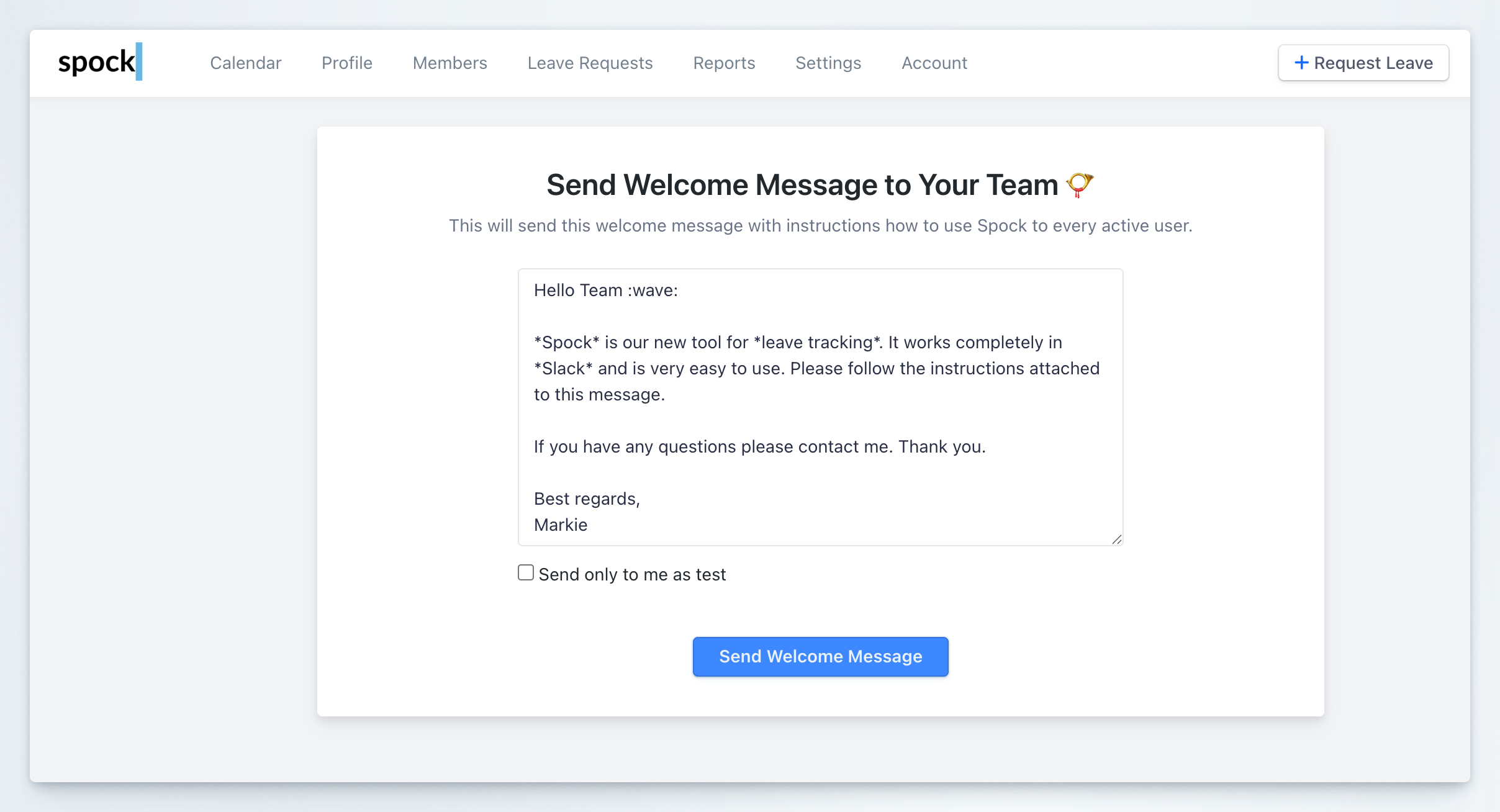 Before sending to all users, you can test the message:
1. Check the **"Send only to me as test"** checkbox
2. Click **Send Welcome Message**
3. Review the message you receive to ensure it looks correct
Once you're satisfied with the message:
1. Uncheck the **"Send only to me as test"** checkbox (if checked)
2. Click **Send Welcome Message**
The message will be sent to every active user in your workspace.
Welcome messages are sent to all **active users** in your workspace. Inactive or suspended users will not receive the message.
Always send yourself a test message first to verify formatting and content before sending to your entire team.
## Related Topics
Manage users, roles, and permissions
Organize members into teams
Before sending to all users, you can test the message:
1. Check the **"Send only to me as test"** checkbox
2. Click **Send Welcome Message**
3. Review the message you receive to ensure it looks correct
Once you're satisfied with the message:
1. Uncheck the **"Send only to me as test"** checkbox (if checked)
2. Click **Send Welcome Message**
The message will be sent to every active user in your workspace.
Welcome messages are sent to all **active users** in your workspace. Inactive or suspended users will not receive the message.
Always send yourself a test message first to verify formatting and content before sending to your entire team.
## Related Topics
Manage users, roles, and permissions
Organize members into teams