> ## Documentation Index
> Fetch the complete documentation index at: https://docs.spockoffice.com/llms.txt
> Use this file to discover all available pages before exploring further.
# Users
> Manage users, roles, and permissions effectively to maintain your organization's leave management system with automatic Slack synchronization.
Managing users and their roles effectively is crucial for maintaining the integrity and efficiency of your organization's leave management system. Spock integrates seamlessly with Slack, ensuring that user data remains synchronized and up-to-date.
## User Synchronization
Spock automatically synchronizes user data from Slack daily. When a new user is added to your Slack workspace, they are imported into Spock immediately, ensuring your user base remains current without manual intervention.
This automatic synchronization means you don't need to manually add or remove users - Spock stays in sync with your Slack workspace membership.
### Slack User Import Settings
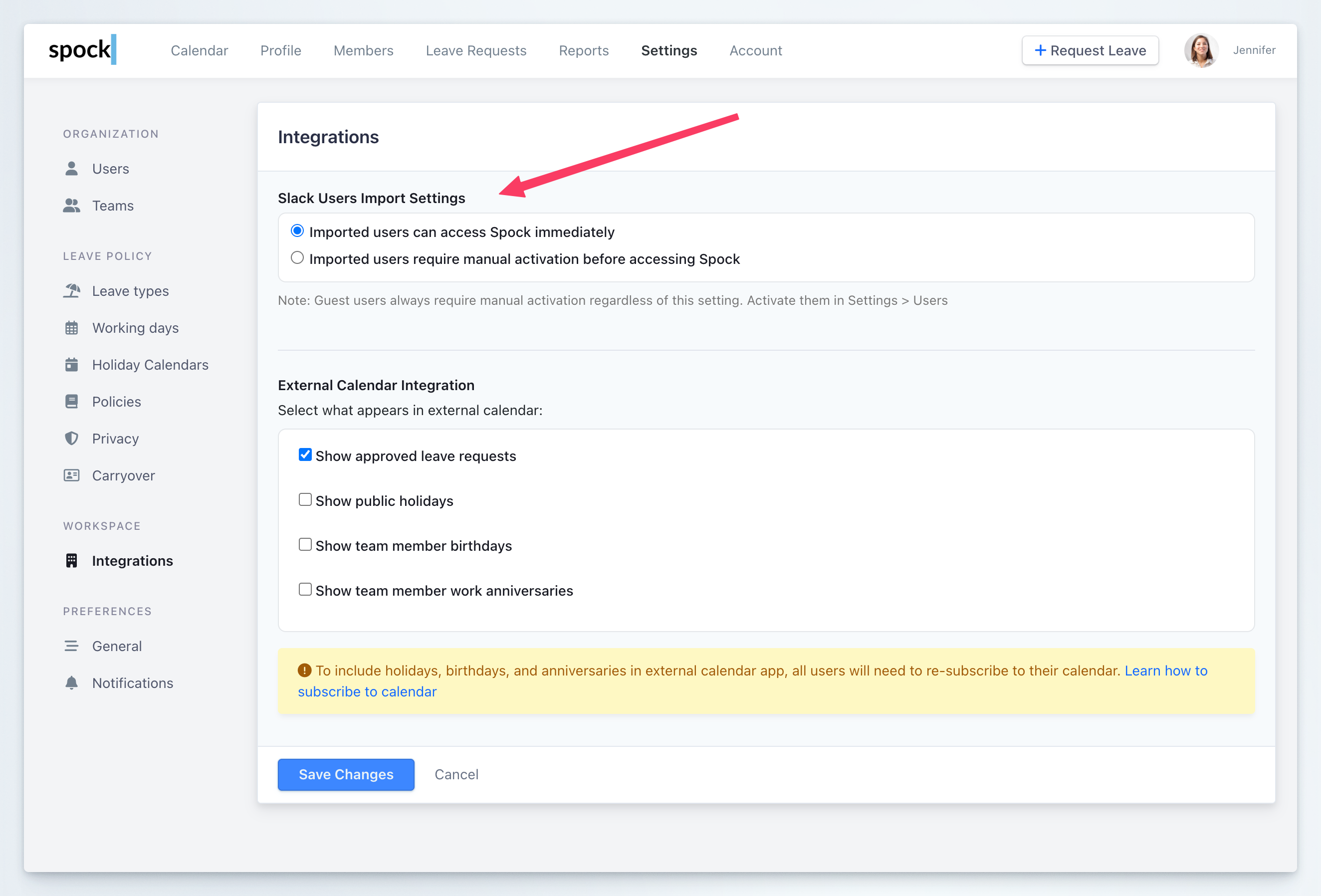
You can configure how imported users are activated in **Settings** > **Integrations** > **Slack User Import**:
Imported users can access Spock immediately after being imported from Slack. This is ideal for organizations that want to minimize administrative overhead.
Imported users require manual activation before accessing Spock. This provides administrators with control over who can access the system.
Guest users always require manual activation regardless of this setting. Activate them in **Settings** > **Users**.
 ## Spock User Roles
Spock offers a structured role-based access control system with clearly defined responsibilities:
**Basic Access Level**
General users with permissions to:
* Interact with the Spock Slack App
* Access the Spock Dashboard
* Submit leave requests
* View their own leave history and balances
**Full HR Access**
Comprehensive permissions for human resources functions:
* Approve all leave requests across the organization
* Manage leave types, holidays, and leave policies
* Process carryovers and allowance adjustments
* Oversee all teams and team management
* Access all reports and analytics
* Configure organization-wide settings
**System Management Access**
Responsible for non-HR administrative functions:
* Manage user accounts and assign roles
* Oversee team structures and organizational hierarchy
* Handle billing processes and subscription management
* Configure integrations and system settings
* Manage application settings and policies
**Team-Level Management**
Manages tasks specific to their designated team(s):
* Manage team member assignments
* Approve leave requests within their team
* View team reports and analytics
* Configure team notifications
* Assign substitutes within the team
## Managing Roles in Bulk
Efficiently assign or modify roles for multiple users simultaneously:
Go to **Settings** > **Users** within the Spock Dashboard.
Choose the users whose roles you want to update by checking their names.
Use the bulk actions to assign appropriate roles to the selected users.
## Spock User Roles
Spock offers a structured role-based access control system with clearly defined responsibilities:
**Basic Access Level**
General users with permissions to:
* Interact with the Spock Slack App
* Access the Spock Dashboard
* Submit leave requests
* View their own leave history and balances
**Full HR Access**
Comprehensive permissions for human resources functions:
* Approve all leave requests across the organization
* Manage leave types, holidays, and leave policies
* Process carryovers and allowance adjustments
* Oversee all teams and team management
* Access all reports and analytics
* Configure organization-wide settings
**System Management Access**
Responsible for non-HR administrative functions:
* Manage user accounts and assign roles
* Oversee team structures and organizational hierarchy
* Handle billing processes and subscription management
* Configure integrations and system settings
* Manage application settings and policies
**Team-Level Management**
Manages tasks specific to their designated team(s):
* Manage team member assignments
* Approve leave requests within their team
* View team reports and analytics
* Configure team notifications
* Assign substitutes within the team
## Managing Roles in Bulk
Efficiently assign or modify roles for multiple users simultaneously:
Go to **Settings** > **Users** within the Spock Dashboard.
Choose the users whose roles you want to update by checking their names.
Use the bulk actions to assign appropriate roles to the selected users.
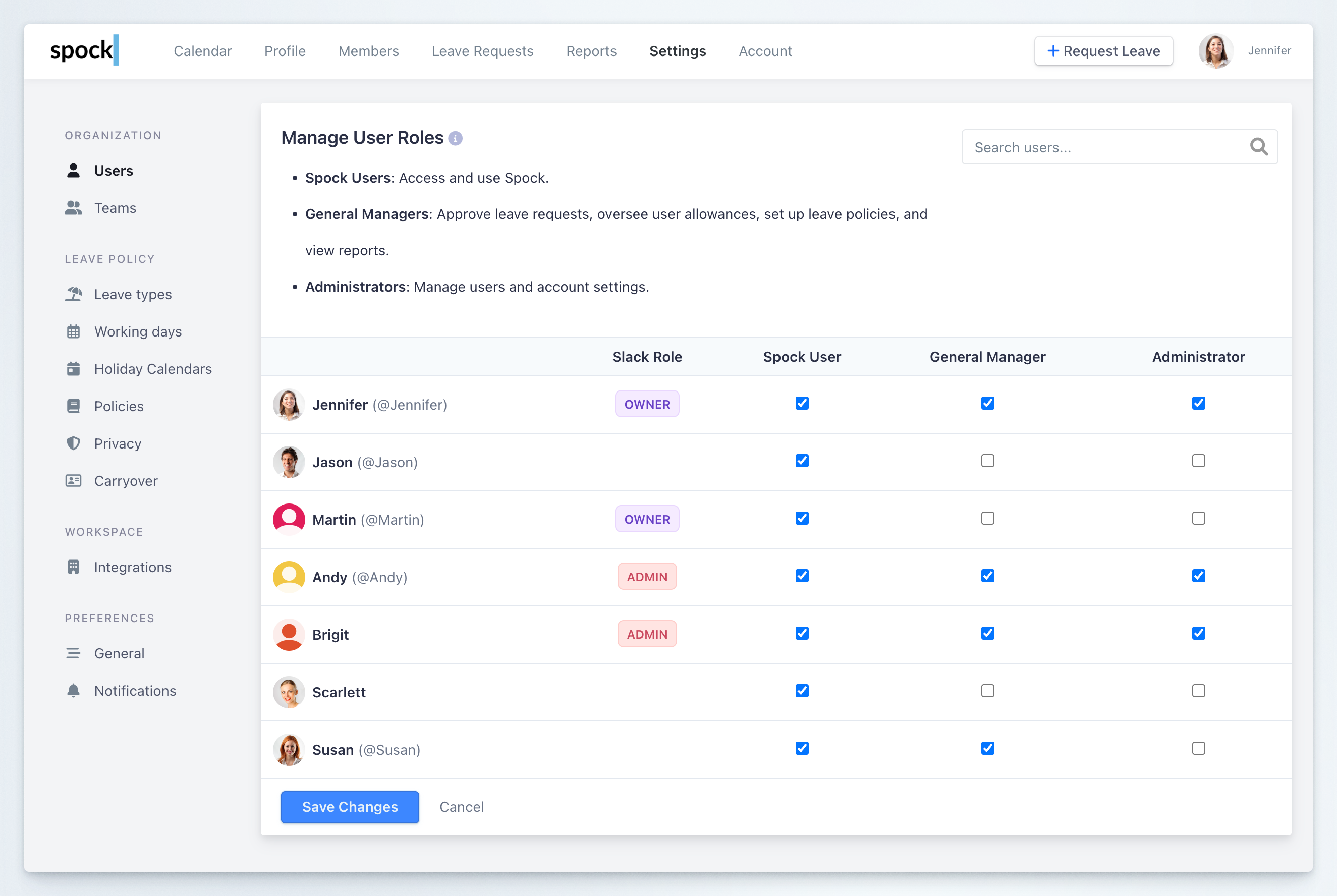 Apply the new roles by saving your changes.
Bulk role management is especially useful during organizational restructuring or when onboarding multiple team members.
## Managing Individual User Roles
For precise role adjustments on a per-user basis:
Sign in to the Spock Dashboard and navigate to the **Members** section.
Search for and select the user whose roles you want to modify.
Click on the user's name to access their detailed profile.
Click on the **Roles and Teams** tab to view current assignments.
Apply the new roles by saving your changes.
Bulk role management is especially useful during organizational restructuring or when onboarding multiple team members.
## Managing Individual User Roles
For precise role adjustments on a per-user basis:
Sign in to the Spock Dashboard and navigate to the **Members** section.
Search for and select the user whose roles you want to modify.
Click on the user's name to access their detailed profile.
Click on the **Roles and Teams** tab to view current assignments.
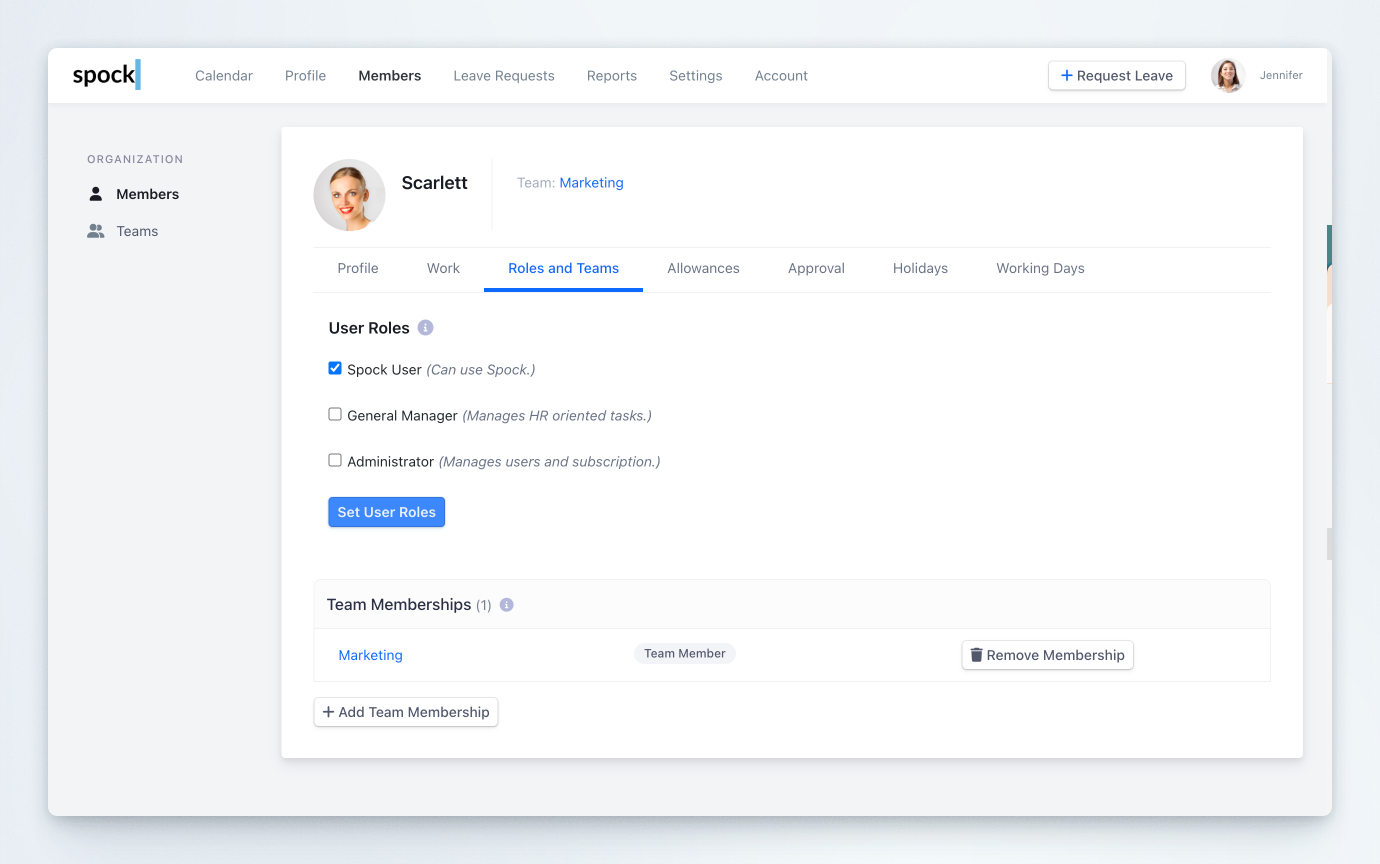 Select or adjust roles and team assignments as appropriate for the user's responsibilities.
Save your changes to apply the updated role configuration.
## Role Hierarchy and Permissions
Understanding the permission hierarchy helps ensure proper access control:
1. **Administrator** - System and billing management
2. **General Manager** - Full HR operations and approvals
3. **Team Manager** - Team-specific management and approvals
4. **Spock User** - Basic leave management functions
Role changes take effect immediately. Ensure you verify the changes are correct before saving, as users will gain or lose access to features based on their assigned roles.
Select or adjust roles and team assignments as appropriate for the user's responsibilities.
Save your changes to apply the updated role configuration.
## Role Hierarchy and Permissions
Understanding the permission hierarchy helps ensure proper access control:
1. **Administrator** - System and billing management
2. **General Manager** - Full HR operations and approvals
3. **Team Manager** - Team-specific management and approvals
4. **Spock User** - Basic leave management functions
Role changes take effect immediately. Ensure you verify the changes are correct before saving, as users will gain or lose access to features based on their assigned roles.