> ## Documentation Index
> Fetch the complete documentation index at: https://docs.spockoffice.com/llms.txt
> Use this file to discover all available pages before exploring further.
# Teams
> Create and manage teams to organize workspace members into departments, locations, or projects with dedicated managers and notification settings.
Teams allow you to divide workspace members into smaller groups that can represent departments, office locations, or projects. Team members are automatically notified about each other's leave requests, fostering better communication and coordination.
Each team can have one or more **Team Managers** who can approve team members' leave requests and manage team membership.
## Creating a New Team
Sign in to the [Spock Dashboard](/spock/getting-started/dashboard-signin).
Click the **Members** tab in the top navigation.
Click **+ Add Team** in the left sidebar under the Organization section.
Fill in the team details:
* **Team name** — a descriptive name for the team
* **Description** — an optional summary of the team's purpose and responsibilities
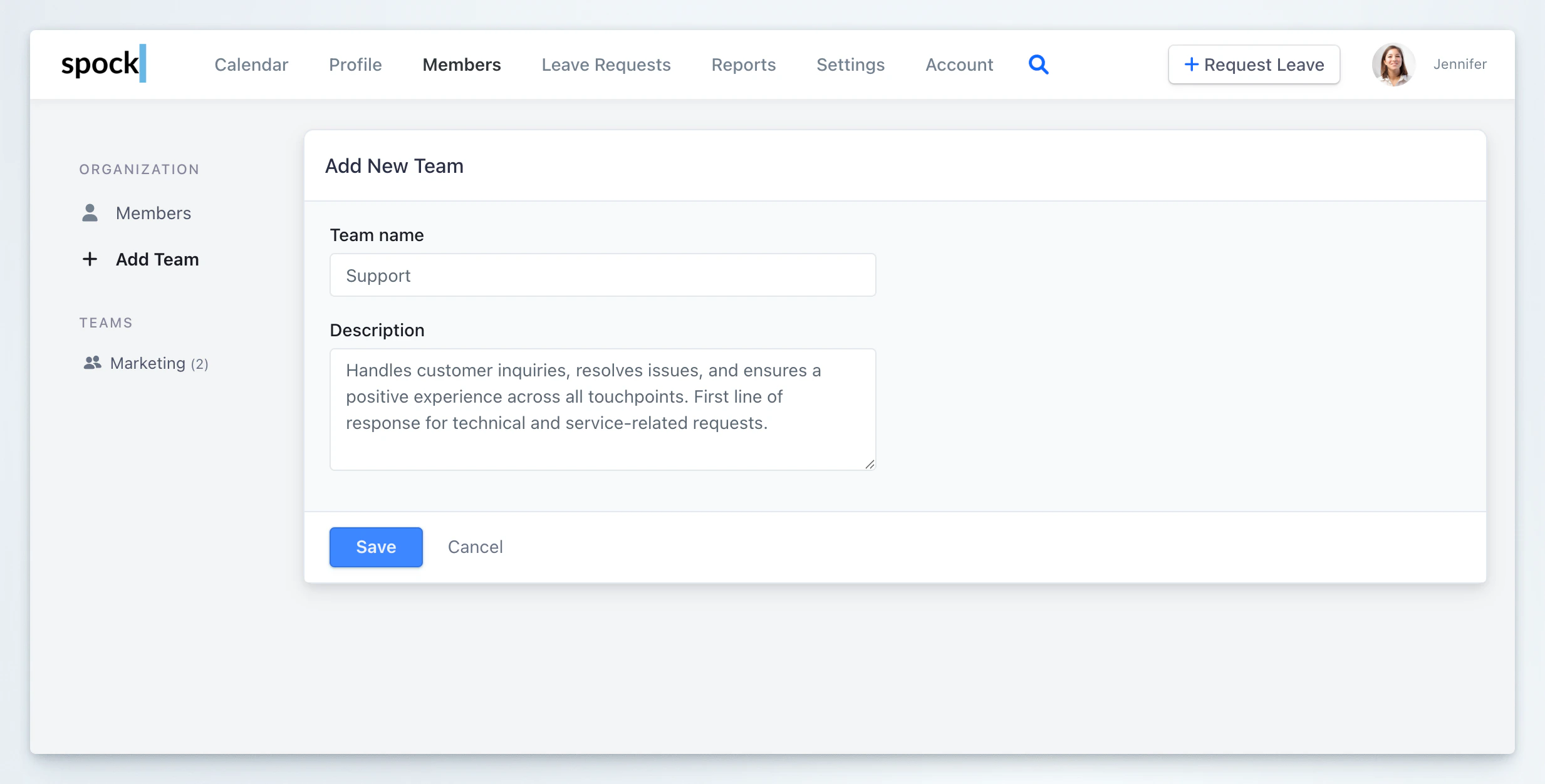 Click **Save** to create the new team, or **Cancel** to discard.
## Managing Team Members
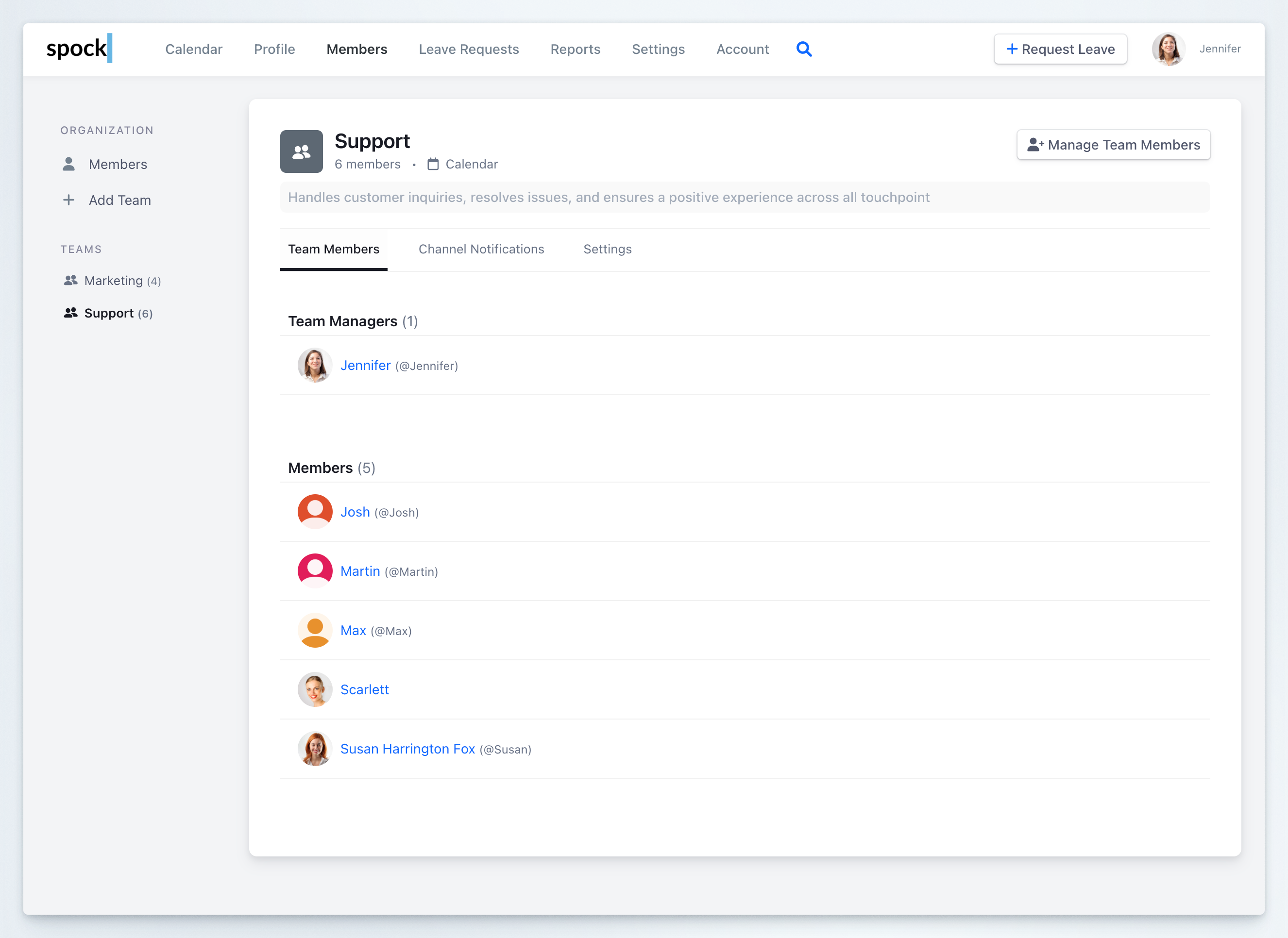
The **Team Members** tab displays the current team composition, divided into **Team Managers** and **Members** sections.
Click **Save** to create the new team, or **Cancel** to discard.
## Managing Team Members
The **Team Members** tab displays the current team composition, divided into **Team Managers** and **Members** sections.
 ### Adding or removing members
Navigate to **Members** in the top navigation, then select the team you want to manage from the left sidebar.
Click the **Manage Team Members** button in the top-right corner of the team detail view.
Use the two dropdown selectors to manage the team:
* **Team Managers** — select or remove users who can approve leave requests and manage the team
* **Team Members** — select or remove regular team members
Remove a user by clicking the **x** next to their name. Add users by selecting them from the dropdown.
### Adding or removing members
Navigate to **Members** in the top navigation, then select the team you want to manage from the left sidebar.
Click the **Manage Team Members** button in the top-right corner of the team detail view.
Use the two dropdown selectors to manage the team:
* **Team Managers** — select or remove users who can approve leave requests and manage the team
* **Team Members** — select or remove regular team members
Remove a user by clicking the **x** next to their name. Add users by selecting them from the dropdown.
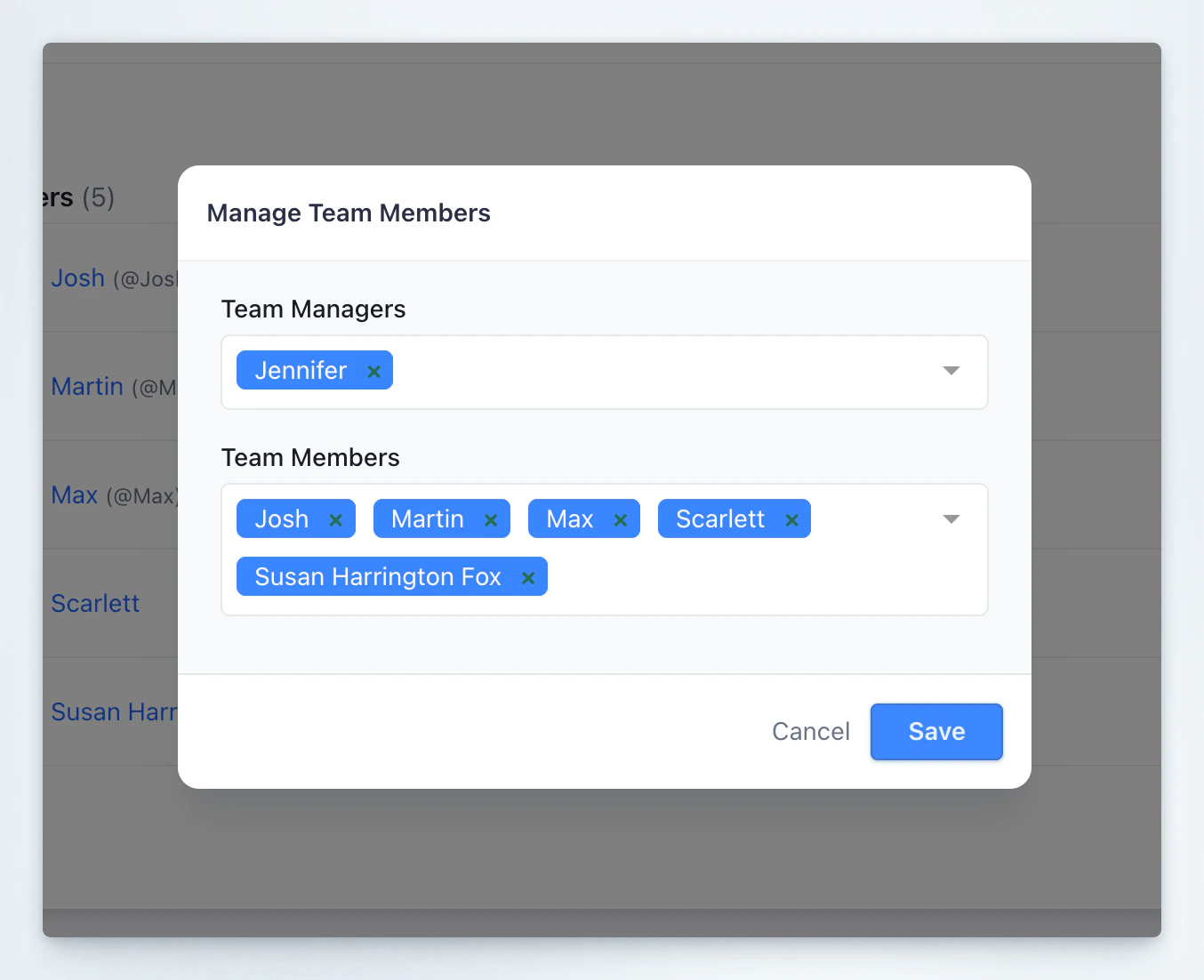 Click **Save** to apply the changes, or **Cancel** to discard.
## Managing Team Settings
The **Settings** tab lets you update the team's basic configuration.
Select the team from the left sidebar, then click the **Settings** tab.
Edit the following fields:
* **Team Name** — the name that appears across the platform and in notifications
* **Description** — an optional description of the team's purpose
Click **Save** to apply the changes, or **Cancel** to discard.
## Managing Team Settings
The **Settings** tab lets you update the team's basic configuration.
Select the team from the left sidebar, then click the **Settings** tab.
Edit the following fields:
* **Team Name** — the name that appears across the platform and in notifications
* **Description** — an optional description of the team's purpose
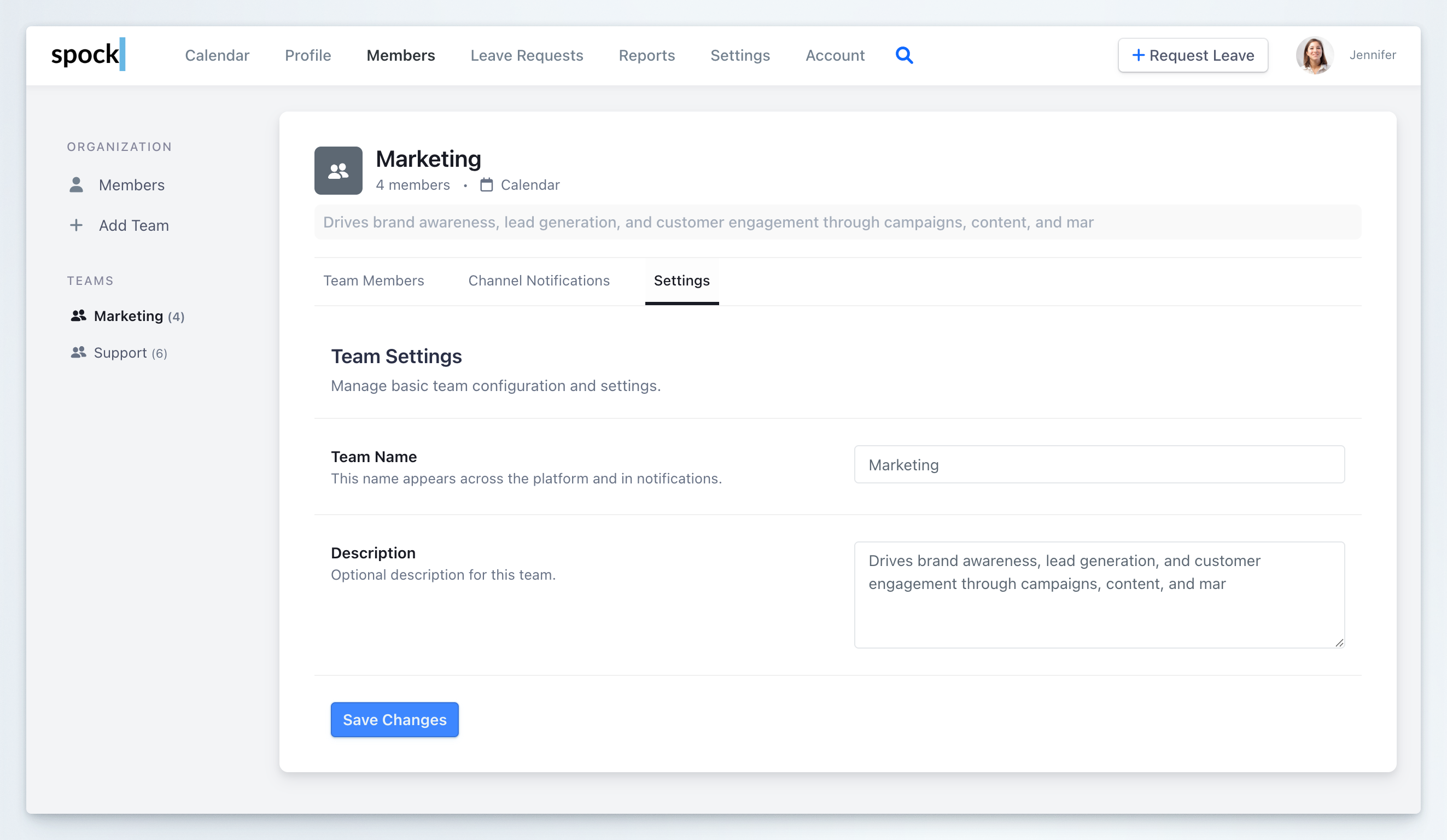 Click **Save Changes** to apply your updates.
## Deleting a Team
Deleting a team permanently removes it and all associated data. This action cannot be undone.
Select the team from the left sidebar, then click the **Settings** tab.
Click the **Delete team** link in the bottom-right corner of the settings page.
A confirmation section appears. Check the **Yes, delete team** checkbox to confirm.
Click **Save Changes** to apply your updates.
## Deleting a Team
Deleting a team permanently removes it and all associated data. This action cannot be undone.
Select the team from the left sidebar, then click the **Settings** tab.
Click the **Delete team** link in the bottom-right corner of the settings page.
A confirmation section appears. Check the **Yes, delete team** checkbox to confirm.
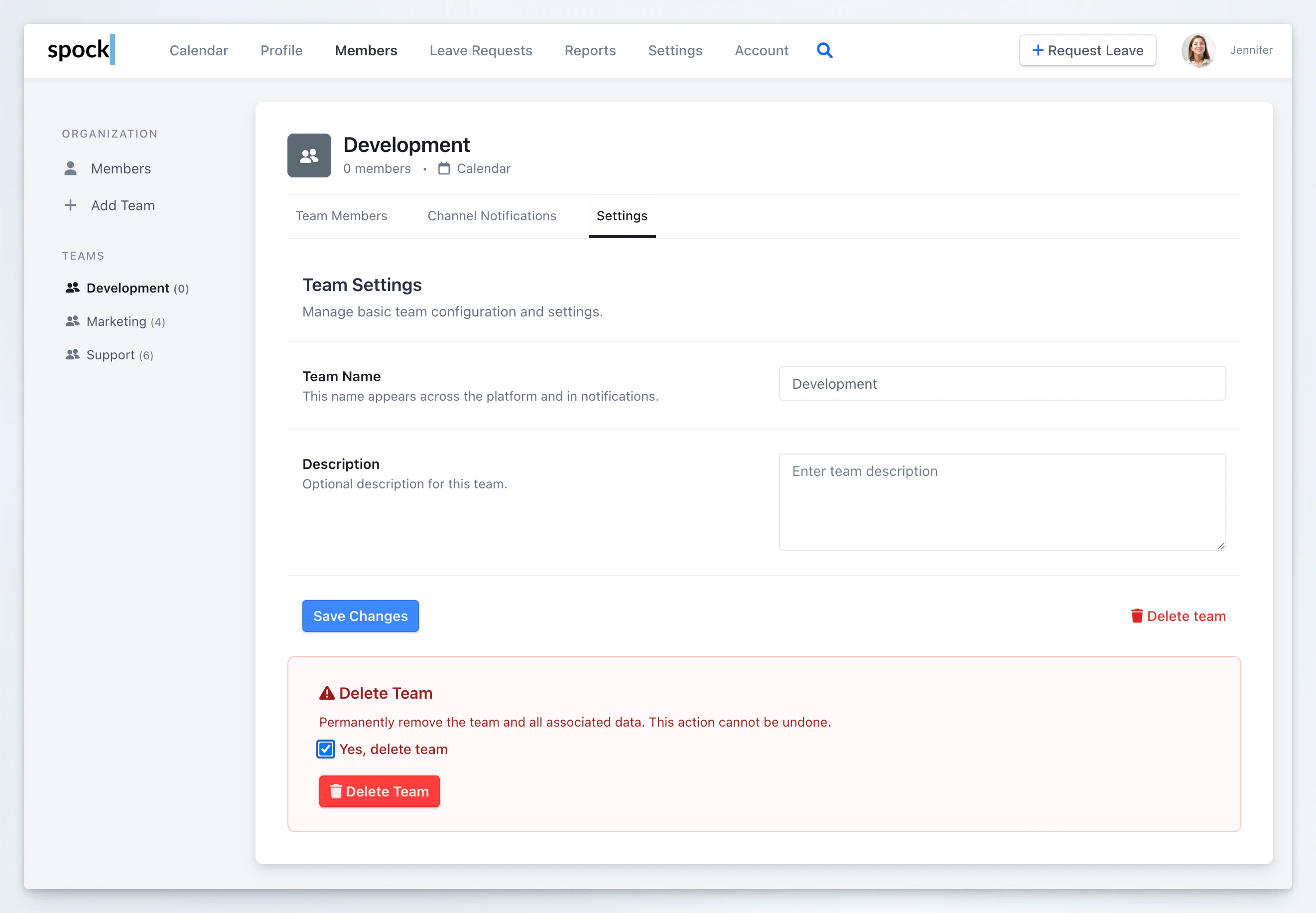 Click the **Delete Team** button to permanently remove the team.
## Managing User Memberships via Profile
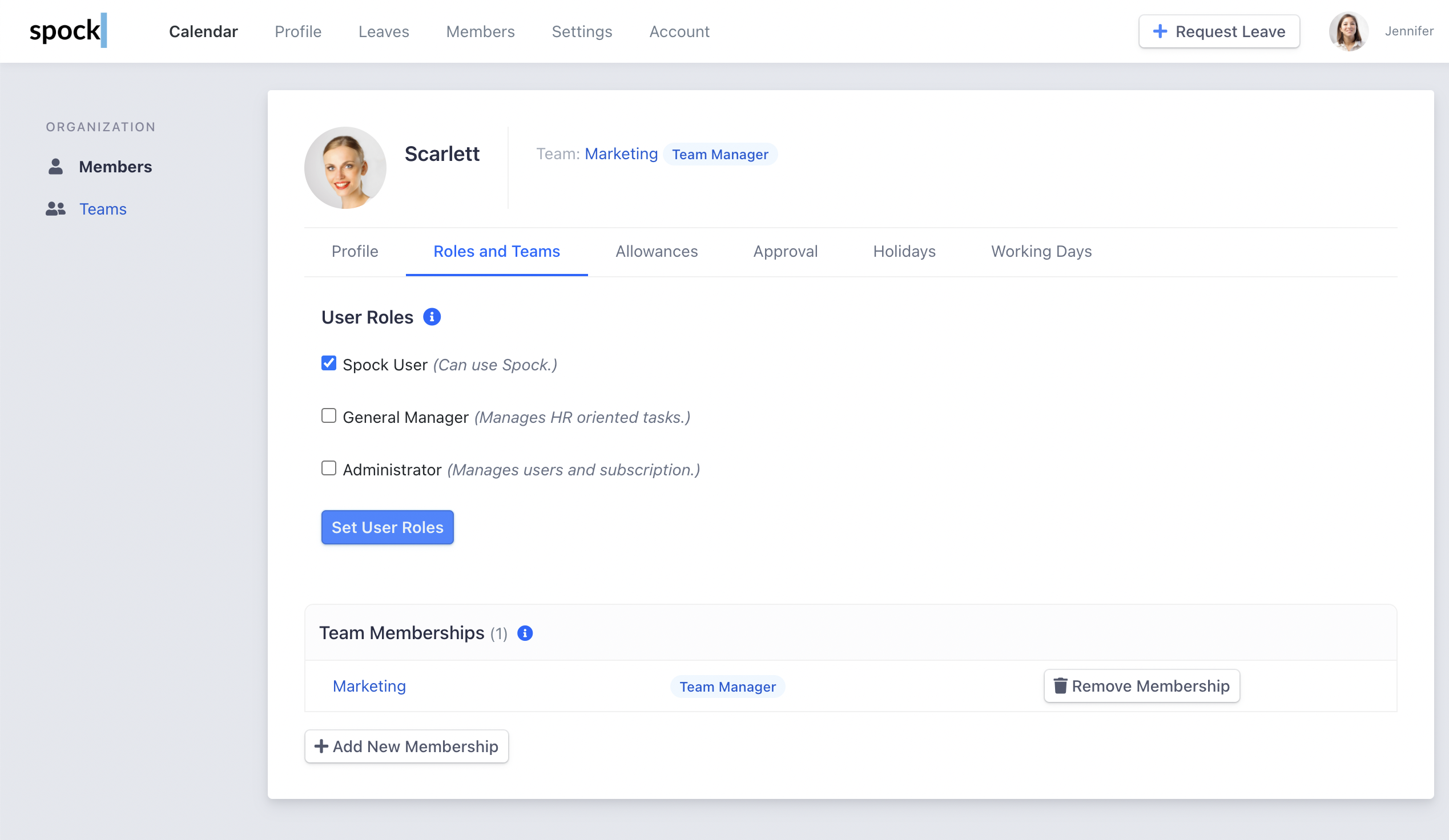
Alternatively, manage team memberships directly from user profiles:
Go to **Members**, search for the user, and open their profile.
Click the **"Roles and Teams"** tab.
Click **"Add New Membership"** to assign the user to a team.
Select the **Team** and assign the appropriate **Role**.
Click the **Delete Team** button to permanently remove the team.
## Managing User Memberships via Profile
Alternatively, manage team memberships directly from user profiles:
Go to **Members**, search for the user, and open their profile.
Click the **"Roles and Teams"** tab.
Click **"Add New Membership"** to assign the user to a team.
Select the **Team** and assign the appropriate **Role**.
 Click **Save** to confirm the new team membership.
## Team Notifications
Each team can configure automated Slack channel notifications to keep members informed about leave activities. Team notifications include daily and weekly summaries, plus real-time event alerts for leave requests.
For detailed setup instructions and configuration options, see [Team Notifications](/spock/team-management/team-notifications).
## Related Topics
Configure team-specific Slack channel notifications.
Learn how Team Managers handle leave approvals.
Manage user roles and permissions across the organization.
Configure organization-wide Slack channel notifications.
Learn about personal notification settings and morning reports.
Set up coverage arrangements within teams.
Team notifications help maintain transparency and enable better coordination when team members take leave, ensuring projects and responsibilities are properly managed.
Click **Save** to confirm the new team membership.
## Team Notifications
Each team can configure automated Slack channel notifications to keep members informed about leave activities. Team notifications include daily and weekly summaries, plus real-time event alerts for leave requests.
For detailed setup instructions and configuration options, see [Team Notifications](/spock/team-management/team-notifications).
## Related Topics
Configure team-specific Slack channel notifications.
Learn how Team Managers handle leave approvals.
Manage user roles and permissions across the organization.
Configure organization-wide Slack channel notifications.
Learn about personal notification settings and morning reports.
Set up coverage arrangements within teams.
Team notifications help maintain transparency and enable better coordination when team members take leave, ensuring projects and responsibilities are properly managed.