> ## Documentation Index
> Fetch the complete documentation index at: https://docs.spockoffice.com/llms.txt
> Use this file to discover all available pages before exploring further.
# Team Notifications
> Configure automated Slack channel notifications for teams, including daily and weekly summaries plus real-time event alerts for leave activities.
Team channel notifications keep your team informed by automatically posting leave-related updates directly to a designated Slack channel. Unlike organization-wide notifications, team notifications focus specifically on team member activities and can include both scheduled summaries and real-time event notifications.
## Benefits of Team Channel Notifications
* **Team-focused updates**: Only see leave information for your team members
* **Flexible scheduling**: Configure daily and weekly summaries independently
* **Event-driven alerts**: Get notified instantly when leave requests are created, approved, rejected, deleted, or canceled
* **Centralized communication**: Keep all team leave information in one dedicated Slack channel
## Accessing Team Channel Notifications
Go to **Members** > **Teams** in the dashboard.
Choose the team you want to configure notifications for.
Click the **Channel Notifications** tab.
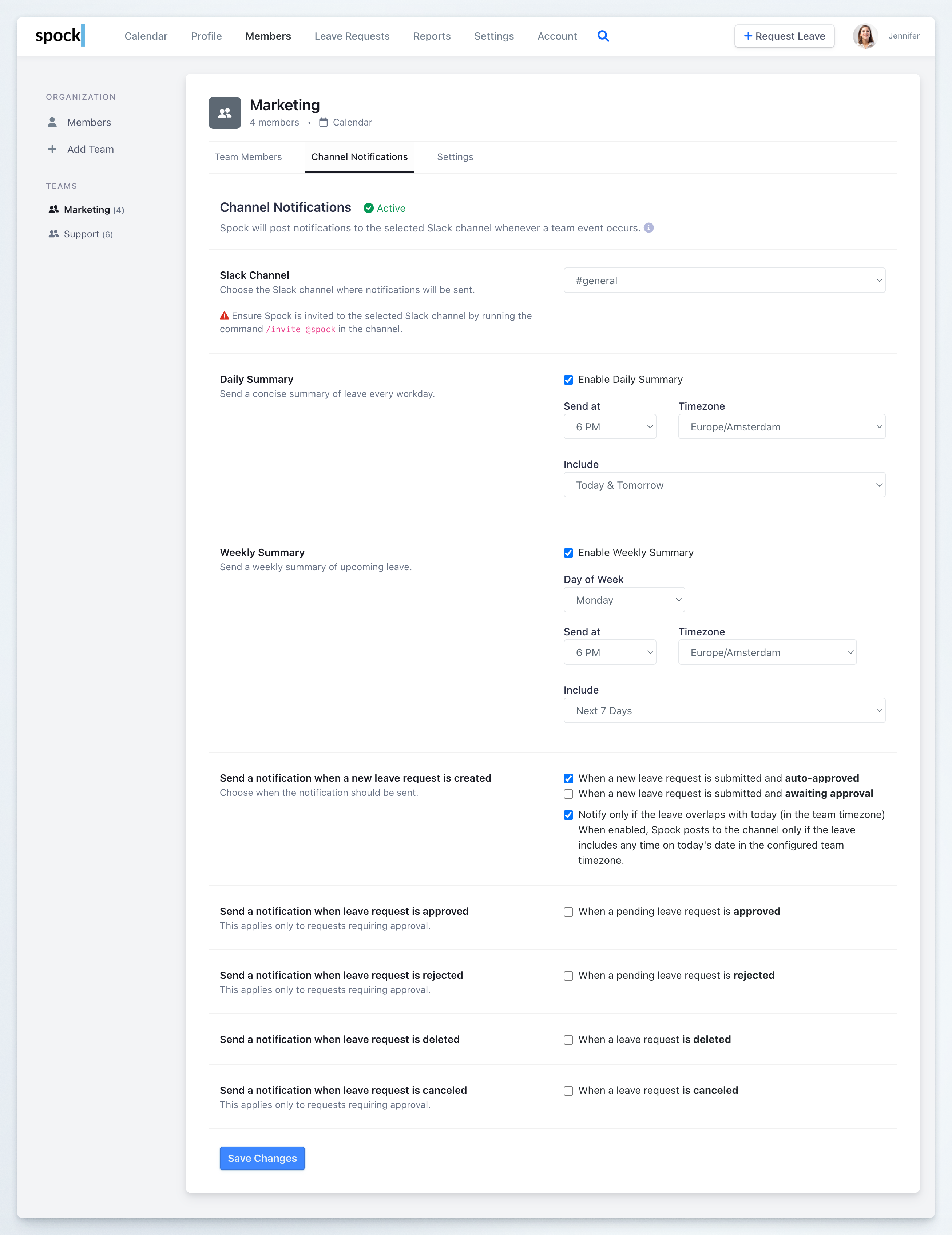 ## Configuring the Slack Channel
Before setting up any notifications, you must designate which Slack channel will receive the team's updates.
Verify that the **Channel Notifications** toggle is set to **Active**.
Choose your preferred channel from the **Slack Channel** dropdown menu.
Spock must be invited to your selected Slack channel before notifications will work. In your chosen channel, type `/invite @spock` to add Spock to the channel.
If you don't see private channels in the list, ask the Spock Administrator/Installer to reinstall Spock from the [pricing page](https://spockoffice.com/web/pricing/).
## Setting Up Daily Summary
The Daily Summary provides a concise overview of team member leave every workday.
## Configuring the Slack Channel
Before setting up any notifications, you must designate which Slack channel will receive the team's updates.
Verify that the **Channel Notifications** toggle is set to **Active**.
Choose your preferred channel from the **Slack Channel** dropdown menu.
Spock must be invited to your selected Slack channel before notifications will work. In your chosen channel, type `/invite @spock` to add Spock to the channel.
If you don't see private channels in the list, ask the Spock Administrator/Installer to reinstall Spock from the [pricing page](https://spockoffice.com/web/pricing/).
## Setting Up Daily Summary
The Daily Summary provides a concise overview of team member leave every workday.
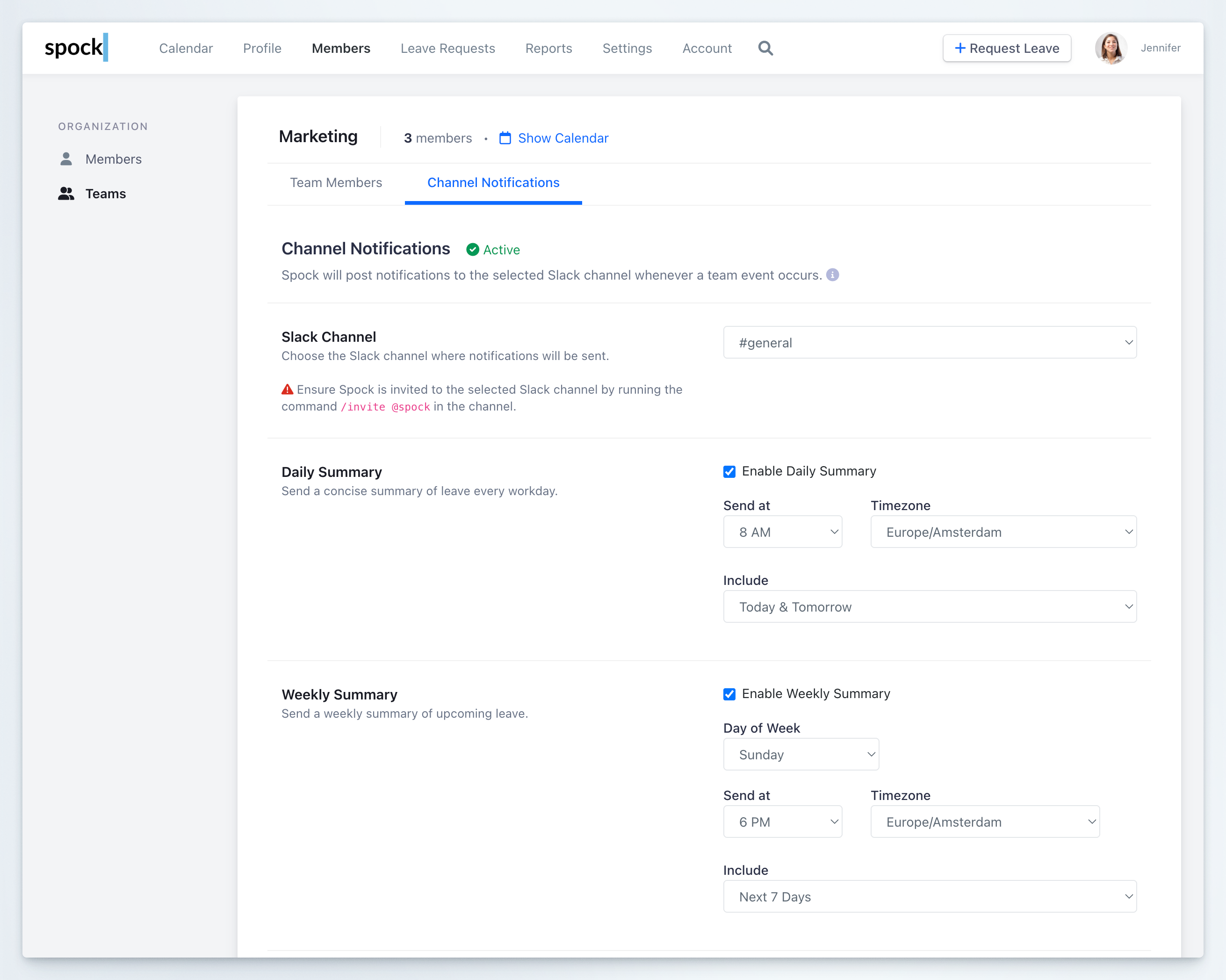 Check the **Enable Daily Summary** checkbox to activate daily notifications for your team.
Configure when the summary should be sent:
* **Send at**: Choose the time of day (e.g., 8 AM before work begins)
* **Timezone**: Select the appropriate timezone for your team
Select which leave information to include from the **Include** dropdown:
* **Today & Tomorrow**: See both today's and tomorrow's leave (recommended for comprehensive awareness)
* **Today**: Only include leave occurring today
* **Tomorrow**: Only include leave occurring tomorrow
## Setting Up Weekly Summary
The Weekly Summary gives your team a broader view of upcoming leave for better planning.
Check the **Enable Weekly Summary** checkbox to activate weekly notifications.
Configure when the weekly summary should be sent:
* **Day of Week**: Select which day to send the summary (e.g., Sunday to prepare for the week ahead, or Monday to start the week informed)
* **Send at**: Choose the time of day (e.g., 6 PM)
* **Timezone**: Select the appropriate timezone
Select the time range from the **Include** dropdown:
* **Next 7 Days**: One week ahead (ideal for short-term team planning)
* **Next 14 Days**: Two weeks ahead (better for medium-term coordination)
* **Next 30 Days**: One month ahead (comprehensive long-term visibility)
You can enable both Daily and Weekly summaries simultaneously. They complement each other by providing both immediate and strategic visibility.
## Configuring Event Notifications
Event notifications send real-time alerts to your team's Slack channel when specific leave-related actions occur. This keeps everyone immediately informed of changes affecting team availability.
Check the **Enable Daily Summary** checkbox to activate daily notifications for your team.
Configure when the summary should be sent:
* **Send at**: Choose the time of day (e.g., 8 AM before work begins)
* **Timezone**: Select the appropriate timezone for your team
Select which leave information to include from the **Include** dropdown:
* **Today & Tomorrow**: See both today's and tomorrow's leave (recommended for comprehensive awareness)
* **Today**: Only include leave occurring today
* **Tomorrow**: Only include leave occurring tomorrow
## Setting Up Weekly Summary
The Weekly Summary gives your team a broader view of upcoming leave for better planning.
Check the **Enable Weekly Summary** checkbox to activate weekly notifications.
Configure when the weekly summary should be sent:
* **Day of Week**: Select which day to send the summary (e.g., Sunday to prepare for the week ahead, or Monday to start the week informed)
* **Send at**: Choose the time of day (e.g., 6 PM)
* **Timezone**: Select the appropriate timezone
Select the time range from the **Include** dropdown:
* **Next 7 Days**: One week ahead (ideal for short-term team planning)
* **Next 14 Days**: Two weeks ahead (better for medium-term coordination)
* **Next 30 Days**: One month ahead (comprehensive long-term visibility)
You can enable both Daily and Weekly summaries simultaneously. They complement each other by providing both immediate and strategic visibility.
## Configuring Event Notifications
Event notifications send real-time alerts to your team's Slack channel when specific leave-related actions occur. This keeps everyone immediately informed of changes affecting team availability.
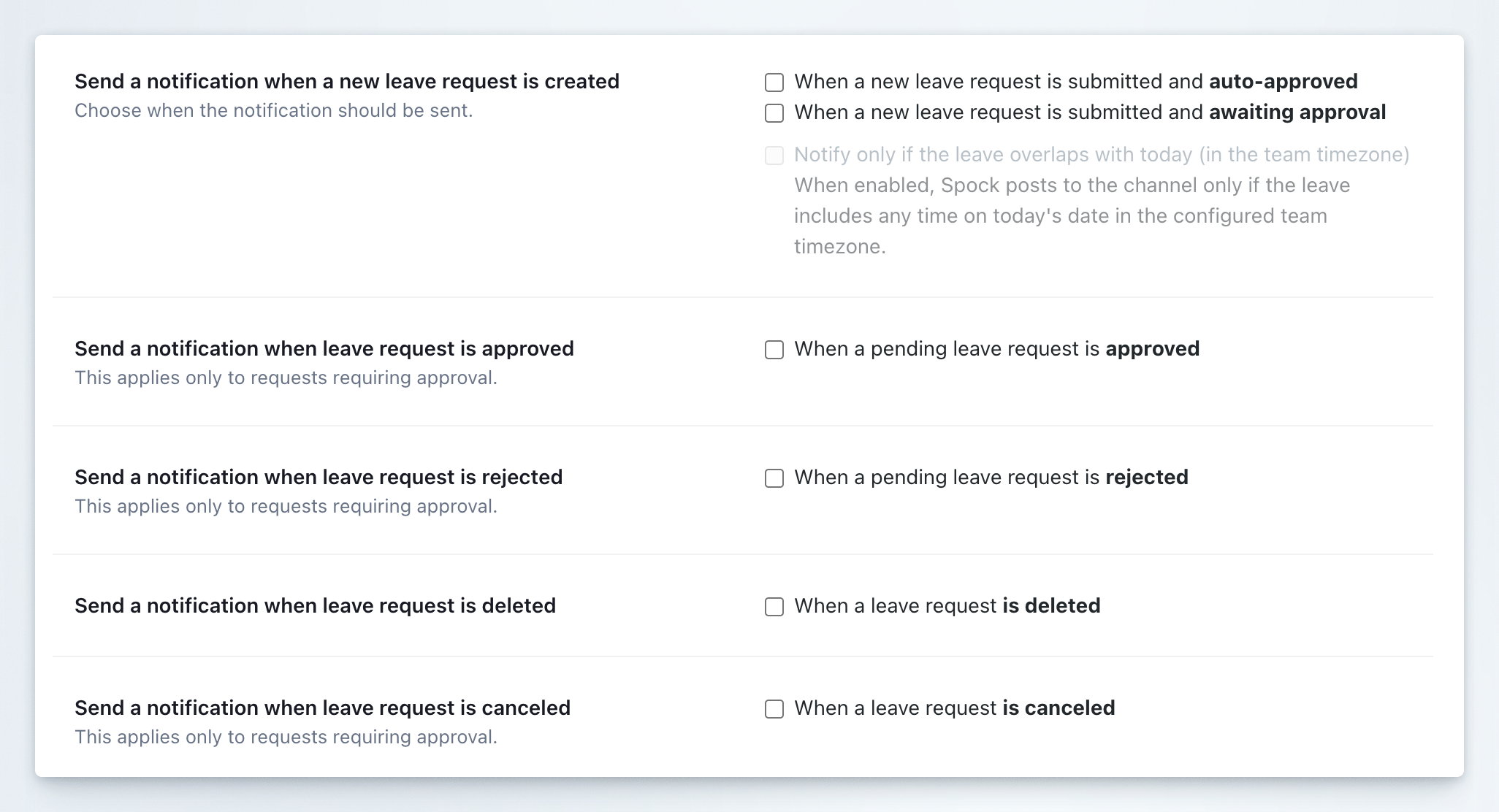 Scroll to the **Send a notification when** section to configure event-based alerts.
Under **Send a notification when a new leave request is created**, choose:
* **When a new leave request is submitted and auto-approved**: Notify when leave is automatically approved without requiring manager review
* **When a new leave request is submitted and awaiting approval**: Notify when leave requires approval from a manager
Optionally, check **Notify only if the leave overlaps with today (in the team timezone)** to limit creation notifications to leave that includes today's date. When enabled, Spock only posts to the channel if the leave covers any time on today's date in the configured team timezone. This is useful for reducing noise from future-dated leave requests and focusing on what affects team availability right now.
Check **When a pending leave request is approved** to notify the team when a manager approves a leave request.
This applies only to requests requiring approval.
Check **When a pending leave request is rejected** to notify the team when a manager rejects a leave request.
This applies only to requests requiring approval.
Check **When a leave request is deleted** to notify the team when any leave request is permanently removed from the system.
Check **When a leave request is canceled** to notify the team when an approved leave is canceled.
This applies only to requests requiring approval.
Click **Save Changes** to activate all your notification settings.
## Best Practices for Team Notifications
### Recommended Event Notifications
* **Small teams (under 10 people)**: Enable all events for complete visibility
* **Medium teams (10-30 people)**: Enable approved, rejected, and canceled events; consider disabling creation events to reduce noise
* **Large teams (over 30 people)**: Focus on approved and canceled events only; rely on summaries for awareness
### Daily vs Weekly Summaries
* **Use Daily Summaries** for operational teams that need real-time coordination
* **Use Weekly Summaries** for strategic planning and longer-term visibility
* **Combine both** for teams that need both tactical and strategic awareness
### Channel Strategy
* Create dedicated team channels like `#team-marketing-leave` for focused communication
* Avoid using your main team channel to prevent notification overload
* Use private channels for teams handling sensitive information
Enabling too many event notifications in high-activity teams can create notification fatigue. Start with fewer notifications and add more based on team feedback.
## Related Topics
Learn how to create and manage teams.
Configure organization-wide Slack channel notifications.
Learn about personal notification settings and morning reports.
Understand how Team Managers handle leave approvals.
Team notifications help maintain transparency and enable better coordination when team members take leave, ensuring projects and responsibilities are properly managed.
Scroll to the **Send a notification when** section to configure event-based alerts.
Under **Send a notification when a new leave request is created**, choose:
* **When a new leave request is submitted and auto-approved**: Notify when leave is automatically approved without requiring manager review
* **When a new leave request is submitted and awaiting approval**: Notify when leave requires approval from a manager
Optionally, check **Notify only if the leave overlaps with today (in the team timezone)** to limit creation notifications to leave that includes today's date. When enabled, Spock only posts to the channel if the leave covers any time on today's date in the configured team timezone. This is useful for reducing noise from future-dated leave requests and focusing on what affects team availability right now.
Check **When a pending leave request is approved** to notify the team when a manager approves a leave request.
This applies only to requests requiring approval.
Check **When a pending leave request is rejected** to notify the team when a manager rejects a leave request.
This applies only to requests requiring approval.
Check **When a leave request is deleted** to notify the team when any leave request is permanently removed from the system.
Check **When a leave request is canceled** to notify the team when an approved leave is canceled.
This applies only to requests requiring approval.
Click **Save Changes** to activate all your notification settings.
## Best Practices for Team Notifications
### Recommended Event Notifications
* **Small teams (under 10 people)**: Enable all events for complete visibility
* **Medium teams (10-30 people)**: Enable approved, rejected, and canceled events; consider disabling creation events to reduce noise
* **Large teams (over 30 people)**: Focus on approved and canceled events only; rely on summaries for awareness
### Daily vs Weekly Summaries
* **Use Daily Summaries** for operational teams that need real-time coordination
* **Use Weekly Summaries** for strategic planning and longer-term visibility
* **Combine both** for teams that need both tactical and strategic awareness
### Channel Strategy
* Create dedicated team channels like `#team-marketing-leave` for focused communication
* Avoid using your main team channel to prevent notification overload
* Use private channels for teams handling sensitive information
Enabling too many event notifications in high-activity teams can create notification fatigue. Start with fewer notifications and add more based on team feedback.
## Related Topics
Learn how to create and manage teams.
Configure organization-wide Slack channel notifications.
Learn about personal notification settings and morning reports.
Understand how Team Managers handle leave approvals.
Team notifications help maintain transparency and enable better coordination when team members take leave, ensuring projects and responsibilities are properly managed.