> ## Documentation Index
> Fetch the complete documentation index at: https://docs.spockoffice.com/llms.txt
> Use this file to discover all available pages before exploring further.
# Notification Preferences
> Configure your notification settings for morning reports, instant alerts, and Slack status updates.
Notification Preferences allow you to customize how and when Spock notifies you about leave-related information. These settings help you stay informed about team absences, leave requests requiring your approval, and automatically update your Slack status when you're on leave.
## In this article
* [How to Access Notification Preferences](#how-to-access-notification-preferences)
* [Morning Report Notification](#morning-report-notification)
* [Instant Notifications](#instant-notifications)
* [Slack Status Update](#slack-status-update)
* [Saving Your Preferences](#saving-your-preferences)
## How to Access Notification Preferences
Sign in to your Spock Dashboard
Navigate to **Preferences** > **Notifications**
Adjust your notification preferences according to your needs
Click **Save** to apply your preferences
You can access Notification Preferences directly at: [Open Notifications in Dashboard](https://spockoffice.com/spockapp/settings/notifications/)
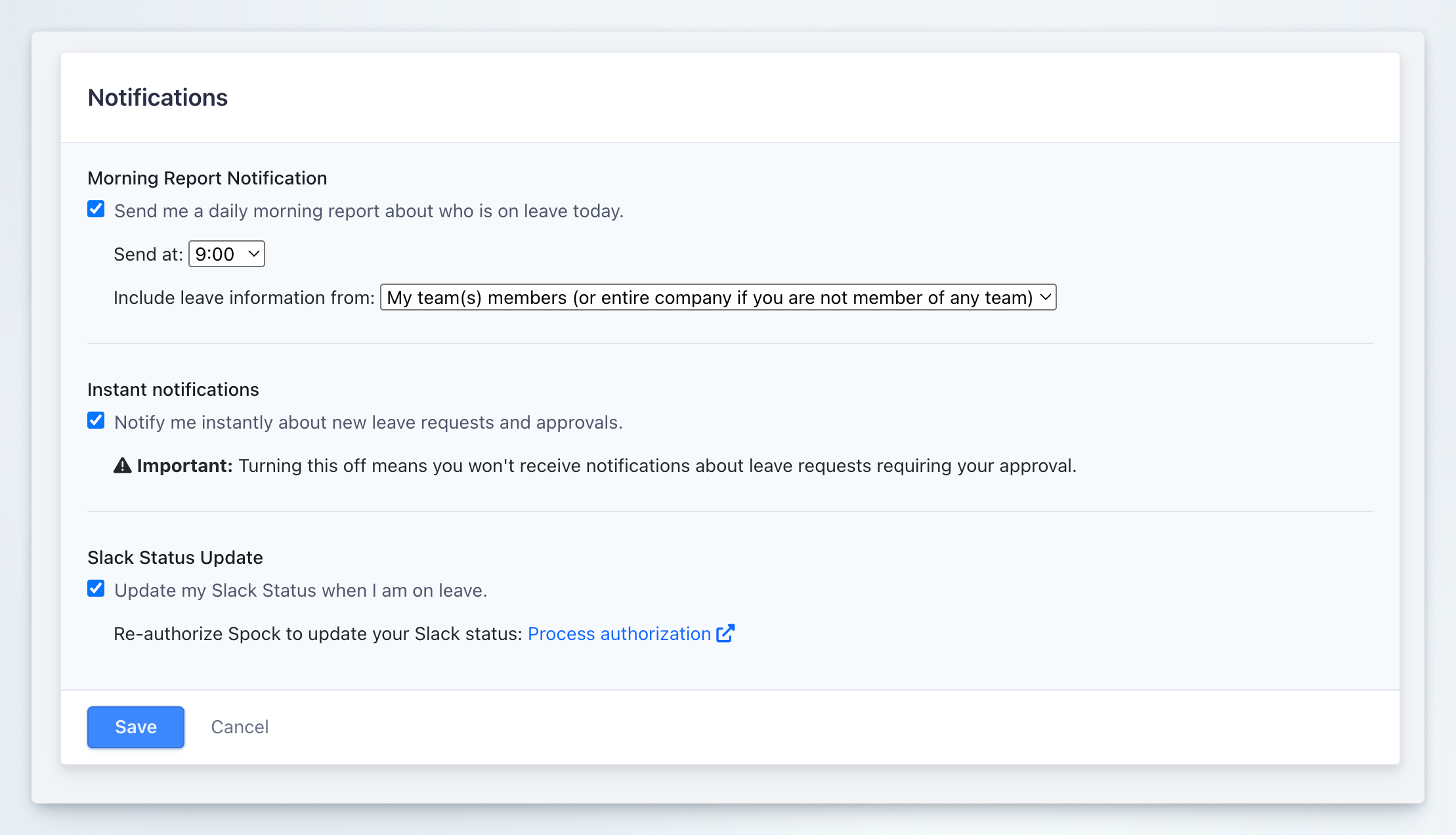 ## Morning Report Notification
### Receive a daily morning report about who is on leave
This setting sends you a daily Slack notification summarizing who is on leave for the day, helping you plan your workday and know who is available.
**Checkbox:** Send me a daily morning report about who is on leave today.
**Default:** Enabled (checked)
#### When Enabled
When this option is enabled (checkbox checked):
* You receive a daily Slack notification at your specified time
* The notification includes a list of team members who are on leave that day
* You can customize the scope of leave information (team members or entire company)
* The report is automatically sent every working day
#### When Disabled
When this option is disabled (checkbox unchecked):
* You will not receive daily morning reports
* You must manually check the Spock dashboard or calendar to see who is on leave
* Other notification settings remain unaffected
### Configuration Options
#### Send at
**Dropdown:** Select the time when you want to receive your morning report
**Default:** 9:00
You can choose from various times throughout the day to match your work schedule. The notification will be sent via Slack at your selected time each working day.
The morning report is sent based on your local timezone. Choose a time that works best for your morning routine and gives you enough time to plan your day.
#### Include leave information from
**Dropdown:** Choose whose leave information to include in your morning report
**Options:**
* **My team(s) members (or entire company if you are not member of any team)** - Default option that shows leave for your team members. If you're not assigned to any team, you'll receive information about the entire company
* **All members - Entire company** - Shows leave for all employees across the organization, regardless of team membership
If you manage multiple teams or need visibility across the organization, select "All members - Entire company". If you primarily work with your immediate team, the default "My team(s) members" option will provide more focused information.
## Instant Notifications
### Receive real-time notifications for leave requests and approvals
This setting controls whether you receive immediate Slack notifications when leave-related events occur that require your attention or involve you.
**Checkbox:** Notify me instantly about new leave requests and approvals.
**Default:** Enabled (checked)
#### When Enabled
When this option is enabled (checkbox checked):
* You receive instant Slack notifications for:
* Leave requests submitted by your team members that require your approval
* Approvals or rejections of your own leave requests
* Changes to leave requests that affect you
* Notifications are sent in real-time as events occur
* You can respond quickly to time-sensitive approval requests
#### When Disabled
When this option is disabled (checkbox unchecked):
* You will not receive instant Slack notifications for leave-related events
* You must manually check the Spock dashboard to see pending approvals
* You will miss real-time updates about your own leave request status
* You may experience delays in approving team member requests
**Important:** Turning this off means you won't receive notifications about leave requests requiring your approval.
If you are a manager or approver, disabling this setting may delay leave request approvals and impact your team's ability to plan their time off. Consider keeping this enabled if you have approval responsibilities.
Even when disabled, you can still access all pending approvals and leave information through the Spock Dashboard at any time.
## Slack Status Update
### Automatically update your Slack status when you're on leave
This setting allows Spock to automatically update your Slack status to indicate when you're on leave, helping colleagues know you're unavailable.
**Checkbox:** Update my Slack Status when I am on leave.
**Default:** Enabled (checked)
#### When Enabled
When this option is enabled (checkbox checked):
* Spock automatically updates your Slack status when your leave begins
* Your status shows that you're on leave (format depends on leave type configuration)
* Your status is automatically cleared when your leave ends
* Colleagues can see at a glance that you're unavailable
#### When Disabled
When this option is disabled (checkbox unchecked):
* Spock will not modify your Slack status
* You must manually update your Slack status when taking leave
* Colleagues won't automatically know you're on leave through Slack status
The Slack status update feature only works with leave types that are configured to allow status updates. Your organization administrator controls which leave types can update Slack status.
### Slack Authorization
To enable Slack status updates, you must authorize Spock to modify your Slack status on your behalf.
#### When to Authorize
You need to authorize Spock if:
* This is your first time enabling Slack status updates
* You previously revoked Spock's authorization in Slack
* You see an error message indicating authorization is required
* Your Slack status is not updating automatically during leave
#### How to Authorize
Click **Process authorization** link in the Slack Status Update section
You'll be redirected to Slack to confirm the authorization
Review the permissions and click **Allow** to grant Spock access to update your status
After authorization, you'll be redirected back to Spock
Ensure the "Update my Slack Status when I am on leave" checkbox is enabled
Click **Save** to apply your preferences
Slack requires explicit authorization for apps to update user status. Without completing the authorization process, Spock cannot update your Slack status even if this setting is enabled.
## Saving Your Preferences
After adjusting any of the notification settings, you must save your changes:
1. Review your selections
2. Click the blue **Save** button at the bottom of the form
3. Alternatively, click **Cancel** to discard any changes and revert to previous settings
Changes to notification preferences take effect immediately upon saving.
## Use Cases and Best Practices
### Recommended Settings for Most Users
For standard employees:
* **Morning Report Notification:** Enabled at 9:00 AM with team scope
* **Instant Notifications:** Enabled (especially important for managers and approvers)
* **Slack Status Update:** Enabled with authorization completed
### Recommended Settings for Managers and Approvers
For managers and team leads:
* **Morning Report Notification:** Enabled at your typical start time, set to show entire company or multiple teams
* **Instant Notifications:** Enabled (critical for timely approvals)
* **Slack Status Update:** Enabled to keep team informed of your availability
### When to Adjust Morning Report Time
Consider changing your morning report time if:
* You work in a different timezone than your team (you can change timezone in your Slack profile)
* You prefer to receive the report before your workday officially starts
* You want the report during your morning planning routine
* You start work earlier or later than the default 9:00 AM
### When to Expand Morning Report Scope
Choose "All members - Entire company" if you:
* Work across multiple teams regularly
* Need visibility into organization-wide capacity
* Coordinate resources across departments
* Are in a leadership or project management role
### When to Keep Instant Notifications Enabled
Keep instant notifications enabled if you:
* Have responsibility for approving leave requests
* Want to respond quickly to your team's needs
* Need real-time updates about your own leave request status
* Value immediate awareness of team availability changes
These are personal preferences that only affect your account. Each team member can configure their own notification settings independently.
## Morning Report Notification
### Receive a daily morning report about who is on leave
This setting sends you a daily Slack notification summarizing who is on leave for the day, helping you plan your workday and know who is available.
**Checkbox:** Send me a daily morning report about who is on leave today.
**Default:** Enabled (checked)
#### When Enabled
When this option is enabled (checkbox checked):
* You receive a daily Slack notification at your specified time
* The notification includes a list of team members who are on leave that day
* You can customize the scope of leave information (team members or entire company)
* The report is automatically sent every working day
#### When Disabled
When this option is disabled (checkbox unchecked):
* You will not receive daily morning reports
* You must manually check the Spock dashboard or calendar to see who is on leave
* Other notification settings remain unaffected
### Configuration Options
#### Send at
**Dropdown:** Select the time when you want to receive your morning report
**Default:** 9:00
You can choose from various times throughout the day to match your work schedule. The notification will be sent via Slack at your selected time each working day.
The morning report is sent based on your local timezone. Choose a time that works best for your morning routine and gives you enough time to plan your day.
#### Include leave information from
**Dropdown:** Choose whose leave information to include in your morning report
**Options:**
* **My team(s) members (or entire company if you are not member of any team)** - Default option that shows leave for your team members. If you're not assigned to any team, you'll receive information about the entire company
* **All members - Entire company** - Shows leave for all employees across the organization, regardless of team membership
If you manage multiple teams or need visibility across the organization, select "All members - Entire company". If you primarily work with your immediate team, the default "My team(s) members" option will provide more focused information.
## Instant Notifications
### Receive real-time notifications for leave requests and approvals
This setting controls whether you receive immediate Slack notifications when leave-related events occur that require your attention or involve you.
**Checkbox:** Notify me instantly about new leave requests and approvals.
**Default:** Enabled (checked)
#### When Enabled
When this option is enabled (checkbox checked):
* You receive instant Slack notifications for:
* Leave requests submitted by your team members that require your approval
* Approvals or rejections of your own leave requests
* Changes to leave requests that affect you
* Notifications are sent in real-time as events occur
* You can respond quickly to time-sensitive approval requests
#### When Disabled
When this option is disabled (checkbox unchecked):
* You will not receive instant Slack notifications for leave-related events
* You must manually check the Spock dashboard to see pending approvals
* You will miss real-time updates about your own leave request status
* You may experience delays in approving team member requests
**Important:** Turning this off means you won't receive notifications about leave requests requiring your approval.
If you are a manager or approver, disabling this setting may delay leave request approvals and impact your team's ability to plan their time off. Consider keeping this enabled if you have approval responsibilities.
Even when disabled, you can still access all pending approvals and leave information through the Spock Dashboard at any time.
## Slack Status Update
### Automatically update your Slack status when you're on leave
This setting allows Spock to automatically update your Slack status to indicate when you're on leave, helping colleagues know you're unavailable.
**Checkbox:** Update my Slack Status when I am on leave.
**Default:** Enabled (checked)
#### When Enabled
When this option is enabled (checkbox checked):
* Spock automatically updates your Slack status when your leave begins
* Your status shows that you're on leave (format depends on leave type configuration)
* Your status is automatically cleared when your leave ends
* Colleagues can see at a glance that you're unavailable
#### When Disabled
When this option is disabled (checkbox unchecked):
* Spock will not modify your Slack status
* You must manually update your Slack status when taking leave
* Colleagues won't automatically know you're on leave through Slack status
The Slack status update feature only works with leave types that are configured to allow status updates. Your organization administrator controls which leave types can update Slack status.
### Slack Authorization
To enable Slack status updates, you must authorize Spock to modify your Slack status on your behalf.
#### When to Authorize
You need to authorize Spock if:
* This is your first time enabling Slack status updates
* You previously revoked Spock's authorization in Slack
* You see an error message indicating authorization is required
* Your Slack status is not updating automatically during leave
#### How to Authorize
Click **Process authorization** link in the Slack Status Update section
You'll be redirected to Slack to confirm the authorization
Review the permissions and click **Allow** to grant Spock access to update your status
After authorization, you'll be redirected back to Spock
Ensure the "Update my Slack Status when I am on leave" checkbox is enabled
Click **Save** to apply your preferences
Slack requires explicit authorization for apps to update user status. Without completing the authorization process, Spock cannot update your Slack status even if this setting is enabled.
## Saving Your Preferences
After adjusting any of the notification settings, you must save your changes:
1. Review your selections
2. Click the blue **Save** button at the bottom of the form
3. Alternatively, click **Cancel** to discard any changes and revert to previous settings
Changes to notification preferences take effect immediately upon saving.
## Use Cases and Best Practices
### Recommended Settings for Most Users
For standard employees:
* **Morning Report Notification:** Enabled at 9:00 AM with team scope
* **Instant Notifications:** Enabled (especially important for managers and approvers)
* **Slack Status Update:** Enabled with authorization completed
### Recommended Settings for Managers and Approvers
For managers and team leads:
* **Morning Report Notification:** Enabled at your typical start time, set to show entire company or multiple teams
* **Instant Notifications:** Enabled (critical for timely approvals)
* **Slack Status Update:** Enabled to keep team informed of your availability
### When to Adjust Morning Report Time
Consider changing your morning report time if:
* You work in a different timezone than your team (you can change timezone in your Slack profile)
* You prefer to receive the report before your workday officially starts
* You want the report during your morning planning routine
* You start work earlier or later than the default 9:00 AM
### When to Expand Morning Report Scope
Choose "All members - Entire company" if you:
* Work across multiple teams regularly
* Need visibility into organization-wide capacity
* Coordinate resources across departments
* Are in a leadership or project management role
### When to Keep Instant Notifications Enabled
Keep instant notifications enabled if you:
* Have responsibility for approving leave requests
* Want to respond quickly to your team's needs
* Need real-time updates about your own leave request status
* Value immediate awareness of team availability changes
These are personal preferences that only affect your account. Each team member can configure their own notification settings independently.