> ## Documentation Index
> Fetch the complete documentation index at: https://docs.spockoffice.com/llms.txt
> Use this file to discover all available pages before exploring further.
# General Preferences
> Configure your personal preferences for holidays, working days, and calendar display settings.
General Preferences allow you to customize how Spock handles leave requests and displays your calendar. These personal settings help ensure that leave booking works according to your specific needs and preferences.
## In this article
* [How to Access General Preferences](#how-to-access-general-preferences)
* [Holidays Setting](#holidays-setting)
* [Working Days Setting](#working-days-setting)
* [Calendar Week Start Day](#calendar-week-start-day)
## How to Access General Preferences
Sign in to your Spock Dashboard
Navigate to **Preferences** > **General**
Adjust your preferences according to your needs
Click **Save** to apply your preferences
You can access General Preferences directly at: [Open Preferences in Dashboard](https://spockoffice.com/spockapp/settings/general/)
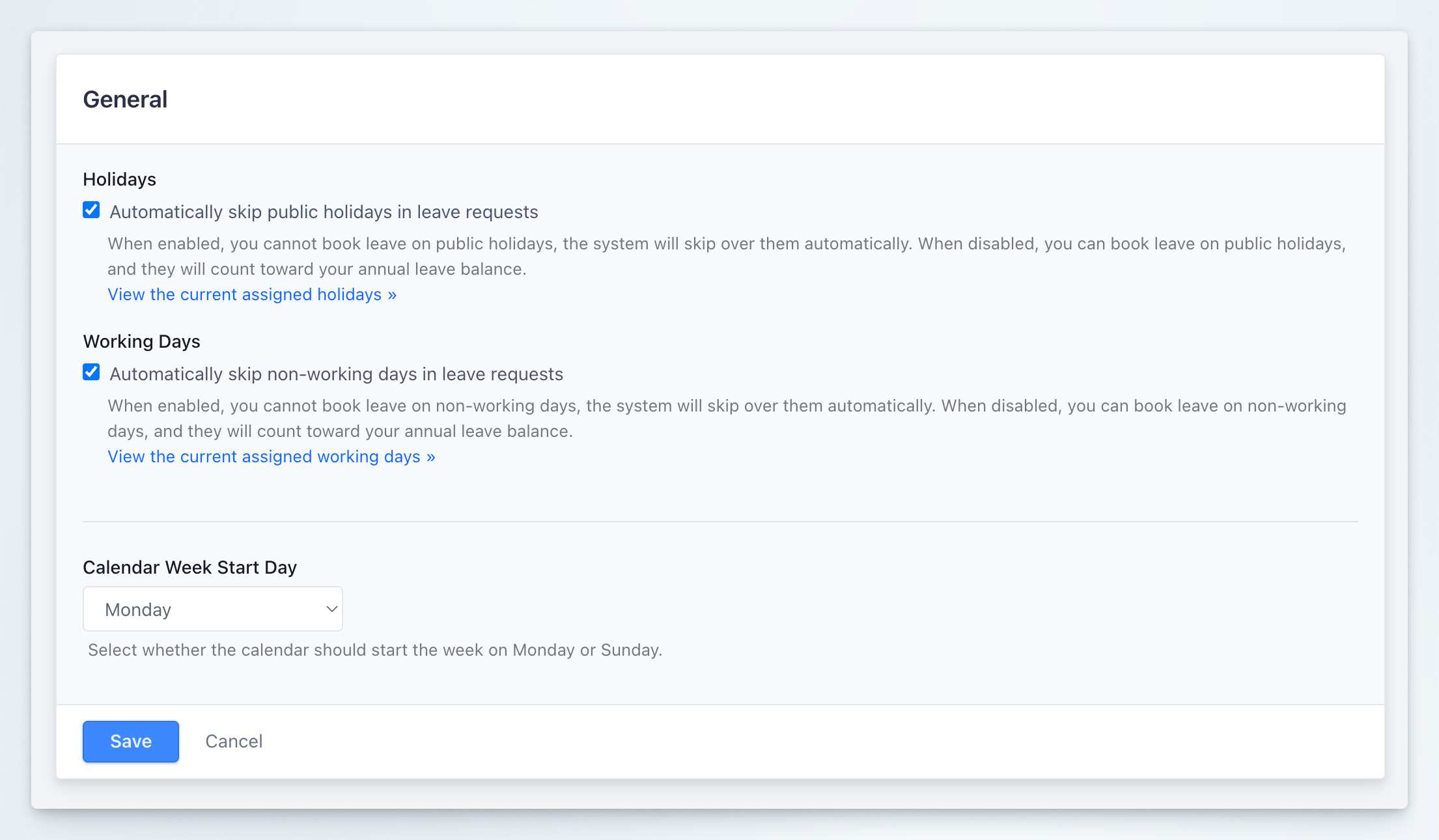 ## Holidays
### Automatically skip public holidays in leave requests
This setting controls whether public holidays are automatically excluded when you book leave.
**Checkbox:** Automatically skip public holidays in leave requests
**Default:** Enabled (checked)
#### When Enabled
When this option is enabled (checkbox checked):
* You **cannot** book leave on public holidays
* The system automatically skips over public holidays when calculating leave duration
* Public holidays within your leave period do not count toward your annual leave balance
* Leave requests spanning public holidays will only consume working days from your allowance
**Example:** If you request leave from Monday to Friday, and Wednesday is a public holiday, only 4 days will be deducted from your leave balance.
#### When Disabled
When this option is disabled (checkbox unchecked):
* You **can** book leave on public holidays
* Public holidays are treated as regular working days in leave calculations
* Public holidays within your leave period **will count** toward your annual leave balance
* You must manually account for public holidays when planning leave
**Example:** If you request leave from Monday to Friday, and Wednesday is a public holiday, all 5 days will be deducted from your leave balance.
To view which holidays apply to you, click **View the current assigned holidays** link below the setting description. Your assigned holiday calendar is managed by your administrator.
## Working Days
### Automatically skip non-working days in leave requests
This setting controls whether non-working days (typically weekends) are automatically excluded when you book leave.
**Checkbox:** Automatically skip non-working days in leave requests
**Default:** Enabled (checked)
#### When Enabled
When this option is enabled (checkbox checked):
* You **cannot** book leave on non-working days
* The system automatically skips over non-working days when calculating leave duration
* Non-working days within your leave period do not count toward your annual leave balance
* Leave requests spanning weekends will only consume working days from your allowance
**Example:** If you request leave from Friday to Monday, and Saturday-Sunday are non-working days, only 2 days (Friday and Monday) will be deducted from your leave balance.
#### When Disabled
When this option is disabled (checkbox unchecked):
* You **can** book leave on non-working days
* Non-working days are treated as regular working days in leave calculations
* Non-working days within your leave period **will count** toward your annual leave balance
* You must manually account for non-working days when planning leave
**Example:** If you request leave from Friday to Monday, and Saturday-Sunday are non-working days, all 4 days will be deducted from your leave balance.
To view your working days schedule, click **View the current assigned working days** link below the setting description. Your working days schedule can be customized for your specific work pattern.
## Calendar Week Start Day
### Select whether the calendar should start the week on Monday or Sunday
This setting controls how weeks are displayed in your Spock calendar views.
**Dropdown options:**
* Monday (default)
* Sunday
#### How to Change Calendar Week Start Day
Find the **Calendar Week Start Day** section in General Preferences
Click the dropdown menu that shows your current selection (default: Monday)
Choose either:
* **Monday** - Week starts on Monday (European standard)
* **Sunday** - Week starts on Sunday (US standard)
Click **Save** to apply the new calendar display preference
The calendar week start day is a **visual preference only** and does not affect leave calculations or working days configuration. It simply changes how calendar grids are displayed throughout Spock.
Your choice will immediately affect all calendar views in Spock, including the main dashboard calendar, leave request dialogs, and reporting views.
## Saving Your Preferences
After adjusting any of the three settings above, you must save your changes:
1. Review your selections
2. Click the blue **Save** button at the bottom of the form
3. Alternatively, click **Cancel** to discard any changes and revert to previous settings
Changes to holiday and working day preferences will immediately affect how your future leave requests are calculated. Existing leave requests are not automatically recalculated. If you need to adjust existing requests, you may need to delete and recreate them with your new preferences applied.
## Use Cases and Best Practices
### Recommended Settings for Most Users
For standard employees working Monday to Friday:
* **Holidays:** Enabled (automatically skip)
* **Working Days:** Enabled (automatically skip)
* **Calendar Week Start Day:** Monday or Sunday based on regional preference
### When to Disable Automatic Skipping
You might want to disable automatic skipping if:
* You work non-standard hours and need to track all days off, including weekends
* Your role requires you to work on holidays and you want to record time off on those specific days
* You need precise control over every day in your leave requests
### Calendar Display Preference
Choose your calendar week start day based on:
* **Monday:** Common in Europe, Asia, and most international standards (ISO 8601)
* **Sunday:** Common in United States, Canada, and some other regions
These are personal preferences that only affect your account. They do not change organization-wide settings or affect how other team members see their calendars.
## Holidays
### Automatically skip public holidays in leave requests
This setting controls whether public holidays are automatically excluded when you book leave.
**Checkbox:** Automatically skip public holidays in leave requests
**Default:** Enabled (checked)
#### When Enabled
When this option is enabled (checkbox checked):
* You **cannot** book leave on public holidays
* The system automatically skips over public holidays when calculating leave duration
* Public holidays within your leave period do not count toward your annual leave balance
* Leave requests spanning public holidays will only consume working days from your allowance
**Example:** If you request leave from Monday to Friday, and Wednesday is a public holiday, only 4 days will be deducted from your leave balance.
#### When Disabled
When this option is disabled (checkbox unchecked):
* You **can** book leave on public holidays
* Public holidays are treated as regular working days in leave calculations
* Public holidays within your leave period **will count** toward your annual leave balance
* You must manually account for public holidays when planning leave
**Example:** If you request leave from Monday to Friday, and Wednesday is a public holiday, all 5 days will be deducted from your leave balance.
To view which holidays apply to you, click **View the current assigned holidays** link below the setting description. Your assigned holiday calendar is managed by your administrator.
## Working Days
### Automatically skip non-working days in leave requests
This setting controls whether non-working days (typically weekends) are automatically excluded when you book leave.
**Checkbox:** Automatically skip non-working days in leave requests
**Default:** Enabled (checked)
#### When Enabled
When this option is enabled (checkbox checked):
* You **cannot** book leave on non-working days
* The system automatically skips over non-working days when calculating leave duration
* Non-working days within your leave period do not count toward your annual leave balance
* Leave requests spanning weekends will only consume working days from your allowance
**Example:** If you request leave from Friday to Monday, and Saturday-Sunday are non-working days, only 2 days (Friday and Monday) will be deducted from your leave balance.
#### When Disabled
When this option is disabled (checkbox unchecked):
* You **can** book leave on non-working days
* Non-working days are treated as regular working days in leave calculations
* Non-working days within your leave period **will count** toward your annual leave balance
* You must manually account for non-working days when planning leave
**Example:** If you request leave from Friday to Monday, and Saturday-Sunday are non-working days, all 4 days will be deducted from your leave balance.
To view your working days schedule, click **View the current assigned working days** link below the setting description. Your working days schedule can be customized for your specific work pattern.
## Calendar Week Start Day
### Select whether the calendar should start the week on Monday or Sunday
This setting controls how weeks are displayed in your Spock calendar views.
**Dropdown options:**
* Monday (default)
* Sunday
#### How to Change Calendar Week Start Day
Find the **Calendar Week Start Day** section in General Preferences
Click the dropdown menu that shows your current selection (default: Monday)
Choose either:
* **Monday** - Week starts on Monday (European standard)
* **Sunday** - Week starts on Sunday (US standard)
Click **Save** to apply the new calendar display preference
The calendar week start day is a **visual preference only** and does not affect leave calculations or working days configuration. It simply changes how calendar grids are displayed throughout Spock.
Your choice will immediately affect all calendar views in Spock, including the main dashboard calendar, leave request dialogs, and reporting views.
## Saving Your Preferences
After adjusting any of the three settings above, you must save your changes:
1. Review your selections
2. Click the blue **Save** button at the bottom of the form
3. Alternatively, click **Cancel** to discard any changes and revert to previous settings
Changes to holiday and working day preferences will immediately affect how your future leave requests are calculated. Existing leave requests are not automatically recalculated. If you need to adjust existing requests, you may need to delete and recreate them with your new preferences applied.
## Use Cases and Best Practices
### Recommended Settings for Most Users
For standard employees working Monday to Friday:
* **Holidays:** Enabled (automatically skip)
* **Working Days:** Enabled (automatically skip)
* **Calendar Week Start Day:** Monday or Sunday based on regional preference
### When to Disable Automatic Skipping
You might want to disable automatic skipping if:
* You work non-standard hours and need to track all days off, including weekends
* Your role requires you to work on holidays and you want to record time off on those specific days
* You need precise control over every day in your leave requests
### Calendar Display Preference
Choose your calendar week start day based on:
* **Monday:** Common in Europe, Asia, and most international standards (ISO 8601)
* **Sunday:** Common in United States, Canada, and some other regions
These are personal preferences that only affect your account. They do not change organization-wide settings or affect how other team members see their calendars.