> ## Documentation Index
> Fetch the complete documentation index at: https://docs.spockoffice.com/llms.txt
> Use this file to discover all available pages before exploring further.
# Working Days
> Configure working days for your organization and individual team members to ensure accurate leave calculations.
In Spock, you have the flexibility to configure working days to fit the diverse schedules of your team members. While the typical working days are Monday to Friday, we understand that some team members may have different workweeks.
Our customizable working days feature allows you to set unique working schedules for each team member, ensuring that leave calculations accurately reflect their individual work patterns. When requesting leave, non-working days will not count towards the leave duration, making it simpler and fairer for everyone involved.
## In this article
* [Setup Working Days for the Team](#setup-working-days-for-the-team)
* [Setup Working Days for a Specific Member](#setup-working-days-for-a-specific-member)
## Setup Working Days for the Team
Sign in to Spock Dashboard
Go to **Settings** > **Working Days**
Check which weekdays are working days
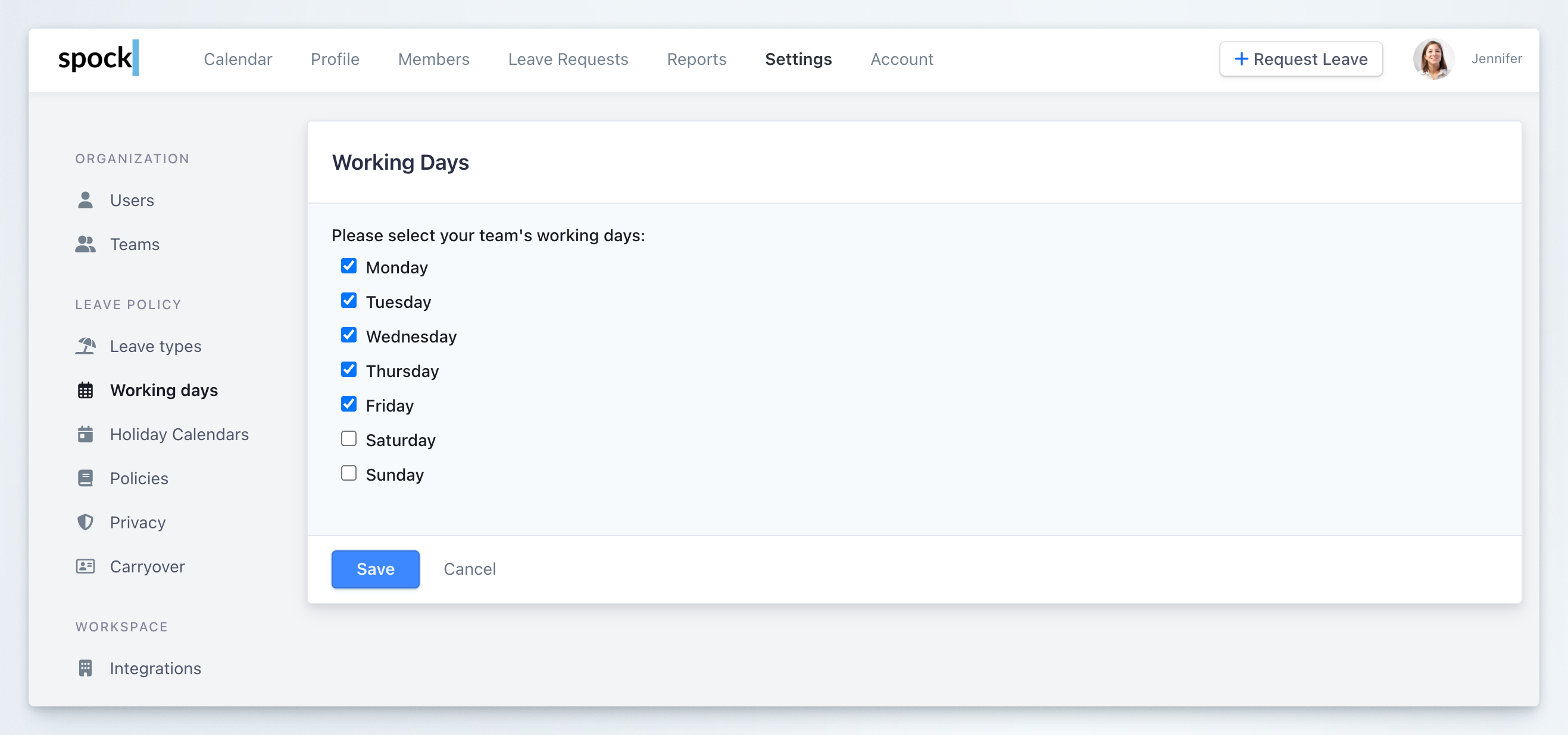 Save to confirm
This default setting for all workspace members
## Setup Working Days for a Specific Member
Sign in to Spock Dashboard
Go to **Members** and select member
On the member's profile click the **Working Days** tab
Save to confirm
This default setting for all workspace members
## Setup Working Days for a Specific Member
Sign in to Spock Dashboard
Go to **Members** and select member
On the member's profile click the **Working Days** tab
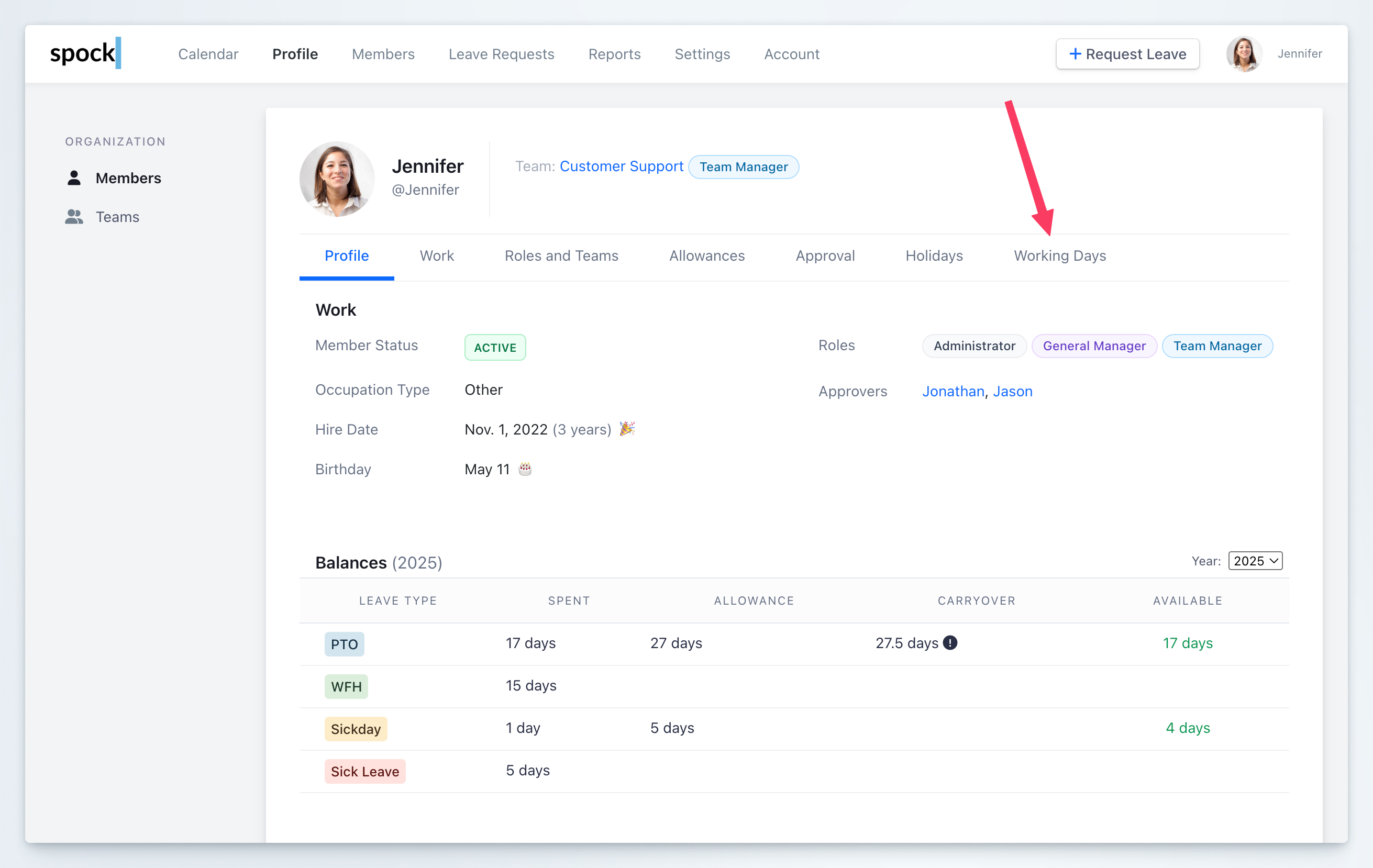 Check "**Customize Working Days**"
Check which weekdays are working days
Check "**Customize Working Days**"
Check which weekdays are working days
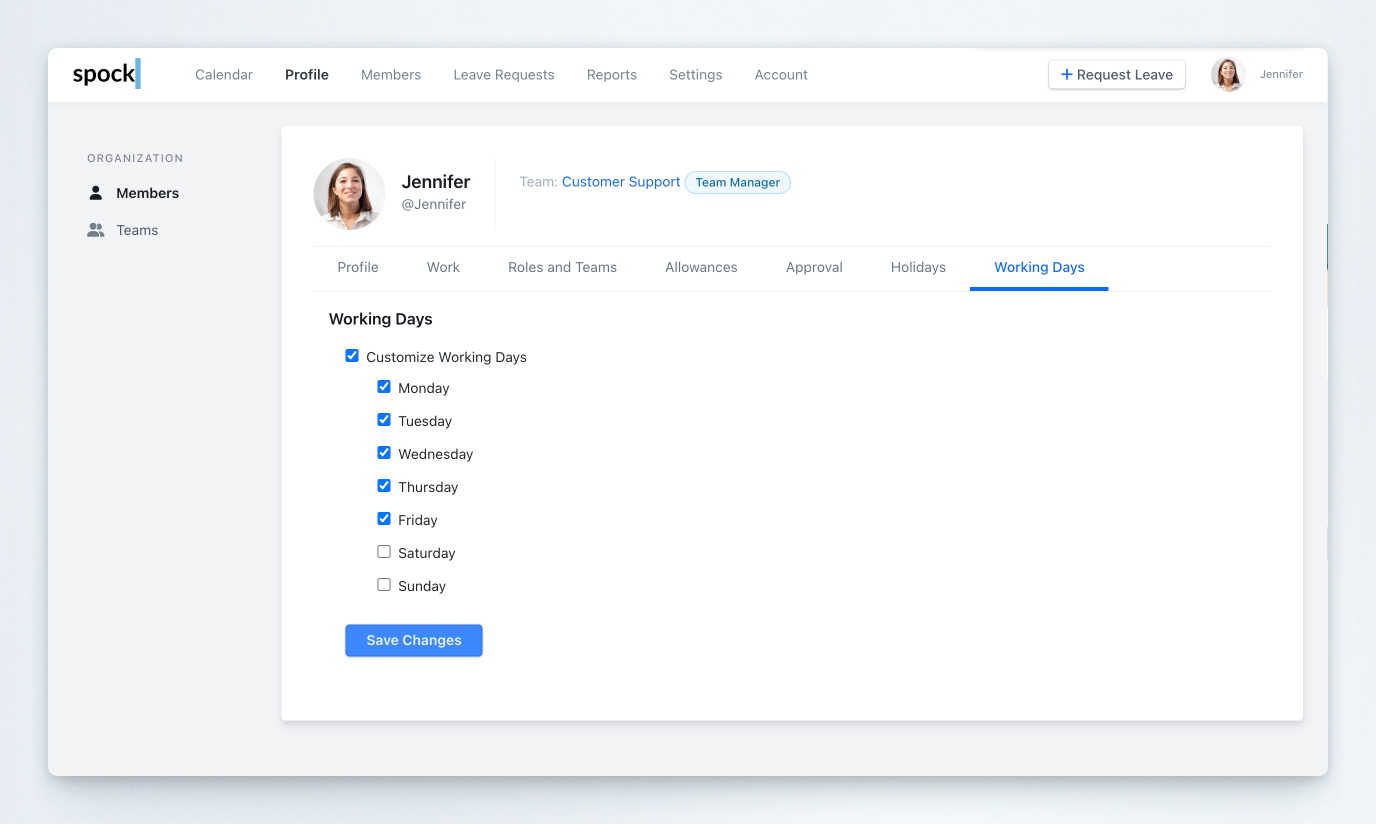 Save to confirm
When you want to remove customization, uncheck "**Customize Working Days**" and click "**Save Changes**". Member's calendar will use the default setting for the team.
Save to confirm
When you want to remove customization, uncheck "**Customize Working Days**" and click "**Save Changes**". Member's calendar will use the default setting for the team.