> ## Documentation Index
> Fetch the complete documentation index at: https://docs.spockoffice.com/llms.txt
> Use this file to discover all available pages before exploring further.
# Substitutes
> Enable and manage substitute assignments to ensure continuous coverage when team members take leave, with notifications to all involved parties.
The Substitute feature in Spock helps teams manage leaves efficiently by ensuring **someone is available to cover responsibilities** during an employee's absence. When requesting leave, employees can select a coworker as a substitute for the duration of their leave, maintaining team productivity and workflow continuity.
## Benefits of Using Substitutes
* **Continuous Coverage**: Ensures important tasks and responsibilities are handled during absences
* **Team Coordination**: Provides clear communication about who to contact in someone's absence
* **Workflow Management**: Minimizes disruption to ongoing projects and daily operations
* **Transparency**: All parties are notified about substitute arrangements
## Enabling Substitute Feature
General Managers can configure substitute coverage for each leave type with three different options:
Go to **Settings** > **Leave Types** in the Spock Dashboard.
Choose the leave type where you want to configure substitute coverage.
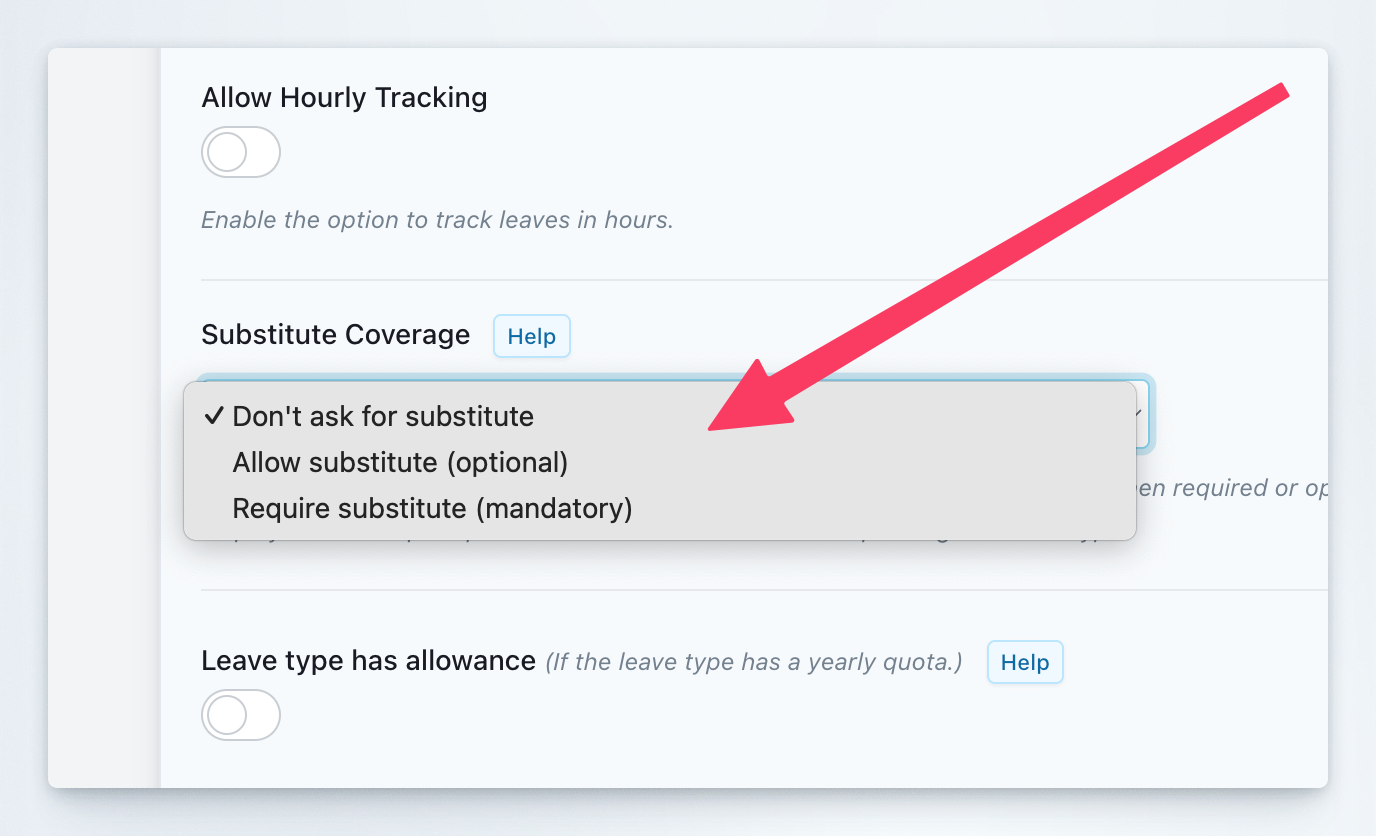
In the **"Substitute Coverage"** dropdown, select one of three options:
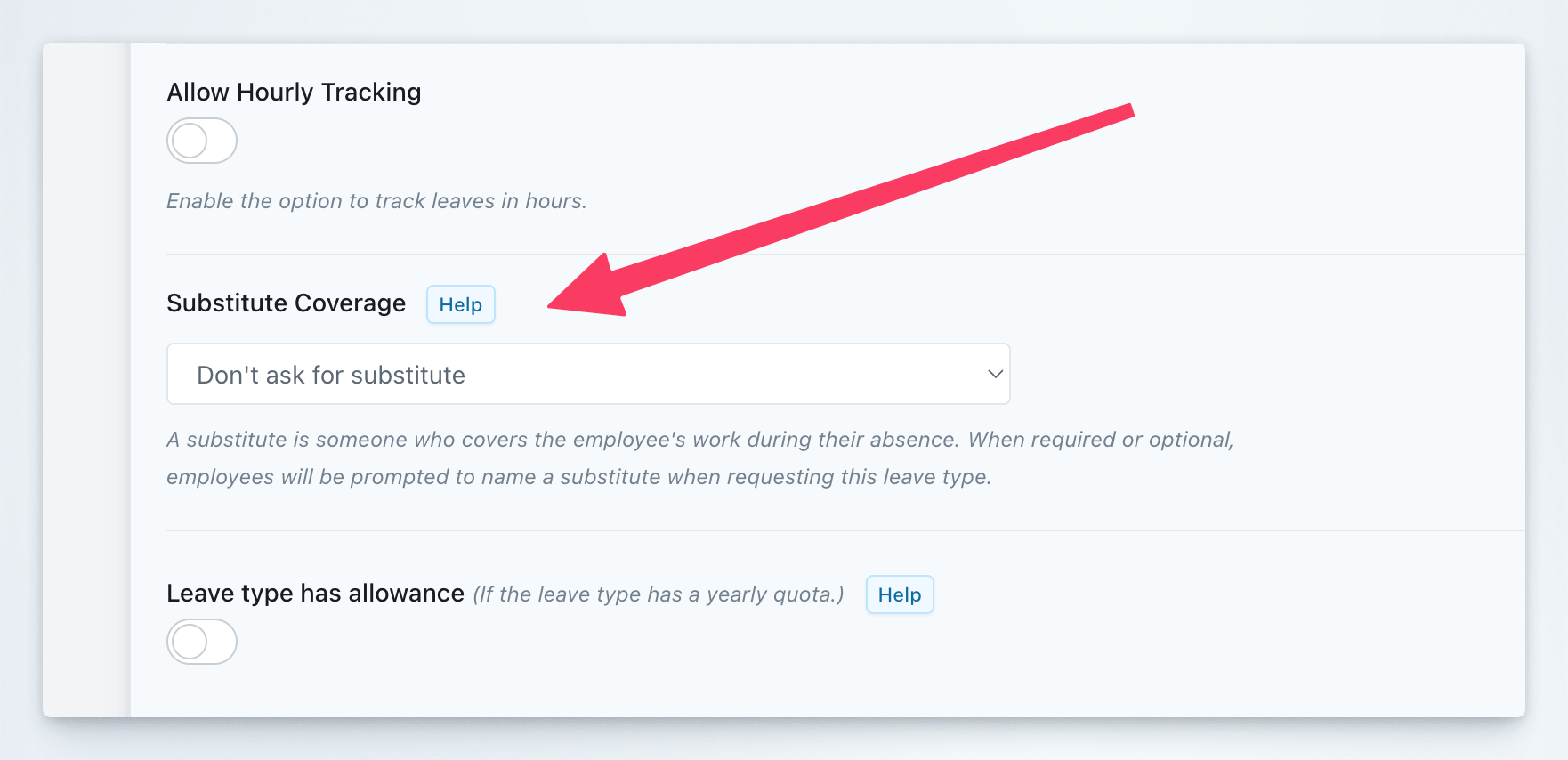 * **Don't ask for substitute**: The substitute field will not appear in leave requests for this leave type
* **Allow substitute (optional)**: Employees can optionally select a substitute when requesting leave
* **Require substitute (mandatory)**: Employees must select a substitute before submitting their leave request
* **Don't ask for substitute**: The substitute field will not appear in leave requests for this leave type
* **Allow substitute (optional)**: Employees can optionally select a substitute when requesting leave
* **Require substitute (mandatory)**: Employees must select a substitute before submitting their leave request
 Click the **Save** button to apply the changes.
A substitute is someone who covers the employee's work during their absence. When required or optional, employees will be prompted to name a substitute when requesting this leave type.
## Assigning a Substitute During Leave Request
When submitting a leave request for a leave type with substitute coverage set to optional or mandatory:
Open the leave request form in either Slack or the Dashboard.
Fill in all required information for your leave request.
In the **"Substitute"** section, choose a coworker from the list of available team members. If the leave type requires a substitute, this field is mandatory.
Click the **Save** button to apply the changes.
A substitute is someone who covers the employee's work during their absence. When required or optional, employees will be prompted to name a substitute when requesting this leave type.
## Assigning a Substitute During Leave Request
When submitting a leave request for a leave type with substitute coverage set to optional or mandatory:
Open the leave request form in either Slack or the Dashboard.
Fill in all required information for your leave request.
In the **"Substitute"** section, choose a coworker from the list of available team members. If the leave type requires a substitute, this field is mandatory.
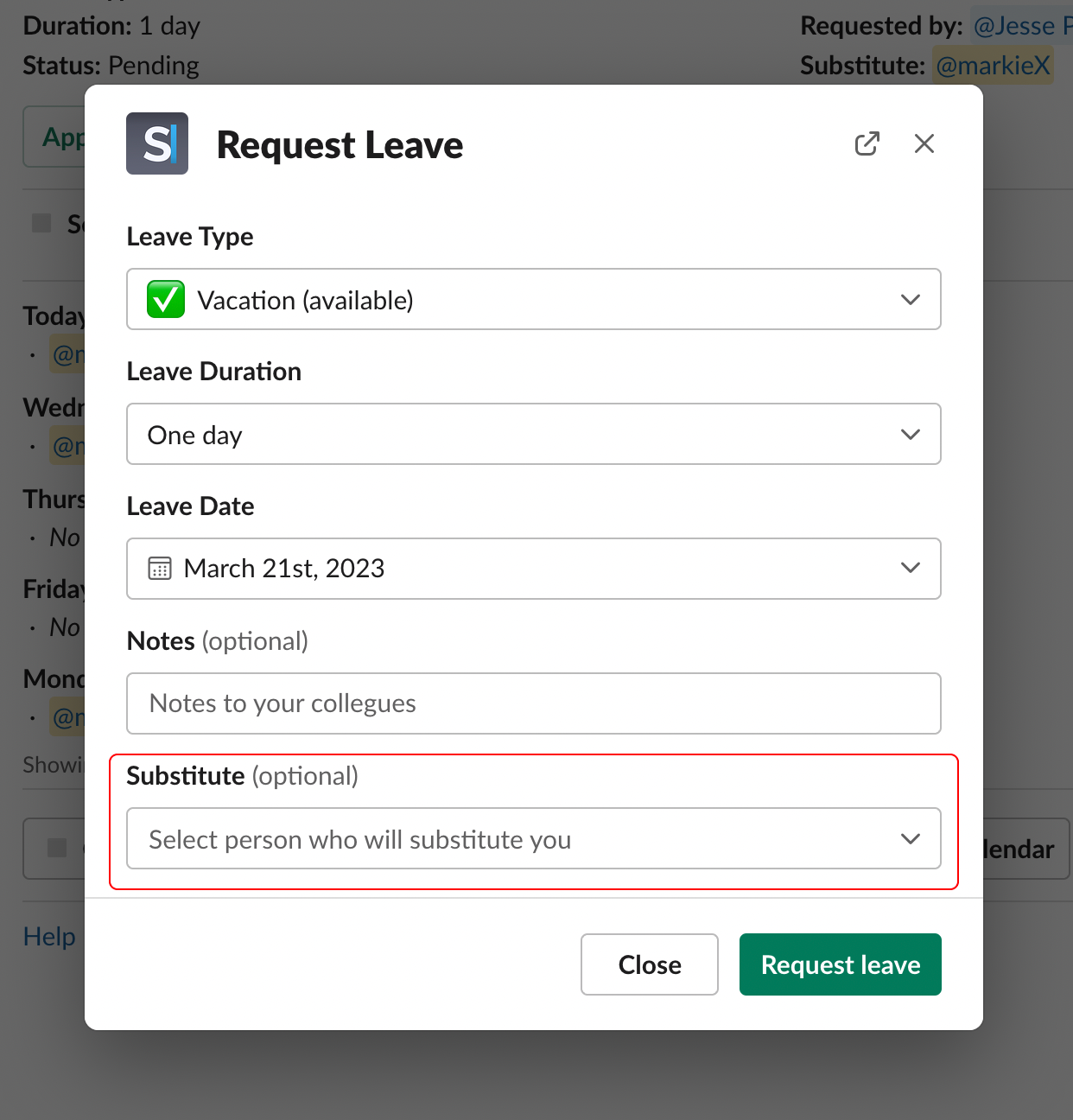 Complete and submit your leave request with the substitute assignment.
## Changing a Substitute
Modify substitute assignments at any time before or during your leave:
In Slack, go to the Spock Home tab and click **My Leaves**.
Locate the leave request where you want to change the substitute.
Click the context button (three dots) on your leave request.
Complete and submit your leave request with the substitute assignment.
## Changing a Substitute
Modify substitute assignments at any time before or during your leave:
In Slack, go to the Spock Home tab and click **My Leaves**.
Locate the leave request where you want to change the substitute.
Click the context button (three dots) on your leave request.
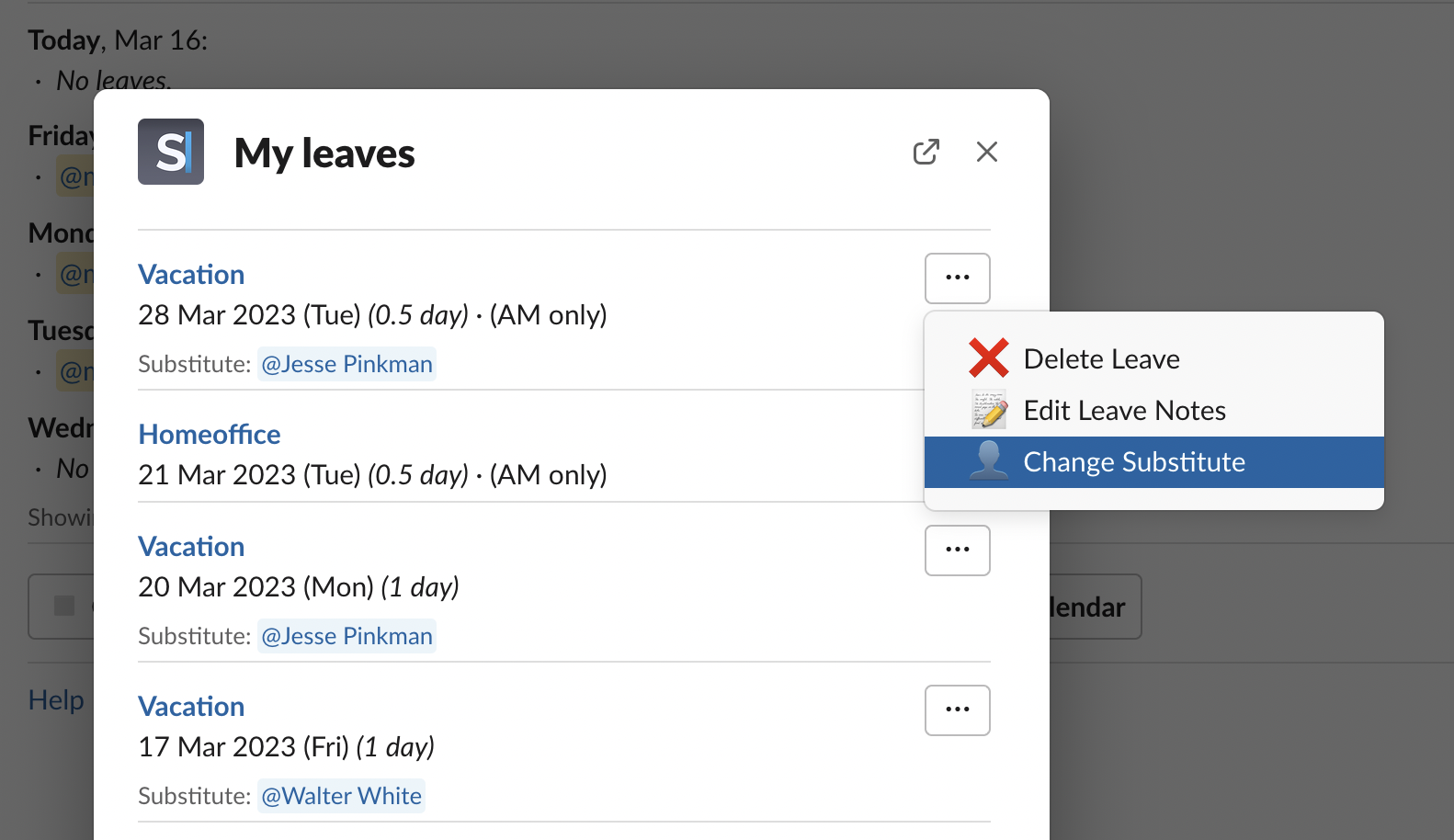 Choose **"Change Substitute"** from the context menu.
Pick a new substitute from the list of available team members.
Choose **"Change Substitute"** from the context menu.
Pick a new substitute from the list of available team members.
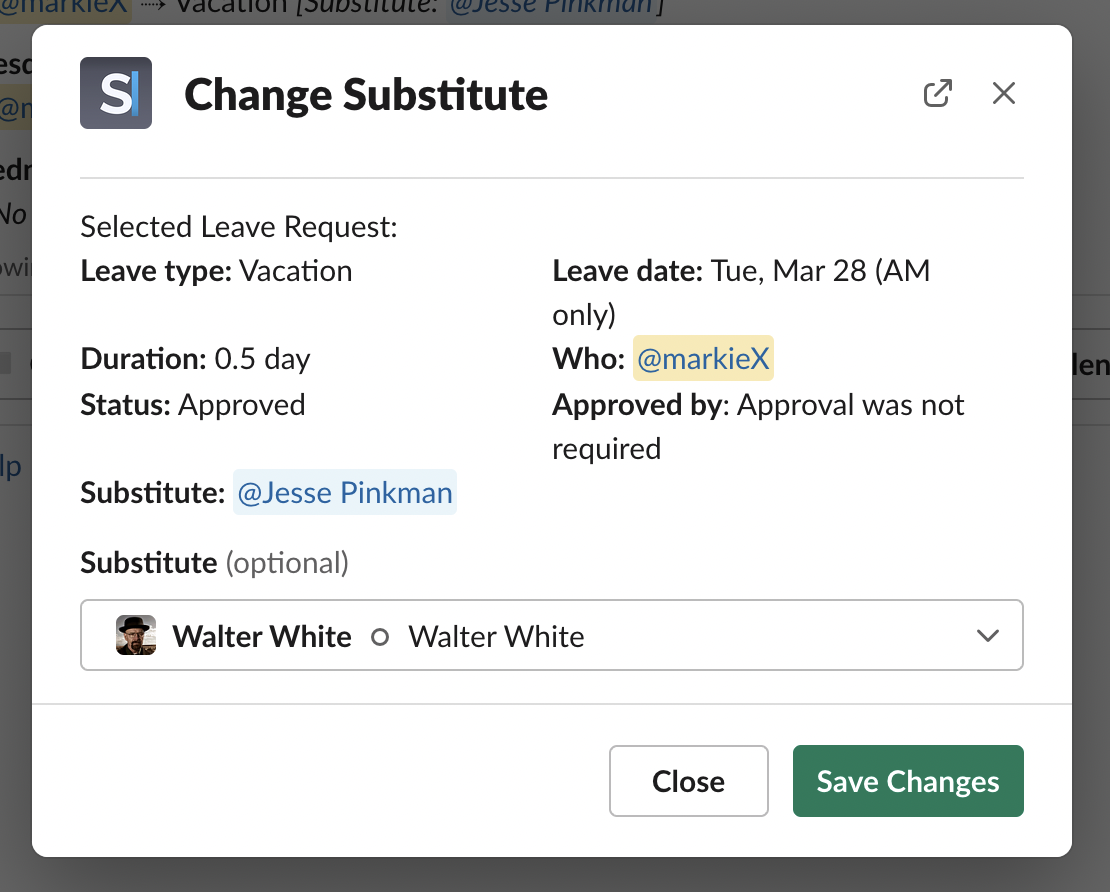 Click **"Save Changes"** to apply the new substitute assignment.
All parties involved (new substitute, previous substitute, and approvers) will be automatically notified of the change.
## Changing Substitutes During Approval
Approvers can modify substitute assignments while reviewing leave requests:
Open the leave request in the approval interface.
In the **"Substitute"** section of the approval form, select a different team member if needed.
Click **"Save Changes"** to apply the new substitute assignment.
All parties involved (new substitute, previous substitute, and approvers) will be automatically notified of the change.
## Changing Substitutes During Approval
Approvers can modify substitute assignments while reviewing leave requests:
Open the leave request in the approval interface.
In the **"Substitute"** section of the approval form, select a different team member if needed.
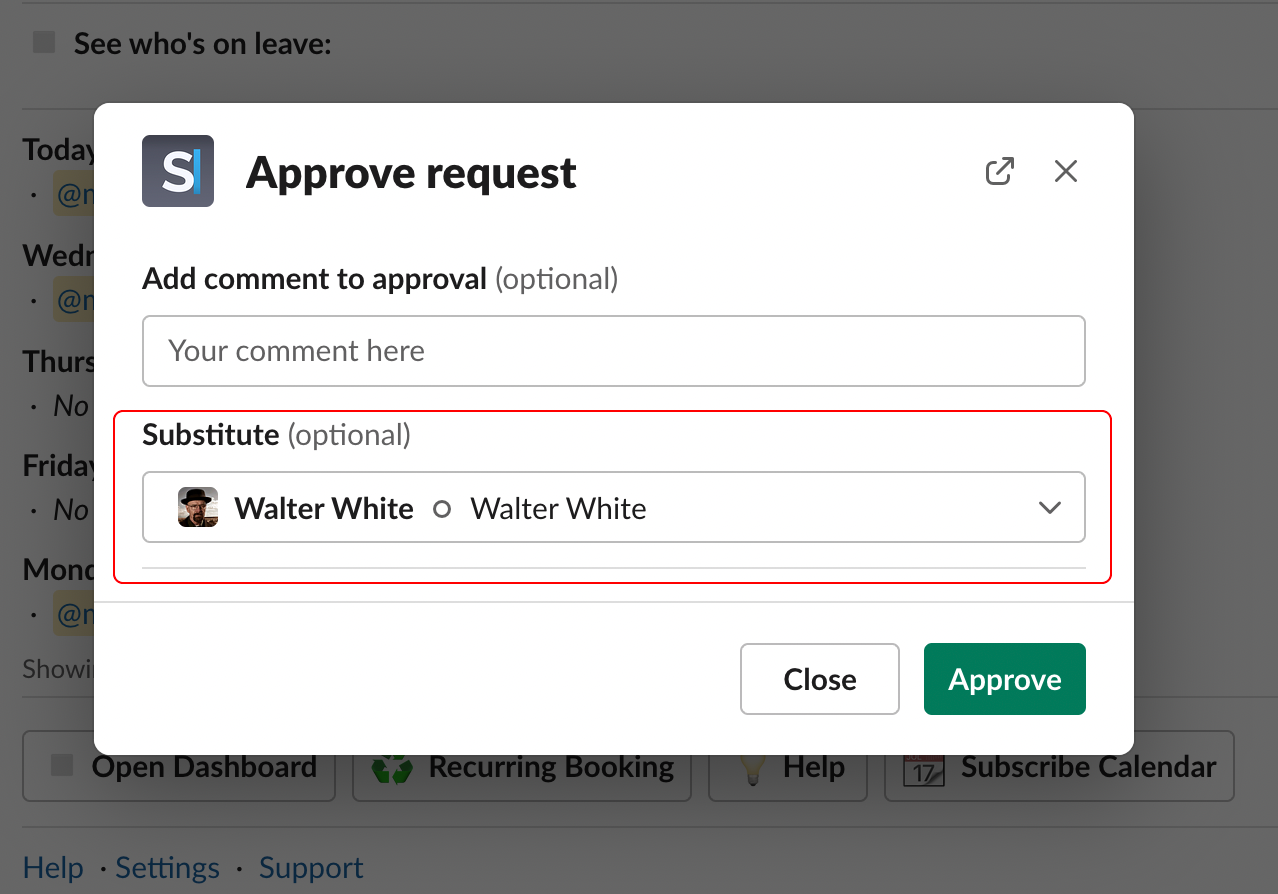 Proceed with approving or rejecting the leave request with the updated substitute.
Approvers might change substitutes to better align with team expertise, availability, or workload distribution.
## Best Practices for Substitutes
Select the appropriate substitute coverage setting for each leave type:
* **Don't ask for substitute**: Use for casual leave types (sick days, personal days) where coverage isn't critical
* **Allow substitute (optional)**: Recommended for most leave types - gives flexibility while encouraging coverage planning
* **Require substitute (mandatory)**: Use for extended leaves or critical roles where coverage is essential (annual leave, long-term absences)
Select substitutes who have the necessary skills and knowledge to handle your responsibilities effectively.
Coordinate with your substitute before your leave to ensure smooth transition of tasks and responsibilities.
Assign substitutes as early as possible to give them time to prepare for additional responsibilities.
## Notification System
Spock automatically notifies relevant parties:
* **New Substitute**: Informed when assigned to provide coverage
* **Previous Substitute**: Notified when removed from assignment
* **Approvers**: Updated about substitute changes during approval process
* **Team Members**: May receive notifications based on team settings
## Related Topics
Learn the complete process for submitting leave requests.
Learn how to review, approve, or reject leave requests.
Organize teams to facilitate better substitute assignments.
Configure which leave types support substitute assignments.
Ensure your chosen substitute is available and willing to take on additional responsibilities during your absence to maintain team effectiveness.
Proceed with approving or rejecting the leave request with the updated substitute.
Approvers might change substitutes to better align with team expertise, availability, or workload distribution.
## Best Practices for Substitutes
Select the appropriate substitute coverage setting for each leave type:
* **Don't ask for substitute**: Use for casual leave types (sick days, personal days) where coverage isn't critical
* **Allow substitute (optional)**: Recommended for most leave types - gives flexibility while encouraging coverage planning
* **Require substitute (mandatory)**: Use for extended leaves or critical roles where coverage is essential (annual leave, long-term absences)
Select substitutes who have the necessary skills and knowledge to handle your responsibilities effectively.
Coordinate with your substitute before your leave to ensure smooth transition of tasks and responsibilities.
Assign substitutes as early as possible to give them time to prepare for additional responsibilities.
## Notification System
Spock automatically notifies relevant parties:
* **New Substitute**: Informed when assigned to provide coverage
* **Previous Substitute**: Notified when removed from assignment
* **Approvers**: Updated about substitute changes during approval process
* **Team Members**: May receive notifications based on team settings
## Related Topics
Learn the complete process for submitting leave requests.
Learn how to review, approve, or reject leave requests.
Organize teams to facilitate better substitute assignments.
Configure which leave types support substitute assignments.
Ensure your chosen substitute is available and willing to take on additional responsibilities during your absence to maintain team effectiveness.