> ## Documentation Index
> Fetch the complete documentation index at: https://docs.spockoffice.com/llms.txt
> Use this file to discover all available pages before exploring further.
# Request Leave
> Learn how to submit leave requests through Slack or the Spock Dashboard with all required information and approval processes.
You can request leave directly in **Slack** or via the **Spock Dashboard**. Both methods allow you to submit comprehensive leave requests with all necessary details.
## Required Information
When initiating a leave request, please provide the following information:
Specify the category of leave (e.g., Vacation, Sick Leave, Personal Day).
Choose from the following options:
* **One Day**: Single day leave
* **Half-Day**: Morning (AM) or afternoon (PM)
* **Multiple Days**: Extended leave period
* **Specific Hours**: Exact time tracking (if hourly tracking is enabled)
* **Start Date**: When your leave begins
* **End Date**: When your leave ends (for multi-day requests)
* **Start and End Time**: Exact hours for hourly leaves
* **Public Note to Colleagues** (Optional): Information visible to all team members
* **Private Note to Approvers** (Optional): Context only visible to approvers
* **Substitute** (Optional): Colleague covering your responsibilities during absence
Upon submission, Spock will notify designated approvers if the selected leave type requires approval. If approval is not required, your leave will be auto-approved.
## Request in Slack
Navigate to the Spock application within your Slack workspace.
Click on the **Request Leave** button.
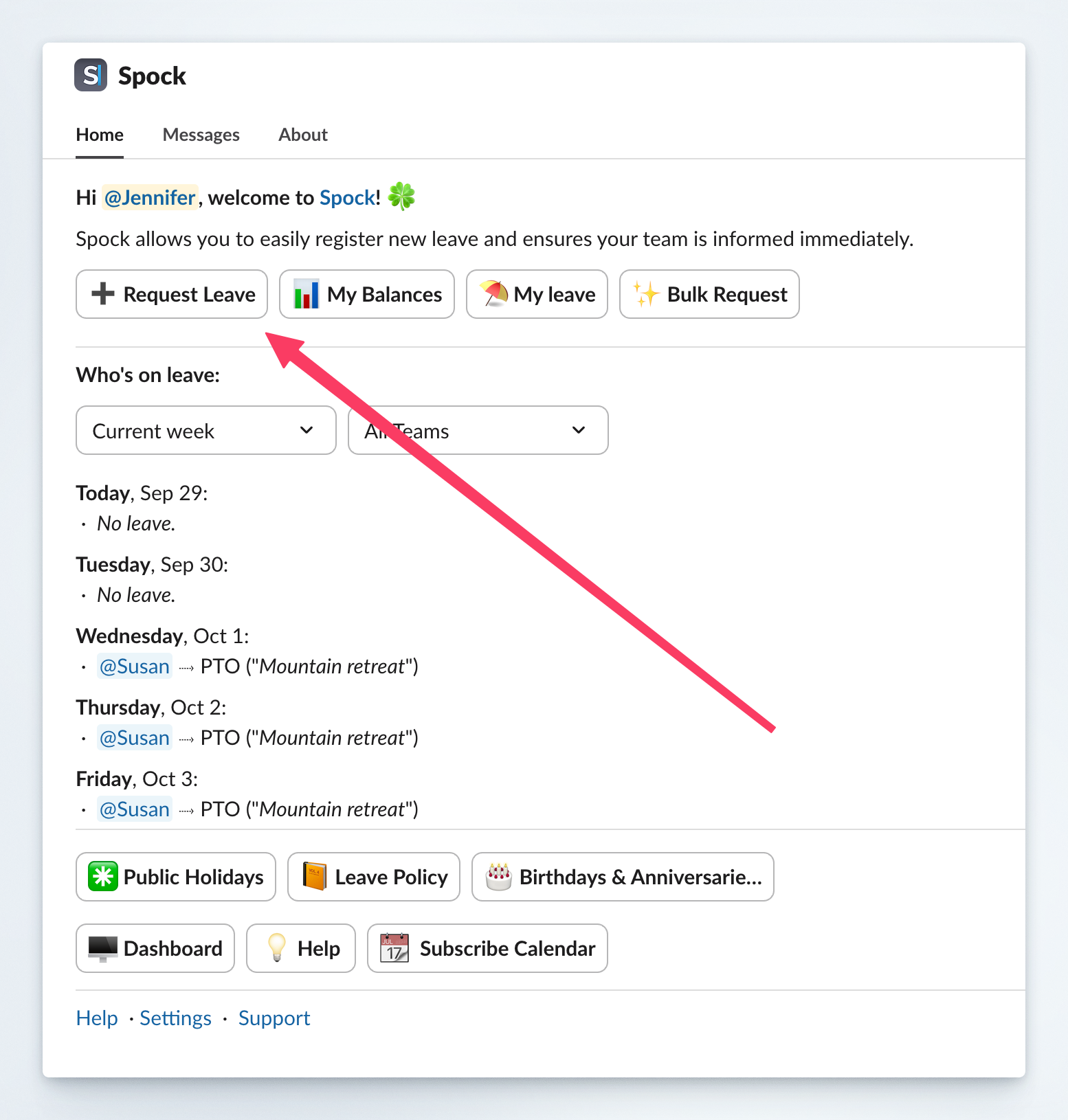 Complete all required leave information as outlined above.
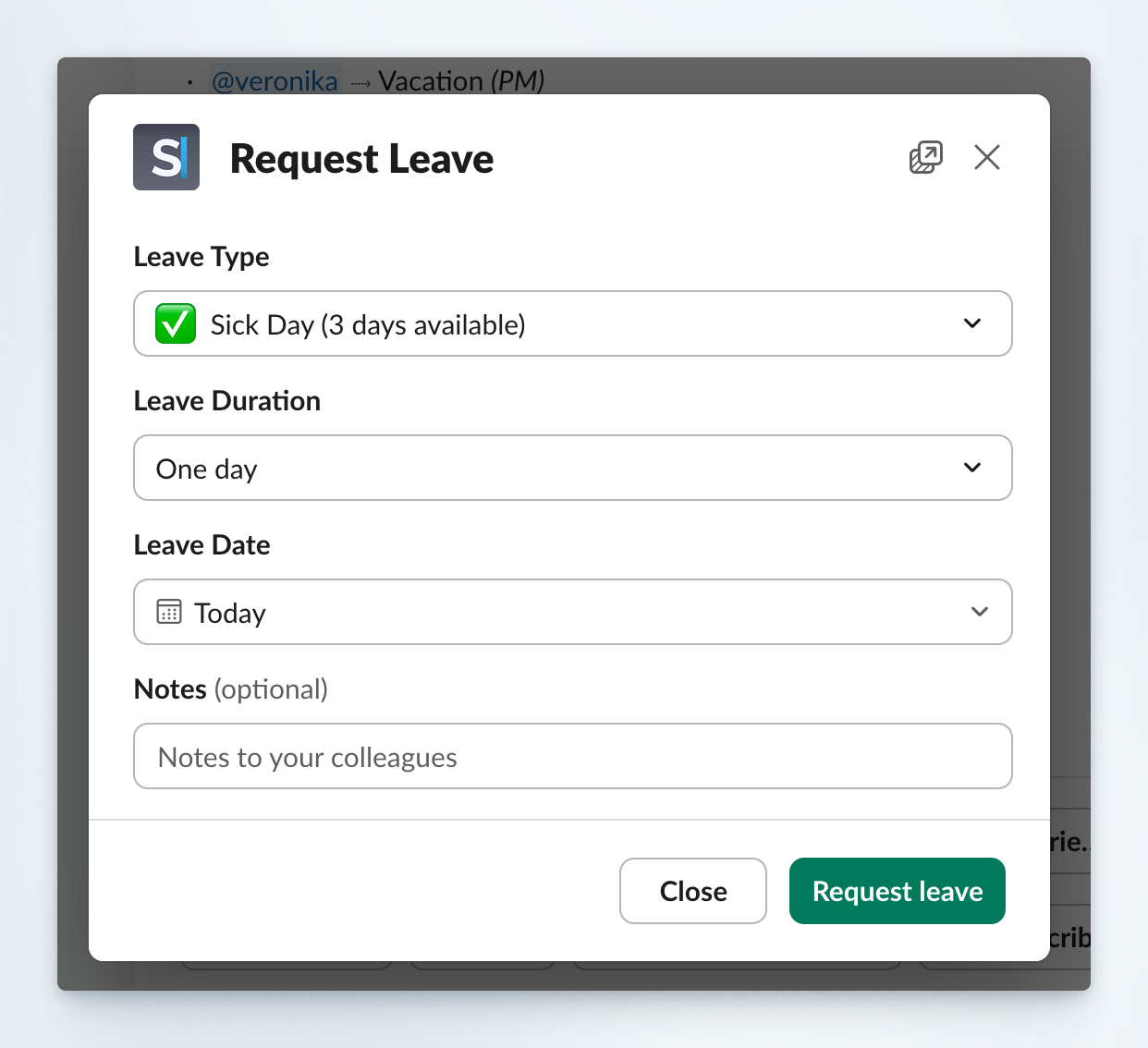 Click **Submit** to finalize your request.
## Request in the Dashboard
Navigate to the [Spock Dashboard](https://spockoffice.com/spockapp).
Click the **Request Leave** button located at the top-right corner.
Click **Submit** to finalize your request.
## Request in the Dashboard
Navigate to the [Spock Dashboard](https://spockoffice.com/spockapp).
Click the **Request Leave** button located at the top-right corner.
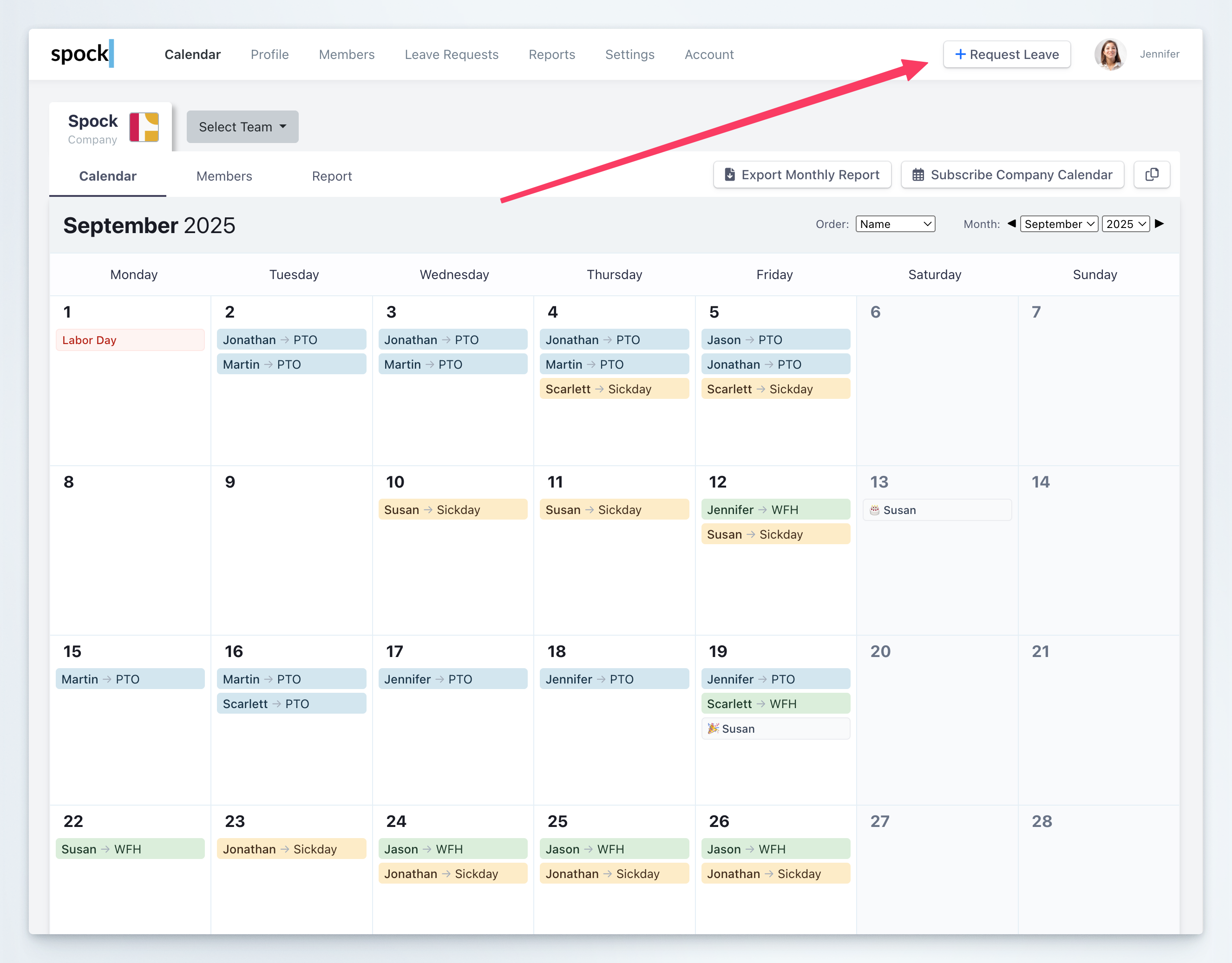 Complete all necessary leave details in the form.
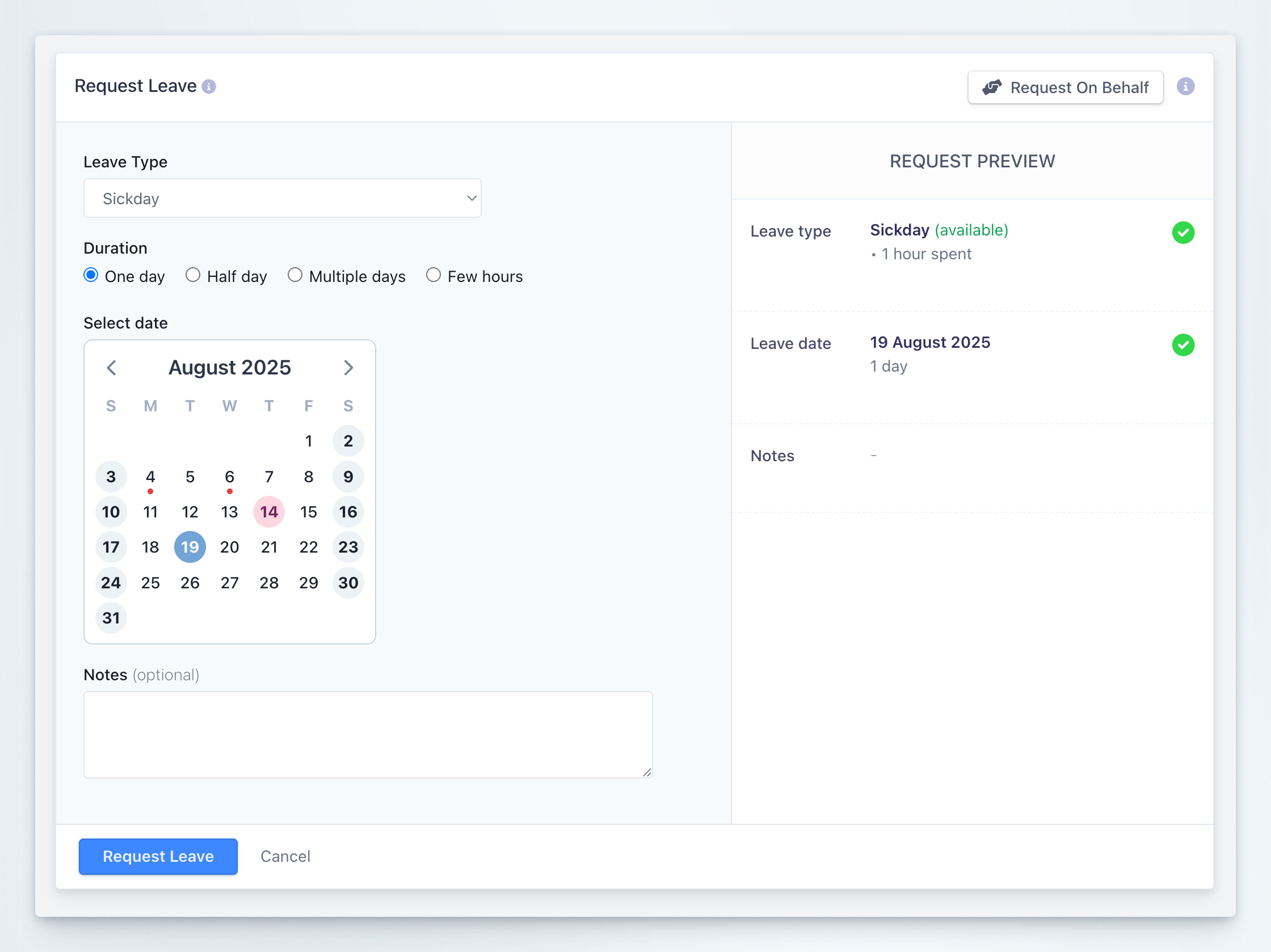 Check your request details in the **Request Preview** section.
Click **Submit** to send your request for processing.
## Related Topics
Learn how to cancel your leave requests.
Learn how to request leave on behalf of your team members.
Learn how to request recurring leaves.
Learn how to set up coverage arrangements for your absence.
General Managers and Team Managers have the authority to request leave on behalf of their team members when needed.
Check your request details in the **Request Preview** section.
Click **Submit** to send your request for processing.
## Related Topics
Learn how to cancel your leave requests.
Learn how to request leave on behalf of your team members.
Learn how to request recurring leaves.
Learn how to set up coverage arrangements for your absence.
General Managers and Team Managers have the authority to request leave on behalf of their team members when needed.