> ## Documentation Index
> Fetch the complete documentation index at: https://docs.spockoffice.com/llms.txt
> Use this file to discover all available pages before exploring further.
# Bulk Request
> Learn how to request recurring leaves that repeat weekly, such as regular home office days or recurring appointments.
Spock offers the ability to request **recurring leaves** that repeat weekly, perfect for regular patterns like home office days every Monday and Friday. This bulk request feature saves significant time compared to submitting individual requests.
Recurring leaves can only be requested for leave types with **no approval** and **no monthly limit** requirements. Each recurring leave can be either one full day or half a day long.
 ## How to Request Recurring Leaves
You can submit bulk leave requests through either Slack or the Dashboard.
### Via Slack
Open Spock's Home tab in your Slack workspace.
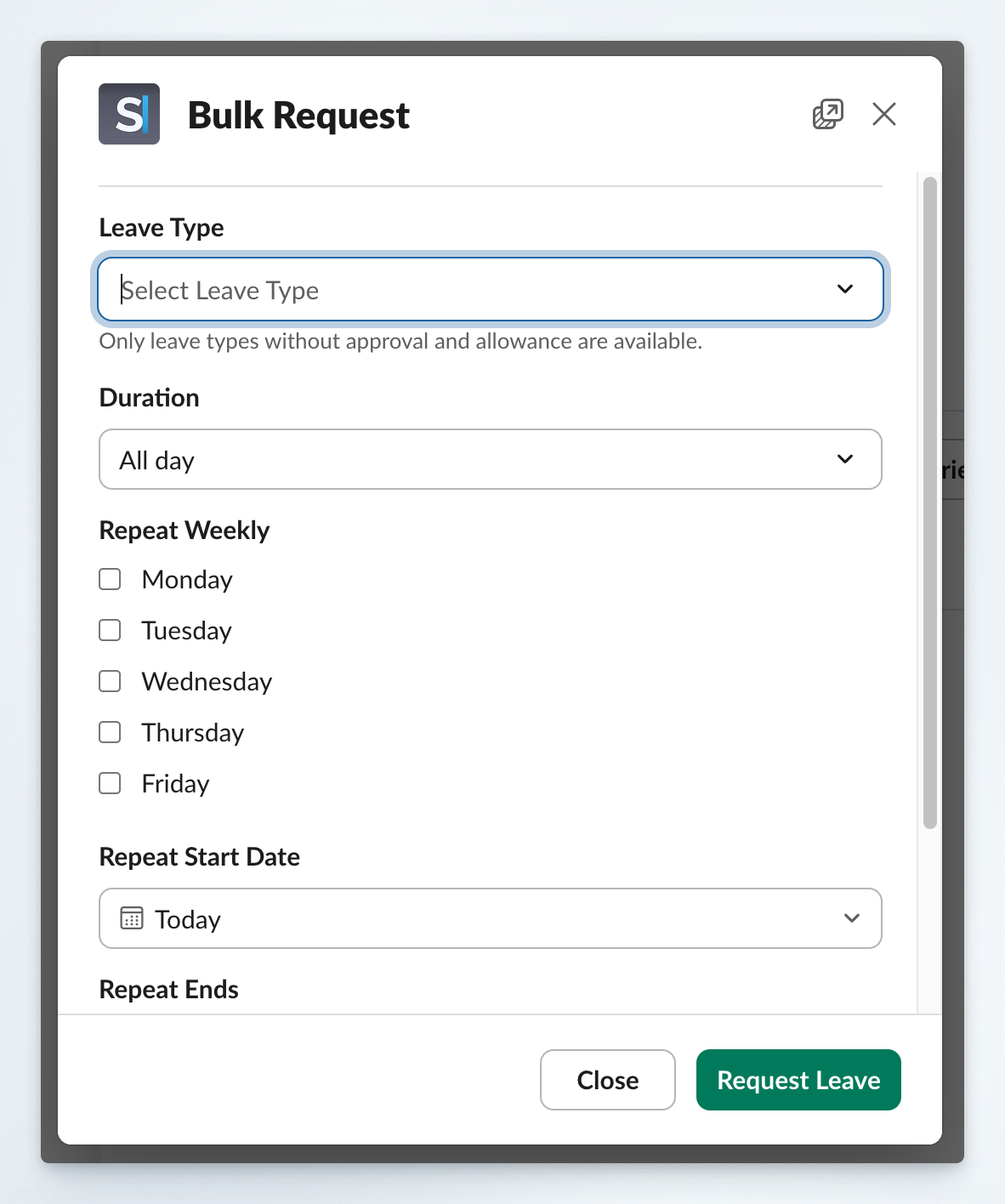
Click the **Bulk Request** button to open the recurring leave form.
Choose a **Leave Type** from the dropdown menu.
Only leave types **without approval** and **monthly limit** requirements are available for bulk requests.
Select the **Duration** for each recurring leave:
* **All Day**: Full day leave
* **AM**: Half-day leave (morning)
* **PM**: Half-day leave (afternoon)
Under **Repeat Weekly**, check the days when leave should be requested.
Only your designated working days are available for selection.
Set the **Repeat Start Date** - the first day when leave can be requested.
Under **Repeat Ends**, specify how many weeks the pattern should continue.
The first repeat occurs during the week when the start date is specified.
(Optional) Add **Notes** that will be included with every leave request.
Submit the form to create individual leave requests for each specified day in the date range.
### Via Dashboard
Navigate to the Spock Dashboard and log in.
Locate and click the **Bulk Request** option in the dashboard interface.
## How to Request Recurring Leaves
You can submit bulk leave requests through either Slack or the Dashboard.
### Via Slack
Open Spock's Home tab in your Slack workspace.
Click the **Bulk Request** button to open the recurring leave form.
Choose a **Leave Type** from the dropdown menu.
Only leave types **without approval** and **monthly limit** requirements are available for bulk requests.
Select the **Duration** for each recurring leave:
* **All Day**: Full day leave
* **AM**: Half-day leave (morning)
* **PM**: Half-day leave (afternoon)
Under **Repeat Weekly**, check the days when leave should be requested.
Only your designated working days are available for selection.
Set the **Repeat Start Date** - the first day when leave can be requested.
Under **Repeat Ends**, specify how many weeks the pattern should continue.
The first repeat occurs during the week when the start date is specified.
(Optional) Add **Notes** that will be included with every leave request.
Submit the form to create individual leave requests for each specified day in the date range.
### Via Dashboard
Navigate to the Spock Dashboard and log in.
Locate and click the **Bulk Request** option in the dashboard interface.
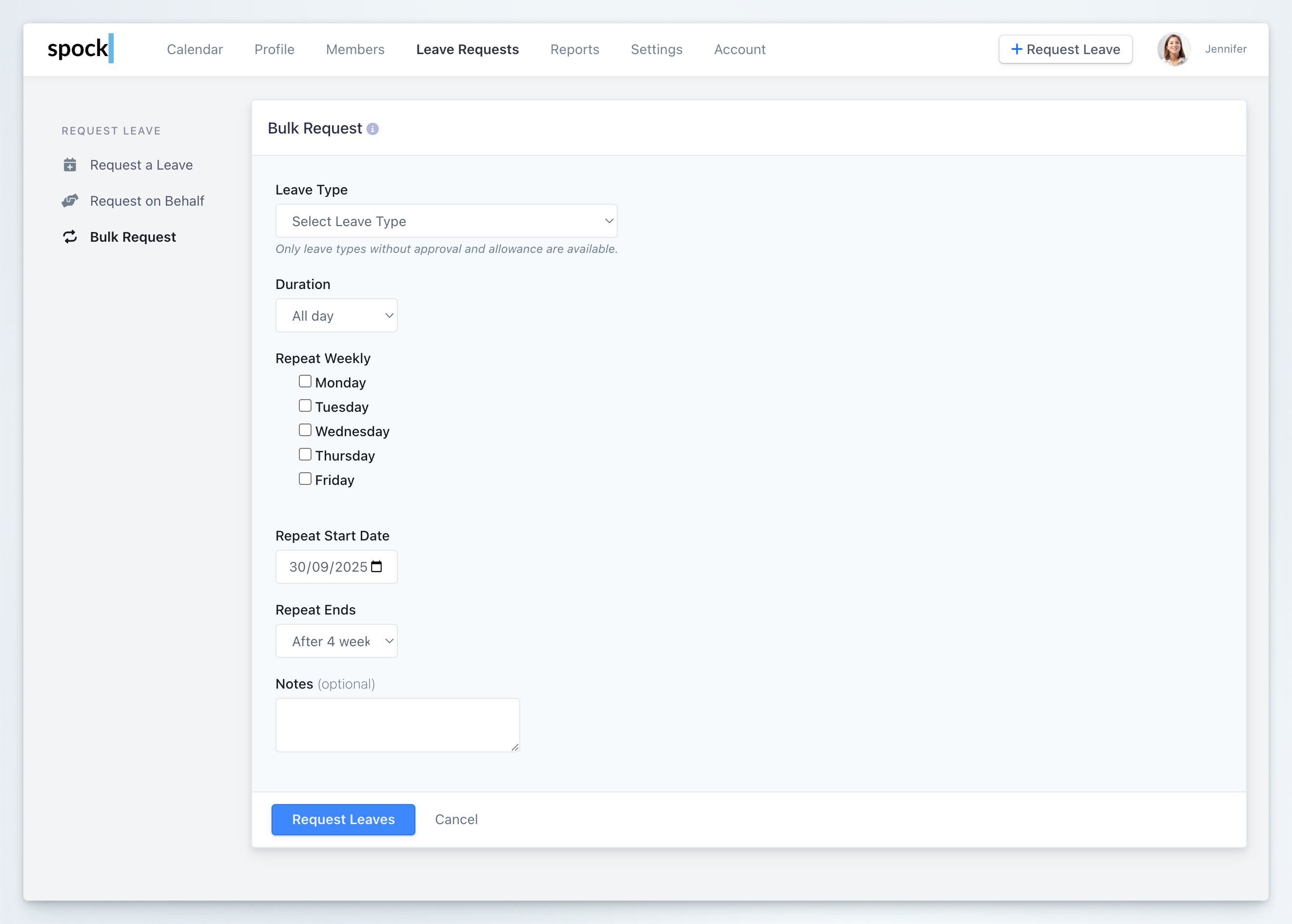 Follow the same steps as the Slack method to configure your recurring leave pattern.
## Managing Bulk Requests
After submitting a bulk request, you can delete any individual leave request that was created if your plans change.
The system automatically respects your configured working days, so requests will only be created for days when you're scheduled to work.
Bulk requests are limited to leave types that don't require approval or consume allowance balances, ensuring the automated process doesn't create approval bottlenecks.
## Use Cases for Recurring Leaves
Request regular work-from-home days every week
Set up recurring shortened days or specific time blocks
Book regular appointments that occur weekly
Schedule recurring time for professional development
## Related Topics
Learn about standard individual leave requests.
Understand different leave types and their approval requirements.
Learn how to cancel individual leave requests.
Configure working days for your organization.
Bulk requests are perfect for establishing regular patterns, but remember that you can always modify or delete individual requests later if your schedule changes.
Follow the same steps as the Slack method to configure your recurring leave pattern.
## Managing Bulk Requests
After submitting a bulk request, you can delete any individual leave request that was created if your plans change.
The system automatically respects your configured working days, so requests will only be created for days when you're scheduled to work.
Bulk requests are limited to leave types that don't require approval or consume allowance balances, ensuring the automated process doesn't create approval bottlenecks.
## Use Cases for Recurring Leaves
Request regular work-from-home days every week
Set up recurring shortened days or specific time blocks
Book regular appointments that occur weekly
Schedule recurring time for professional development
## Related Topics
Learn about standard individual leave requests.
Understand different leave types and their approval requirements.
Learn how to cancel individual leave requests.
Configure working days for your organization.
Bulk requests are perfect for establishing regular patterns, but remember that you can always modify or delete individual requests later if your schedule changes.