> ## Documentation Index
> Fetch the complete documentation index at: https://docs.spockoffice.com/llms.txt
> Use this file to discover all available pages before exploring further.
# Leave Types
> Learn how to set up and configure different types of employee leave in Spock, including vacation, sick leave, and custom leave policies.
## What Are Leave Types?
Leave types categorize different kinds of employee absences, such as vacation, sick leave, parental leave, and more. Each leave type has specific conditions, entitlements, and approvals associated with it, ensuring that leave management is clear, fair, and consistent across the organization.
## Why Are Leave Types Important?
Clearly categorized leave types help in streamlining the approval process and provide a snapshot of who is out of office and why.
{" "}
Ensures that all leave requests adhere to organizational policies and legal
regulations.
{" "}
Simplifies the leave request process for employees, ensuring their
entitlements are easily accessible and fairly managed.
Accurate leave tracking helps in workforce planning, reducing the risk of understaffing during critical periods.
## Video Tutorial
Watch this video to learn how to manage leave types effectively in Spock:
[https://www.youtube.com/watch?v=pFuzULEQBlY](https://www.youtube.com/watch?v=pFuzULEQBlY)
## How to Setup Leave Types
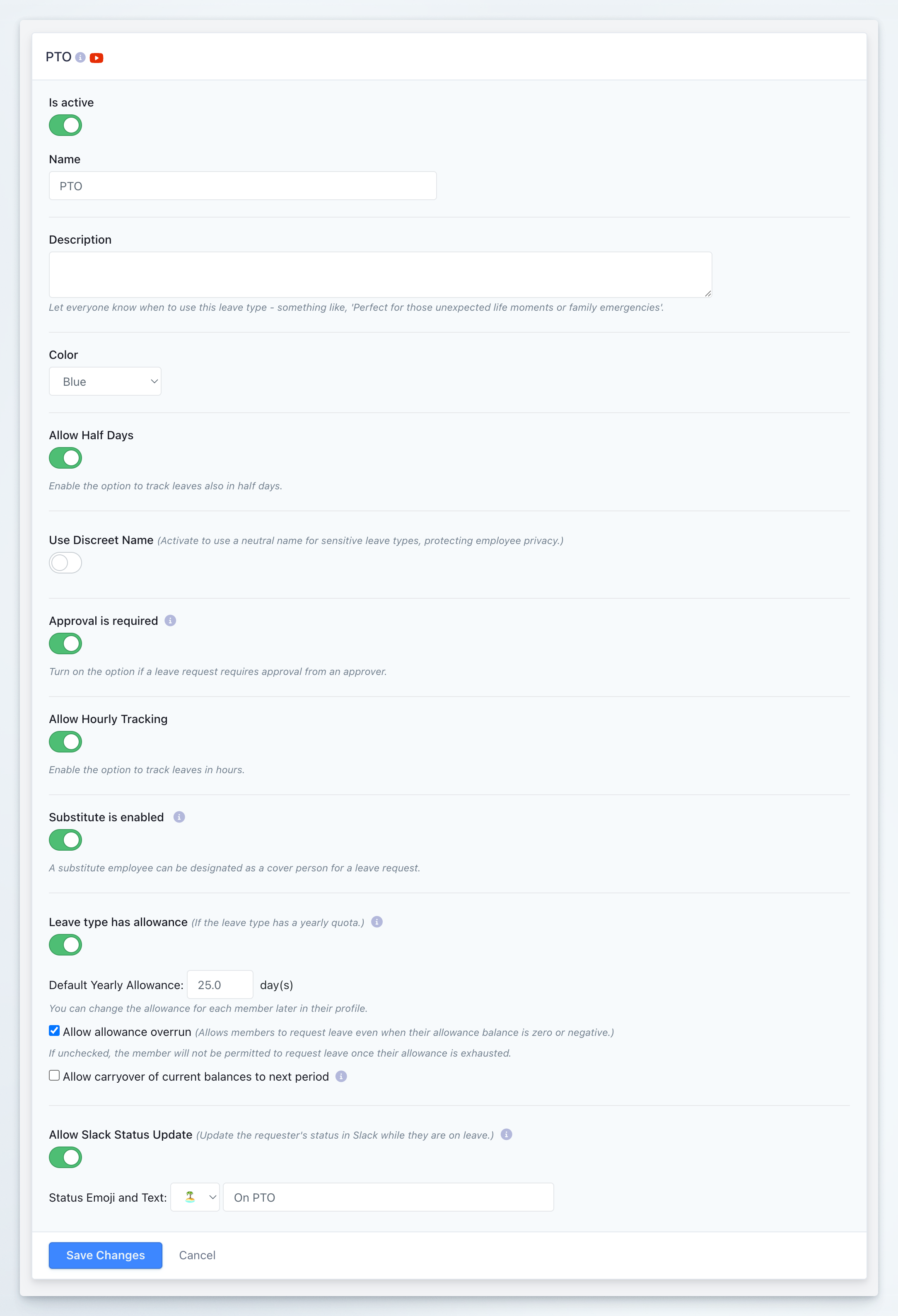
You can configure the following settings for each leave type:
### Basic Configuration
**Purpose:** Determine whether the leave type is available for employees to request.
**Configuration:** Toggle to activate or deactivate the leave type.
**Purpose:** Define the name of the leave type.
**Configuration:** Enter a clear and descriptive name (e.g., "Sick Leave", "Vacation Leave").
**Purpose:** Define the description of the leave type.
**Configuration:** Specify when this leave type should be used by providing a clear and informative description (e.g., "Sick Leave" for illness-related absences, "Vacation Leave" for planned time off).
**Purpose:** Define the color of the leave type.
**Configuration:** Select a color for the leave type to visually identify it in the leave calendar.
**Purpose:** Define if the leave type allows half days.
**Configuration:** Toggle this option to allow half days for the leave type.
**Purpose:** Define if the leave type uses a discreet name.
**Configuration:** Toggle this option to use a discreet name for the leave type.
### Advanced Settings
**Purpose:** Specify if the leave needs to be approved by an approver.
**Configuration:** Select whether approval is mandatory.
Read more about how the approval process works
**Purpose:** Enable tracking of leaves in hours instead of full days.
**Configuration:** Toggle this option to allow hourly tracking for more granular leave management.
**Purpose:** Configure whether and how employees assign substitutes to cover their work during absences.
**Configuration:** Select one of three options from the **Substitute Coverage** dropdown:
* **Don't ask for substitute:** The substitute field will not appear in leave requests
* **Allow substitute (optional):** Employees can optionally select a substitute when requesting leave
* **Require substitute (mandatory):** Employees must select a substitute before submitting their leave request
Read more about substitute management and best practices for choosing the right option
**Purpose:** Define if the leave type has a yearly allowance.
**Configuration:**
* **Enable** this feature if the leave type has a yearly allowance
* Set the **Default Yearly Allowance** in days - the amount allocated per year to each member
* **Allow Allowance Overrun:** Specify if employees can have a negative balance
* **Allow Carryover:** Determine how unused leave balances carry over to the next period
Read our detailed Carryover Policy Guide
**Purpose:** Define a monthly limit for leaves when approval is not required.
**Configuration:** Set a maximum number of days that can be taken per calendar month without needing approval.
When the monthly limit is enabled, approval for this leave type is automatically turned off. Requests within the set monthly limit do not require approval.
**Purpose:** Update the requester's status in Slack while they are on leave.
**Configuration:**
* Enable this feature to automatically update the requester's Slack status
* Set the **Status Emoji** and **Text** to indicate the type of leave (e.g., 🌴 "On vacation," 🛌 "Sick Leave")
## Best Practices
* **Vacation Leave:** Annual paid time off
* **Sick Leave:** Health-related absences
* **Personal Leave:** Personal matters and emergencies
* **Parental Leave:** Maternity/paternity leave
* **Bereavement Leave:** Time off for family loss
* Use clear, descriptive names
* Set appropriate allowances based on company policy
* Consider enabling hourly tracking for flexible arrangements
* Configure Slack status updates for better team visibility
## Related Topics
Configure approval workflows
{" "}
Manage leave allowances
Set up carryover policies
 ### Basic Configuration