> ## Documentation Index
> Fetch the complete documentation index at: https://docs.spockoffice.com/llms.txt
> Use this file to discover all available pages before exploring further.
# Public Holidays
> Configure and manage public holiday calendars for your organization across different countries and regions.
Public Holidays are government-approved days that an organization provides for its employees as a day off from work. Holidays act as **non-working days**. When you request leave and there is a holiday between the start and end dates, this day is not counted to your leave.
If your team is multinational or geographically spread across more countries you would need to manage holidays for all these groups. Spock offers **Holiday Calendars** to solve this issue. You can easily create multiple holiday calendars and assign them to a specific group of employees.
See the full list of [Supported Countries](/spock/leave-management/supported-countries) for automatic holiday import.
## In this article
* [How to Create a Holiday Calendar](#how-to-create-a-holiday-calendar)
* [How to Import Holidays](#import-holidays)
* [How to Add Holidays Manually](#how-to-enter-holidays-manually)
* [How to Set Holiday Calendar as Primary](#how-to-set-primary-holiday-calendar-the-default-calendar)
* [How to Delete Holiday Calendar](#how-to-delete-holiday-calendar)
* [How to Assign Members to Calendar in Bulk](#how-to-assign-members-to-calendar-in-bulk)
* [How to Assign Holiday Calendar to User](#how-to-assign-holiday-calendar-to-user)
You can manage Holidays in **Dashboard** > **Settings** > **Holidays**
Link: [Open Settings in Dashboard](https://spockoffice.com/spockapp/settings/holiday-calendars/)
## Holiday Calendars
Holiday Calendar represents a list of holidays. You can have multiple holiday calendars, but one has to be **primary** (default calendar).
## How to create a Holiday Calendar
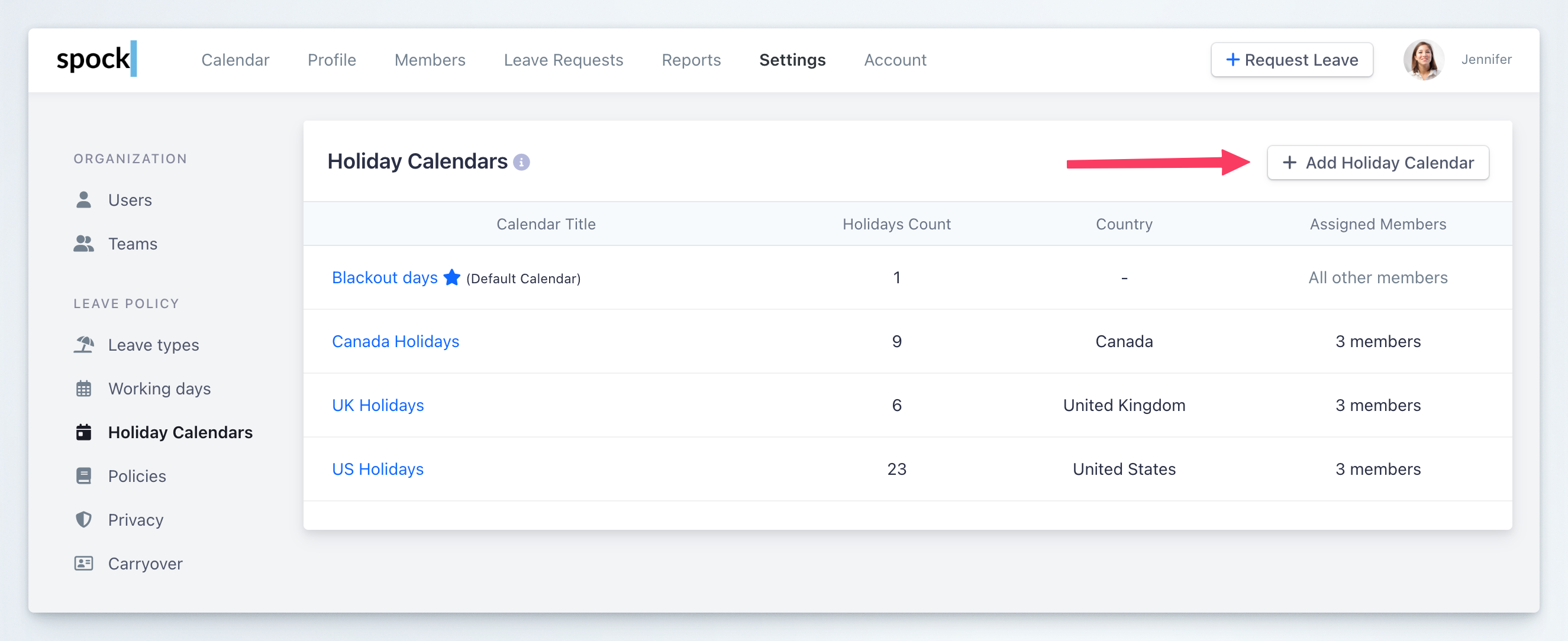
Navigate to **Settings** > **Holidays**
There is a list of all Holiday Calendars
Click **Add Holiday Calendar**
 Enter **Calendar Title** and submit the form
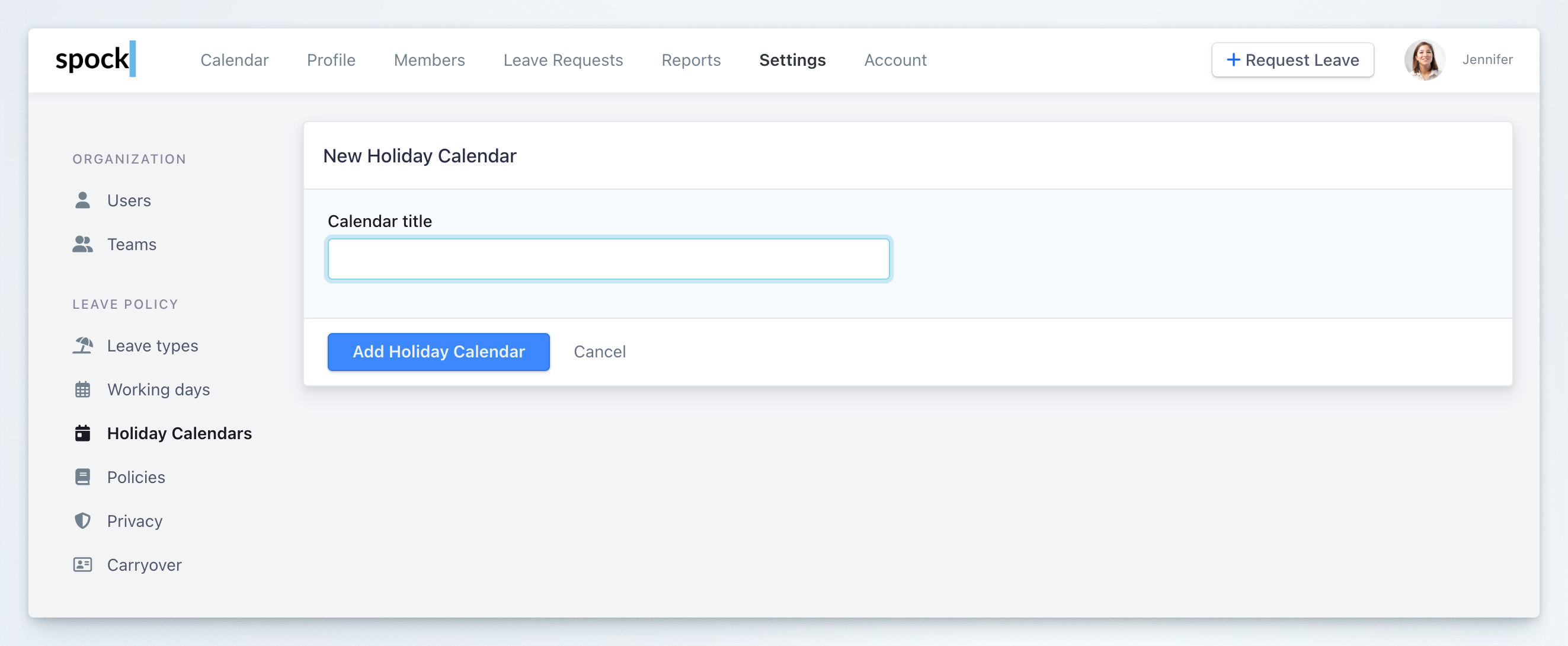 Holiday Calendar was created
## How to add holidays to the holiday calendar
You can either manually enter holidays manually or import holidays for a specific country.
### Import holidays
Select the Holiday Calendar you want to add holidays to
Holiday Calendar was created
## How to add holidays to the holiday calendar
You can either manually enter holidays manually or import holidays for a specific country.
### Import holidays
Select the Holiday Calendar you want to add holidays to
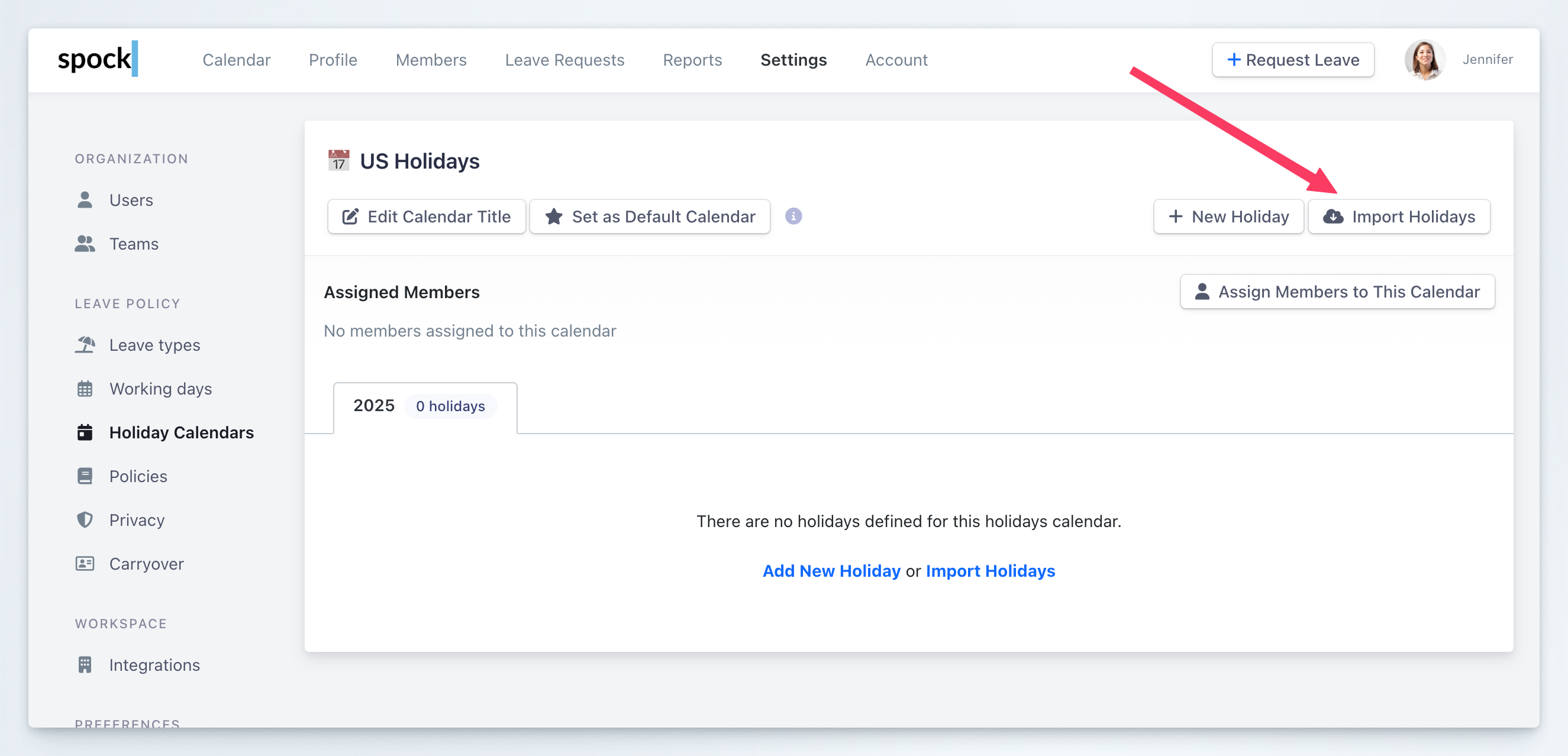
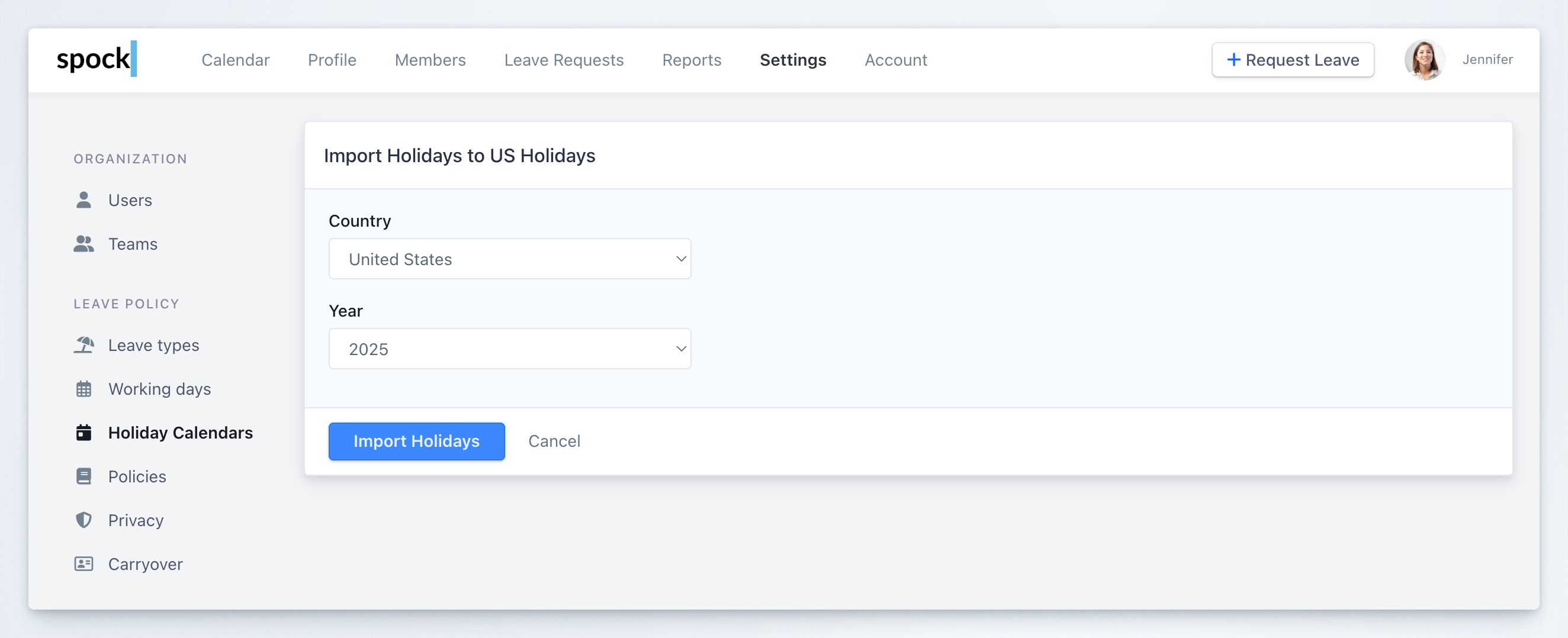 Holidays for specific country and year are imported
## How to Enter holidays manually
Select the Holiday Calendar you want to add holidays to
Holidays for specific country and year are imported
## How to Enter holidays manually
Select the Holiday Calendar you want to add holidays to
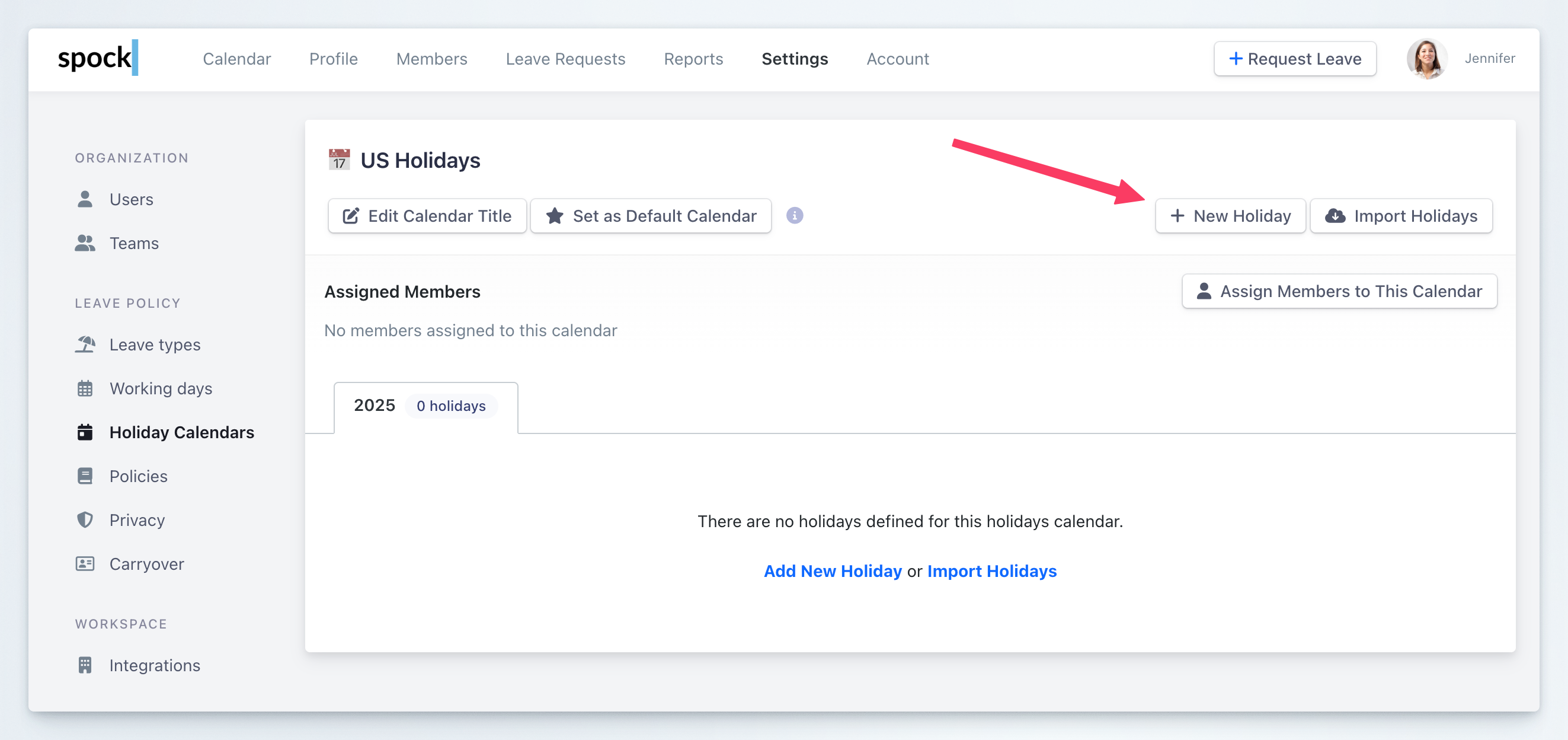
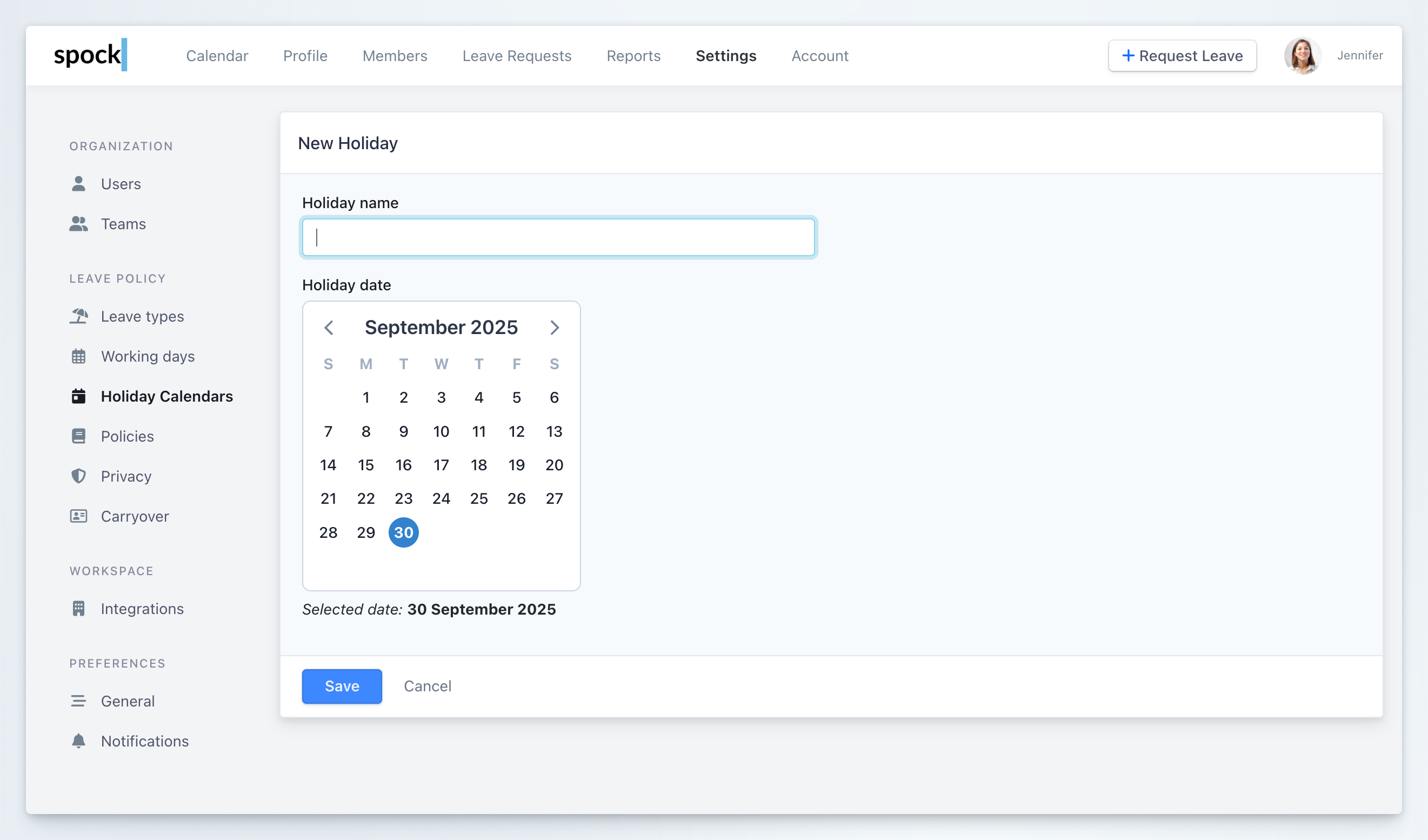 Click **Save**
Repeat until all holidays are entered
You can anytime change the name of the holiday or delete it from the holiday calendar. If you want to **change the date** of the holiday, you have to delete it first and then create a new one.
## How to set primary holiday calendar (the default calendar)
One holiday calendar has to be Default Calendar. This calendar is used for all members who do not have been assigned to any holiday calendar.
To set holiday calendar as default:
Select the Holiday Calendar you want to set as default
Click the **Set as Default Calendar** button
Click **Save**
Repeat until all holidays are entered
You can anytime change the name of the holiday or delete it from the holiday calendar. If you want to **change the date** of the holiday, you have to delete it first and then create a new one.
## How to set primary holiday calendar (the default calendar)
One holiday calendar has to be Default Calendar. This calendar is used for all members who do not have been assigned to any holiday calendar.
To set holiday calendar as default:
Select the Holiday Calendar you want to set as default
Click the **Set as Default Calendar** button
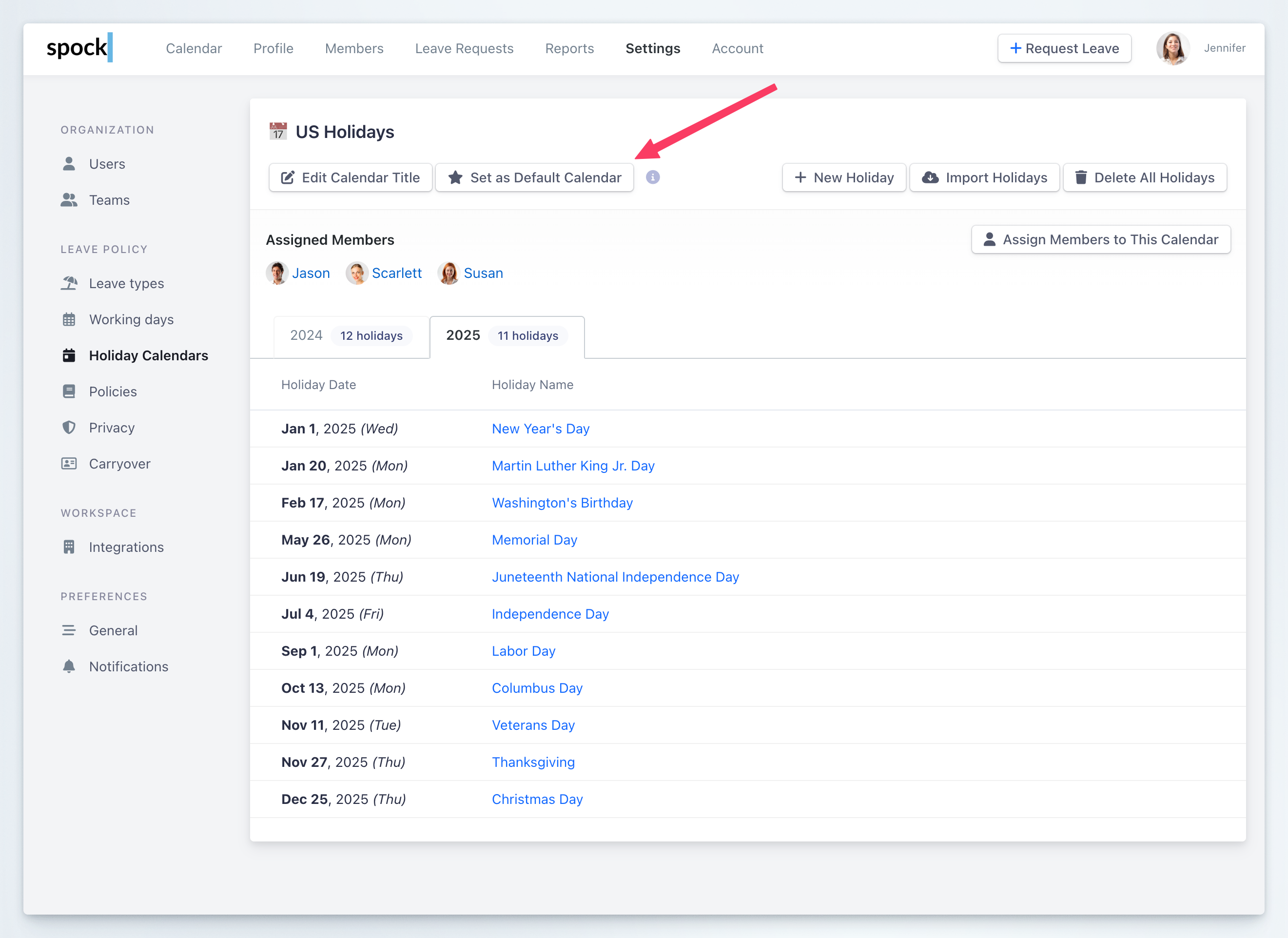 Holiday Calendar is now the primary calendar
## How to delete Holiday Calendar
If the holiday calendar is not in use anymore you can delete it.
Click **Delete All Holidays** to delete holidays from the calendar
Holiday Calendar is now the primary calendar
## How to delete Holiday Calendar
If the holiday calendar is not in use anymore you can delete it.
Click **Delete All Holidays** to delete holidays from the calendar
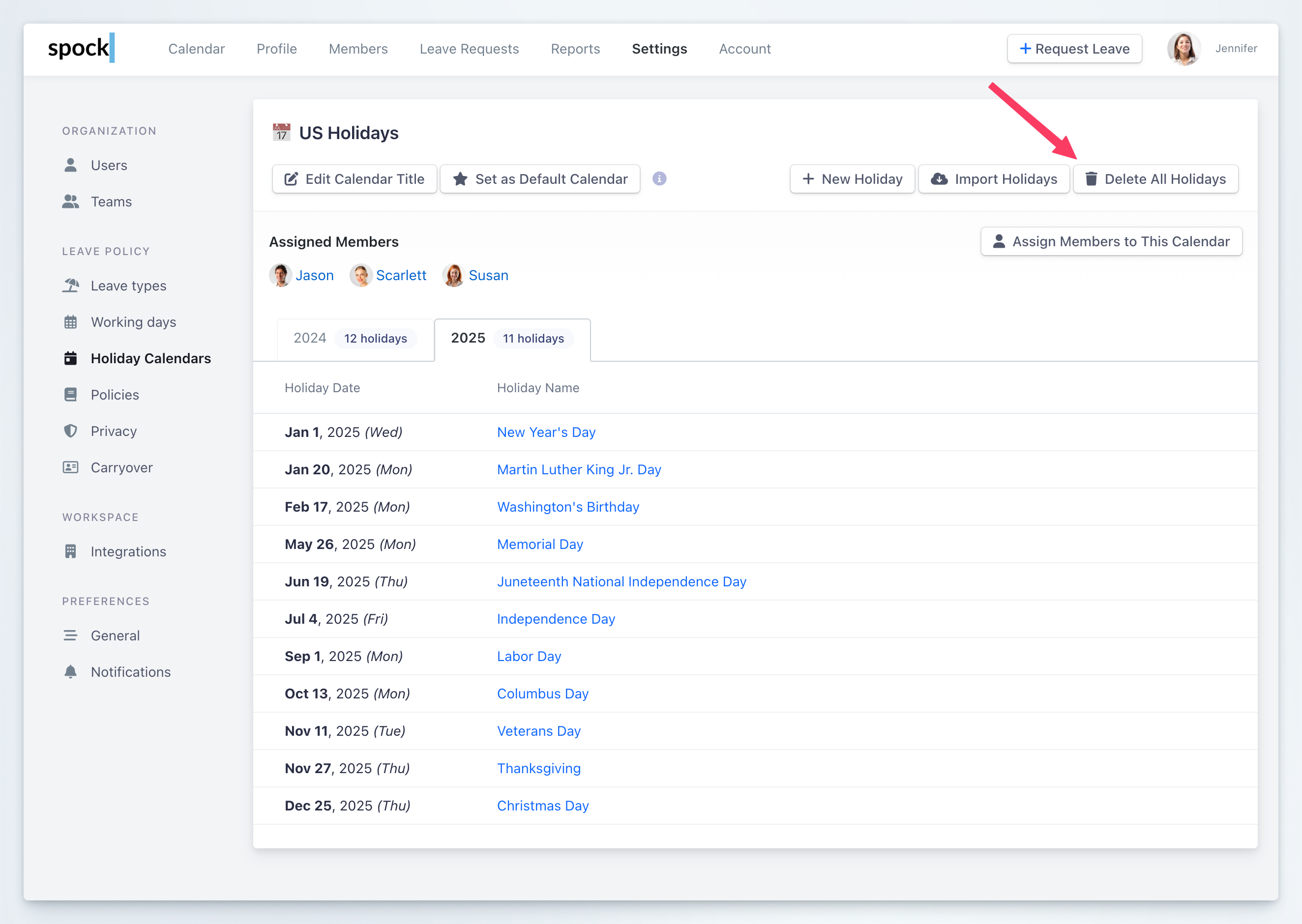 You can change the year in the top bar by selecting from the dropdown. Repeat until all holidays are deleted.
Then click **the Edit Calendar** button
You can change the year in the top bar by selecting from the dropdown. Repeat until all holidays are deleted.
Then click **the Edit Calendar** button
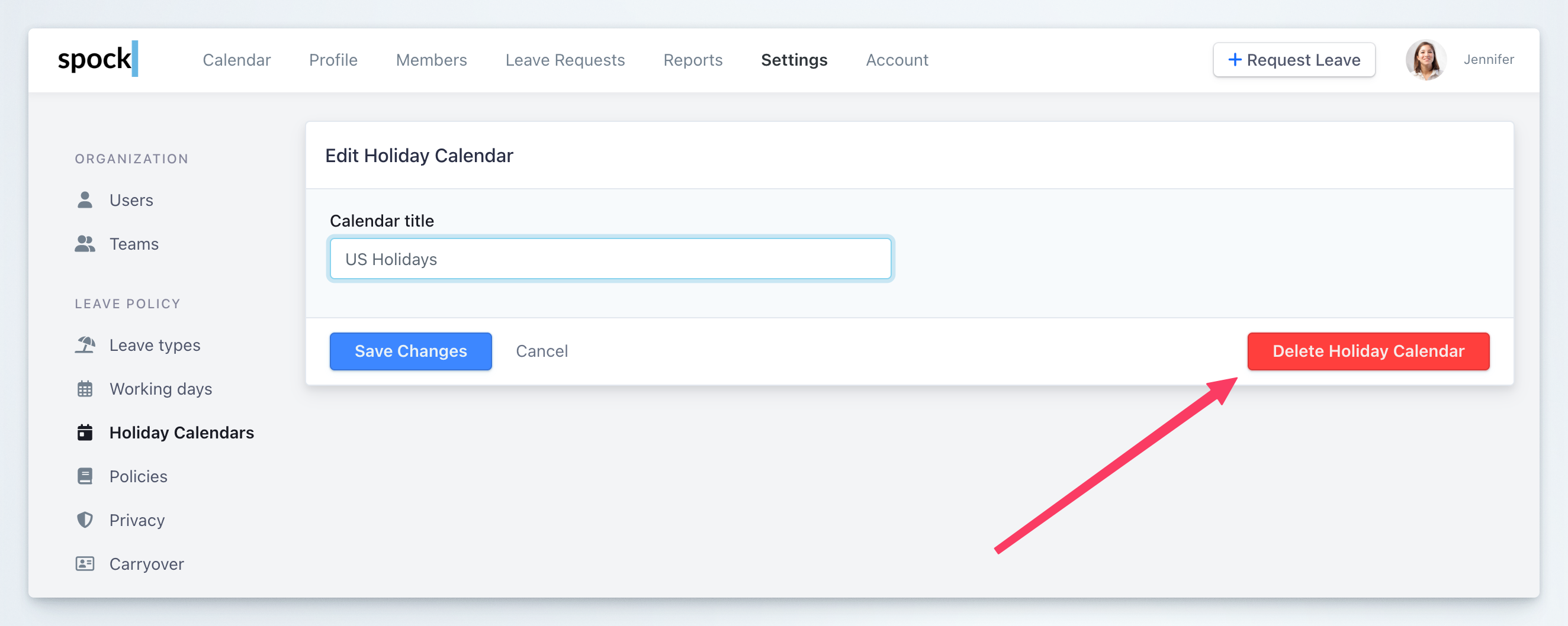 Click **Delete Holiday Calendar** and confirm to delete
All the changes are **instantly propagated** in Spock and affect requesting leaves and displaying calendars.
## How to Assign Members to Calendar in Bulk
You can assign multiple members to a holiday calendar at once:
Select the Holiday Calendar you want to assign members to
Click the **Assign Members to This Calendar** button
Click **Delete Holiday Calendar** and confirm to delete
All the changes are **instantly propagated** in Spock and affect requesting leaves and displaying calendars.
## How to Assign Members to Calendar in Bulk
You can assign multiple members to a holiday calendar at once:
Select the Holiday Calendar you want to assign members to
Click the **Assign Members to This Calendar** button
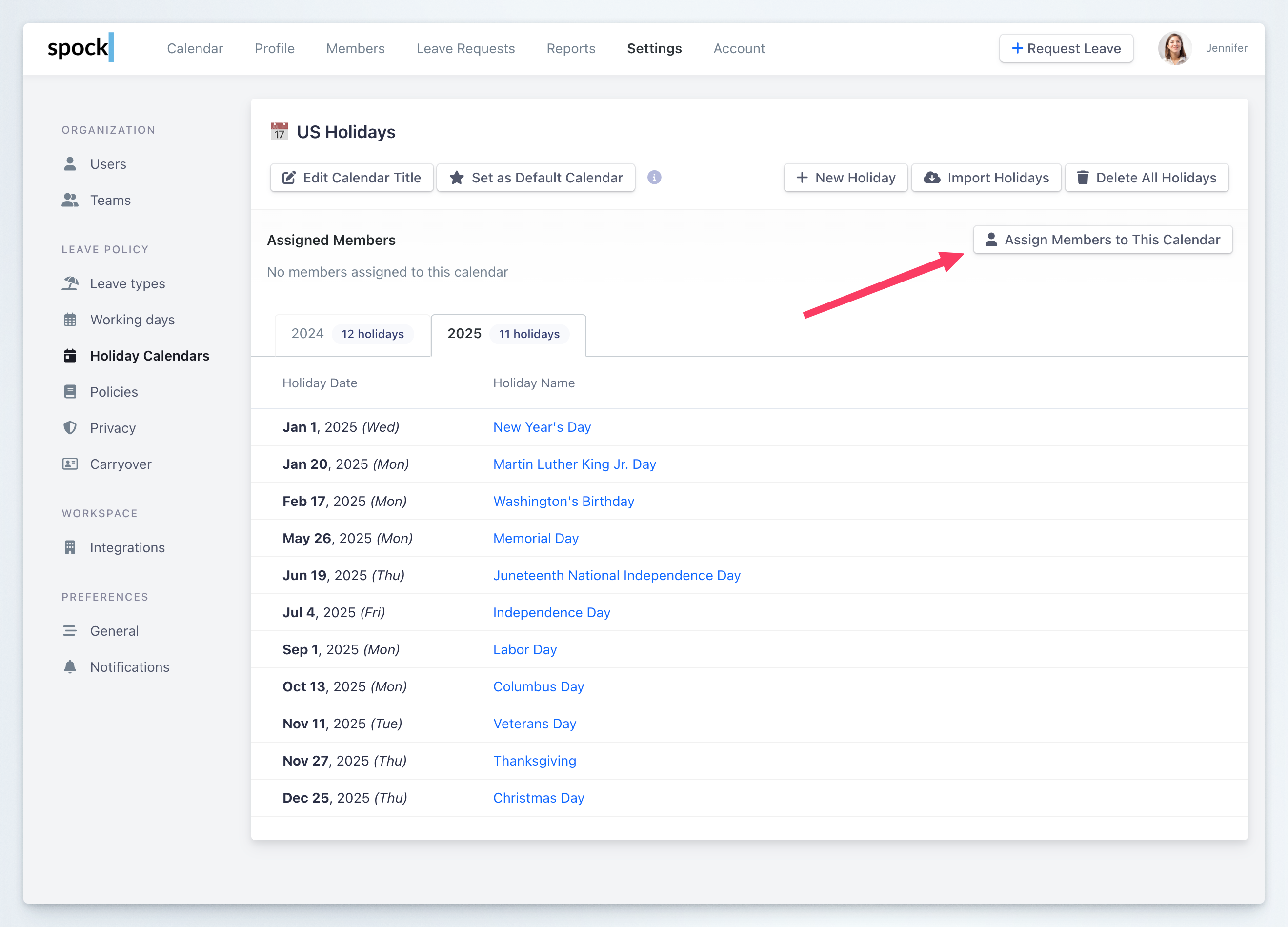 In modal dialog, select members to assign
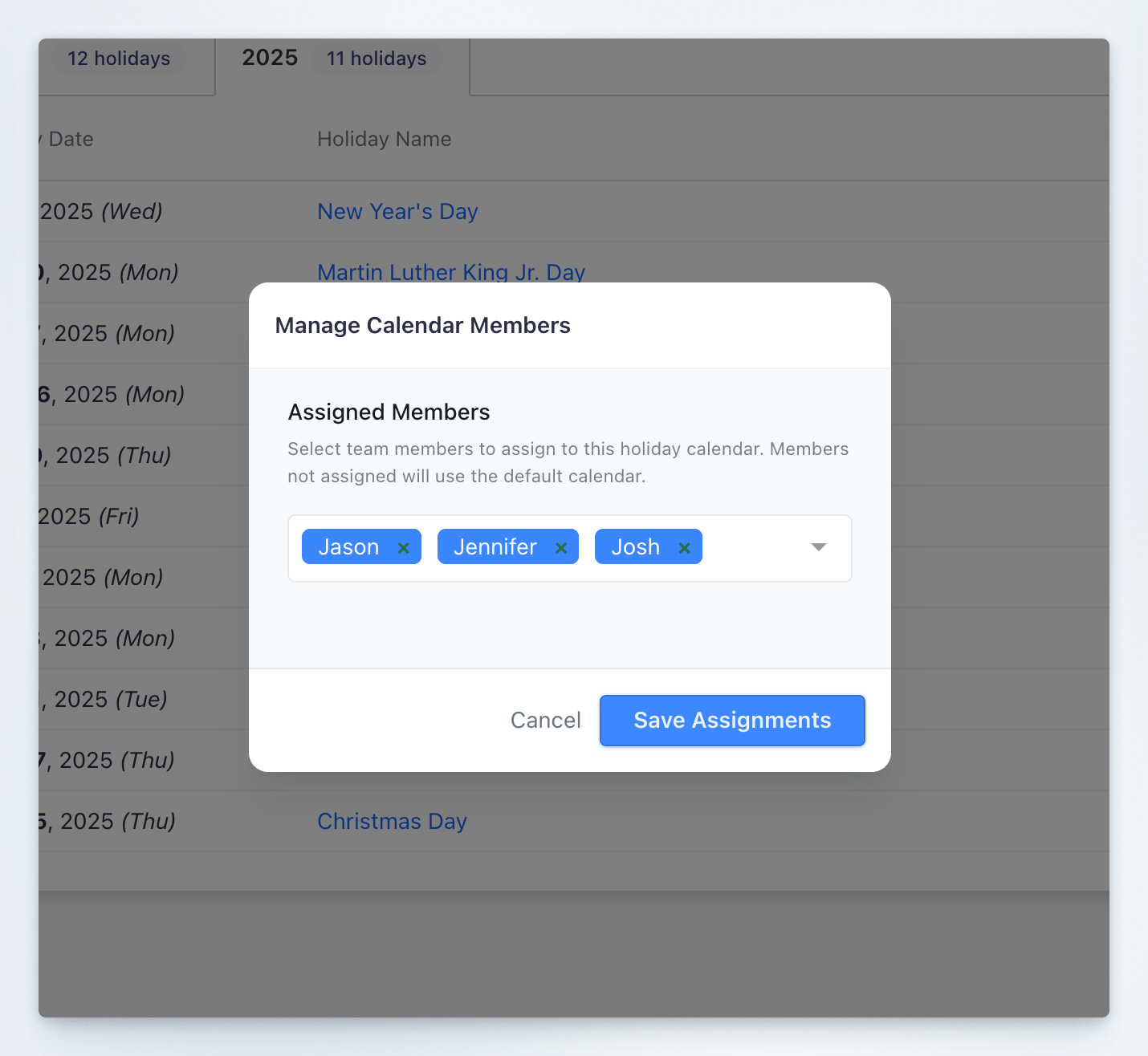 Click **Save Assignments**
## How to Assign Holiday Calendar to User
You can assign any holiday calendar to user:
Navigate to **Members** section
Select Member, you want to assign new Holiday Calendar
Click **Save Assignments**
## How to Assign Holiday Calendar to User
You can assign any holiday calendar to user:
Navigate to **Members** section
Select Member, you want to assign new Holiday Calendar
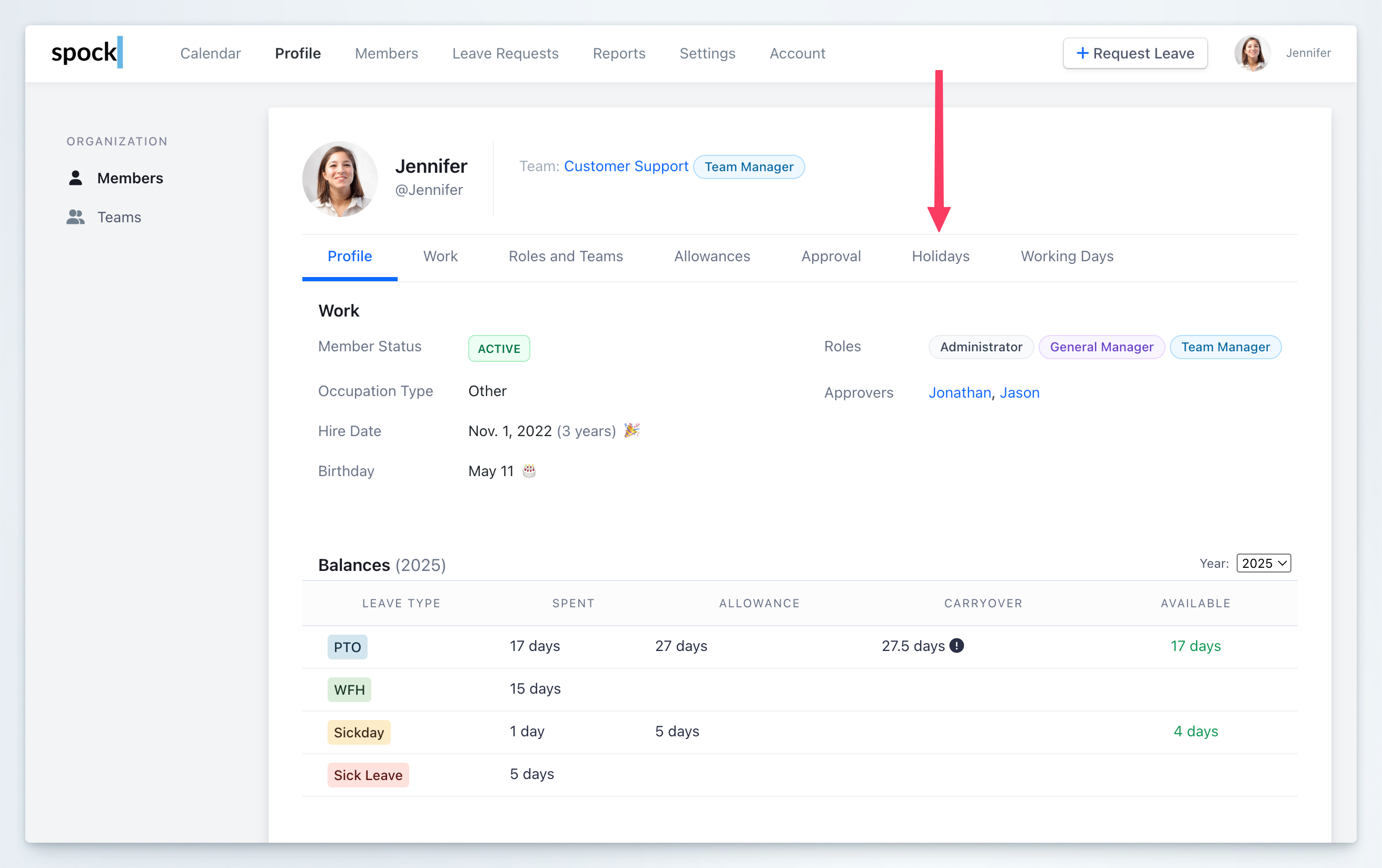 You see the current active calendar and list of holidays
Choose a new Holiday Calendar from the dropdown
You see the current active calendar and list of holidays
Choose a new Holiday Calendar from the dropdown
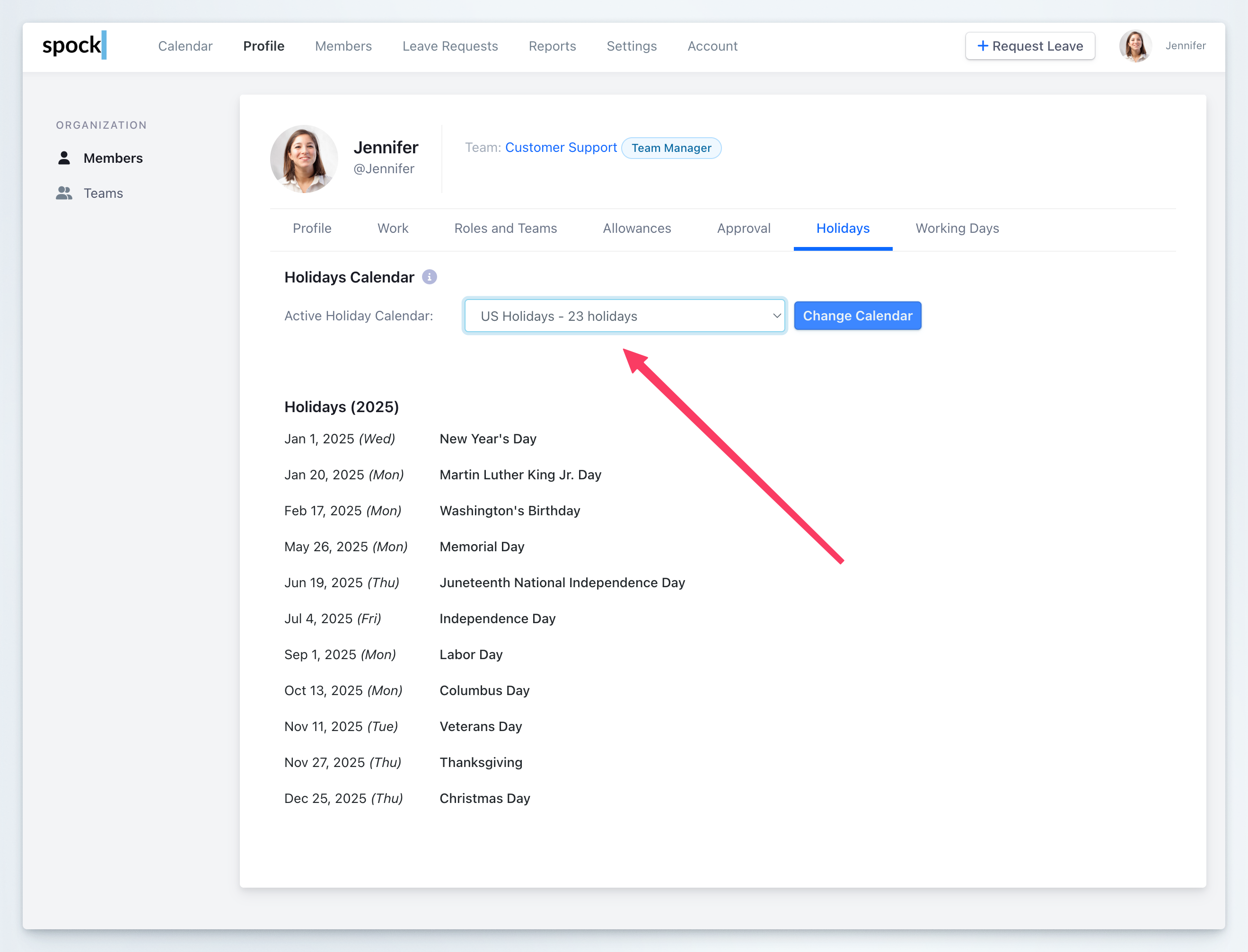 Click **Change Calendar**
The new holiday calendar is already active for given user
Click **Change Calendar**
The new holiday calendar is already active for given user