> ## Documentation Index
> Fetch the complete documentation index at: https://docs.spockoffice.com/llms.txt
> Use this file to discover all available pages before exploring further.
# Channel Notifications
> Automatically post daily and weekly summaries of upcoming employee leave directly into Slack channels for better team coordination and visibility.
Channel Notifications allow you to automatically post summaries of upcoming employee leave directly into designated Slack channels. You can configure both organization-wide notifications and team-specific notifications to keep everyone informed about planned absences.
## Organization-Wide Channel Notifications
Organization-wide notifications send leave summaries to a single Slack channel for your entire workspace. This provides centralized visibility of all upcoming leave across your organization.
### Accessing Channel Notification Settings
Sign in to the [Spock Dashboard](/spock/getting-started/dashboard-signin).
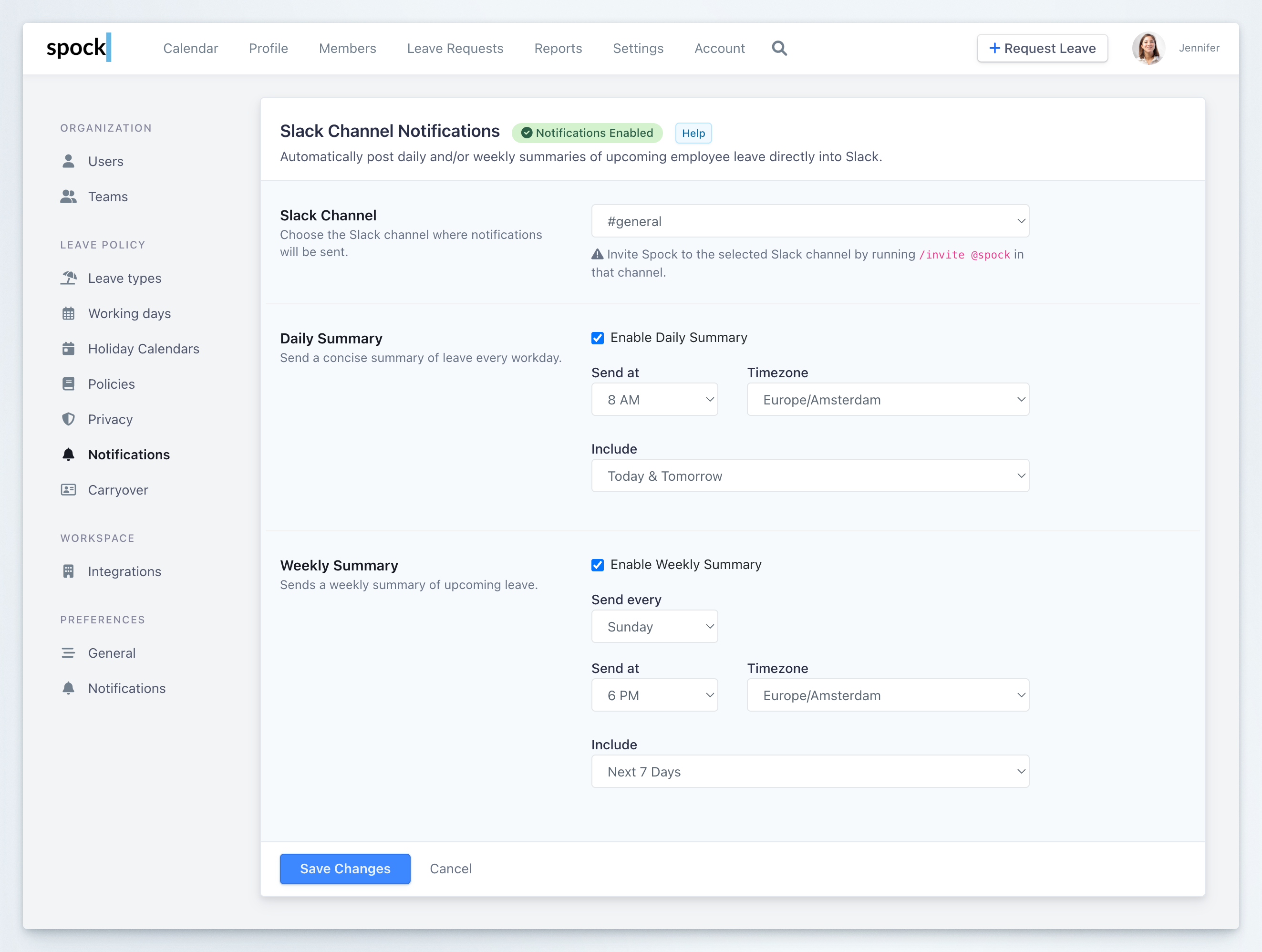
Click the **Settings** tab, then select **Notifications** in the left menu under Leave Policy category.
 ### Channel Selection
Before configuring notifications, you must select the Slack channel where summaries will be posted.
Spock must be invited to your selected Slack channel before notifications will work. In your chosen channel, type `/invite @spock` to add Spock to the channel.
Select your preferred channel from the **Slack Channel** dropdown menu.
If you haven't already, go to your selected Slack channel and run:
```
/invite @spock
```
If you don't see private channels in the list, the Spock Administrator/Installer may need to reinstall Spock from the [pricing page](https://spockoffice.com/web/pricing/).
### Daily Summary
The Daily Summary sends a concise overview of leave every workday, helping your team stay informed about daily absences.
Check the **Enable Daily Summary** checkbox to activate daily notifications.
Set the **Send at** time when you want the summary delivered each workday. Choose a time that works best for your team, such as early morning before work begins.
Choose the appropriate **Timezone** to ensure summaries are sent at the correct local time.
Select what leave information to include from the **Include** dropdown:
* **Today**: Only include leave occurring today
* **Tomorrow**: Only include leave occurring tomorrow
* **Today & Tomorrow**: Include leave for both today and tomorrow (recommended for comprehensive daily awareness)
### Channel Selection
Before configuring notifications, you must select the Slack channel where summaries will be posted.
Spock must be invited to your selected Slack channel before notifications will work. In your chosen channel, type `/invite @spock` to add Spock to the channel.
Select your preferred channel from the **Slack Channel** dropdown menu.
If you haven't already, go to your selected Slack channel and run:
```
/invite @spock
```
If you don't see private channels in the list, the Spock Administrator/Installer may need to reinstall Spock from the [pricing page](https://spockoffice.com/web/pricing/).
### Daily Summary
The Daily Summary sends a concise overview of leave every workday, helping your team stay informed about daily absences.
Check the **Enable Daily Summary** checkbox to activate daily notifications.
Set the **Send at** time when you want the summary delivered each workday. Choose a time that works best for your team, such as early morning before work begins.
Choose the appropriate **Timezone** to ensure summaries are sent at the correct local time.
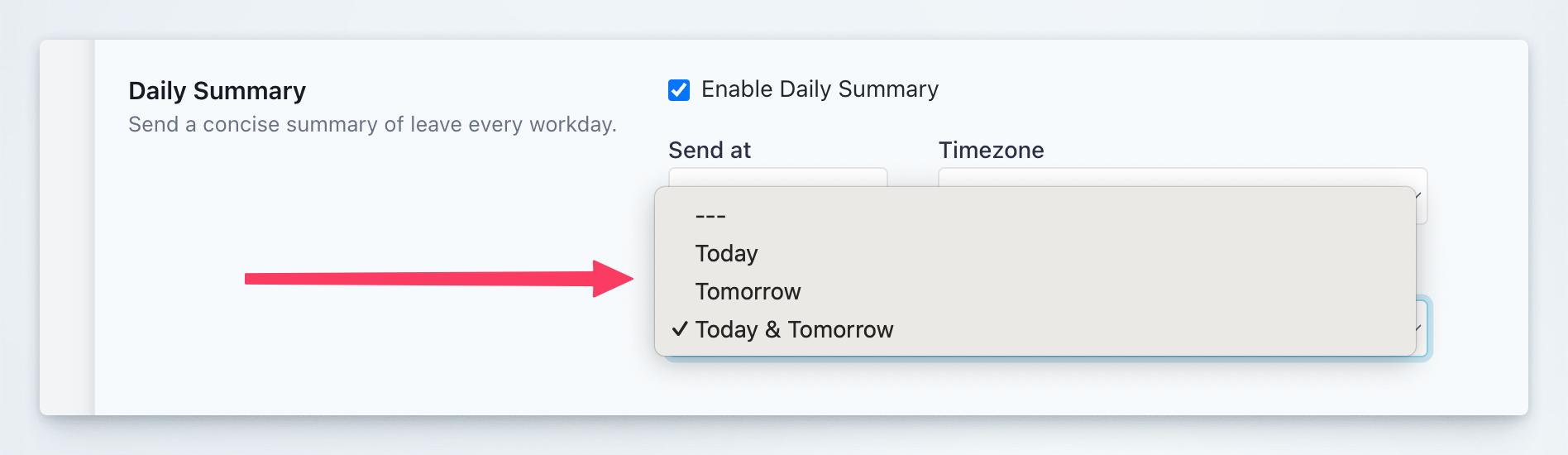
Select what leave information to include from the **Include** dropdown:
* **Today**: Only include leave occurring today
* **Tomorrow**: Only include leave occurring tomorrow
* **Today & Tomorrow**: Include leave for both today and tomorrow (recommended for comprehensive daily awareness)
 Click **Save Changes** to activate your Daily Summary configuration.
Daily summaries are sent on workdays only, based on your organization's working days configuration.
### Weekly Summary
The Weekly Summary provides a broader view of upcoming leave, helping teams plan ahead for coverage and project coordination.
Check the **Enable Weekly Summary** checkbox to activate weekly notifications.
Select the **Send every** day of the week when you want the summary delivered. Common choices include:
* **Sunday**: Review upcoming leave before the work week
* **Monday**: Start the week with leave visibility
* **Friday**: Plan for the following week
Configure the **Send at** time for weekly summary delivery.
Choose the appropriate **Timezone** for your organization.
Select the time range from the **Include** dropdown:
* **Next 7 Days**: One week ahead (ideal for short-term planning)
* **Next 14 Days**: Two weeks ahead (better for medium-term coordination)
* **Next 30 Days**: One month ahead (comprehensive long-term visibility)
Click **Save Changes** to activate your Daily Summary configuration.
Daily summaries are sent on workdays only, based on your organization's working days configuration.
### Weekly Summary
The Weekly Summary provides a broader view of upcoming leave, helping teams plan ahead for coverage and project coordination.
Check the **Enable Weekly Summary** checkbox to activate weekly notifications.
Select the **Send every** day of the week when you want the summary delivered. Common choices include:
* **Sunday**: Review upcoming leave before the work week
* **Monday**: Start the week with leave visibility
* **Friday**: Plan for the following week
Configure the **Send at** time for weekly summary delivery.
Choose the appropriate **Timezone** for your organization.
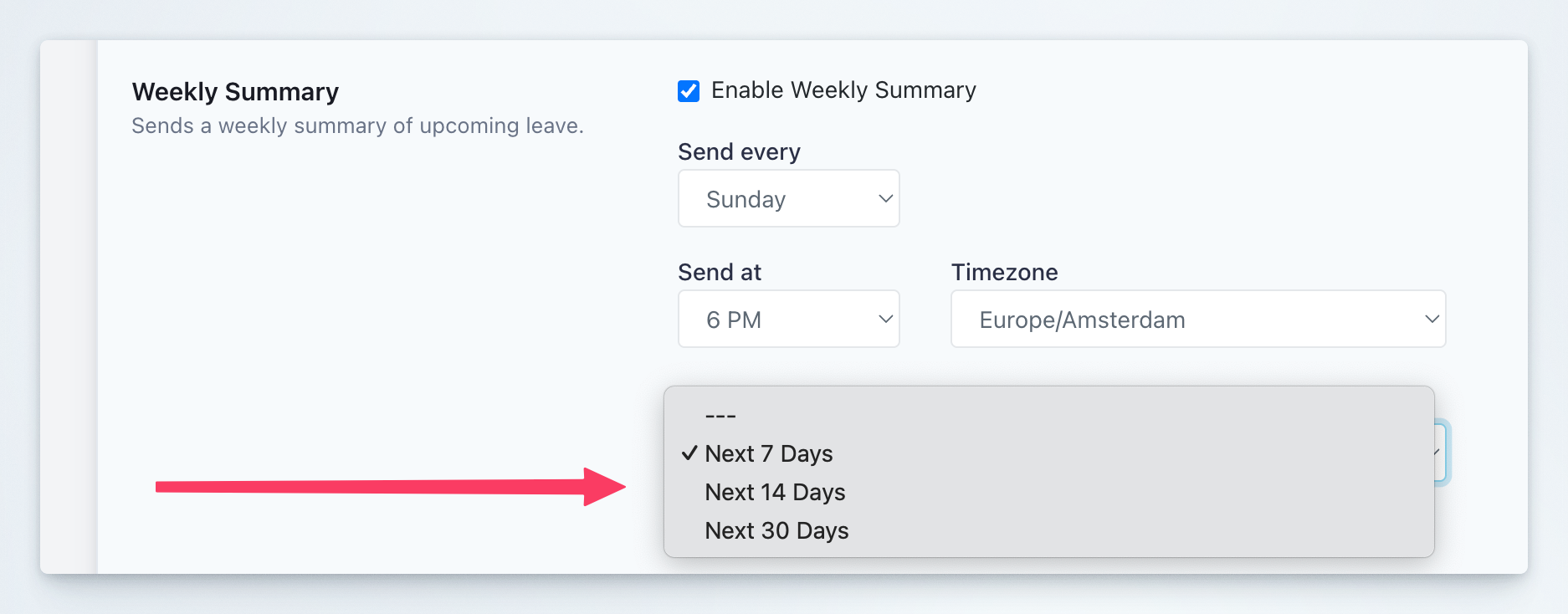
Select the time range from the **Include** dropdown:
* **Next 7 Days**: One week ahead (ideal for short-term planning)
* **Next 14 Days**: Two weeks ahead (better for medium-term coordination)
* **Next 30 Days**: One month ahead (comprehensive long-term visibility)
 Click **Save Changes** to activate your Weekly Summary configuration.
You can enable both Daily and Weekly summaries simultaneously. They serve different purposes and complement each other well.
## Team-Specific Channel Notifications
In addition to organization-wide notifications, you can configure dedicated Slack channel notifications for individual teams. This allows each team to receive notifications about their team members' leave in their own dedicated channels.
Team notifications offer more granular control, including:
* Team-specific Slack channels
* Daily reports with customizable send times
* Event-based notifications (requesting, approving, rejecting, canceling, or deleting leave)
For detailed instructions on setting up team-specific channel notifications, see [Team Notifications](/spock/team-management/team-notifications).
## Best Practices
### When to Use Daily Summaries
Daily summaries work best for:
* **Small to medium teams** (under 50 people) where daily absences significantly impact operations
* **Operations teams** that need real-time awareness of staffing levels
* **Customer support teams** that must ensure adequate coverage every day
* **Project teams** with tight deadlines where daily coordination is critical
**Recommended settings:**
* Send time: 8:00 AM (before work begins)
* Include: Today & Tomorrow
* Timezone: Your primary office location
### When to Use Weekly Summaries
Weekly summaries are ideal for:
* **Large organizations** where daily updates would be overwhelming
* **Management teams** that need strategic visibility without daily details
* **Planning and scheduling** departments that work on longer timelines
* **Cross-functional teams** that need advance notice for coordination
**Recommended settings:**
* Send every: Sunday or Monday
* Send time: 6:00 PM Sunday or 8:00 AM Monday
* Include: Next 14 Days (balances detail with actionability)
* Timezone: Your primary office location
### Combining Organization-Wide and Team Notifications
For optimal results, consider this approach:
1. **Organization-wide channel**: Use for leadership visibility and company-wide awareness
* Enable Weekly Summary (Next 14-30 Days)
* Post to a general channel like #announcements or #team-updates
2. **Team-specific channels**: Configure for operational coordination
* Enable Daily Reports in team channels
* Enable event notifications (requests, approvals) for real-time updates
* Each team manages their own channel preferences
### Channel Selection Strategy
* **Public channels**: Use for organization-wide summaries to maximize transparency
* **Private team channels**: Use for team-specific notifications to maintain focus
* **Dedicated leave channel**: Consider creating a #leave or #out-of-office channel specifically for organization-wide summaries
Avoid sending both organization-wide and team notifications to the same channel, as this may create duplicate notifications and confusion.
## Related Topics
Configure team-specific channel notifications with granular control.
Learn about personal notification settings and morning reports.
Customize your individual notification preferences.
Configure working days that affect when summaries are sent.
Click **Save Changes** to activate your Weekly Summary configuration.
You can enable both Daily and Weekly summaries simultaneously. They serve different purposes and complement each other well.
## Team-Specific Channel Notifications
In addition to organization-wide notifications, you can configure dedicated Slack channel notifications for individual teams. This allows each team to receive notifications about their team members' leave in their own dedicated channels.
Team notifications offer more granular control, including:
* Team-specific Slack channels
* Daily reports with customizable send times
* Event-based notifications (requesting, approving, rejecting, canceling, or deleting leave)
For detailed instructions on setting up team-specific channel notifications, see [Team Notifications](/spock/team-management/team-notifications).
## Best Practices
### When to Use Daily Summaries
Daily summaries work best for:
* **Small to medium teams** (under 50 people) where daily absences significantly impact operations
* **Operations teams** that need real-time awareness of staffing levels
* **Customer support teams** that must ensure adequate coverage every day
* **Project teams** with tight deadlines where daily coordination is critical
**Recommended settings:**
* Send time: 8:00 AM (before work begins)
* Include: Today & Tomorrow
* Timezone: Your primary office location
### When to Use Weekly Summaries
Weekly summaries are ideal for:
* **Large organizations** where daily updates would be overwhelming
* **Management teams** that need strategic visibility without daily details
* **Planning and scheduling** departments that work on longer timelines
* **Cross-functional teams** that need advance notice for coordination
**Recommended settings:**
* Send every: Sunday or Monday
* Send time: 6:00 PM Sunday or 8:00 AM Monday
* Include: Next 14 Days (balances detail with actionability)
* Timezone: Your primary office location
### Combining Organization-Wide and Team Notifications
For optimal results, consider this approach:
1. **Organization-wide channel**: Use for leadership visibility and company-wide awareness
* Enable Weekly Summary (Next 14-30 Days)
* Post to a general channel like #announcements or #team-updates
2. **Team-specific channels**: Configure for operational coordination
* Enable Daily Reports in team channels
* Enable event notifications (requests, approvals) for real-time updates
* Each team manages their own channel preferences
### Channel Selection Strategy
* **Public channels**: Use for organization-wide summaries to maximize transparency
* **Private team channels**: Use for team-specific notifications to maintain focus
* **Dedicated leave channel**: Consider creating a #leave or #out-of-office channel specifically for organization-wide summaries
Avoid sending both organization-wide and team notifications to the same channel, as this may create duplicate notifications and confusion.
## Related Topics
Configure team-specific channel notifications with granular control.
Learn about personal notification settings and morning reports.
Customize your individual notification preferences.
Configure working days that affect when summaries are sent.