> ## Documentation Index
> Fetch the complete documentation index at: https://docs.spockoffice.com/llms.txt
> Use this file to discover all available pages before exploring further.
# Carryover
> Set up and manage carryover policies to transfer unused leave balances to new periods, with customization options for individual employees.
Spock allows the carryover of unused balances to a new period through a structured carryover process. You can configure carryover policies for each leave type and customize them for individual members when needed.
You must have a **General Manager** role to process carryover. The carryover process can be executed from the start of the year until the end of March.
## Understanding Carryover
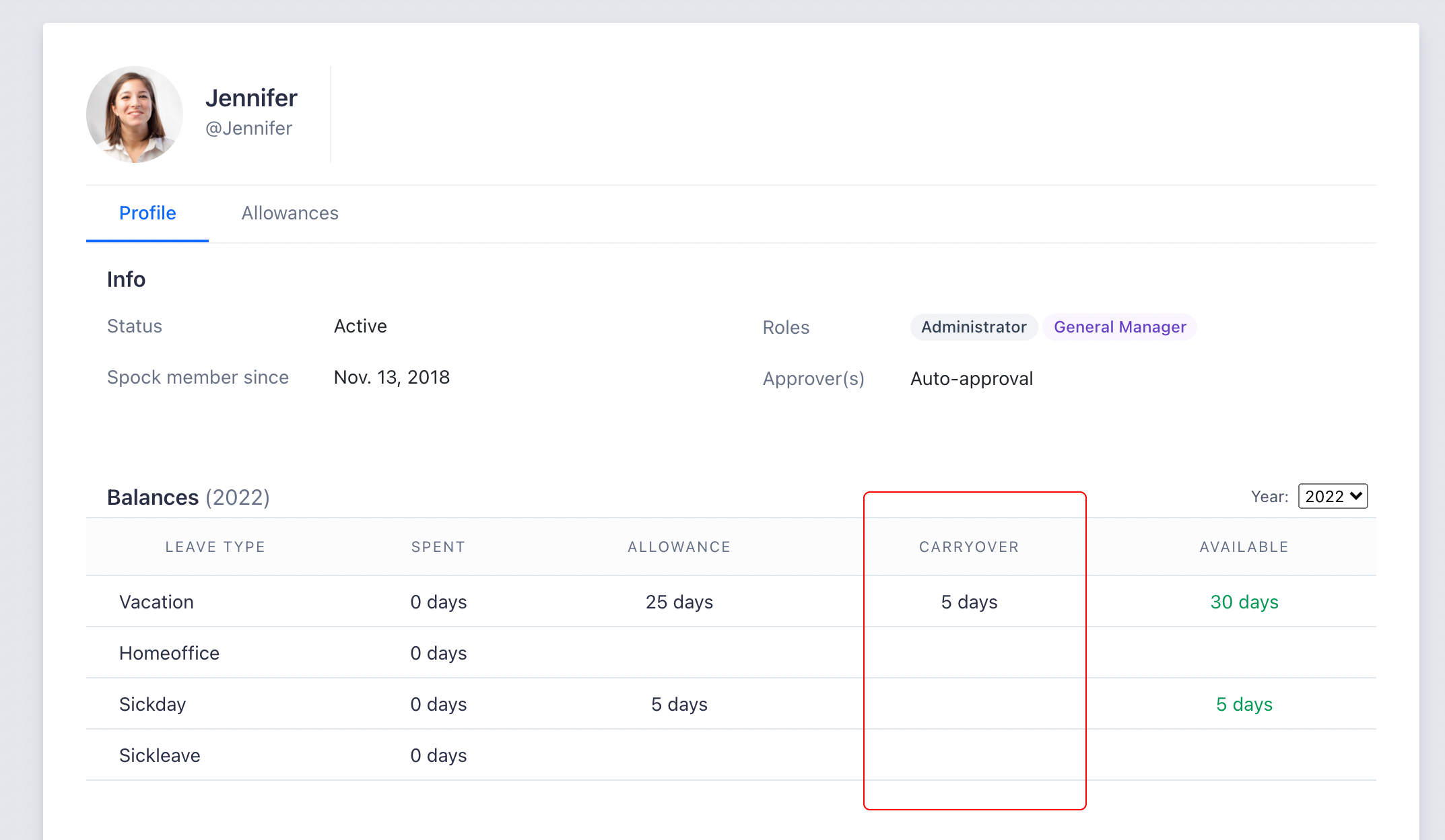
Carryover amounts are visible in:
* Members' profiles under the "Balances" section
* Slack in "My Balances" view
 ## Carryover Policies
Choose from three carryover policies to determine how unused balances transfer to new periods:
Unused balances will not be transferred to a new period.
**Example:** Balance of 5 days at year-end results in zero carryover.
The entire unused balance transfers to the new period.
**Example:** Balance of 5 days at year-end results in 5 days carryover.
Only a specified maximum number of days transfer to the new period.
**Example:** With a 3-day limit, a balance of 5 days results in 3 days carryover.
### Carryover Expiration
For "Remaining Count" and "Limited Count" policies, you can set an expiration period:
Carryover expiration defines how many days after the new period starts that carryover will expire. After expiration, leave requests are covered from the new period's allowance rather than carryover.
**Example:** With 31-day expiration and 5 days carryover, the carryover remains available until January 31st, then expires.
## Setting Up Carryover Policies
Configure carryover policies for each leave type that has allowances enabled:
Go to **Settings** > **Leave Types** in your dashboard.
Choose a leave type that has allowance tracking enabled.
Check **"Allow carryover of current balances to next period"**.
Select your desired carryover policy from the available options.
If using "Limited Count" policy, enter the maximum carryover limit.
(Optional) Check **"Carryover expires"** and enter the number of days until expiration.
## Carryover Policies
Choose from three carryover policies to determine how unused balances transfer to new periods:
Unused balances will not be transferred to a new period.
**Example:** Balance of 5 days at year-end results in zero carryover.
The entire unused balance transfers to the new period.
**Example:** Balance of 5 days at year-end results in 5 days carryover.
Only a specified maximum number of days transfer to the new period.
**Example:** With a 3-day limit, a balance of 5 days results in 3 days carryover.
### Carryover Expiration
For "Remaining Count" and "Limited Count" policies, you can set an expiration period:
Carryover expiration defines how many days after the new period starts that carryover will expire. After expiration, leave requests are covered from the new period's allowance rather than carryover.
**Example:** With 31-day expiration and 5 days carryover, the carryover remains available until January 31st, then expires.
## Setting Up Carryover Policies
Configure carryover policies for each leave type that has allowances enabled:
Go to **Settings** > **Leave Types** in your dashboard.
Choose a leave type that has allowance tracking enabled.
Check **"Allow carryover of current balances to next period"**.
Select your desired carryover policy from the available options.
If using "Limited Count" policy, enter the maximum carryover limit.
(Optional) Check **"Carryover expires"** and enter the number of days until expiration.
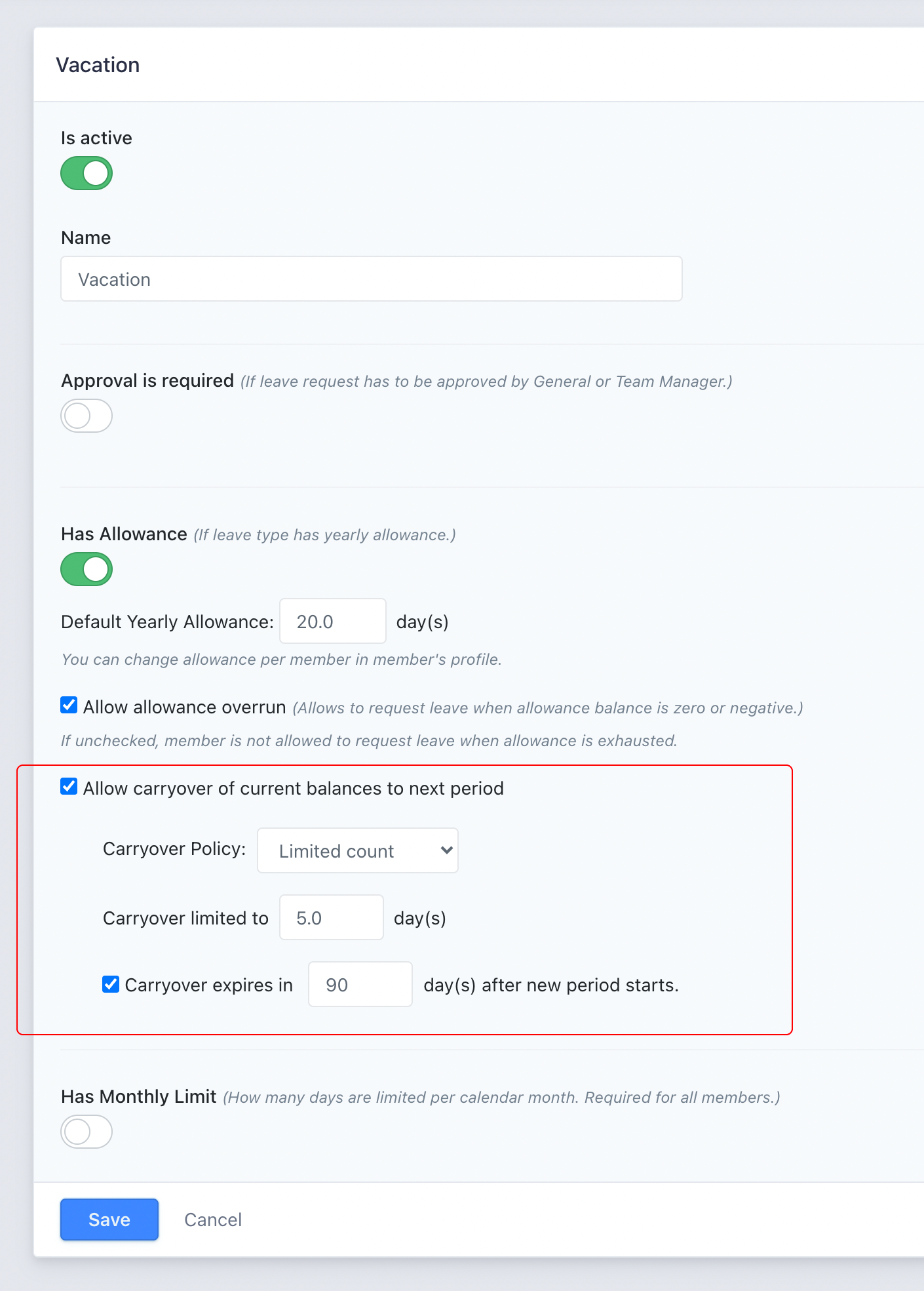 Click **Save** to apply the carryover policy.
## Executing the Carryover Process
Once policies are configured, execute the carryover process to transfer balances:
Navigate to **Settings** > **Carryover**.
Check **"Do Balances Carryover"** to initiate the process.
Click **"Proceed"** to start the balance transfer.
Click **Save** to apply the carryover policy.
## Executing the Carryover Process
Once policies are configured, execute the carryover process to transfer balances:
Navigate to **Settings** > **Carryover**.
Check **"Do Balances Carryover"** to initiate the process.
Click **"Proceed"** to start the balance transfer.
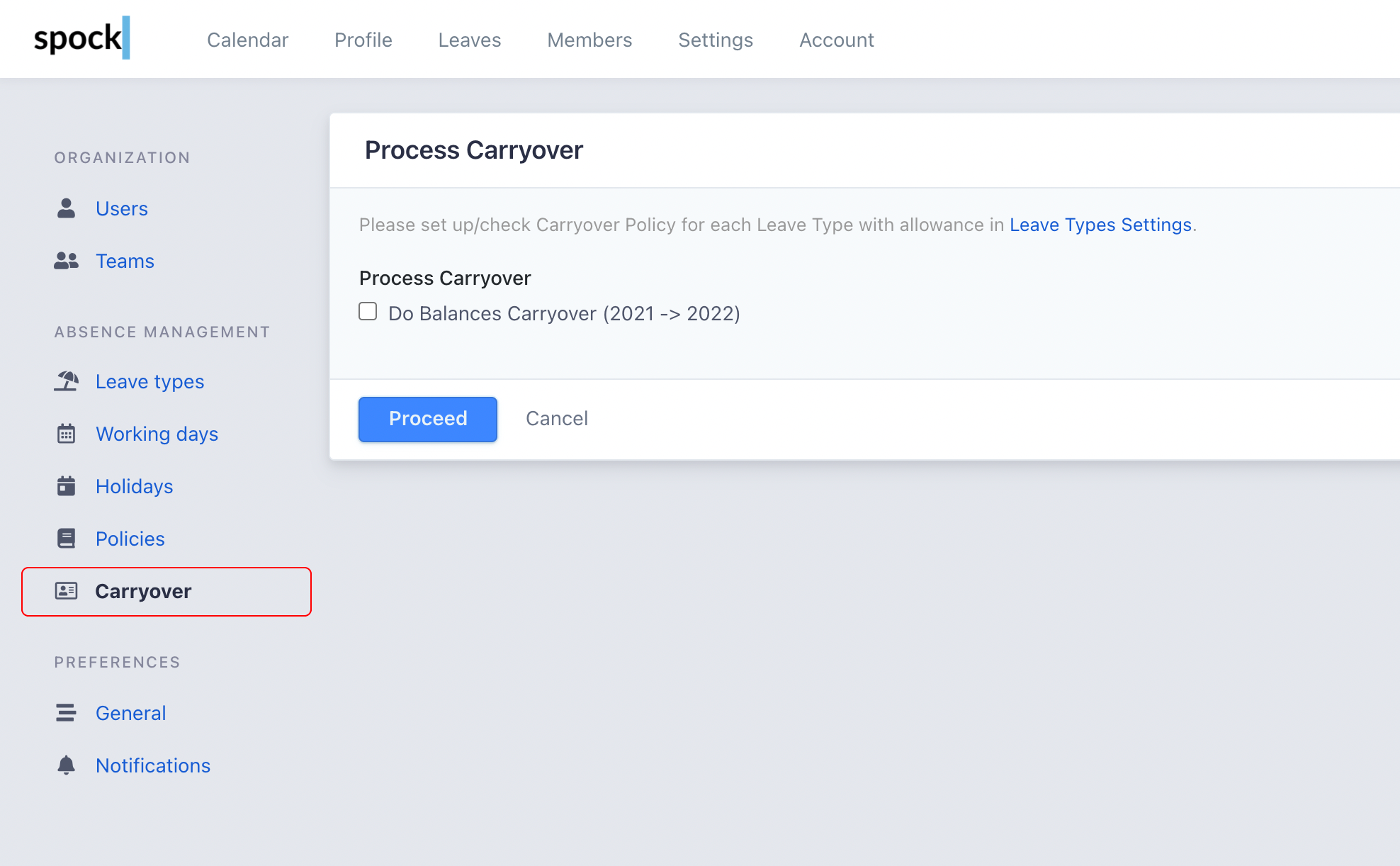 The process may take some time to transfer all balances across your organization.
After completion, you can verify carryover amounts in members' profiles under the "Balances" section, where a "Carryover" column will display the transferred amounts.
## Customizing Carryover for Individual Members
Override the default carryover policy for specific employees when needed:
Go to **Members** and select the employee's profile.
Click on the **"Allowances"** tab.
The process may take some time to transfer all balances across your organization.
After completion, you can verify carryover amounts in members' profiles under the "Balances" section, where a "Carryover" column will display the transferred amounts.
## Customizing Carryover for Individual Members
Override the default carryover policy for specific employees when needed:
Go to **Members** and select the employee's profile.
Click on the **"Allowances"** tab.
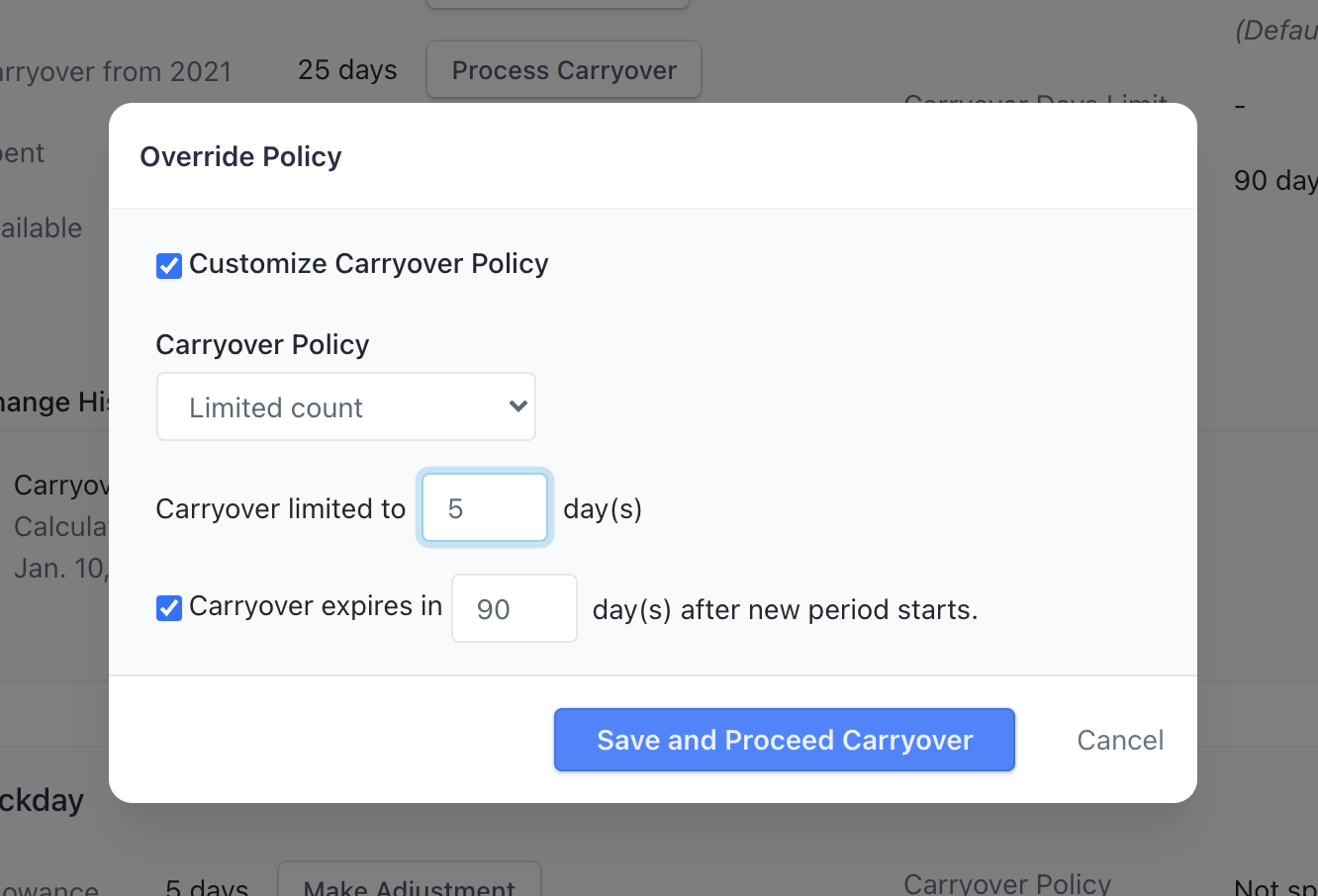 Locate the leave type you want to customize carryover for.
Click the **"Override"** button next to the default policy.
In the dialog that appears, check **"Customize Carryover Policy"** and configure the new policy.
Locate the leave type you want to customize carryover for.
Click the **"Override"** button next to the default policy.
In the dialog that appears, check **"Customize Carryover Policy"** and configure the new policy.
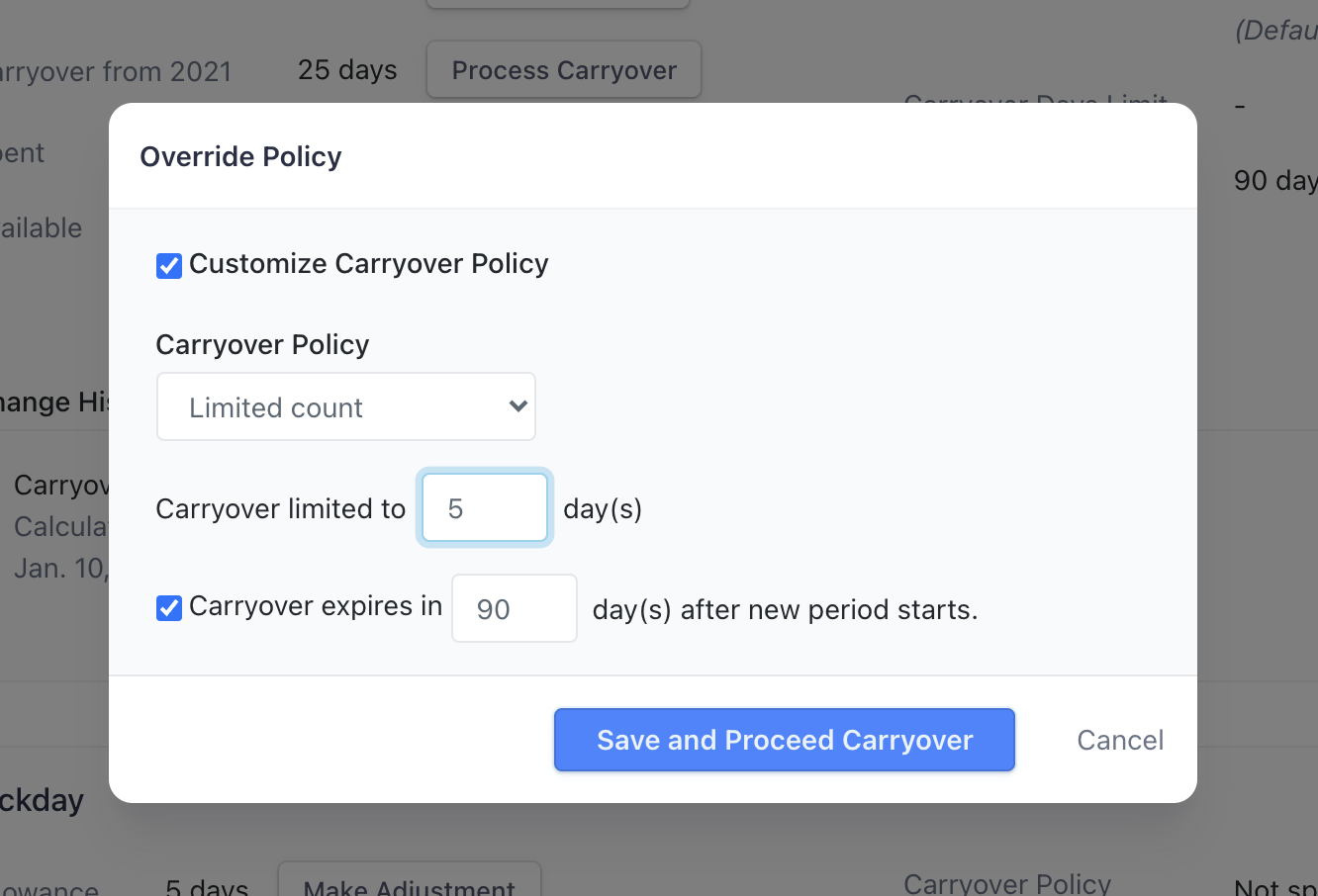 Click **"Save and Proceed Carryover"** to recalculate the carryover according to the new policy.
## Best Practices
Set up carryover policies before the end of the year to ensure smooth transition to the new period.
Inform employees about carryover policies and expiration dates to help them plan their leave effectively.
Review and adjust carryover policies annually to ensure they align with your organization's needs and legal requirements.
Maintain records of custom carryover overrides for individual employees for audit and compliance purposes.
## Related Topics
Learn how to configure and manage employee leave allowances.
Understand different types of leave and their configuration options.
Generate reports on carryover usage and patterns.
Manage user roles required for carryover administration.
Click **"Save and Proceed Carryover"** to recalculate the carryover according to the new policy.
## Best Practices
Set up carryover policies before the end of the year to ensure smooth transition to the new period.
Inform employees about carryover policies and expiration dates to help them plan their leave effectively.
Review and adjust carryover policies annually to ensure they align with your organization's needs and legal requirements.
Maintain records of custom carryover overrides for individual employees for audit and compliance purposes.
## Related Topics
Learn how to configure and manage employee leave allowances.
Understand different types of leave and their configuration options.
Generate reports on carryover usage and patterns.
Manage user roles required for carryover administration.