> ## Documentation Index
> Fetch the complete documentation index at: https://docs.spockoffice.com/llms.txt
> Use this file to discover all available pages before exploring further.
# Approvals
> Set up and manage approval workflows for leave requests, including automatic assignment based on organizational hierarchy and manual approver selection.
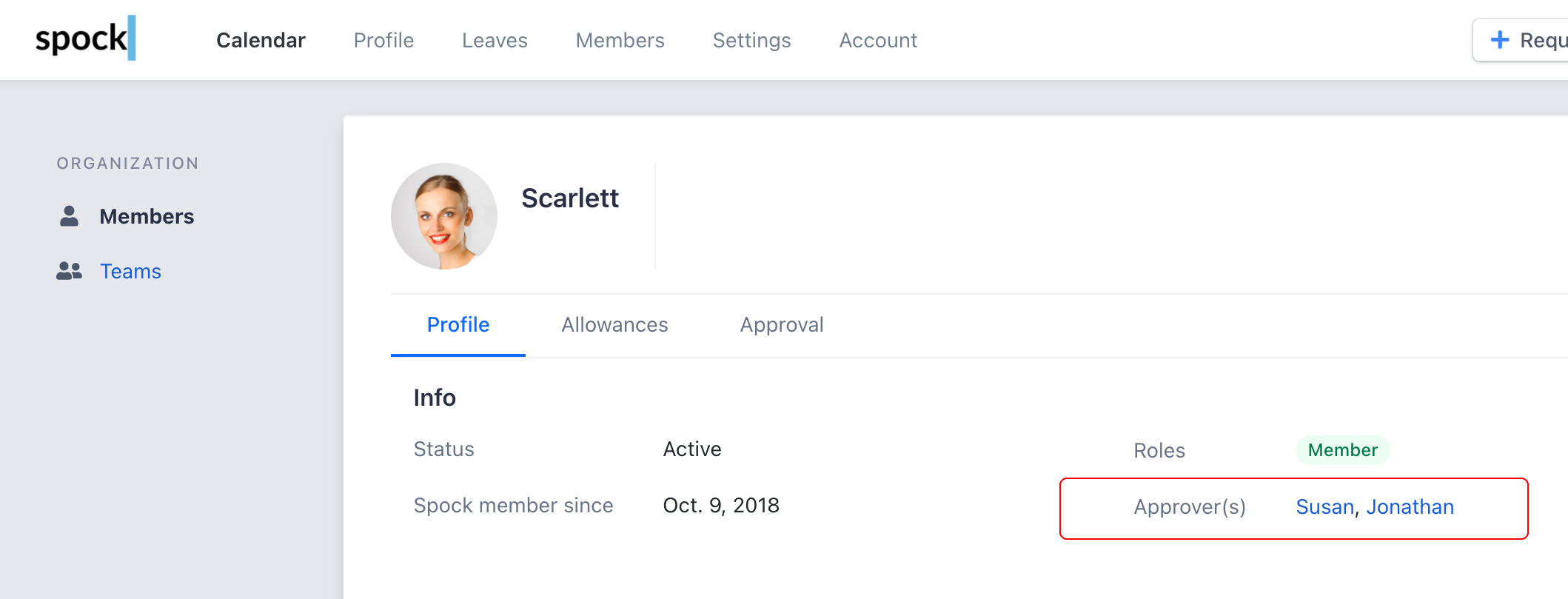
Spock streamlines the **approval process** for any type of leave request. When a submission requires approval, each request is automatically directed to the appropriate approver based on your organizational hierarchy or manually assigned approvers.
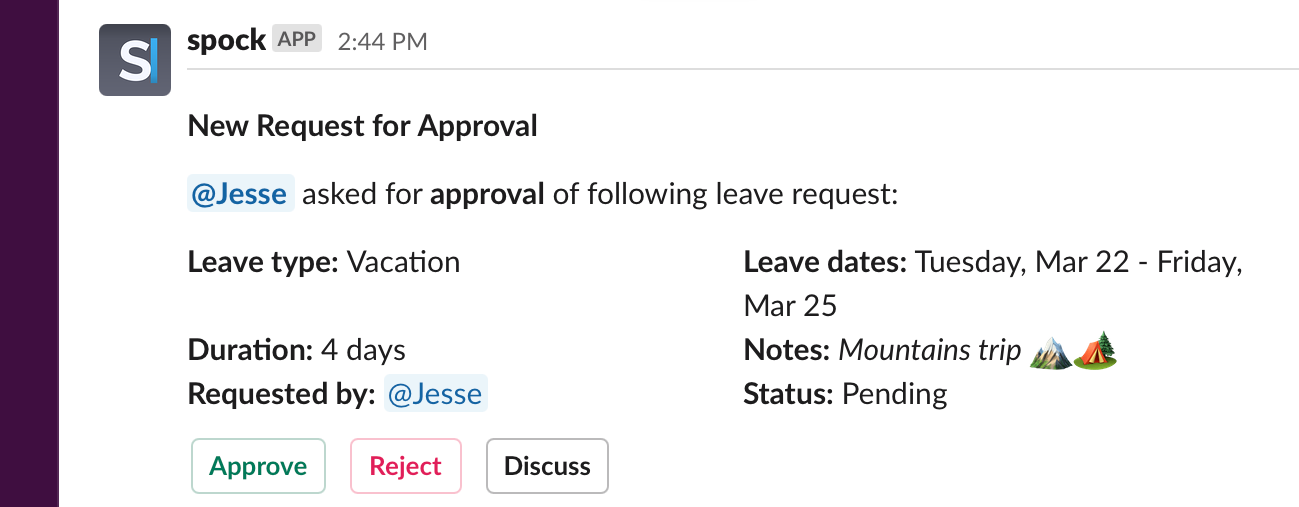
Upon submission, Spock promptly notifies designated approvers who can review and approve requests directly from Slack notifications or via the Dashboard. Once a decision is made, Spock immediately updates the requestor and informs other relevant approvers.
 ## Setting Up Approval Workflow
Configure which leave types require approval before they're processed:
Go to **Settings** > **Leave Types** in your dashboard.
Choose the leave type you want to add approval requirements to.
Set **Approval is required** to **ON**.
## Setting Up Approval Workflow
Configure which leave types require approval before they're processed:
Go to **Settings** > **Leave Types** in your dashboard.
Choose the leave type you want to add approval requirements to.
Set **Approval is required** to **ON**.
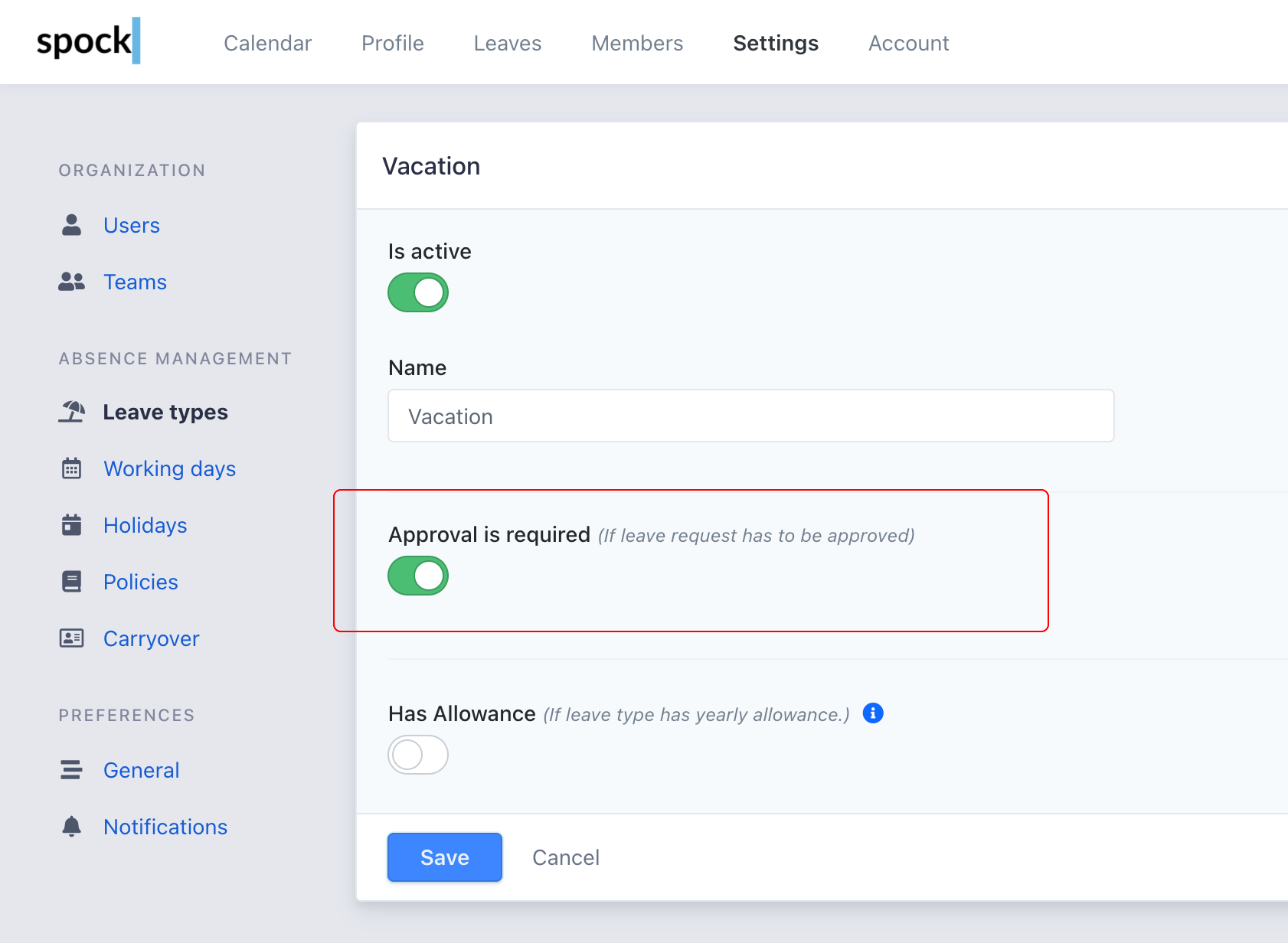 From this point forward, approval will be required whenever this leave type is requested.
## How to Approve Leave Requests
Approvers can process requests through three convenient methods:
Notification messages contain action buttons that allow immediate approval or rejection.
From this point forward, approval will be required whenever this leave type is requested.
## How to Approve Leave Requests
Approvers can process requests through three convenient methods:
Notification messages contain action buttons that allow immediate approval or rejection.
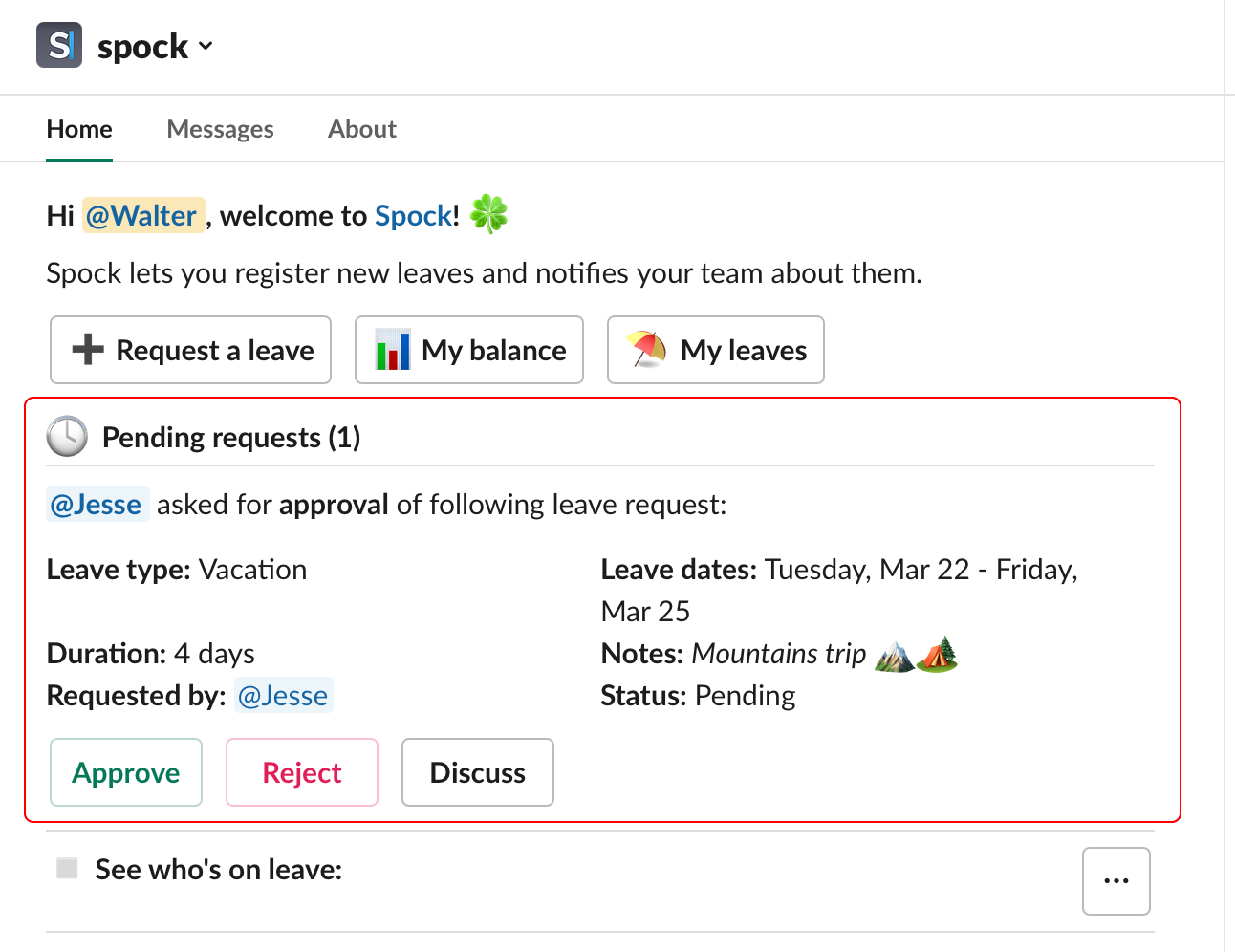
 A list of pending approvals is displayed in the Spock Home Tab for easy access.
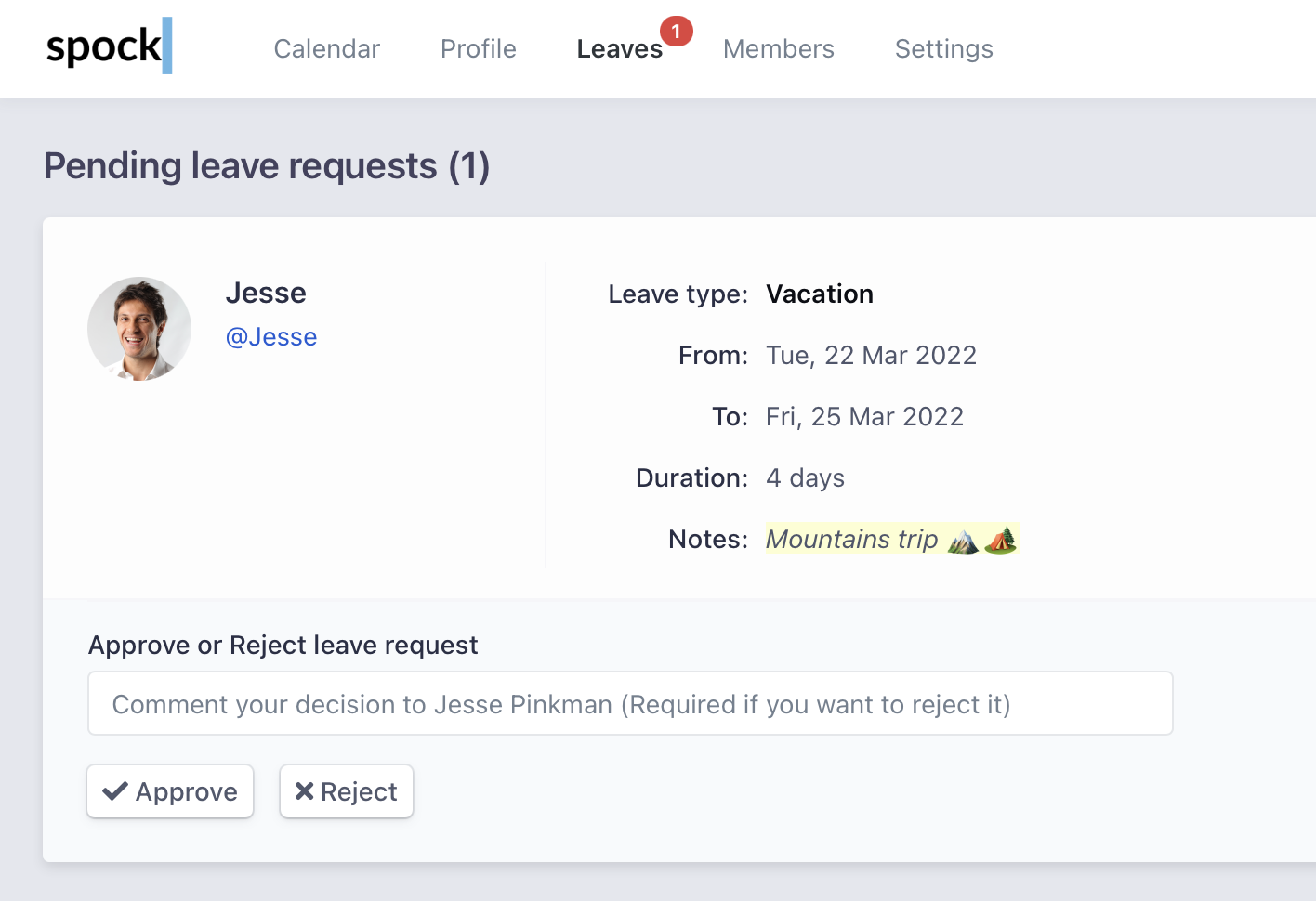
 In the dashboard's **Leaves** section, pending approval requests are prominently displayed.
 ## Approval Policy
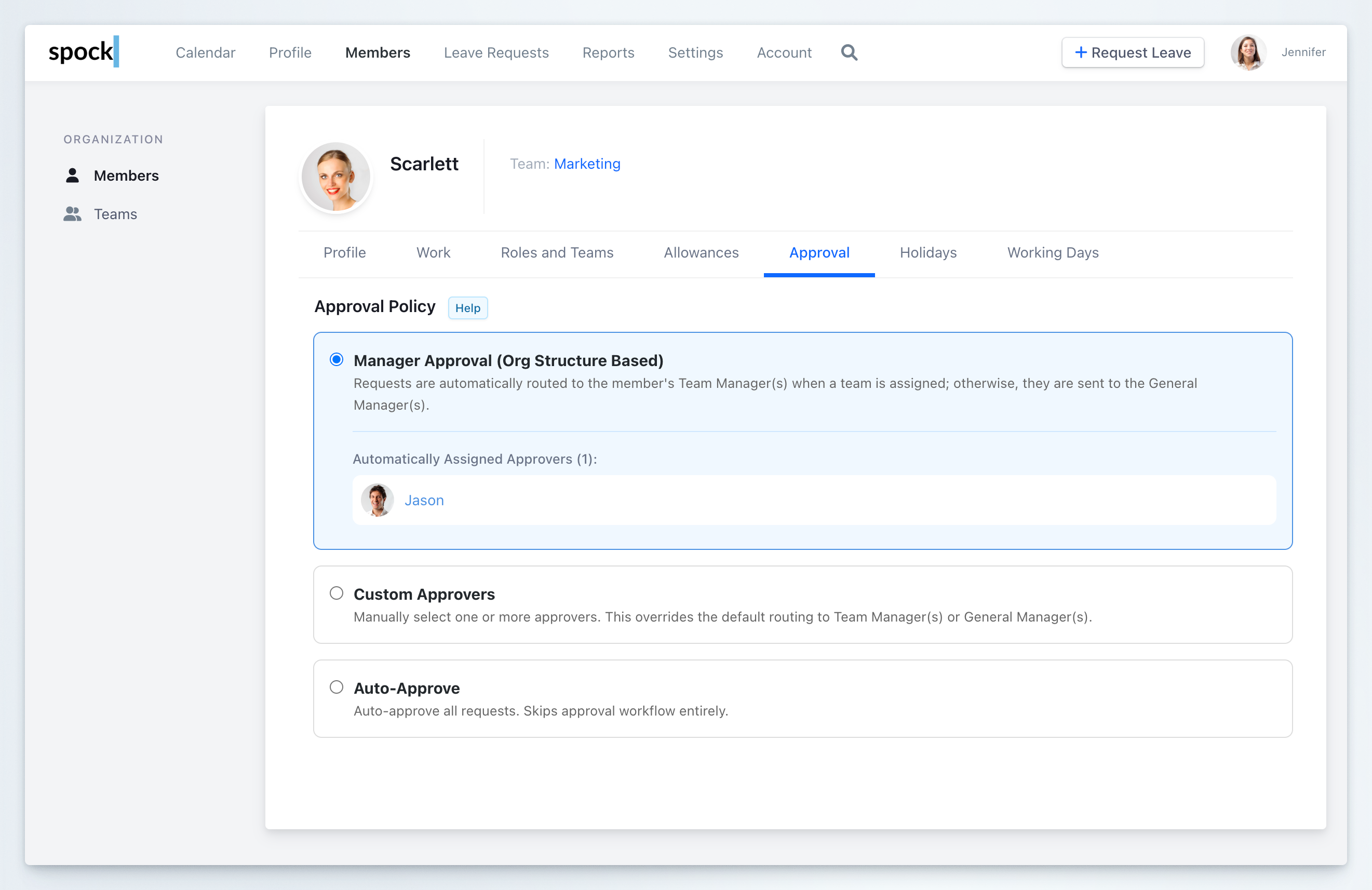
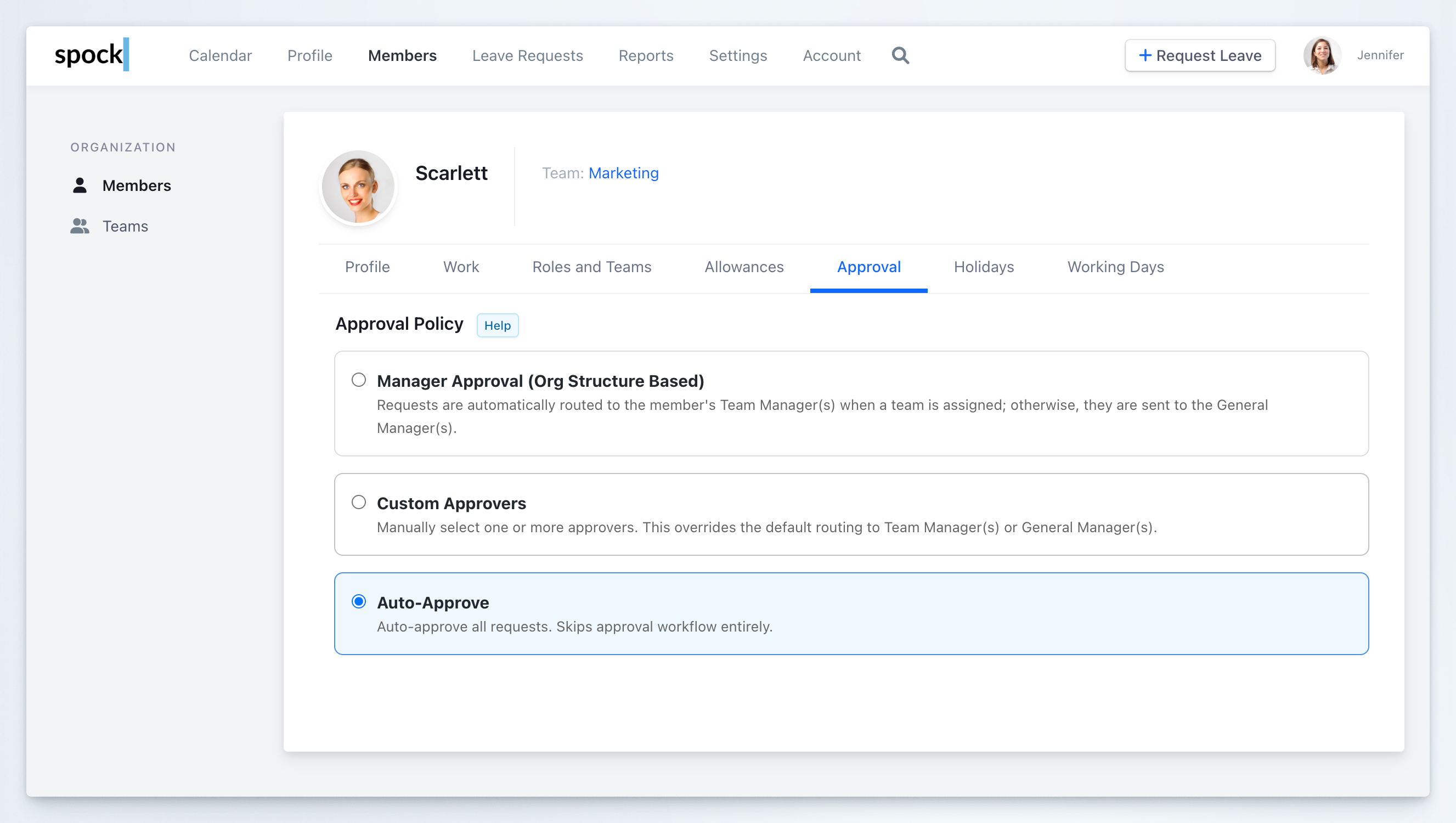
Each member can have an individual approval policy that determines how their leave requests are routed. You can configure these policies in the member's profile under the **Approval** tab (**Members** > select member > **Approval**).
Spock supports three approval policies:
### 1. Manager Approval (Org Structure Based)
Requests are automatically routed to the member's Team Manager(s) when a team is assigned; otherwise, they are sent to the General Manager(s).
This is the default policy for all members.
This policy leverages your organizational hierarchy:
* **Team Members**: Requests go to their assigned Team Manager(s)
* **Members without a Team**: Requests go to the General Manager(s)
* **General Managers**: Requests are auto-approved (no further review required)
## Approval Policy
Each member can have an individual approval policy that determines how their leave requests are routed. You can configure these policies in the member's profile under the **Approval** tab (**Members** > select member > **Approval**).
Spock supports three approval policies:
### 1. Manager Approval (Org Structure Based)
Requests are automatically routed to the member's Team Manager(s) when a team is assigned; otherwise, they are sent to the General Manager(s).
This is the default policy for all members.
This policy leverages your organizational hierarchy:
* **Team Members**: Requests go to their assigned Team Manager(s)
* **Members without a Team**: Requests go to the General Manager(s)
* **General Managers**: Requests are auto-approved (no further review required)
 ### 2. Custom Approvers
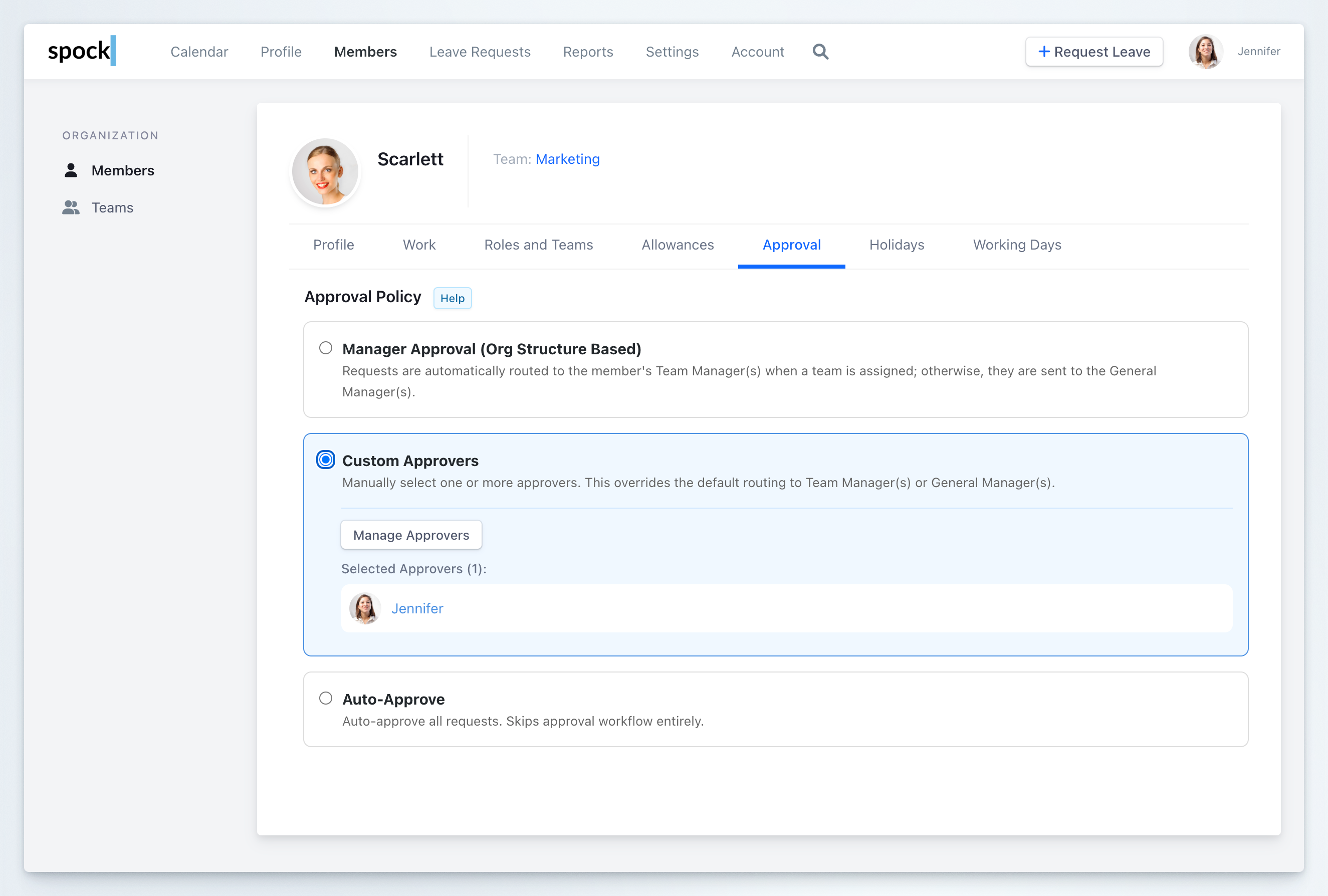
Manually select one or more approvers. This overrides the default routing to Team Manager(s) or General Manager(s).
Use this option when you need specific individuals to approve a member's requests, regardless of the organizational structure.
### 2. Custom Approvers
Manually select one or more approvers. This overrides the default routing to Team Manager(s) or General Manager(s).
Use this option when you need specific individuals to approve a member's requests, regardless of the organizational structure.
 To configure custom approvers:
1. Select the **Custom Approvers** option
2. Click **Manage Approvers**
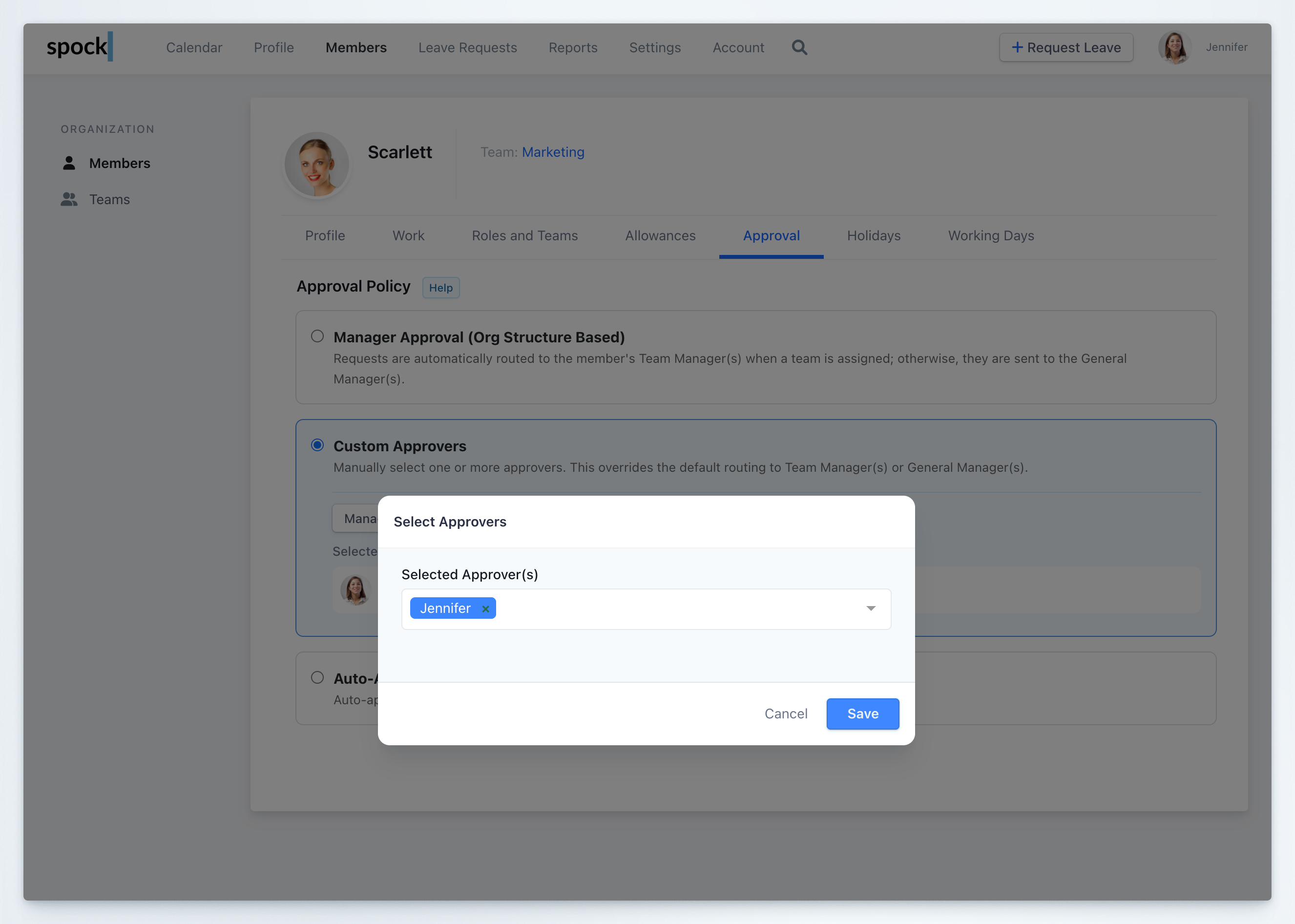
3. In the modal, search and select one or more approvers
4. Click **Save** to apply
To configure custom approvers:
1. Select the **Custom Approvers** option
2. Click **Manage Approvers**
3. In the modal, search and select one or more approvers
4. Click **Save** to apply
 Once set, these approvers will handle all future leave requests from this member.
### 3. Auto-Approve
Auto-approve all requests. Skips approval workflow entirely.
When enabled, the member's leave requests are approved automatically without requiring any manager review. This is useful for trusted employees or specific roles that don't require oversight.
Once set, these approvers will handle all future leave requests from this member.
### 3. Auto-Approve
Auto-approve all requests. Skips approval workflow entirely.
When enabled, the member's leave requests are approved automatically without requiring any manager review. This is useful for trusted employees or specific roles that don't require oversight.
 ## Approval Workflow Rules
The approval workflow follows these rules based on the member's configured approval policy:
| Approval Policy | How Requests Are Routed |
| ---------------- | -------------------------------------------------------------------------------- |
| Manager Approval | Routed to Team Manager(s) if assigned to a team, otherwise to General Manager(s) |
| Custom Approvers | Routed to the manually selected approver(s) |
| Auto-Approve | Approved automatically without review |
### Special Cases
* **General Managers**: Leave requests from General Managers are always approved automatically, regardless of their approval policy setting.
* **Team Managers**: By default, Team Manager requests are approved automatically. This can be changed in **Settings** > **Policies** > **Auto-Approval for Team Managers' Leave Requests** to require General Manager approval instead.
* **Approver Authority**: General Managers can approve any leave request in the organization, regardless of the requester's team or approval policy.
## Related Topics
Learn how to organize teams and assign managers.
Manage user roles and permissions.
Configure different types of leave and their requirements.
How managers can submit requests for team members.
By adhering to these rules, Spock ensures that your approval process is both streamlined and adherent to your organizational hierarchy and policies.
## Approval Workflow Rules
The approval workflow follows these rules based on the member's configured approval policy:
| Approval Policy | How Requests Are Routed |
| ---------------- | -------------------------------------------------------------------------------- |
| Manager Approval | Routed to Team Manager(s) if assigned to a team, otherwise to General Manager(s) |
| Custom Approvers | Routed to the manually selected approver(s) |
| Auto-Approve | Approved automatically without review |
### Special Cases
* **General Managers**: Leave requests from General Managers are always approved automatically, regardless of their approval policy setting.
* **Team Managers**: By default, Team Manager requests are approved automatically. This can be changed in **Settings** > **Policies** > **Auto-Approval for Team Managers' Leave Requests** to require General Manager approval instead.
* **Approver Authority**: General Managers can approve any leave request in the organization, regardless of the requester's team or approval policy.
## Related Topics
Learn how to organize teams and assign managers.
Manage user roles and permissions.
Configure different types of leave and their requirements.
How managers can submit requests for team members.
By adhering to these rules, Spock ensures that your approval process is both streamlined and adherent to your organizational hierarchy and policies.