> ## Documentation Index
> Fetch the complete documentation index at: https://docs.spockoffice.com/llms.txt
> Use this file to discover all available pages before exploring further.
# Allowances
> Configure default leave allowances for leave types and adjust individual employee allowances to accommodate unique circumstances.
A leave allowance is the total number of paid days off an employee is entitled to for a specific leave category over a year. Spock allows you to set default allowances for each leave type and manually adjust them for individual employees.
By default, the full allowance is available from January 1st. If you want to distribute it gradually over the year instead, see [Accruals](/spock/leave-management/accruals) to set up monthly or weekly accrual for individual employees.
## Understanding Leave Allowances
Leave allowances provide structure and consistency to your organization's time-off policies while allowing flexibility for special circumstances. The system automatically assigns default allowances to eligible employees and tracks all adjustments for auditing purposes.
Default allowances are automatically assigned to all employees at the beginning of each leave period or when a new employee joins the company.
## Configuring Default Allowances
Set standard allowances that apply to all employees for specific leave types.
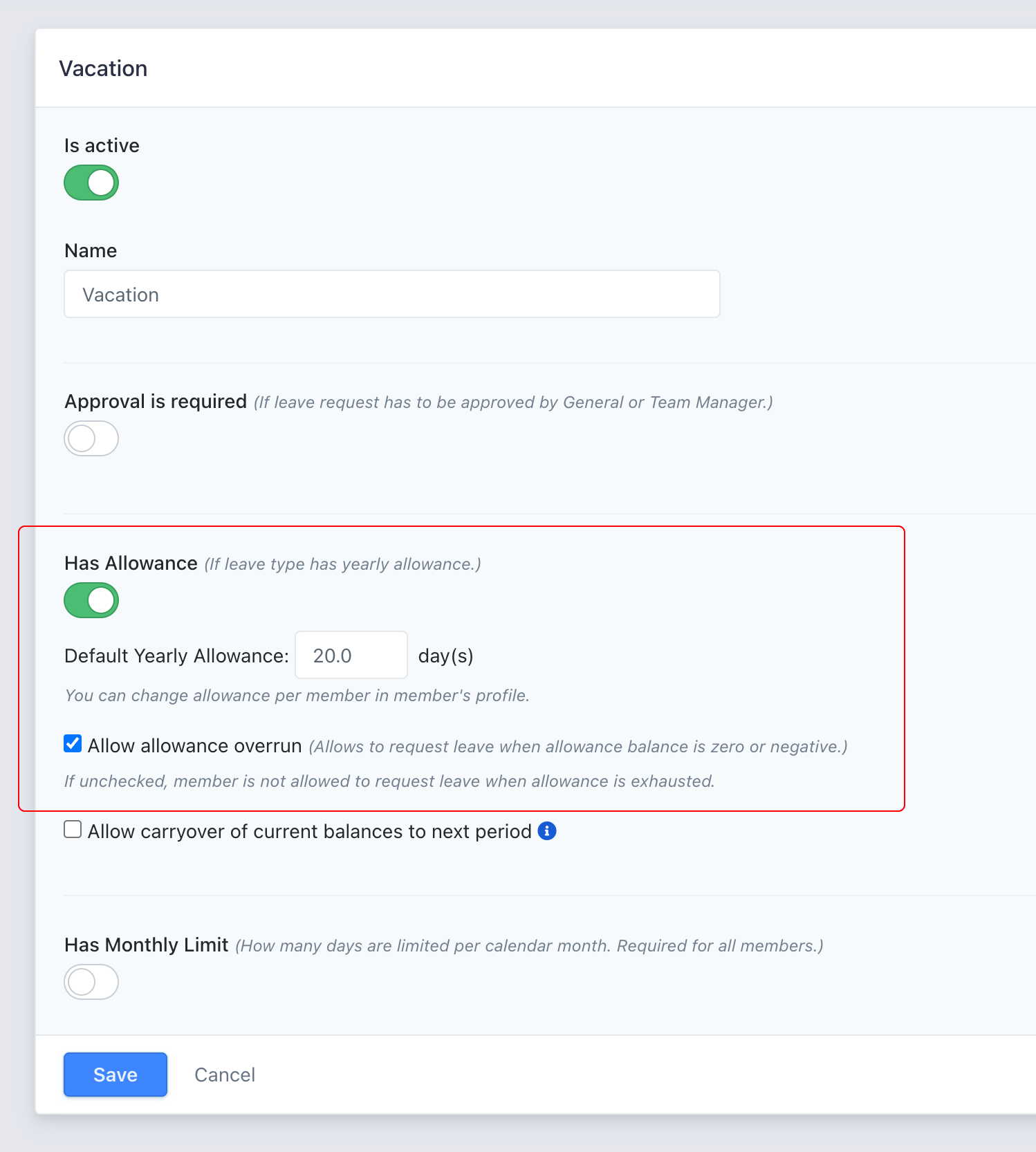
Go to **Settings** > **Leave Types** in your dashboard.
Choose the leave type you wish to configure from the list.
Toggle the **"Has Allowance"** option to enable allowance management for this leave type.
Enter the default number of days for the yearly allowance.
(Optional) Enable **"Allow Overrun"** to permit employees to request leave beyond their accrued balance, resulting in a negative balance.
 **Required Role:** Administrator or General Manager access is needed to configure default allowances.
## Adjusting Individual Employee Allowances
Sometimes you need to modify an individual's leave allowance for special circumstances such as:
* Rewarding long-term service
* Carrying over unused days from previous periods
* Accommodating contractual agreements
* Addressing unique employment situations
Navigate to the **Members** section in your dashboard.
Find and select the employee whose allowance you want to adjust.
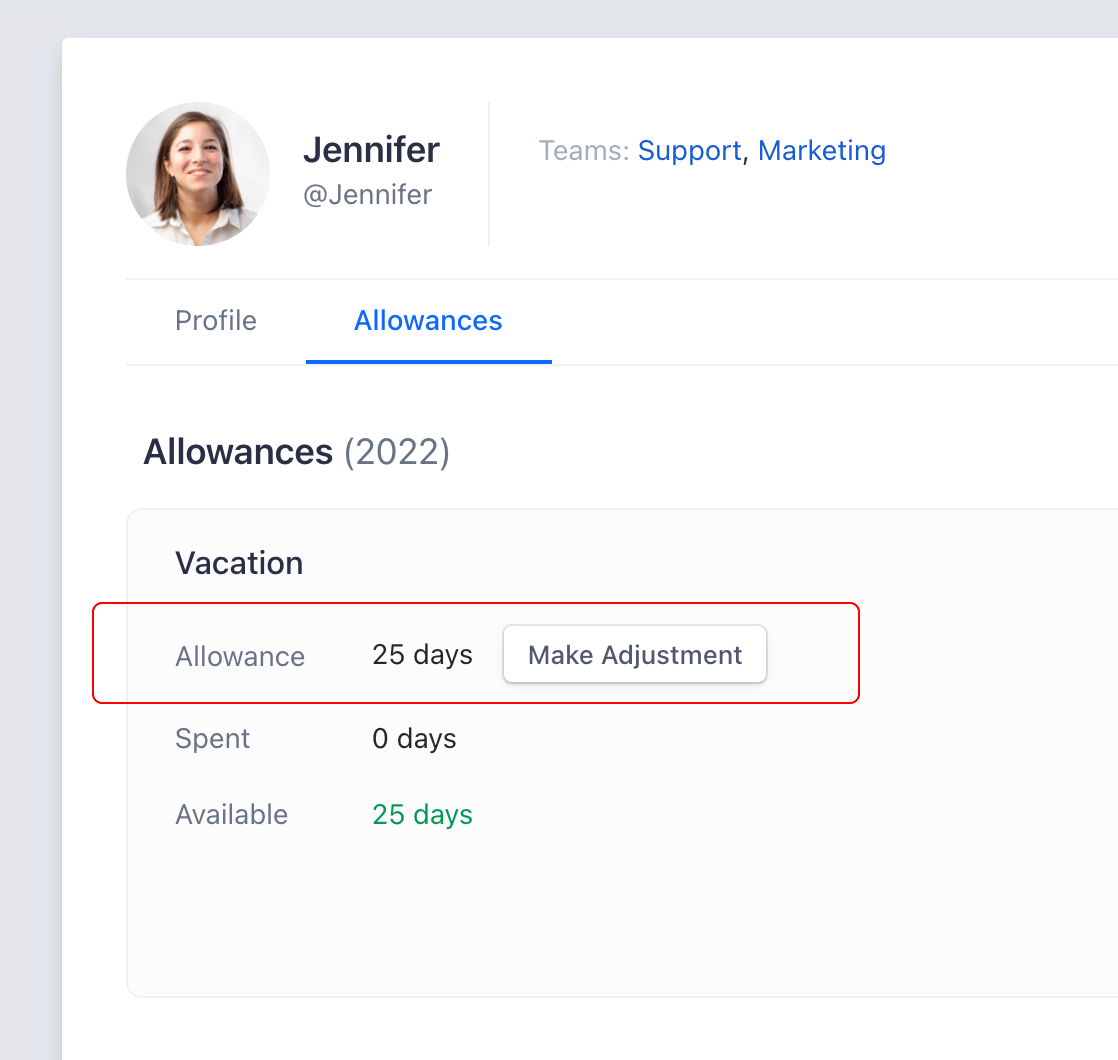
Go to the **"Allowances"** tab in the employee's profile.
Locate the specific leave type you need to adjust.
Click the **"Make Adjustment"** button to open the adjustment dialog.
**Required Role:** Administrator or General Manager access is needed to configure default allowances.
## Adjusting Individual Employee Allowances
Sometimes you need to modify an individual's leave allowance for special circumstances such as:
* Rewarding long-term service
* Carrying over unused days from previous periods
* Accommodating contractual agreements
* Addressing unique employment situations
Navigate to the **Members** section in your dashboard.
Find and select the employee whose allowance you want to adjust.
Go to the **"Allowances"** tab in the employee's profile.
Locate the specific leave type you need to adjust.
Click the **"Make Adjustment"** button to open the adjustment dialog.
 Input the new allowance value in the dialog box.
(Recommended) Add a note explaining the reason for the adjustment for audit trail purposes.
Input the new allowance value in the dialog box.
(Recommended) Add a note explaining the reason for the adjustment for audit trail purposes.
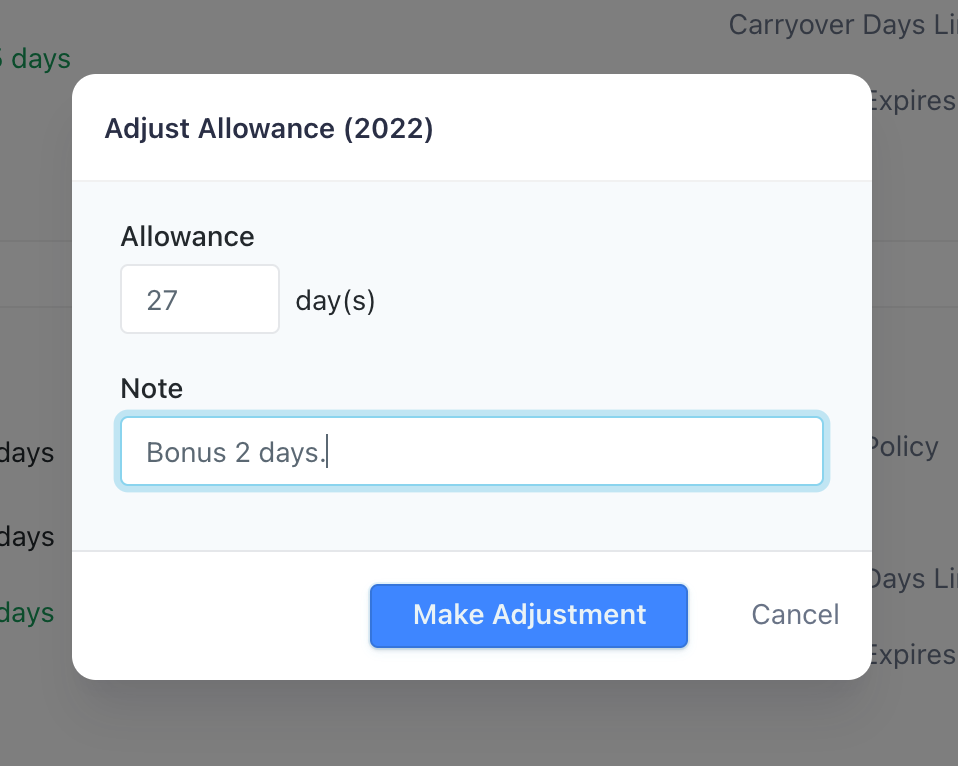 Click **"Make Adjustment"** to save the change.
**Required Role:** General Manager access is required to adjust individual employee allowances.
## Calculate Prorated Allowance for Employee
When an employee starts partway through the year or has a change in employment status mid-period, you may need to prorate their allowance to reflect the actual time they're eligible for leave. The proration calculator automatically determines the appropriate allowance based on the employee's start date and the default yearly allowance.
Common scenarios for prorated allowances include:
* New employees joining mid-year
* Employees returning from extended unpaid leave
* Changes in employment status affecting leave eligibility
* Mid-year adjustments to leave policies
Navigate to the employee's **Allowances** tab and click **"Make Adjustment"** for the relevant leave type.
In the adjustment dialog, click the **"Prorate Allowance"** button to open the proration calculator.
Click **"Make Adjustment"** to save the change.
**Required Role:** General Manager access is required to adjust individual employee allowances.
## Calculate Prorated Allowance for Employee
When an employee starts partway through the year or has a change in employment status mid-period, you may need to prorate their allowance to reflect the actual time they're eligible for leave. The proration calculator automatically determines the appropriate allowance based on the employee's start date and the default yearly allowance.
Common scenarios for prorated allowances include:
* New employees joining mid-year
* Employees returning from extended unpaid leave
* Changes in employment status affecting leave eligibility
* Mid-year adjustments to leave policies
Navigate to the employee's **Allowances** tab and click **"Make Adjustment"** for the relevant leave type.
In the adjustment dialog, click the **"Prorate Allowance"** button to open the proration calculator.
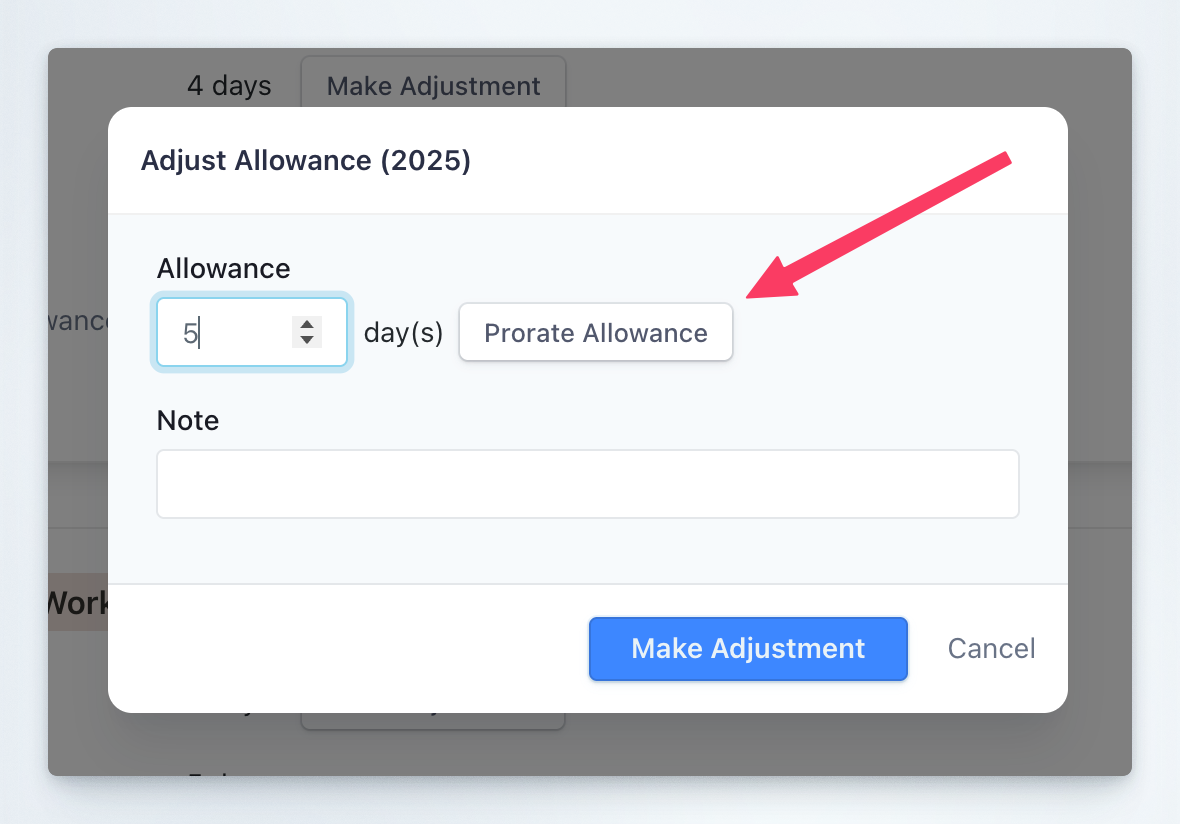 Select the date to which the allowance should be prorated (typically the employee's start date or the date when the change takes effect).
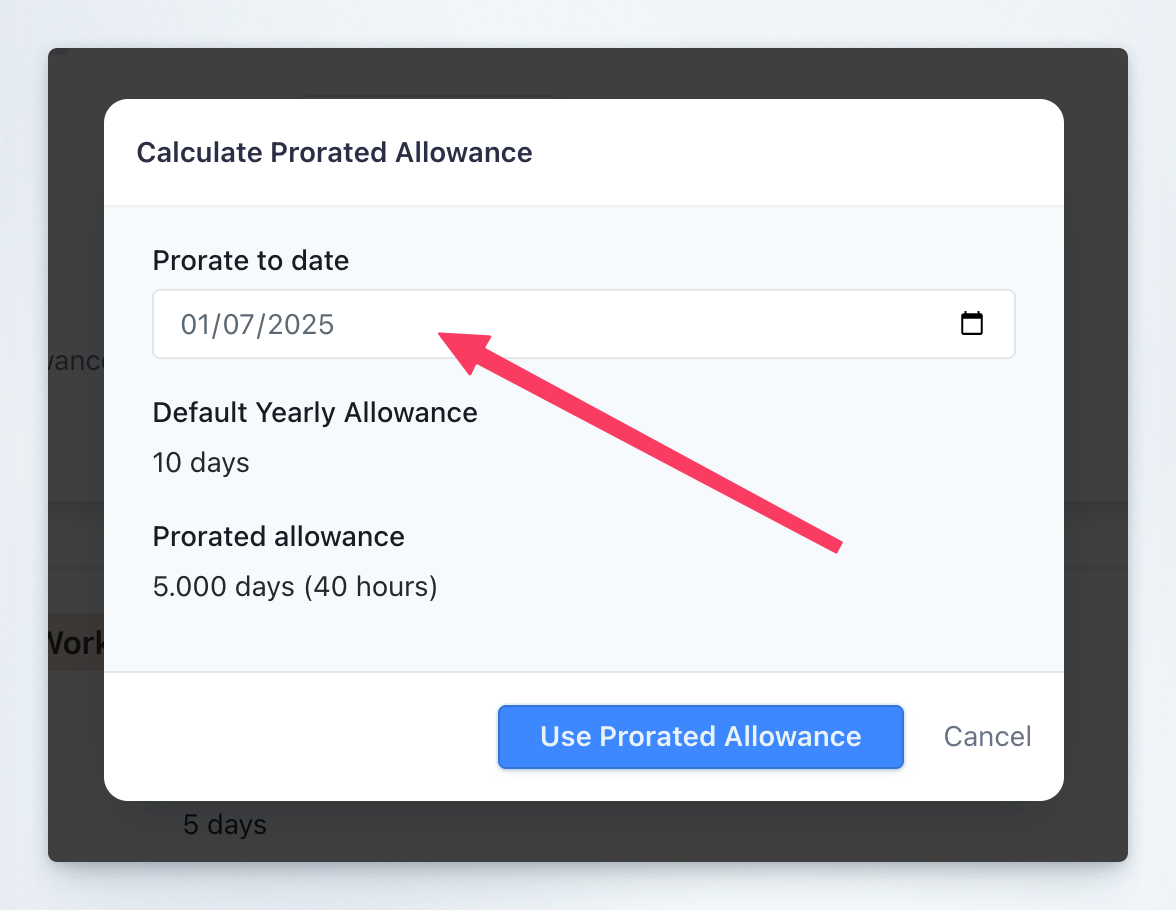 The system automatically calculates the prorated allowance based on:
* The default yearly allowance for the leave type
* The number of days remaining in the year from the selected date
Click **"Use Prorated Allowance"** to insert the calculated value into the adjustment dialog. The system automatically adds a note documenting the proration details.
Review the prorated allowance value and note, then click **"Make Adjustment"** to save the change.
The proration calculation uses the formula: (Default Allowance × Days Remaining) ÷ Days in Year. For example, if an employee starts on July 1st with a 10-day default allowance, their prorated allowance would be approximately 5 days (10 × 184 ÷ 365).
## Best Practices
Always add notes when making allowance adjustments to maintain a clear audit trail and explain the reasoning behind changes.
Establish clear policies for when and why allowance adjustments should be made to ensure fair treatment across your organization.
Periodically review allowance settings to ensure they align with your organization's current policies and legal requirements.
Carefully consider whether to allow overruns, as this can impact payroll and budgeting processes.
## Related Topics
Learn about configuring different types of leave in your organization.
Understand how unused allowances can be carried forward to the next period.
Manage user roles and permissions for allowance management.
Generate reports on allowance usage and adjustments.
The system maintains a complete history of all allowance adjustments, making it easy to track changes and ensure compliance with your organization's policies.
The system automatically calculates the prorated allowance based on:
* The default yearly allowance for the leave type
* The number of days remaining in the year from the selected date
Click **"Use Prorated Allowance"** to insert the calculated value into the adjustment dialog. The system automatically adds a note documenting the proration details.
Review the prorated allowance value and note, then click **"Make Adjustment"** to save the change.
The proration calculation uses the formula: (Default Allowance × Days Remaining) ÷ Days in Year. For example, if an employee starts on July 1st with a 10-day default allowance, their prorated allowance would be approximately 5 days (10 × 184 ÷ 365).
## Best Practices
Always add notes when making allowance adjustments to maintain a clear audit trail and explain the reasoning behind changes.
Establish clear policies for when and why allowance adjustments should be made to ensure fair treatment across your organization.
Periodically review allowance settings to ensure they align with your organization's current policies and legal requirements.
Carefully consider whether to allow overruns, as this can impact payroll and budgeting processes.
## Related Topics
Learn about configuring different types of leave in your organization.
Understand how unused allowances can be carried forward to the next period.
Manage user roles and permissions for allowance management.
Generate reports on allowance usage and adjustments.
The system maintains a complete history of all allowance adjustments, making it easy to track changes and ensure compliance with your organization's policies.