> ## Documentation Index
> Fetch the complete documentation index at: https://docs.spockoffice.com/llms.txt
> Use this file to discover all available pages before exploring further.
# Accruals
> Distribute leave allowances gradually over the year with monthly or weekly accrual, instead of granting the full balance on January 1st.
Accrual distributes an employee's yearly leave allowance gradually over the year instead of granting it all at once. You can configure accrual per employee from the **Allowances** tab.
Before setting up accrual, make sure the leave type has allowance tracking enabled and a default allowance configured. See [Allowances](/spock/leave-management/allowances) for details.
## Accrual Frequencies
Spock supports three accrual modes:
| Mode | How it works | Example |
| -------------------- | ------------------------------------------------------------------------ | --------------------------------- |
| **Yearly** (default) | Full allowance available from day one of the year | 25 days available on January 1st |
| **Monthly** | Yearly target divided into 12 portions, accrued on the 1st of each month | 24-day target = 2 days per month |
| **Weekly** | Yearly target divided into 52 portions, accrued every Monday | 26-day target = 0.5 days per week |
### Why Use Accrual?
* Prevents employees from using their entire annual leave early in the year and then leaving the company.
* Aligns with legal requirements in jurisdictions where leave must be earned over time.
* Gives managers better visibility into how much leave an employee has actually earned versus what they plan to use.
### Key Concepts
| Term | Meaning |
| ----------------- | -------------------------------------------------------------------------------------------------- |
| Yearly Target | Total days the employee will earn over the full year |
| Per-Period Amount | Days added each period (Yearly Target / 12 for monthly, / 52 for weekly) |
| Start Date | Date from which accrual begins (typically the hire date); past periods are automatically caught up |
| Pro-rate | When enabled, the first partial period is reduced proportionally |
| Accrual Schedule | Timeline showing completed, current, and planned accrual periods for the year |
## Setting Up Accrual for an Employee
Navigate to the employee's profile and go to the **Allowances** tab. You will see each leave type with its current accrual configuration.
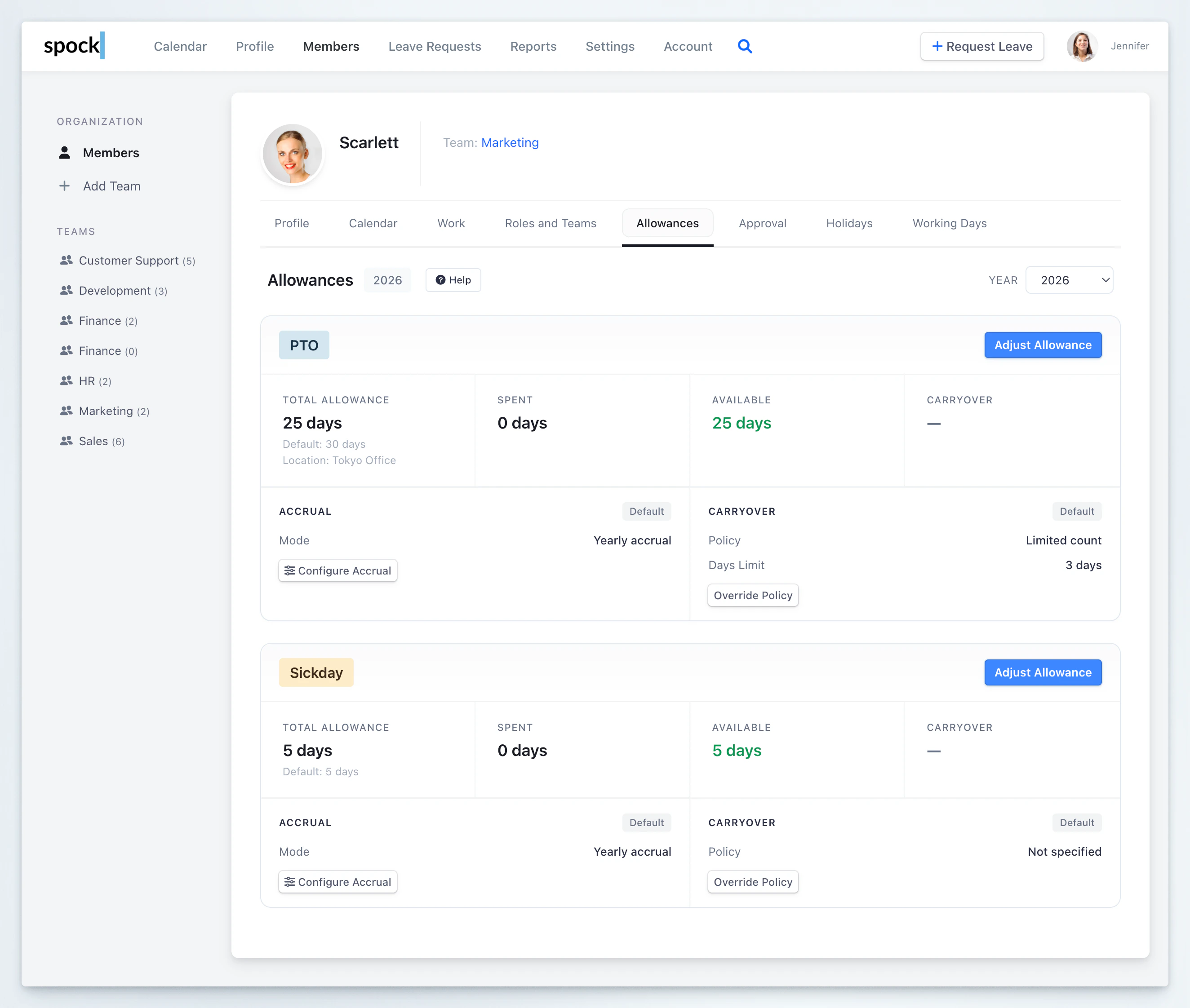 Click the **Configure Accrual** button on the leave type you want to set up. A dialog titled **Configure Accrual Policy** opens.
Check **"Override default accrual policy"** to enable per-employee accrual settings that override the company default.
Select the **Accrual Frequency** from the dropdown:
* **Yearly** — full allowance granted at start of year
* **Monthly** — accrues on the 1st of each month
* **Weekly** — accrues every Monday
Enter the **Yearly Target (days)** — the total number of leave days the employee should earn over the full year.
Spock shows the calculated per-period amount below the input. For example, a yearly target of 24 days with monthly frequency shows: *"Per-period accrual: 2.000 days/month"*.
Enter a **Start Date** for the accrual. This is usually the employee's hire date or the date from which the new policy should begin.
* If the start date is in the past, Spock shows how many past periods will be automatically accrued as catch-up.
* The start date is also used for pro-rating the first partial period when pro-rate is enabled.
Check **"Pro-rate for partial periods"** to reduce the first period when the start date falls partway through it.
**Example:** Monthly accrual with a start date of January 15. The full monthly amount is 2 days. With pro-rating enabled, January accrual = 2 x (17/31) = 1.097 days. Without pro-rating, the full 2 days are granted.
If the employee already has a non-zero allowance balance, Spock asks whether you want to reset it to zero before starting accruals.
* **Check the box** to reset to zero — accruals will build the balance from scratch.
* **Leave unchecked** to keep the existing balance and add accruals on top.
Click the **Configure Accrual** button on the leave type you want to set up. A dialog titled **Configure Accrual Policy** opens.
Check **"Override default accrual policy"** to enable per-employee accrual settings that override the company default.
Select the **Accrual Frequency** from the dropdown:
* **Yearly** — full allowance granted at start of year
* **Monthly** — accrues on the 1st of each month
* **Weekly** — accrues every Monday
Enter the **Yearly Target (days)** — the total number of leave days the employee should earn over the full year.
Spock shows the calculated per-period amount below the input. For example, a yearly target of 24 days with monthly frequency shows: *"Per-period accrual: 2.000 days/month"*.
Enter a **Start Date** for the accrual. This is usually the employee's hire date or the date from which the new policy should begin.
* If the start date is in the past, Spock shows how many past periods will be automatically accrued as catch-up.
* The start date is also used for pro-rating the first partial period when pro-rate is enabled.
Check **"Pro-rate for partial periods"** to reduce the first period when the start date falls partway through it.
**Example:** Monthly accrual with a start date of January 15. The full monthly amount is 2 days. With pro-rating enabled, January accrual = 2 x (17/31) = 1.097 days. Without pro-rating, the full 2 days are granted.
If the employee already has a non-zero allowance balance, Spock asks whether you want to reset it to zero before starting accruals.
* **Check the box** to reset to zero — accruals will build the balance from scratch.
* **Leave unchecked** to keep the existing balance and add accruals on top.
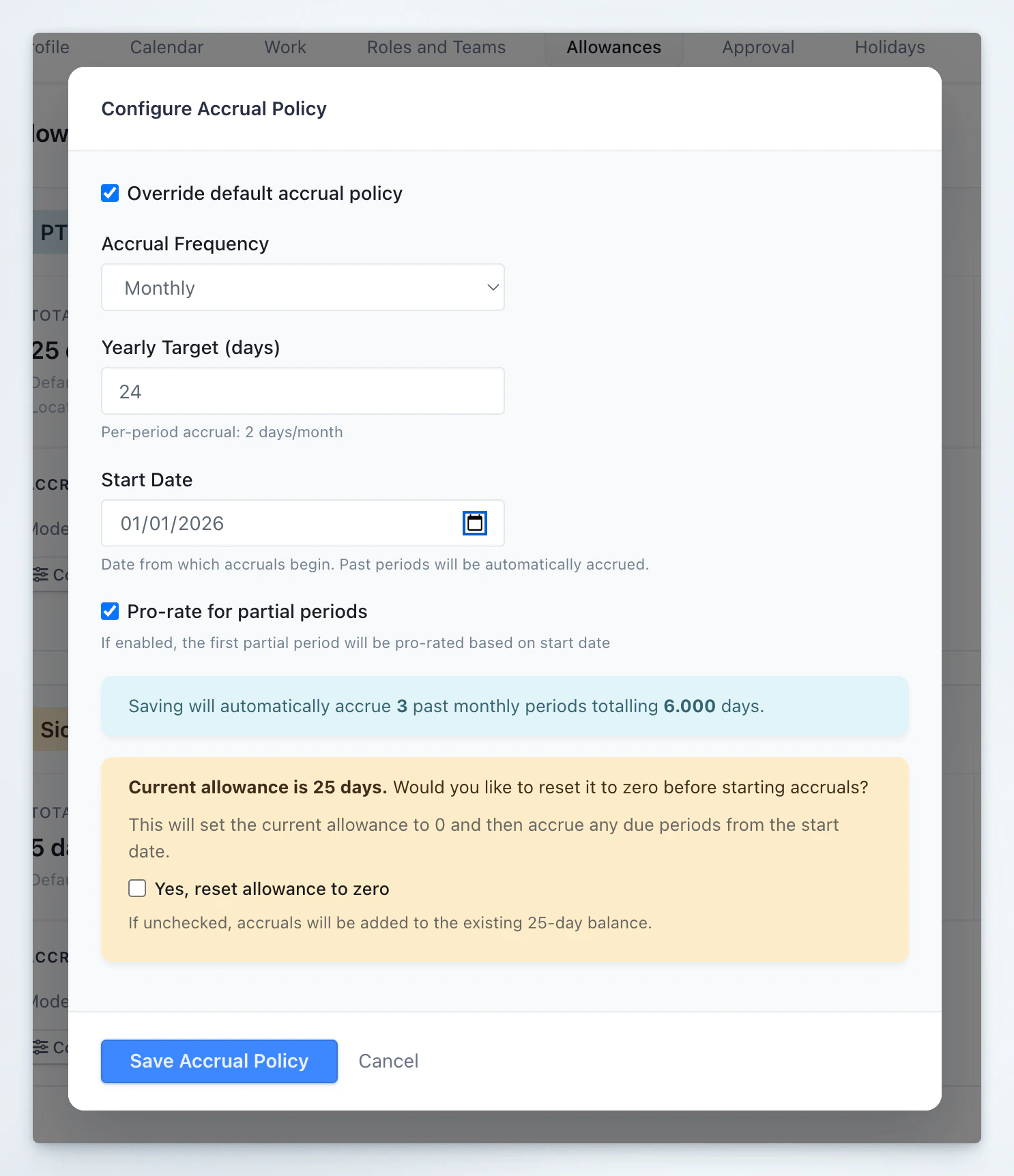 Click **Save Accrual Policy**. Spock saves the configuration, processes any catch-up accruals for past periods, and updates the employee's balance.
**Required Role:** Administrator or General Manager access is needed to configure accrual policies.
## Viewing the Accrual Schedule
After setting up monthly or weekly accrual, an **Accrual Schedule** button appears next to Configure Accrual. Click it to see a timeline of the entire year showing:
* **Summary stats** — total Accrued (completed), Planned (future), and Yearly Target
* **Timeline** with each period displayed as a row:
* Green check = **Completed** (already accrued)
* Clock icon = **Current** period (in progress)
* Empty circle = **Pending** (future, planned)
* Minus icon = **Skipped** (before start date)
* **Pro-rated** periods are marked with an info badge showing the calculation reason
Click **Save Accrual Policy**. Spock saves the configuration, processes any catch-up accruals for past periods, and updates the employee's balance.
**Required Role:** Administrator or General Manager access is needed to configure accrual policies.
## Viewing the Accrual Schedule
After setting up monthly or weekly accrual, an **Accrual Schedule** button appears next to Configure Accrual. Click it to see a timeline of the entire year showing:
* **Summary stats** — total Accrued (completed), Planned (future), and Yearly Target
* **Timeline** with each period displayed as a row:
* Green check = **Completed** (already accrued)
* Clock icon = **Current** period (in progress)
* Empty circle = **Pending** (future, planned)
* Minus icon = **Skipped** (before start date)
* **Pro-rated** periods are marked with an info badge showing the calculation reason
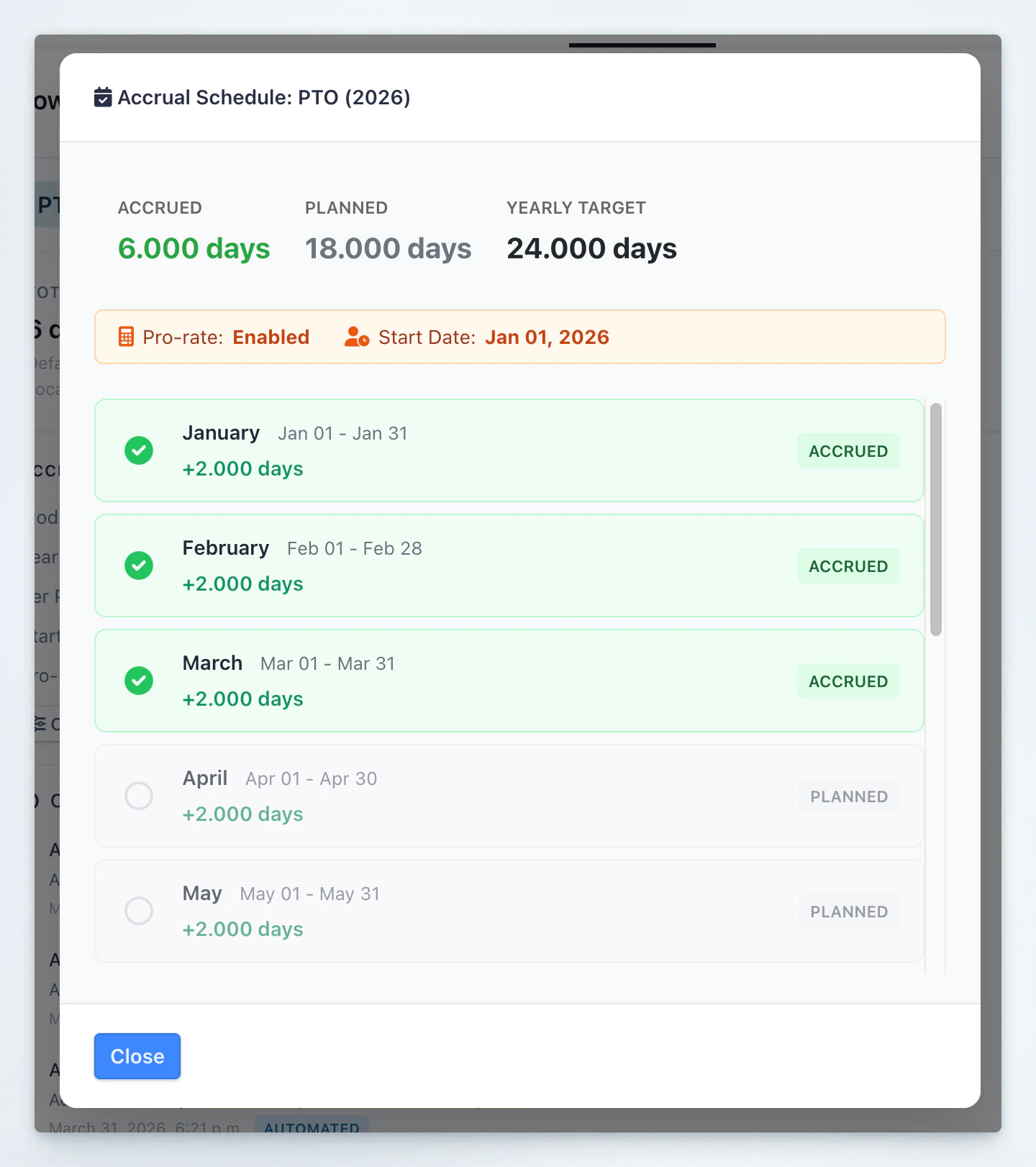 Monthly accrual follows calendar months. Weekly accrual follows Monday–Sunday periods. If the leave type uses **Yearly** mode, there is no periodic schedule to display.
## Changing an Existing Accrual Policy
When you modify any accrual setting on an employee that already has accrual history, Spock shows a **policy change warning** panel:
> *"Changing this accrual policy will recalculate historical accruals."*
### Effective Date
Choose the date from which the new policy takes effect. Spock can align the recalculation start to a clean accrual boundary:
* A monthly change can align to the first day of the month
* A weekly change can align to Monday
* Switching to **Yearly** can recalculate from January 1
* Changing the yearly target inside an active periodic policy can also recalculate from January 1
### Reason for Change
Optionally enter a note explaining the policy change (for example, *"Promoted to senior role, increased PTO"*). This is recorded in the audit trail.
### Recalculation Preview
Spock automatically shows a preview of the impact before you save:
* **Balance change** — current balance vs. recalculated balance (with the difference shown as +/- days)
* **Periods affected** — how many existing accrual periods will be replaced and how many new ones will be created
Manual adjustments, carryover, and booked leave are preserved. Only accrual-generated balance is recalculated.
### Confirmation
You must check the box **"I understand this change will recalculate accrual history from the effective date"** before saving.
### Reverting to Company Default
To remove the per-employee accrual override:
1. Open **Configure Accrual**.
2. Uncheck **"Override default accrual policy"**.
3. Click **Save Accrual Policy**.
This returns the allowance to the company default policy and clears the custom accrual history tied to the employee override.
## Accrual Panel and Change History
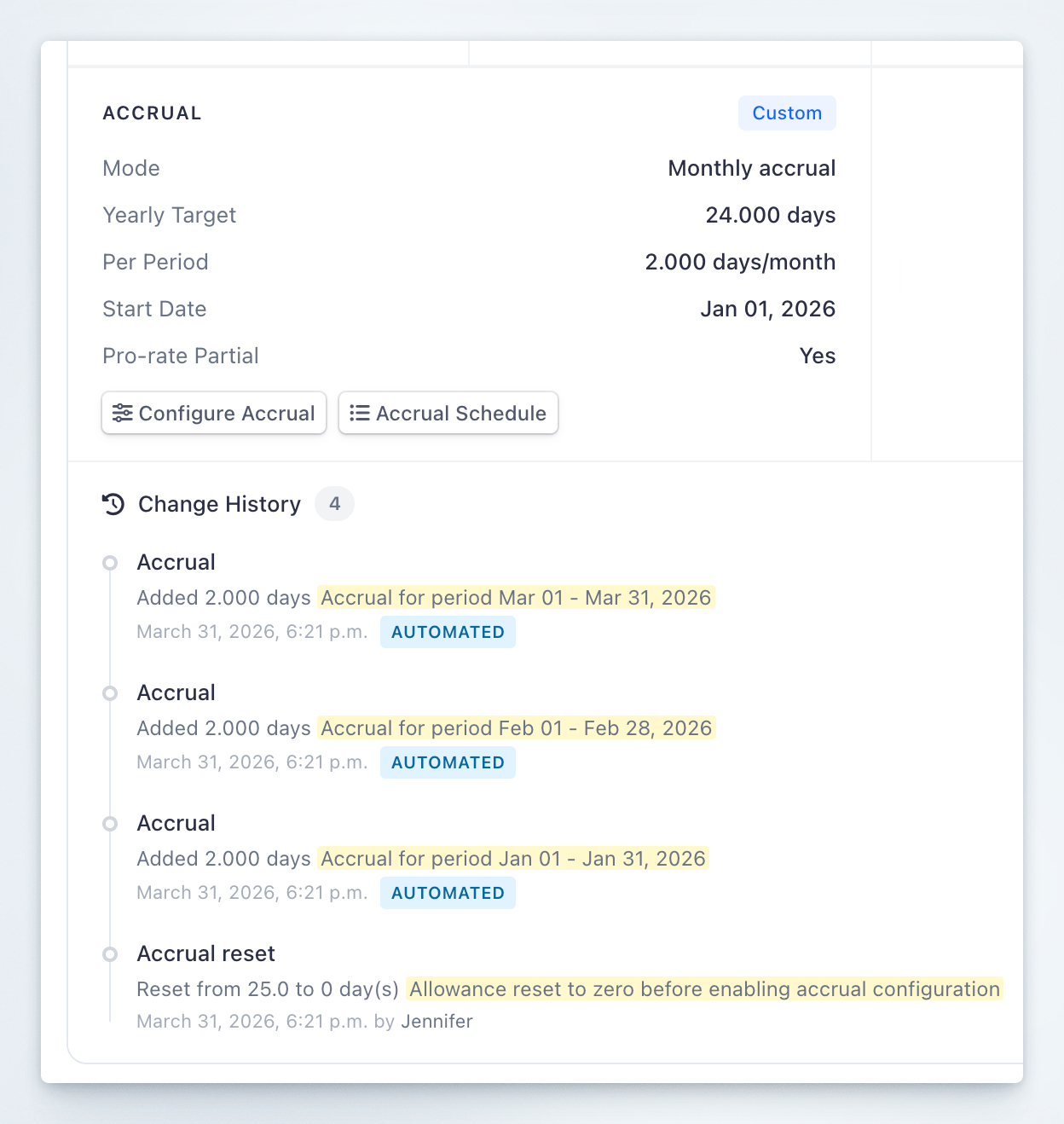
After configuration, the Accrual panel on the employee's Allowances page displays:
| Field | Meaning |
| ----------------------- | --------------------------------------------------------------- |
| Mode | Current accrual frequency (Yearly / Monthly / Weekly) |
| Yearly Target | Total days to be earned over the year |
| Per Period | Calculated amount per accrual period |
| Start Date | Date accruals began |
| Pro-rate Partial | Whether the first partial period is pro-rated |
| Badge: Default / Custom | Whether the employee uses company defaults or a custom override |
Monthly accrual follows calendar months. Weekly accrual follows Monday–Sunday periods. If the leave type uses **Yearly** mode, there is no periodic schedule to display.
## Changing an Existing Accrual Policy
When you modify any accrual setting on an employee that already has accrual history, Spock shows a **policy change warning** panel:
> *"Changing this accrual policy will recalculate historical accruals."*
### Effective Date
Choose the date from which the new policy takes effect. Spock can align the recalculation start to a clean accrual boundary:
* A monthly change can align to the first day of the month
* A weekly change can align to Monday
* Switching to **Yearly** can recalculate from January 1
* Changing the yearly target inside an active periodic policy can also recalculate from January 1
### Reason for Change
Optionally enter a note explaining the policy change (for example, *"Promoted to senior role, increased PTO"*). This is recorded in the audit trail.
### Recalculation Preview
Spock automatically shows a preview of the impact before you save:
* **Balance change** — current balance vs. recalculated balance (with the difference shown as +/- days)
* **Periods affected** — how many existing accrual periods will be replaced and how many new ones will be created
Manual adjustments, carryover, and booked leave are preserved. Only accrual-generated balance is recalculated.
### Confirmation
You must check the box **"I understand this change will recalculate accrual history from the effective date"** before saving.
### Reverting to Company Default
To remove the per-employee accrual override:
1. Open **Configure Accrual**.
2. Uncheck **"Override default accrual policy"**.
3. Click **Save Accrual Policy**.
This returns the allowance to the company default policy and clears the custom accrual history tied to the employee override.
## Accrual Panel and Change History
After configuration, the Accrual panel on the employee's Allowances page displays:
| Field | Meaning |
| ----------------------- | --------------------------------------------------------------- |
| Mode | Current accrual frequency (Yearly / Monthly / Weekly) |
| Yearly Target | Total days to be earned over the year |
| Per Period | Calculated amount per accrual period |
| Start Date | Date accruals began |
| Pro-rate Partial | Whether the first partial period is pro-rated |
| Badge: Default / Custom | Whether the employee uses company defaults or a custom override |
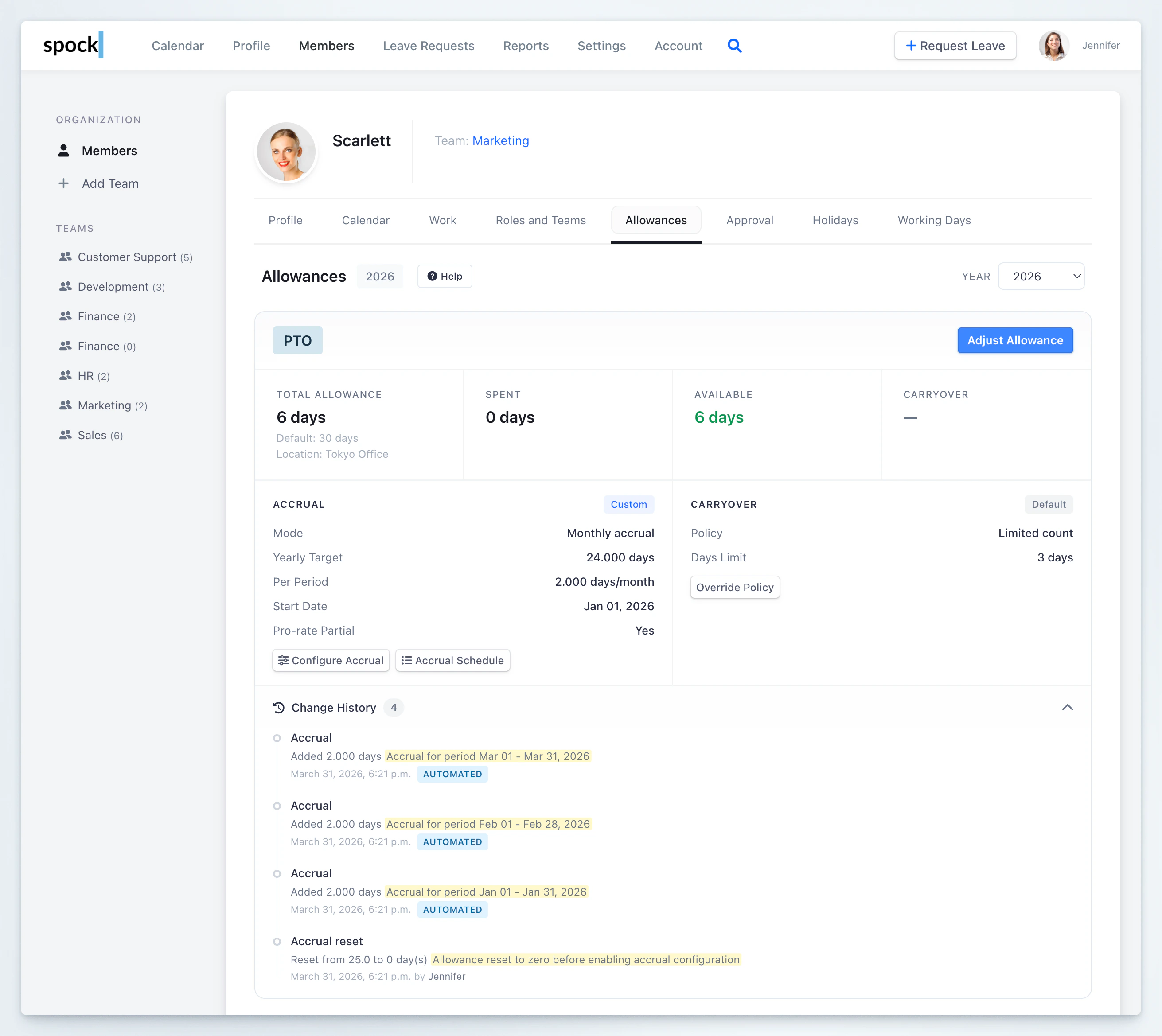 All accrual-related events appear in the **Change History** section:
* **Accrual** — each time a period is accrued (automated)
* **Accrual policy change** — when the policy is modified
* **Accrual reset** — when custom accrual is disabled
* **Accrual reconciliation** — when historical accruals are recalculated after a policy change
Each entry shows the balance change, timestamp, and whether it was automated or performed by a specific admin.
All accrual-related events appear in the **Change History** section:
* **Accrual** — each time a period is accrued (automated)
* **Accrual policy change** — when the policy is modified
* **Accrual reset** — when custom accrual is disabled
* **Accrual reconciliation** — when historical accruals are recalculated after a policy change
Each entry shows the balance change, timestamp, and whether it was automated or performed by a specific admin.
 ## What Carries Into the Next Year
* **Frequency** carries forward
* **Yearly Target** carries forward
* **Pro-rate for partial periods** carries forward
* **Start Date** does not carry forward — it is treated as a one-time date for the year being configured
## When Accruals Run
| Frequency | Schedule |
| --------- | ------------------------------ |
| Monthly | 1st of each month at 00:05 UTC |
| Weekly | Every Monday at 00:05 UTC |
Accruals are processed automatically — no manual action is needed after setup.
## Related Topics
Configure default leave allowances and adjust individual employee balances.
Understand how unused balances transfer to the next period.
Set up leave categories including allowance tracking.
Configure which days count as working days for leave calculations.
## What Carries Into the Next Year
* **Frequency** carries forward
* **Yearly Target** carries forward
* **Pro-rate for partial periods** carries forward
* **Start Date** does not carry forward — it is treated as a one-time date for the year being configured
## When Accruals Run
| Frequency | Schedule |
| --------- | ------------------------------ |
| Monthly | 1st of each month at 00:05 UTC |
| Weekly | Every Monday at 00:05 UTC |
Accruals are processed automatically — no manual action is needed after setup.
## Related Topics
Configure default leave allowances and adjust individual employee balances.
Understand how unused balances transfer to the next period.
Set up leave categories including allowance tracking.
Configure which days count as working days for leave calculations.