> ## Documentation Index
> Fetch the complete documentation index at: https://docs.spockoffice.com/llms.txt
> Use this file to discover all available pages before exploring further.
# Slack Status Updating
> Automatically update Slack statuses when users are on leave to enhance communication and transparency within your team.
This functionality enhances communication and transparency within your team by automatically updating Slack statuses when a user is on leave. By activating this feature, Spock will indicate a user's leave type and the duration of leave directly within Slack.
## Setup Slack Status Updating (Administrators)
The following steps guide administrators through the process of enabling the Slack Status Update feature within Spock:
Navigate to **Settings** in your Spock dashboard and click on **Leave Types** to view the different leaves available.
Select the specific **Leave Type** you wish to modify.
Within the Leave Type settings, locate the **"Allow Slack Status Update"** toggle switch and switch it on to enable the feature for that particular leave type.
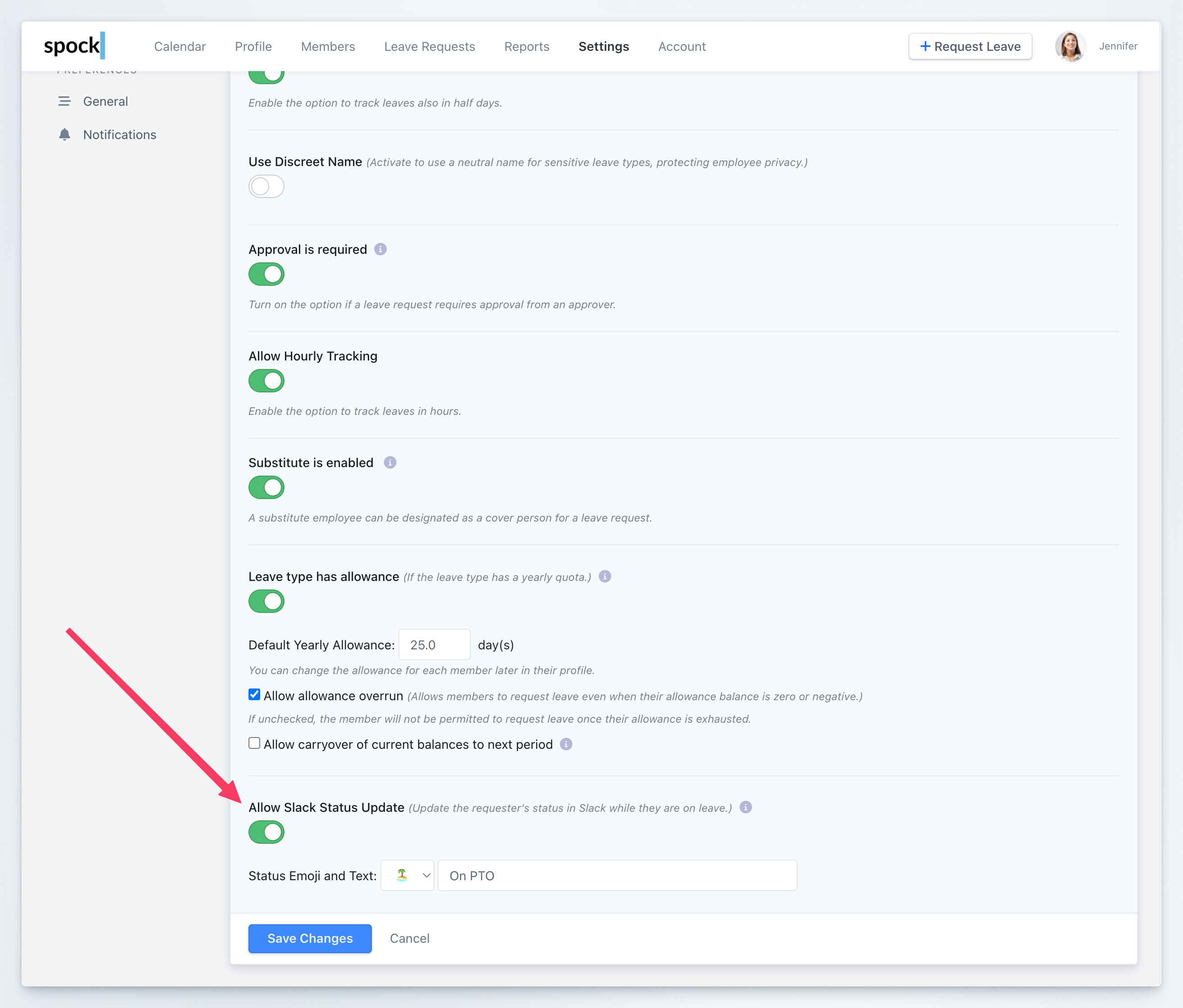 Once enabled, you can select a **Status Emoji** that best represents the leave type and enter the **Status Text** that will appear alongside the emoji in Slack to describe the leave status.
After configuring the emoji and text, click **Save** to apply the settings. The Slack Status Update is now enabled for the selected leave type.
## Authorize Spock to Update Slack Status for User
Each user must grant permission for Spock to update their Slack status. Here's how users can authorize this feature:
In Slack, navigate to the **Spock home tab** and click the **"Allow Status Update"** button.
Once enabled, you can select a **Status Emoji** that best represents the leave type and enter the **Status Text** that will appear alongside the emoji in Slack to describe the leave status.
After configuring the emoji and text, click **Save** to apply the settings. The Slack Status Update is now enabled for the selected leave type.
## Authorize Spock to Update Slack Status for User
Each user must grant permission for Spock to update their Slack status. Here's how users can authorize this feature:
In Slack, navigate to the **Spock home tab** and click the **"Allow Status Update"** button.
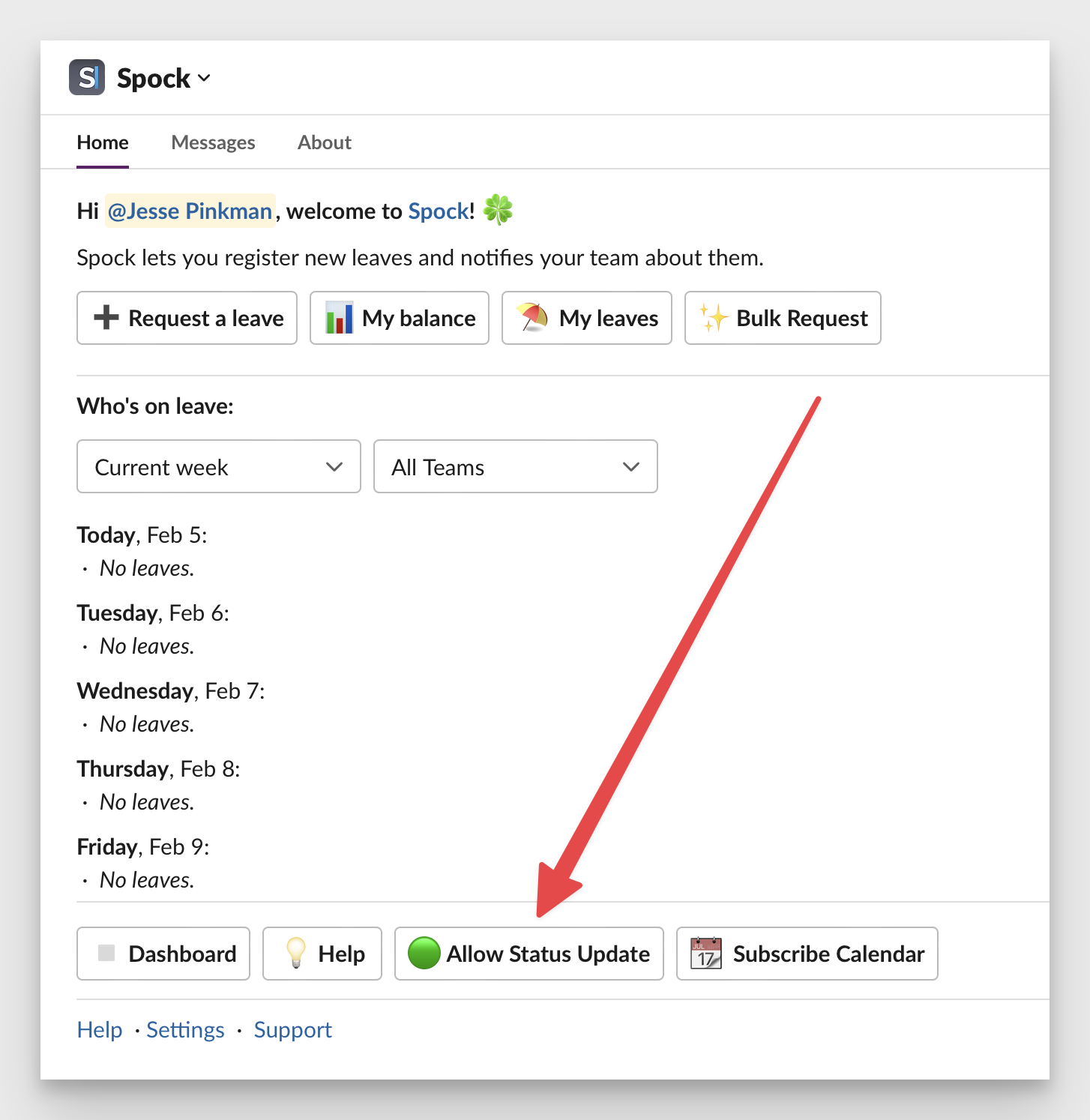 You'll be redirected to the **authorization page**. Click on the **"Authorize"** button to proceed and follow the prompts to give Spock permission to update your Slack status.
After completing the authorization, Spock will now have the ability to automatically update your Slack status when you submit a leave request. Once approved, your Slack status will reflect the type and duration of your leave automatically.
For the Slack Status Update feature to work effectively, all users planning to use this feature must go through the authorization process individually.
## Managing Slack Status Update Settings
You can manage your Slack Status Update authorization at any time through the Spock Dashboard:
Navigate to **Settings** > **Notifications** > **Slack Status Update** in the Spock Dashboard.
You'll be redirected to the **authorization page**. Click on the **"Authorize"** button to proceed and follow the prompts to give Spock permission to update your Slack status.
After completing the authorization, Spock will now have the ability to automatically update your Slack status when you submit a leave request. Once approved, your Slack status will reflect the type and duration of your leave automatically.
For the Slack Status Update feature to work effectively, all users planning to use this feature must go through the authorization process individually.
## Managing Slack Status Update Settings
You can manage your Slack Status Update authorization at any time through the Spock Dashboard:
Navigate to **Settings** > **Notifications** > **Slack Status Update** in the Spock Dashboard.
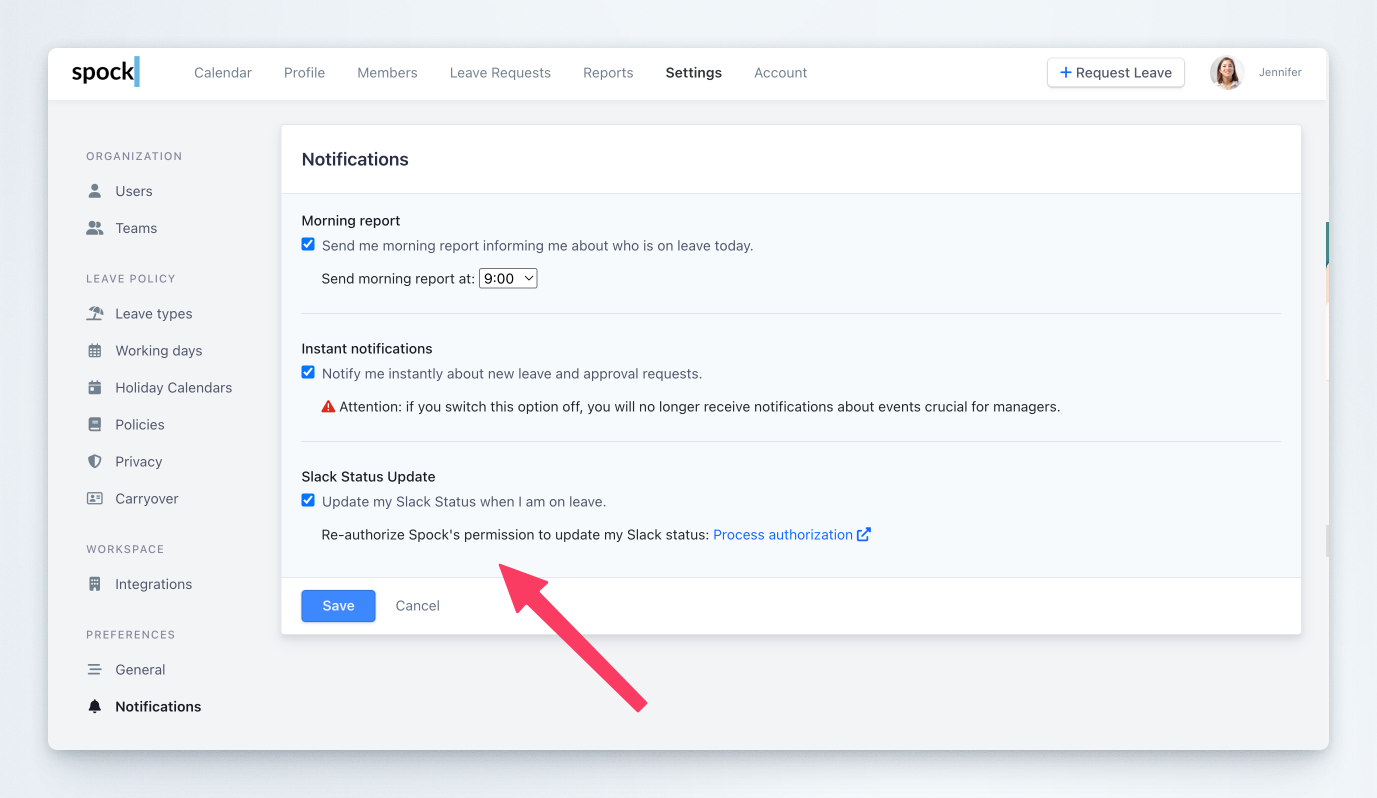 From this page, you can:
* **Re-authorize** Spock to update your Slack status if authorization has expired or been revoked
* **Switch off** Slack status updating temporarily if you need to disable it without removing authorization
If you only need to temporarily disable Slack status updates, use the switch-off option rather than revoking authorization. This makes it easier to re-enable the feature later without going through the full authorization process again.
From this page, you can:
* **Re-authorize** Spock to update your Slack status if authorization has expired or been revoked
* **Switch off** Slack status updating temporarily if you need to disable it without removing authorization
If you only need to temporarily disable Slack status updates, use the switch-off option rather than revoking authorization. This makes it easier to re-enable the feature later without going through the full authorization process again.