> ## Documentation Index
> Fetch the complete documentation index at: https://docs.spockoffice.com/llms.txt
> Use this file to discover all available pages before exploring further.
# Calendar Integration Setup
> Connect Spock with your calendar app to display leave information using iCal format, supporting Google Calendar, Apple Calendar, and Microsoft Outlook.
Spock allows you to display leave information directly in your calendar app using the iCal format, which is supported by all major calendar applications including Google Calendar, Apple Calendar, and Microsoft Outlook.
## Calendar Types
Spock offers two types of calendars for synchronization:
Displays all approved leaves for all active workspace members across the entire organization.
Displays all approved leaves for members of a selected team only.
## Integration via Slack
The quickest way to subscribe to your calendar:
Navigate to the Spock app within your Slack workspace.
Click the **"Subscribe Calendar"** button in the Spock interface.
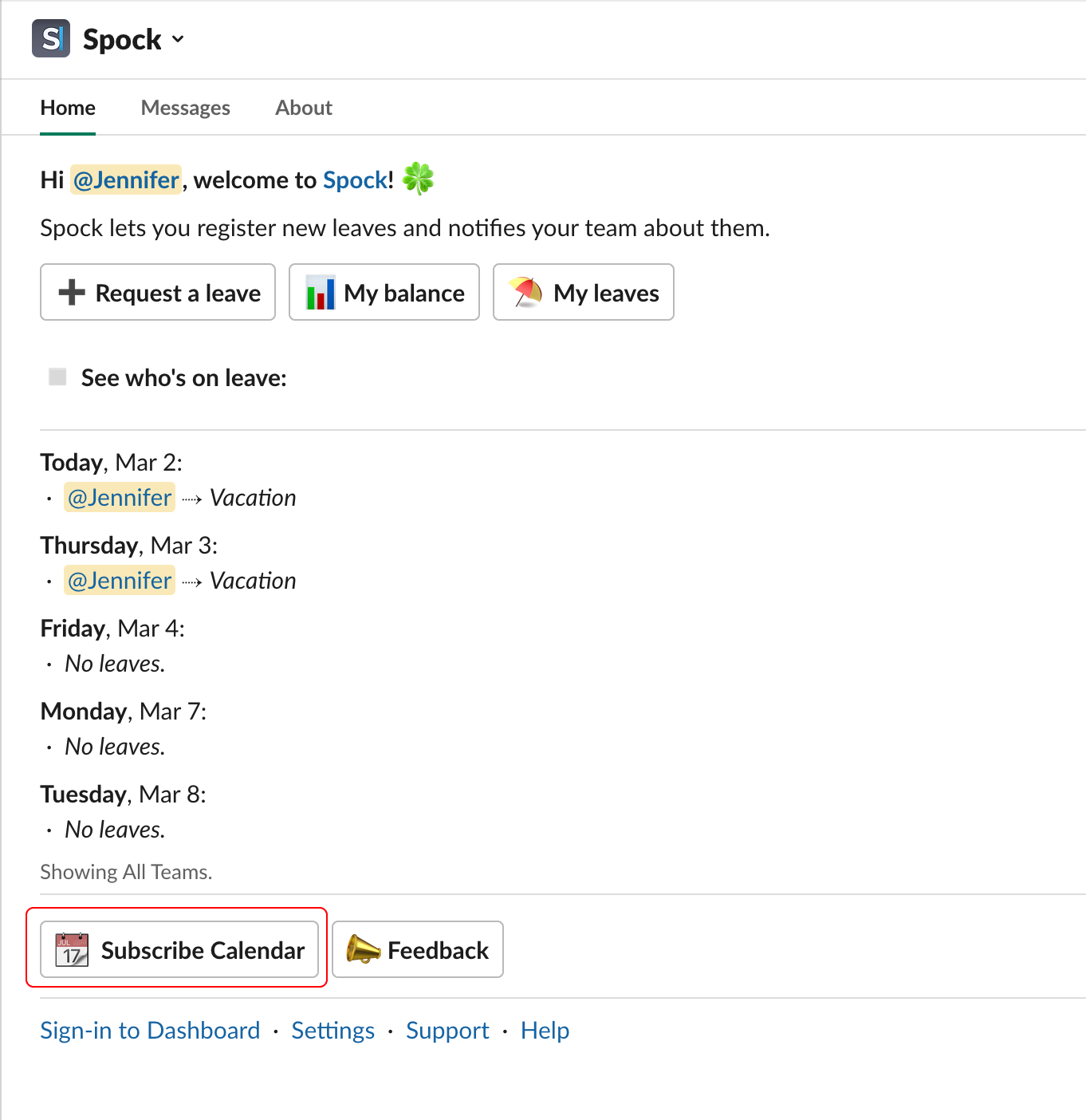 Agree to subscribe to the calendar when prompted.
## Integration via Dashboard
### Company Calendar
Sign in to the [Spock Dashboard](/spock/getting-started/dashboard-signin).
Click the **Calendar** tab in the main navigation.
Click **"Subscribe Company Calendar"** on the right side of the page.
Agree to subscribe to the calendar.
### Team Calendar
Sign in to the [Spock Dashboard](/spock/getting-started/dashboard-signin).
Click the **Calendar** tab in the main navigation.
Choose the team by clicking on the team tab.
Click **"Subscribe Team Calendar"** on the right side.
Agree to subscribe to the calendar.
## Manual Integration via iCal URL
For more control or to add to multiple calendar applications:
Sign in to the [Spock Dashboard](/spock/getting-started/dashboard-signin).
Click the **Calendar** tab.
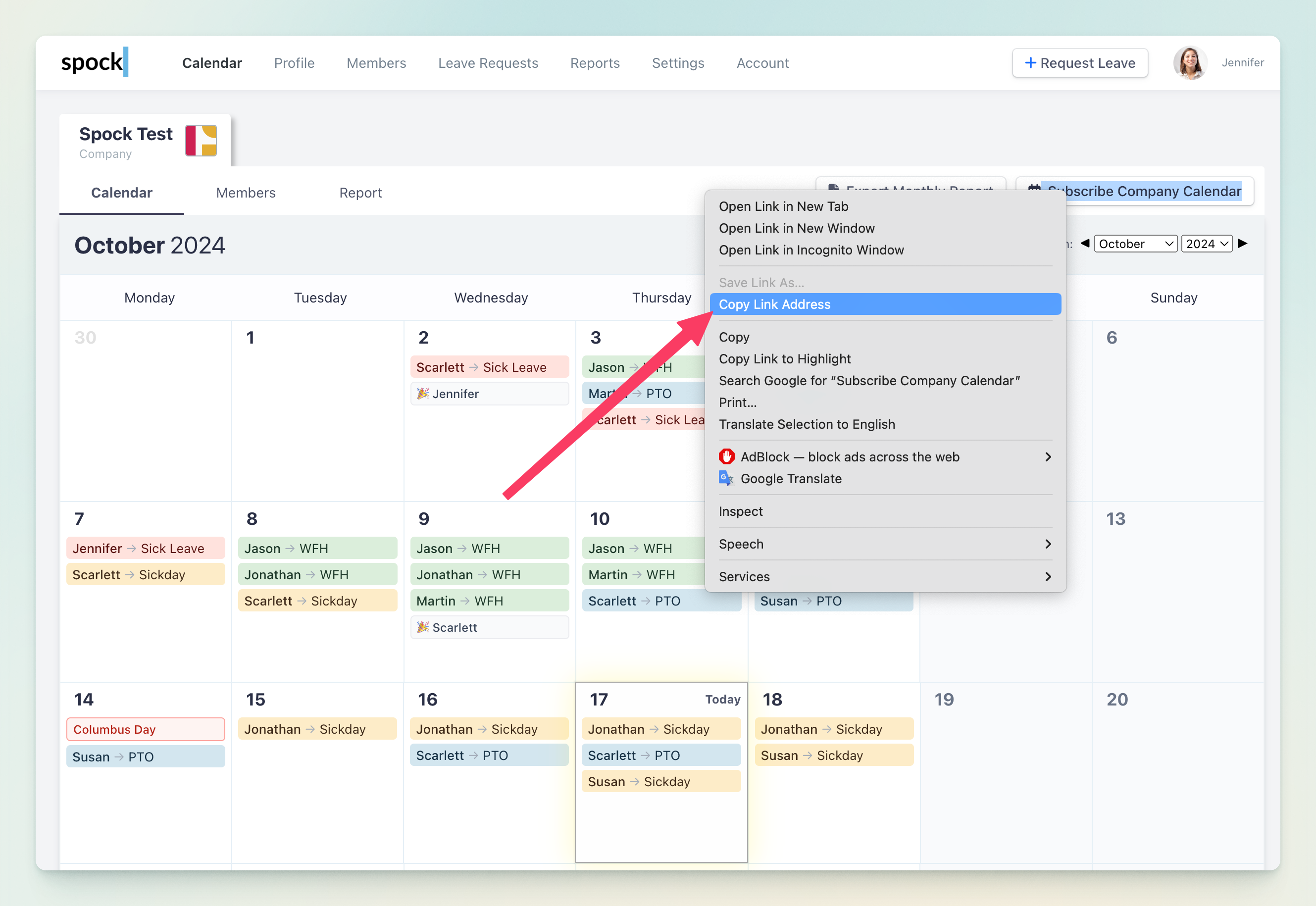
**Right-click** on **"Subscribe Company Calendar"** (or team calendar after selecting a team).
Select **"Copy Link Address"** from the context menu.
Agree to subscribe to the calendar when prompted.
## Integration via Dashboard
### Company Calendar
Sign in to the [Spock Dashboard](/spock/getting-started/dashboard-signin).
Click the **Calendar** tab in the main navigation.
Click **"Subscribe Company Calendar"** on the right side of the page.
Agree to subscribe to the calendar.
### Team Calendar
Sign in to the [Spock Dashboard](/spock/getting-started/dashboard-signin).
Click the **Calendar** tab in the main navigation.
Choose the team by clicking on the team tab.
Click **"Subscribe Team Calendar"** on the right side.
Agree to subscribe to the calendar.
## Manual Integration via iCal URL
For more control or to add to multiple calendar applications:
Sign in to the [Spock Dashboard](/spock/getting-started/dashboard-signin).
Click the **Calendar** tab.
**Right-click** on **"Subscribe Company Calendar"** (or team calendar after selecting a team).
Select **"Copy Link Address"** from the context menu.
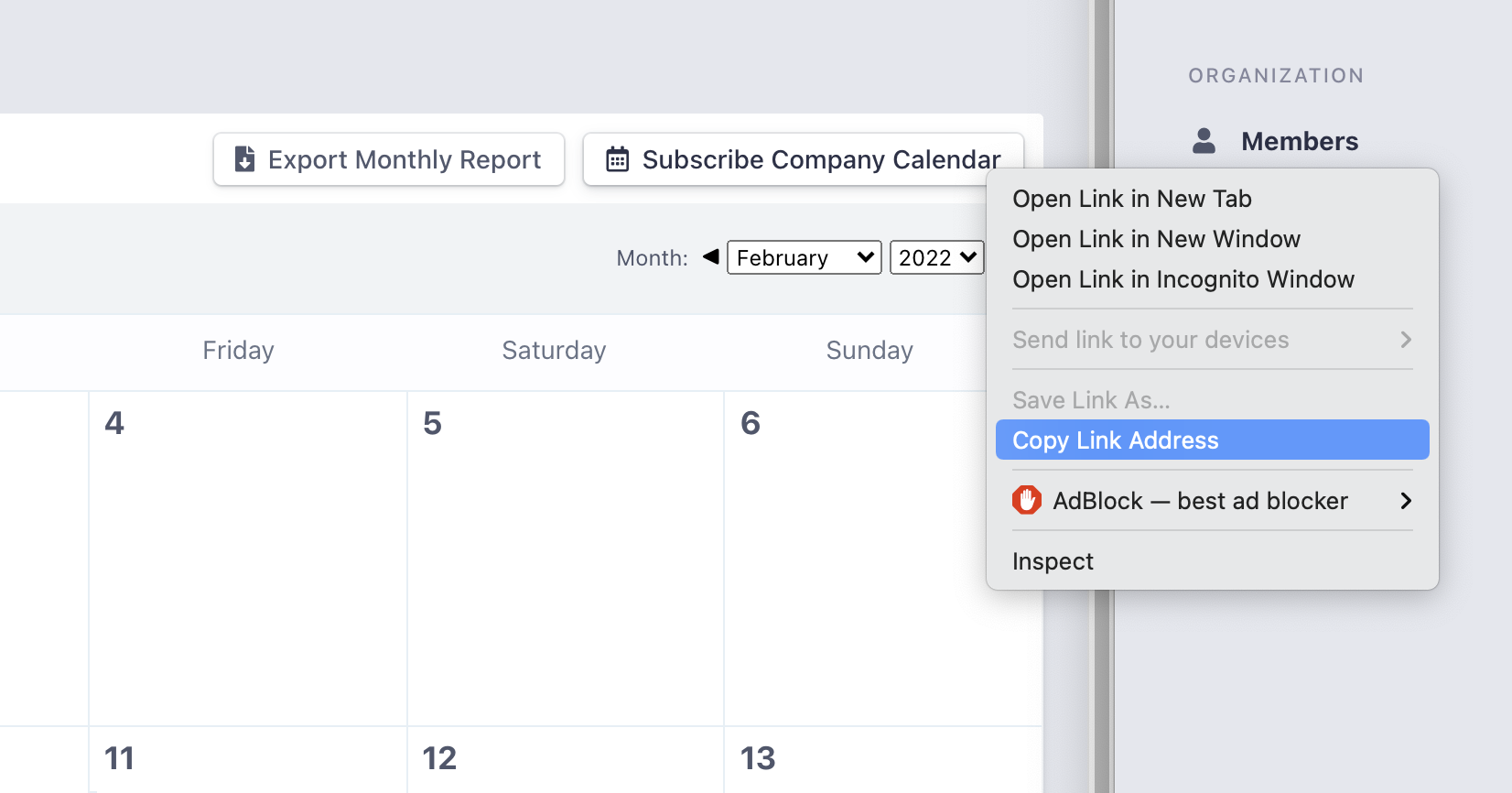 The **iCal URL** is now in your clipboard. Paste it into your preferred calendar application's import or subscription feature.
To get a team-specific iCal URL, follow the same steps but select your desired team first.
## Google Calendar Integration
Specific steps for Google Calendar integration:
Open [Google Calendar](https://calendar.google.com) in your web browser.
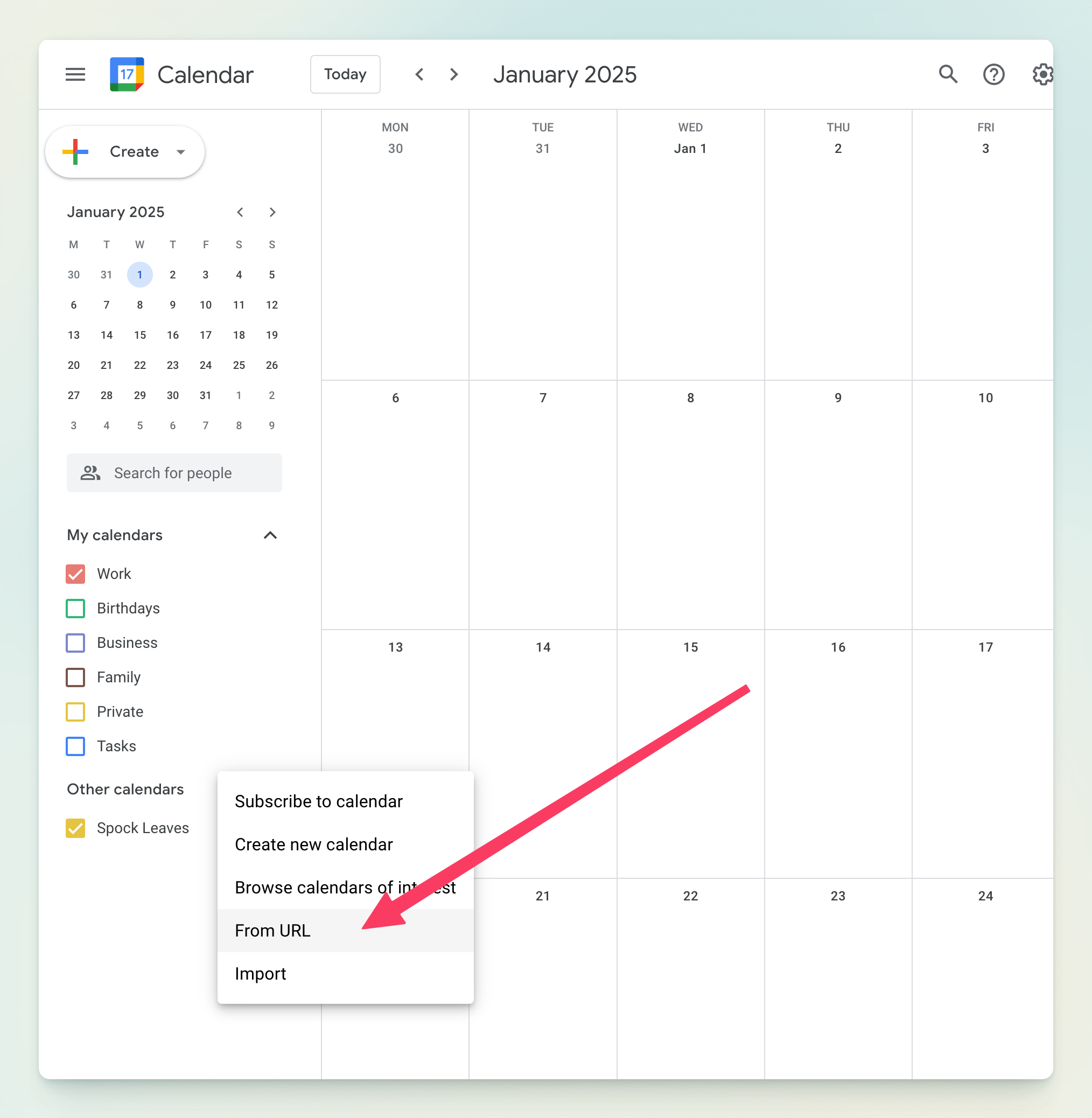
Click the **+** button next to "Other calendars" in the left sidebar.
The **iCal URL** is now in your clipboard. Paste it into your preferred calendar application's import or subscription feature.
To get a team-specific iCal URL, follow the same steps but select your desired team first.
## Google Calendar Integration
Specific steps for Google Calendar integration:
Open [Google Calendar](https://calendar.google.com) in your web browser.
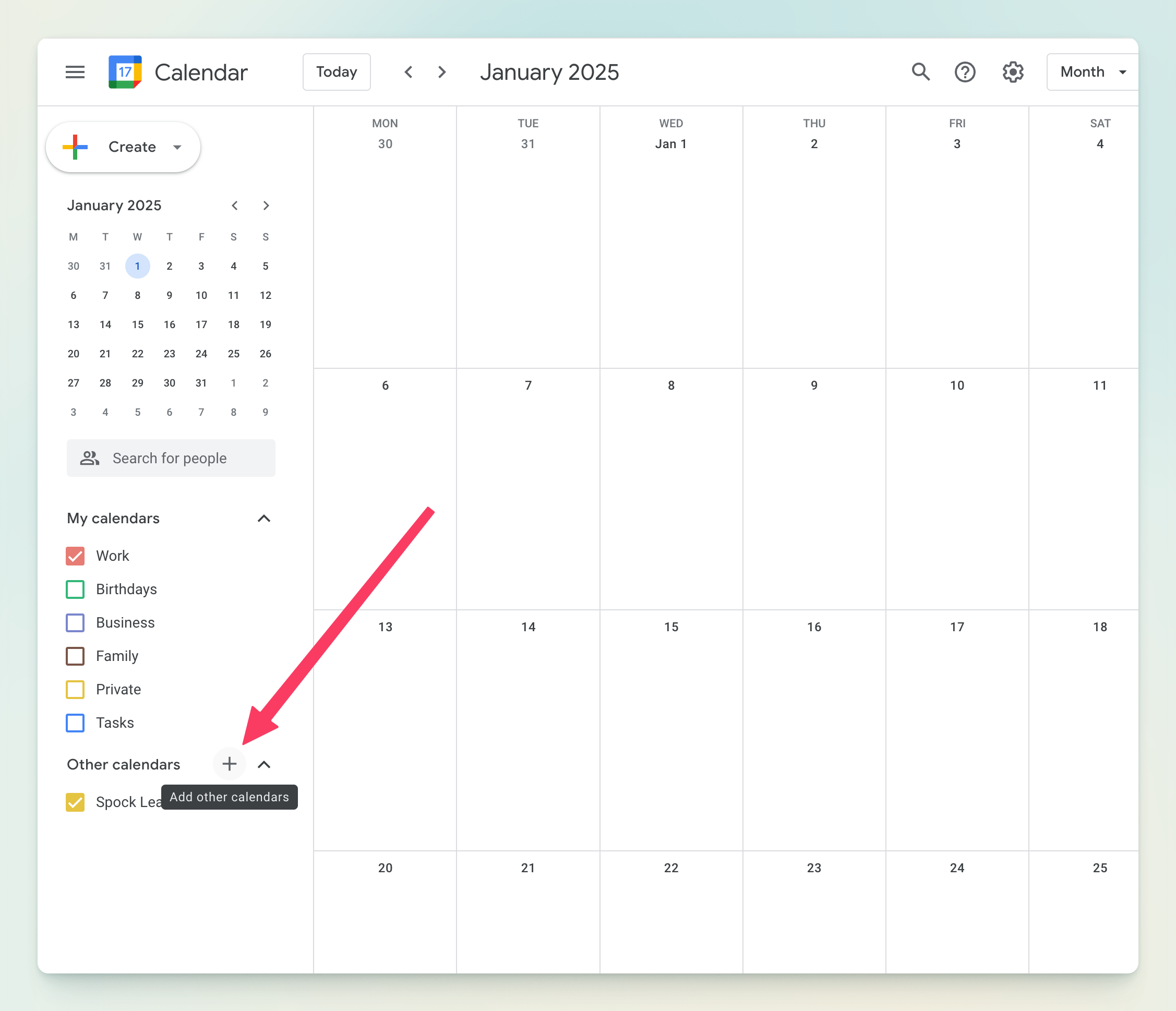
Click the **+** button next to "Other calendars" in the left sidebar.
 Choose **"From URL"** from the dropdown menu.
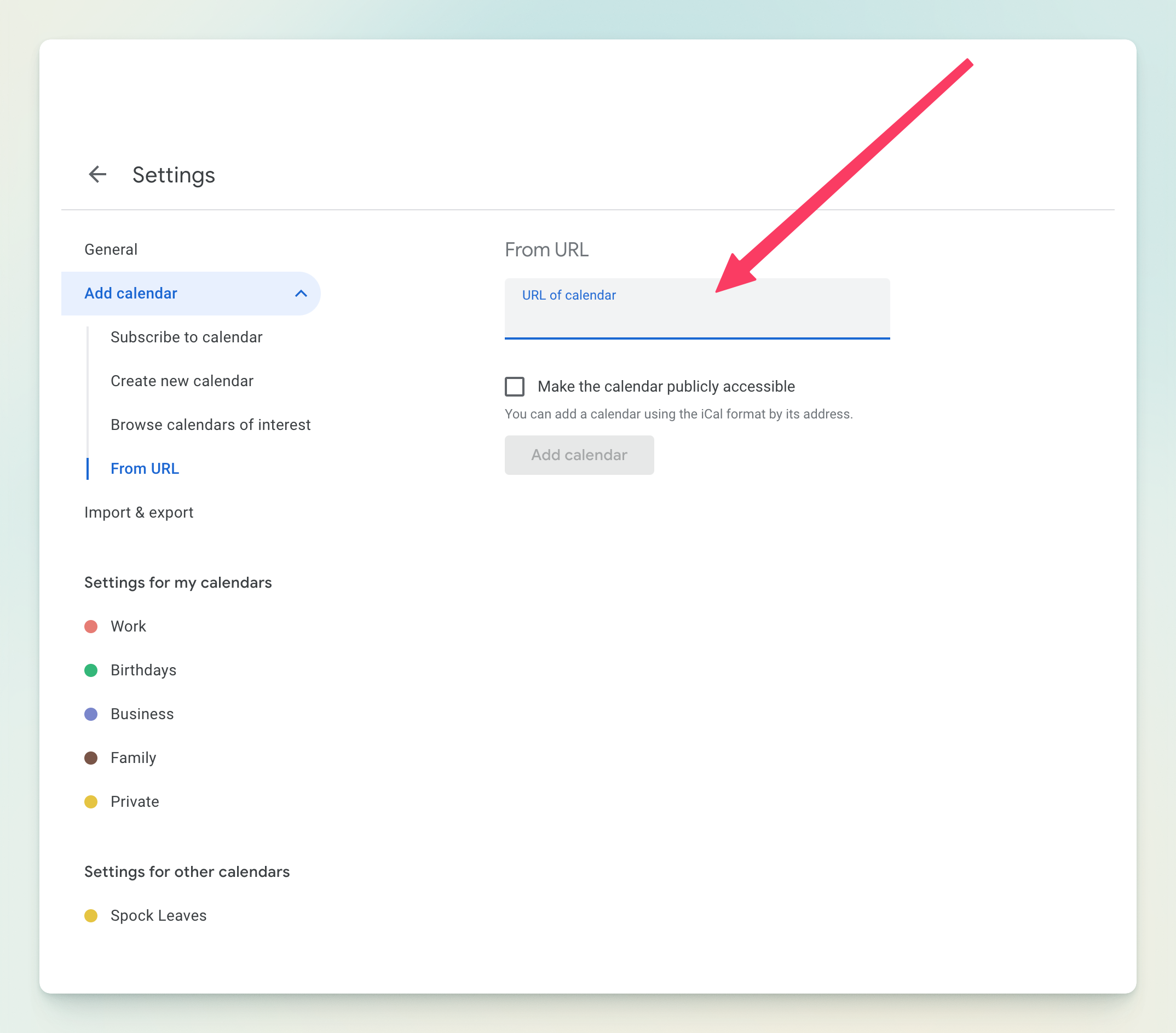
 Paste the iCal URL you copied from Spock into the URL field.
 Click **"Add calendar"** to complete the integration.
 The Spock calendar should now appear in your Google Calendar with all leave events.
 ## Benefits of Calendar Integration
Calendar events automatically update when leave statuses change
View leave schedules across all your devices and calendar apps
See team availability at a glance when planning meetings
Make informed decisions about project timelines and resource allocation
## Supported Calendar Applications
Full support with real-time synchronization and event updates.
Native support on macOS and iOS devices with automatic refresh.
Compatible with both desktop and web versions of Outlook.
Works with any calendar application that supports iCal/ICS format.
## Related Topics
Learn how to set up teams for team-specific calendar subscriptions.
Configure additional notification methods for leave updates.
Learn how to access the Spock Dashboard for calendar setup.
Understand how leave requests appear in your integrated calendar.
Calendar integration automatically syncs approved leave requests, so you'll always have an up-to-date view of team availability without manual updates.
## Benefits of Calendar Integration
Calendar events automatically update when leave statuses change
View leave schedules across all your devices and calendar apps
See team availability at a glance when planning meetings
Make informed decisions about project timelines and resource allocation
## Supported Calendar Applications
Full support with real-time synchronization and event updates.
Native support on macOS and iOS devices with automatic refresh.
Compatible with both desktop and web versions of Outlook.
Works with any calendar application that supports iCal/ICS format.
## Related Topics
Learn how to set up teams for team-specific calendar subscriptions.
Configure additional notification methods for leave updates.
Learn how to access the Spock Dashboard for calendar setup.
Understand how leave requests appear in your integrated calendar.
Calendar integration automatically syncs approved leave requests, so you'll always have an up-to-date view of team availability without manual updates.