> ## Documentation Index
> Fetch the complete documentation index at: https://docs.spockoffice.com/llms.txt
> Use this file to discover all available pages before exploring further.
# Sign in to Spock Dashboard
> Learn how to access the Spock Dashboard using your Slack account and troubleshoot common sign-in issues.
Follow these simple steps to access your Spock Dashboard:
Go to [https://spockoffice.com/spockapp](https://spockoffice.com/spockapp)
Click the **Sign in with Slack** button
On the Slack authentication page, **select your Slack workspace**
Click the **Accept and Continue** button
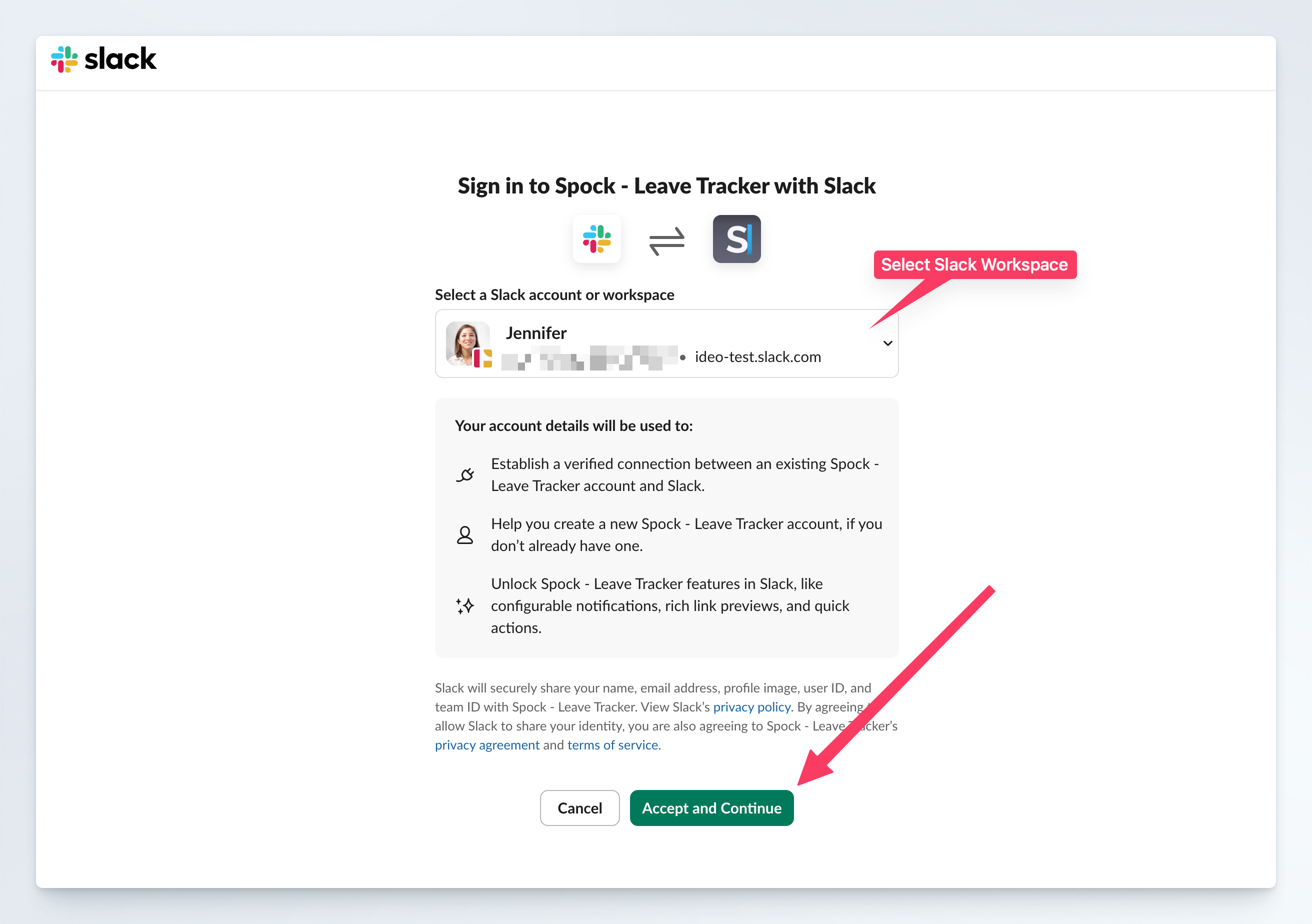 You are now **signed in** to Spock Dashboard and can start managing your leave requests.
## Troubleshooting Sign-in Issues
If you're having trouble signing in, check these common causes:
**Double-check** that you have **selected the correct Slack workspace** on the Slack authentication page and try again.
You are **not allowed to use Spock**. Please contact your HR manager or Spock Administrator to give you permission to use Spock.
**Spock was not installed** in your workspace. Please install Spock by clicking the "Add Spock to Slack" button on the [Spock homepage](https://spockoffice.com/).
Make sure you're using the same Slack account that has access to your organization's Spock installation.
You are now **signed in** to Spock Dashboard and can start managing your leave requests.
## Troubleshooting Sign-in Issues
If you're having trouble signing in, check these common causes:
**Double-check** that you have **selected the correct Slack workspace** on the Slack authentication page and try again.
You are **not allowed to use Spock**. Please contact your HR manager or Spock Administrator to give you permission to use Spock.
**Spock was not installed** in your workspace. Please install Spock by clicking the "Add Spock to Slack" button on the [Spock homepage](https://spockoffice.com/).
Make sure you're using the same Slack account that has access to your organization's Spock installation.