> ## Documentation Index
> Fetch the complete documentation index at: https://docs.spockoffice.com/llms.txt
> Use this file to discover all available pages before exploring further.
# Cancel Subscription
> Learn how to cancel your Spock subscription.
When you want to cancel your subscription, follow these steps.
## How to Cancel Subscription
Sign in to Spock Dashboard.
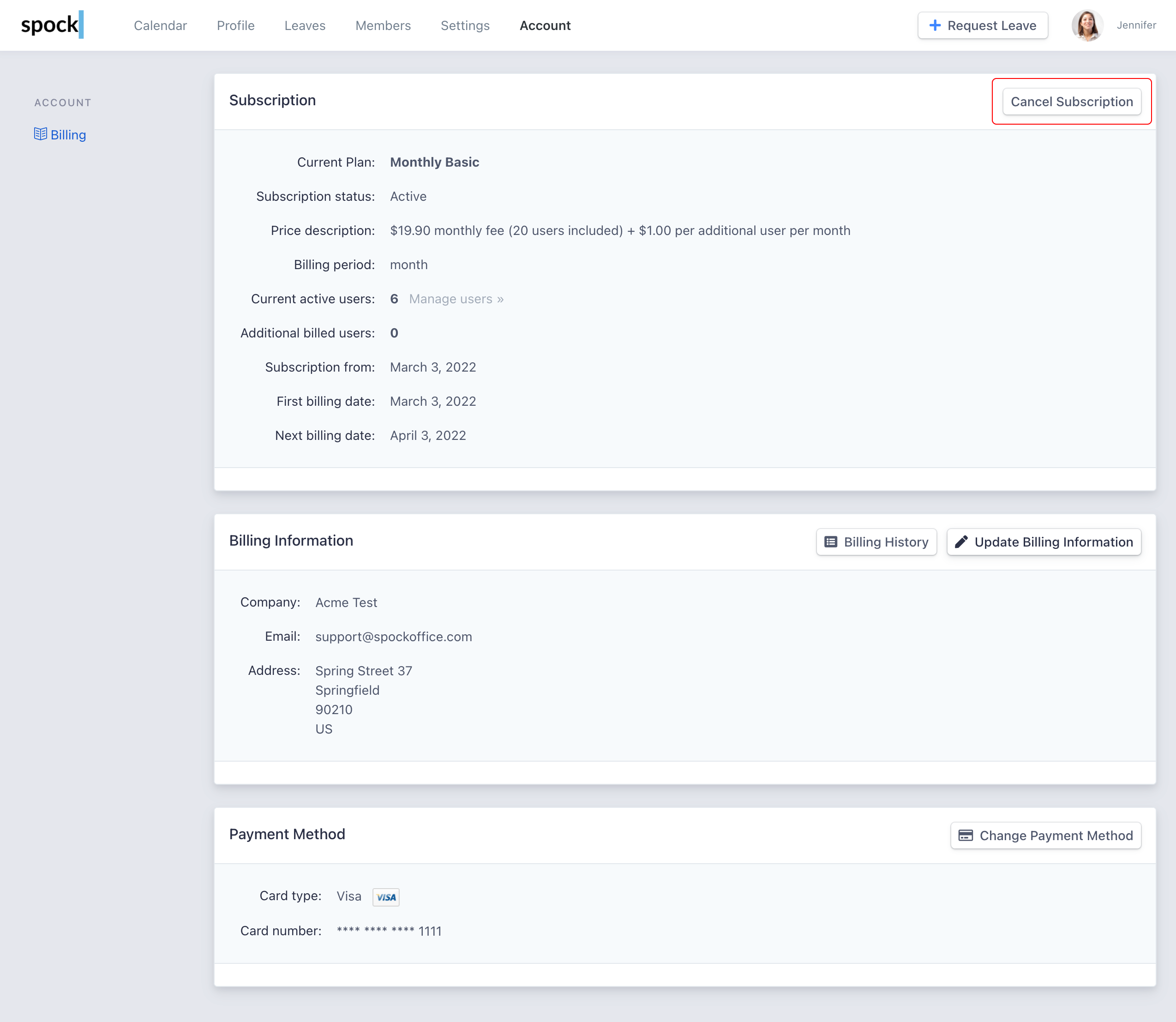
Click **Account** tab.
Click the **Cancel Subscription** button.
 Please enter your reason to cancel and feedback to help us with further development. Thank you.
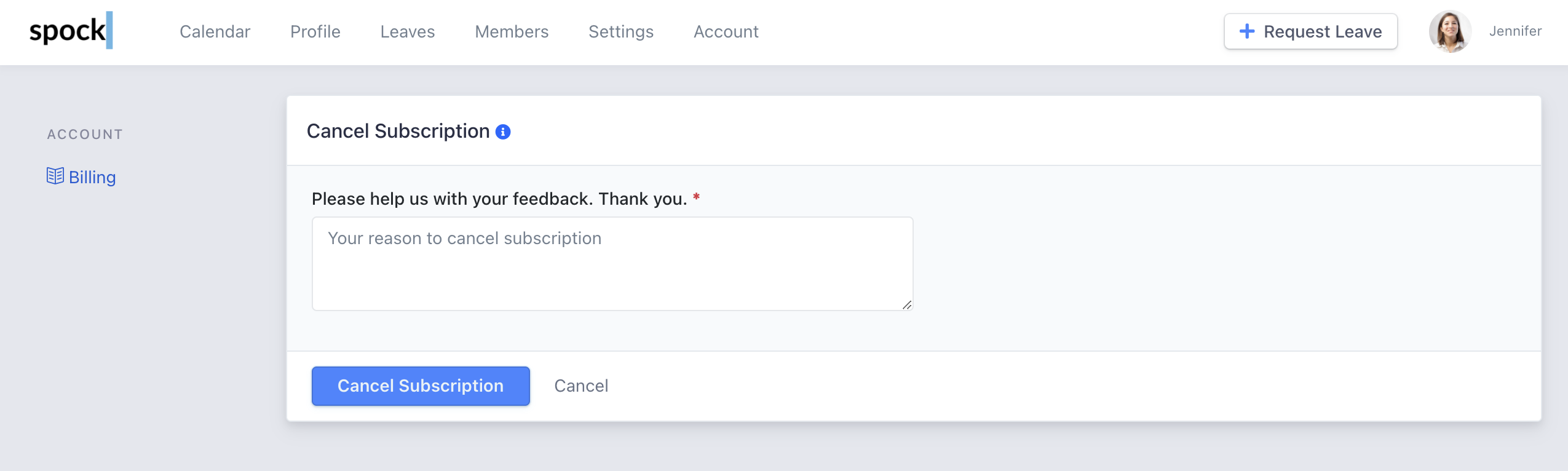 Click the **Submit** button.
## After Cancellation
You can still use Spock unlimited until subscription ends.
Your subscription will remain active until the end of your current billing period, and you'll continue to have full access to all features during this time.
Click the **Submit** button.
## After Cancellation
You can still use Spock unlimited until subscription ends.
Your subscription will remain active until the end of your current billing period, and you'll continue to have full access to all features during this time.